
What “Daily Backups” Actually Means (And Why Most Site Owners Don’t Have Real Ones)
Open your hosting provider’s terms of service and search for the word “backup.” Here’s what you’ll likely find. HostGator’s backup policy states that backups are “provided as a courtesy and are not guaranteed.” Bluehost’s terms say the company assumes no responsibility for failed backups, lost data, or data integrity. Hostinger’s hosting agreement spells out that […]
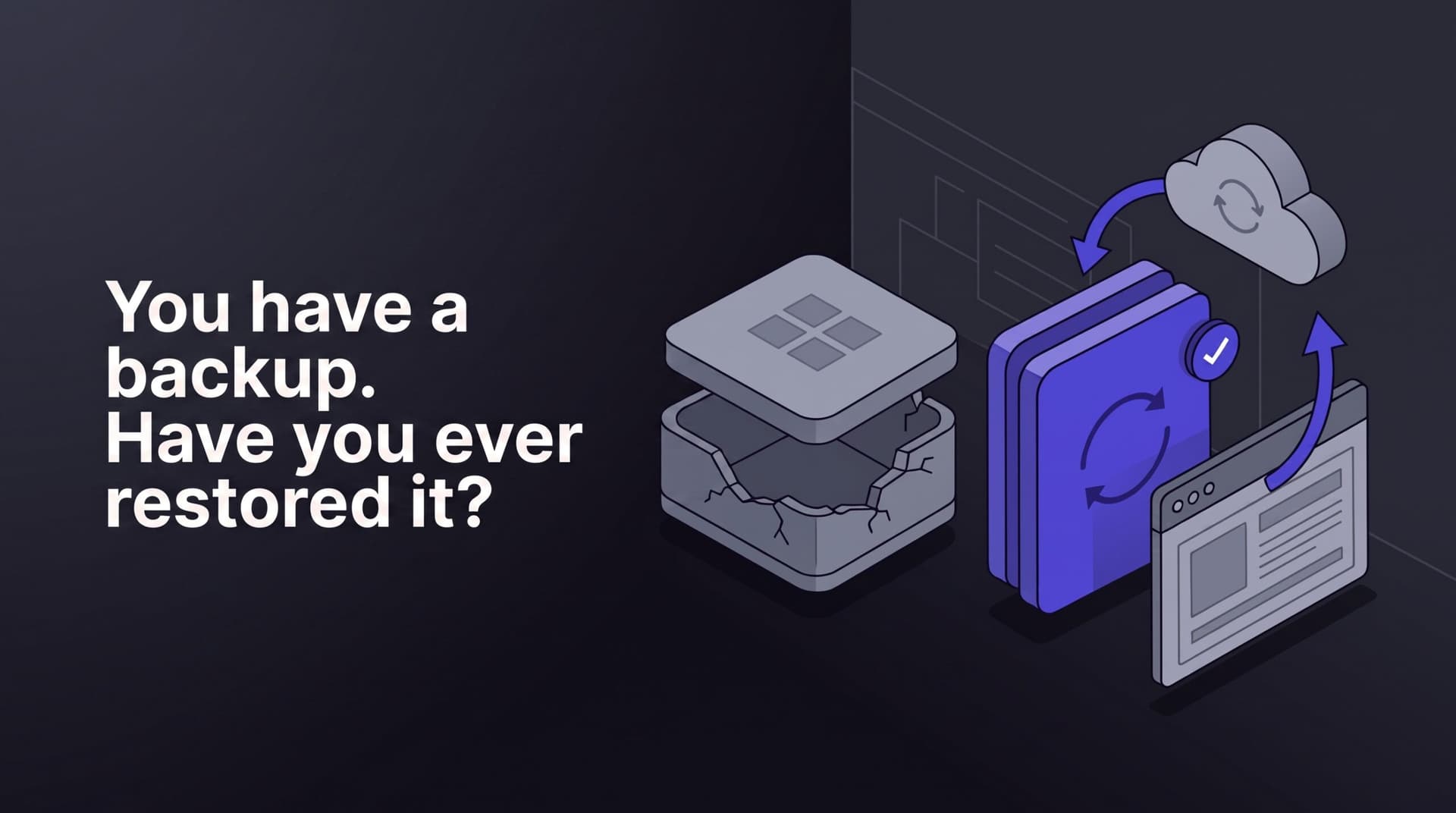
Open your hosting provider’s terms of service and search for the word “backup.” Here’s what you’ll likely find.
HostGator’s backup policy states that backups are “provided as a courtesy and are not guaranteed.” Bluehost’s terms say the company assumes no responsibility for failed backups, lost data, or data integrity. Hostinger’s hosting agreement spells out that its standard backup runs once a week, stores only two weeks of copies, and is offered as a courtesy that can be modified at the company’s sole discretion.
This isn't a scandal. Hosts sell hosting. Backups are a side feature for them, and their lawyers have written the contracts accordingly. The problem is what site owners hear when they see the "daily backups included" checkbox on a pricing page: my site is protected.
There’s a difference between a backup existing and a backup working. Most site owners have the first. Far fewer have the second. And you only find out which one you have on the day something breaks.
Table of Contents
A backup that exists vs. a backup that works
The numbers on this gap are stark. Veeam’s Data Trust and Resilience Report 2026 found that 90% of security leaders believe they can recover quickly from a cyber incident. Among organizations actually hit by ransomware, only 28% fully restored their data.
That’s a 62-point gap between confidence and reality, measured across organizations with dedicated IT teams and enterprise backup budgets. A small business relying on an untested host backup sits on the wrong side of that gap by default.
A backup “works” when four things are true:
- It contains everything needed to rebuild the site (database and files, both)
- It’s stored somewhere that survives whatever kills the site
- Its retention window is long enough to reach back past the point where the damage started
- Someone has actually restored from it and confirmed the result loads
Most host backups fail at least one of these. Many fail all four.
What a complete WordPress backup contains
A WordPress site is two things: a database and a set of files.
The database holds your posts, pages, comments, WooCommerce orders, user accounts, and nearly every setting. The files include your theme, your plugins, everything in your media library (the wp-content/uploads folder), and configuration files like wp-config.php, which stores the credentials that connect WordPress to its database.
Lose either half and you don’t have a site. A file-only backup gives you an empty theme with no content. A database-only backup gives you your content with no way to display it, and every image gone.
This matters because not every backup captures both. Some host-level snapshot systems grab the file system but handle databases separately (or not at all). Some backup plugins are configured to skip the uploads folder to save space. If you’ve never opened your backup archive to check for both a .sql file and a full wp-content folder, you don’t know what’s in it.
Three ways host backups fail exactly when you need them
1. They live on the same infrastructure as your site
On August 18, 2023, the Danish hosting provider CloudNordic was hit by ransomware. The attackers encrypted the disks on its production servers, and then its primary backup system, and then its secondary backup system. All three were reachable from the same internal network. The company refused to pay the ransom, spent days with external experts trying to recover, and then announced that most of its customers had lost all of their data. Permanently. Websites, email, everything.
CloudNordic had backups. Two layers of them. They existed. They didn’t work, because a backup stored where the disaster can reach it is just another copy of the wreckage.
This wasn’t bad luck. Attackers go after backups on purpose, because destroying them forces victims to pay. Veeam’s 2022 Ransomware Trends Report found that in 94% of ransomware attacks, the attackers attempted to destroy backup repositories, and in 72% of cases they at least partially succeeded.
The same logic applies to less dramatic failures. A backup sitting in a folder on your own hosting account disappears when the account is suspended over a billing dispute, when the server’s disk fails, or when malware with file-system access decides to delete it.
CISA, the US cybersecurity agency, recommends the 3-2-1 rule for a reason: three copies of your data, on two different types of storage, with one copy off-site. For a WordPress site, “off-site” means a backup stored on infrastructure completely separate from your host — different company, different network, different credentials.
2. The retention window is shorter than your reaction time
Hostinger keeps two weeks of backups on standard plans. Many shared hosts keep less. Some keep a single rolling snapshot that overwrites itself.
Here’s why that’s a problem: damage and discovery are rarely the same day. Malware infections often sit quietly for weeks before anyone notices. A plugin update that corrupted part of your database might not surface until a customer emails about a broken checkout. A hacked site frequently gets flagged by Google weeks after the actual compromise.
If your host keeps 14 days of backups and you discover a problem that started 20 days ago, every single copy in the retention window already contains the problem. You can restore all you want; you’ll be restoring the infection.
Longer retention isn’t a luxury feature. It’s the difference between having a clean copy to go back to and not having one.
3. Nobody has ever tested the restore
A restore can fail for mundane reasons: the archive is corrupted, the database export is incomplete, the backup was made on a different PHP version, the file exceeds the server’s upload limit and times out halfway through. None of these announce themselves in advance. They surface during the restore. If you’ve never tested, that means they surface during an emergency, while your site is down and you’re reading support docs in a panic.
The WordPress support forums are full of threads that start with some version of “site critical error after backup restore.” The people writing them had backups. What they didn’t have was evidence those backups could be turned back into a working site.
An untested backup is a hypothesis. A tested one is a plan.
What a real backup setup looks like
Pulling this together, WordPress backup best practices come down to five requirements:
- Daily and automated. Anything that depends on someone remembering doesn’t happen.
- Complete. Database plus all files, verified rather than assumed.
- Off-site. Stored with a different provider than your host, per the 3-2-1 principle.
- Retention of 30 days or more. Enough runway to discover a problem and still reach back past it.
- Restore-tested. Someone periodically restores a backup and confirms the site actually loads, so restore time and reliability are known quantities rather than hopes.
Your host’s included backup can be one layer of this. It shouldn’t be the only layer, because it typically fails the off-site requirement, often fails retention, and almost always fails testing.
How Vimsy handles it
Every Vimsy care plan includes daily off-site backups, stored on infrastructure separate from your hosting provider, so a problem with your host doesn’t take your backups down with it.
Retention scales with the plan: 30 days on Press Lite (49/mo), 60 days on Pro (99/mo), and 90 days on Scale ($179/mo). That 90-day window exists specifically for the slow-burn problems above — the infection or corruption that nobody catches for two months.
Restores aren’t theoretical either. We verify that backups restore to a working site, and when you need one, it’s a one-click operation on our side rather than a support-ticket queue on your host’s.
The 20-minute self-test: do your backups actually work?
You can find out where you stand this week. Here’s the test:
- Locate your backups. Log into your hosting panel and find where backups are stored. If the answer is “on the same server as the site” or “in a folder inside my hosting account,” note it. That’s finding number one.
- Check the retention window. How far back can you go? Find the actual number in your host’s documentation, not the marketing page. If it’s under 30 days, note that too.
- Download the most recent backup and open it. Confirm the archive contains both a database export (a
.sqlfile) and the fullwp-contentfolder, includinguploads. If either is missing, your backup can’t rebuild your site. - Restore it somewhere safe. Spin up a local WordPress environment (Local by Flywheel is free) or use your host’s staging feature, and restore the backup there. Never test a restore on your live site.
- Time it and judge it. How long did the restore take? Did the site load? Could you repeat this at 11pm with your live site down and customers emailing?
If you got through all five steps and everything checked out: genuinely, you’re ahead of most site owners. If you stalled at step 3 or 4, or step 1 revealed your backups live one disk failure away from your site, you now know something most owners learn during an outage. Fix it before the day it matters.
FAQ
Do I need WordPress backups if my host already does daily backups? Yes. Host backups are typically offered as a courtesy with no guarantee; HostGator, Bluehost, and Hostinger all say so explicitly in their terms. They’re also usually stored on the host’s own infrastructure, which means a serious incident at the host can destroy your site and its backups together, as happened to CloudNordic’s customers in 2023. An independent, off-site backup protects you when the host’s backup can’t.
How long should WordPress backup retention be? At least 30 days. Problems like malware infections and database corruption are often discovered weeks after they start, and a short retention window means every stored copy may already contain the damage. Vimsy’s plans keep 30, 60, or 90 days depending on tier.
How do I test a WordPress backup restore? Download your most recent backup, confirm it contains both a database export and your full wp-content folder, then restore it to a local environment or staging site (never to your live site). If the restored copy loads and functions, your backup works. Repeat the test after major site changes.
What should a complete WordPress backup include? The database (posts, pages, orders, users, settings) and all site files: themes, plugins, the uploads folder, and wp-config.php. A backup missing either half cannot restore a working site.
Your backups shouldn’t be a hypothesis. See how Vimsy handles daily off-site backups, 30–90 day retention, and tested restores → Vimsy WordPress Care Plans