Most WordPress infections don't announce themselves. Your site loads fine. Orders are coming in. Then Google Search Console flags you. Or a customer emails saying their antivirus is blocking your URL. Or you notice a login you don't recognize in your activity log.
By that point, the malware has usually been sitting in your files for days — sometimes weeks.
This guide covers what malware actually does inside a WordPress installation, how to find it, how to remove it, and how to prevent it from returning. If you'd rather not handle this yourself, that's a legitimate decision — skip to the bottom.
What Malware Is Actually Doing Inside Your Site
WordPress malware isn't always obvious file corruption. Most of it is designed to be invisible to you while being fully operational for whoever planted it.
Common payloads include:
- Backdoors injected into
wp-includesor theme files — these let attackers re-enter even after you think you've cleaned - SEO spam injection — hidden links embedded in your database pointing to pharmaceutical or gambling sites
- Redirect scripts —
wp-config.phpor.htaccessmodified to redirect mobile visitors or new sessions to third-party URLs - Cryptomining code dropped into active plugin files or
functions.php - Credential harvesters that intercept WooCommerce checkout form submissions
The common thread: none of this breaks your site visibly. Your admin still logs in. Your homepage still renders. But your site is serving a completely different function for someone else.
Why Google Blacklisting Happens Fast
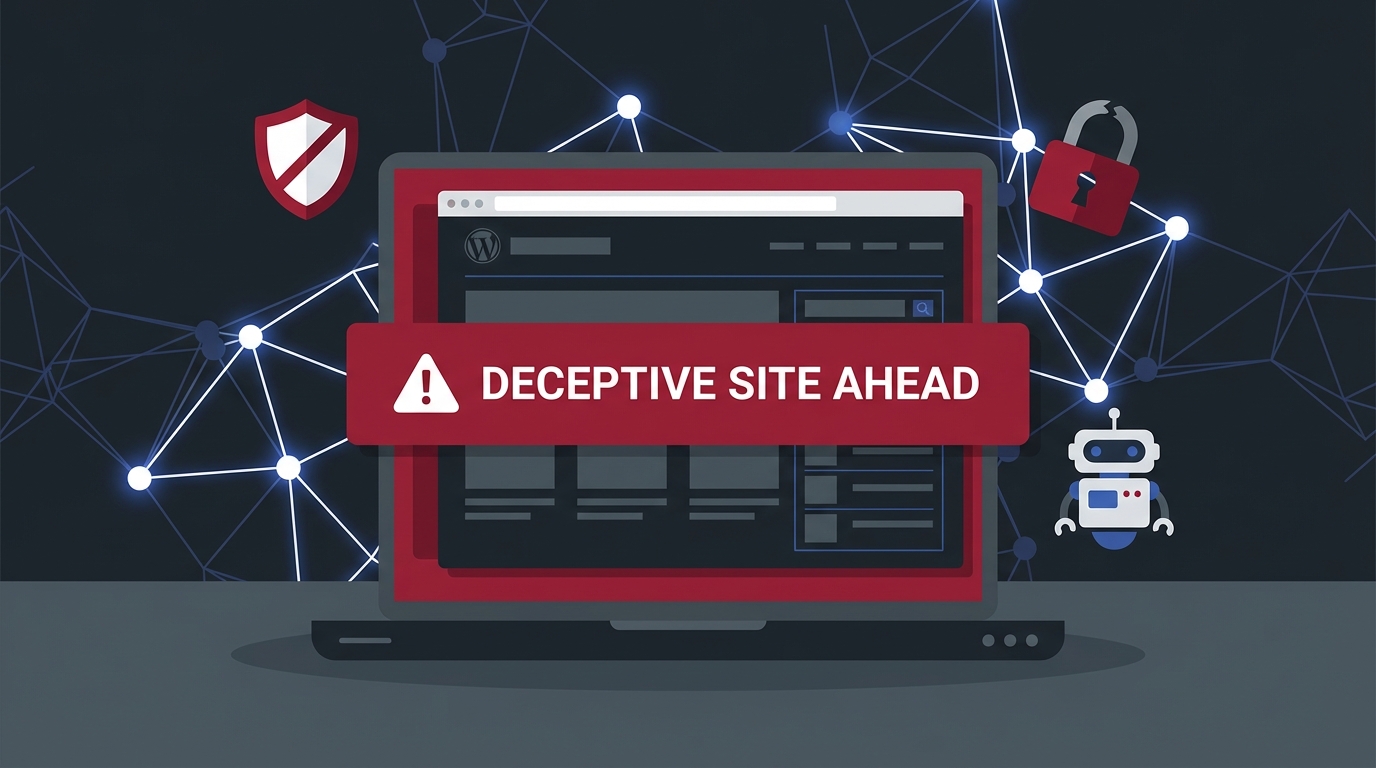
Google's Safe Browsing crawlers run continuously. Once your site gets flagged — usually for phishing content, hidden malware downloads, or redirect abuse — you enter Google's blacklist.
At that point:
- Chrome shows a red "Deceptive site ahead" warning
- Search rankings drop or listings disappear entirely
- Email servers start rejecting your domain
According to Google's Transparency Report, tens of thousands of new sites get flagged every week. Getting delisted takes a formal review submission — and that review only succeeds if the malware is actually gone.
Cleaning fast matters not just for security. It matters for search equity you've spent years building.
Step 1 — Don't Just Run a Scanner and Call It Done
Malware scanners are a starting point, not an endpoint.
Tools like Wordfence (free tier), Sucuri SiteCheck, and MalCare will identify known malware signatures. Run at least two of them — different scanners use different signature databases and catch different things.
Using WP-CLI, you can also grep directly through your files for common injection patterns:
wp eval 'echo get_home_url();'
grep -r "eval(base64_decode" /var/www/html/wp-content/
grep -r "gzinflate" /var/www/html/wp-content/
grep -r "str_rot13" /var/www/html/
If any of those grep commands return results inside plugin files, theme files, or wp-config.php, you have active code injection.
One important note: Scanners miss obfuscated malware. Attackers encode their payloads in base64, split strings, or use PHP's variable function syntax specifically to evade signature-based detection. Manual inspection of suspicious files is non-negotiable for a thorough clean.
Step 2 — Audit Your wp-config.php and .htaccess Immediately
These two files are primary targets because modifications here affect the entire installation.
Open wp-config.php and look for:
- Any
eval()calls that weren't there before - External URL references in
define()statements - Obfuscated PHP blocks at the top or bottom of the file
- Extra database credentials you don't recognize
Open .htaccess and look for:
RewriteRuledirectives pointing to external domains- Conditions that trigger only for Googlebot or mobile user agents (redirect cloaking)
- PHP execution enabled in upload directories (
php_flag engine on)
A clean default .htaccess for WordPress should look nearly identical to what the WordPress Codex documents. Anything beyond the standard # BEGIN WordPress block deserves scrutiny. Proper .htaccess hardening also means disabling server signature exposure and blocking direct access to sensitive files — these are often missing even on "maintained" sites.
Step 3 — Check the Database, Not Just the Files
Most WordPress malware guides stop at file inspection. That's a mistake.
Your wp_options table is a frequent injection target. Attackers store encoded payloads in option values, particularly in siteurl, home, or serialized widget settings. Malicious JavaScript can sit inside a text widget's serialized value for months without triggering a file-level scanner.
Run this query directly in phpMyAdmin or via WP-CLI:
wp db query "SELECT option_name, option_value FROM wp_options WHERE option_value LIKE '%eval(%' OR option_value LIKE '%base64_decode%';"
Also check wp_posts for injected script tags in post content — especially in older posts or auto-draft entries that rarely get reviewed.
The wp_users table deserves a look too. Attackers frequently create persistent admin accounts as a secondary access method, even after the initial backdoor is removed.
wp user list --role=administrator
Any unfamiliar user gets deleted before you proceed.
Step 4 — Remove Infected Files Surgically
Once you've identified infected files, don't just delete the whole plugin or theme directory blindly. Understand what you're removing.
For core WordPress files: Replace them with a clean download from WordPress.org. WP-CLI makes this clean:
wp core download --skip-content --force
This overwrites all core files without touching wp-content.
For infected plugin files: Deactivate, delete, and reinstall from the plugin repository. Never clean-and-keep an infected plugin file — you can't be certain you found every modified line. Plugin abandonment risk matters here too: if the plugin hasn't been updated in 12+ months, don't reinstall it at all.
For infected theme files: If it's a third-party theme, same process — delete and reinstall. If it's a custom or heavily modified theme, you'll need to diff the infected version against a known-clean backup or Git history.
For unknown files in wp-content/uploads: PHP files should never exist in your uploads directory. Delete them. Then lock the directory via .htaccess:
<Files *.php>
deny from all
</Files>
Step 5 — Rotate Every Credential That Touched This Site
Cleaning the infection without rotating credentials is cleaning half the problem.
Rotate in this order:
- WordPress admin passwords — all of them
- Database password in
wp-config.php(and update it in your host's panel) - Hosting control panel password
- FTP/SFTP credentials
- Any API keys stored in
wp-config.php(payment gateways, mail services) - Secret keys and salts — regenerate them at https://api.wordpress.org/secret-key/1.1/salt/
Regenerating secret keys forces all active sessions to log out — including any attacker maintaining a persistent session cookie.
Step 6 — Request Google's Blacklist Review
Once your site is clean:
- Log into Google Search Console
- Navigate to Security & Manual Actions → Security Issues
- Review the flagged items — confirm they're resolved
- Click "Request Review"
Google's typical review turnaround is 24–72 hours for sites with no prior violations. Sites with a history of repeat infections take longer.
Don't submit the review until you're certain the malware is gone. Failed reviews extend the blacklist period. This is not the place to guess.
Step 7 — Harden Before You Go Live Again
Cleaning is the reactive half. The other half prevents reinfection.
Key hardening steps before relaunching:
- Disable XML-RPC if you don't use it — it's a brute-force amplification vector
- Lock REST API endpoints that expose user enumeration (
/wp-json/wp/v2/users) - Move wp-config.php one directory above the webroot if your host supports it
- Implement a Web Application Firewall (WAF) — Cloudflare's free tier or Sucuri's WAF both work at DNS level, before requests hit your server
- Set up file integrity monitoring — Wordfence or WP-CLI's
wp plugin verify-checksumscommand on a cron schedule - Audit active plugins — remove anything abandoned, deprecated, or from unknown authors
wp plugin verify-checksums --all
Also confirm your PHP version is current. Running PHP 7.4 or earlier on a production site isn't just a performance issue — outdated PHP versions eliminate access to modern security patches that block entire classes of injection attacks.
The Part Most DIY Guides Skip
Cleaning a hacked WordPress site correctly requires more than following steps in order. It requires knowing when a file looks wrong even without a scanner flagging it. It requires understanding how PHP includes work, how transient caching might be serving a clean version of a compromised page, and how object cache layers can mask active injections from casual inspection.
It also requires a staging environment to test the cleaned site before pointing DNS back at it. Skipping that step means potentially sending live traffic to a site that's still broken in ways you haven't discovered yet.
Across dozens of malware recovery operations, the most common cause of reinfection is one of two things: a credential that wasn't rotated, or a backdoor in a file the initial cleanup missed. Both are human error problems — not technical ones. They happen because cleanup was done under pressure, quickly, without a systematic staging-and-verify workflow.
When DIY Is the Wrong Call
If any of these apply, stop and get professional help:
- You don't have a pre-infection backup to diff against
- Your host has suspended the account and you can't access files via FTP/SFTP
- The infection has spread to multiple sites on the same hosting account
- You've already cleaned once and the malware returned within days
- Your WooCommerce checkout was compromised — customer payment data may be involved, and that has regulatory implications beyond site cleanup
For cases like these, our WordPress emergency support service handles full recovery — clean, verify, harden, and monitor — with a documented audit trail.
What Professional Malware Removal Actually Includes
When Vimsy handles a malware recovery, it's not a scanner run followed by plugin reinstalls. The process includes:
- Full file system audit including server-level log analysis to identify the infection vector
- Database inspection across
wp_options,wp_posts,wp_users, and any custom tables - Credential rotation across all access layers
- Staging environment verification before DNS cutover
- Post-cleanup monitoring period to confirm no reinfection
- A written report of what was found, where, and what was changed
If you want to see exactly what's covered before committing, review our WordPress security and maintenance services or check what professional malware removal costs — the scope is specific and the pricing is transparent.
Don't Guess. Don't Wait.
Every hour your site stays infected while traffic flows through it is an hour Google's crawlers might recheck and deepen the blacklist. It's an hour a customer clicks through to a redirect. It's an hour that infection replicates into backup snapshots you'll later trust.
The window for a clean recovery narrows fast.
Look — I'm writing this because this is a problem I see constantly, and it's also exactly what we built Vimsy to solve. If you want professionals handling this instead of hoping nothing breaks, book a free call.
The malware doesn't care how long your site has been running. It just cares that you left the door open.