Is Your WordPress Site Blacklisted? How to Check and Get Removed Fast
Google blacklisting doesn't announce itself. There's no email, no dashboard notification, no alert from your host. Traffic drops 60%, or a visitor screenshots a red "Deceptive site ahead" warning and sends it to you. By the time you know something's wrong, Google has already served that warning to every person who clicked your link — for days, sometimes weeks.
That's the part that gets missed: the damage accumulates silently before it becomes visible. And the default belief — that someone else is watching for this — is exactly wrong.
What Google Safe Browsing Actually Does (And Why It's Not Your Host's Problem)
Google Safe Browsing is a threat intelligence service that flags URLs serving malware, phishing content, or unwanted software. It feeds directly into Chrome (over 65% of global browser market share), Firefox, Safari, and most antivirus products. When your WordPress site gets flagged, it's not just a browser warning — it's a signal propagated across every tool that consumes the Safe Browsing API.
Here's the default assumption that needs to go: your host's firewall does not protect you from being blacklisted.
Infrastructure-level security handles network intrusions, DDoS mitigation, and server-level threats. It doesn't scan your wp-content/uploads folder for obfuscated PHP. It doesn't catch a compromised plugin writing a backdoor into a directory your host considers "application territory." It doesn't detect malicious JavaScript injected into functions.php via a stale admin credential.
Google Safe Browsing flags the output of your site — what a browser actually renders. Your host sees packets. Google sees pages.
In most hacked site recoveries we work through, the infection lives in places the host's firewall never touches: abandoned plugin directories, wp_options rows storing encoded base64 payloads, cron jobs that re-inject malware after cleanup, .htaccess modifications that redirect mobile users to phishing pages while desktop admin sessions see nothing wrong. The host's infrastructure is fine. The application is compromised. Those are two different problems.
The Three Mechanisms Behind a WordPress Blacklisting Event
Understanding why this happens matters more than reacting to the fact that it happened. WordPress sites get blacklisted through one of three primary mechanisms.
Malware in your file system
This is the most common. A plugin with an unpatched vulnerability — or one removed from the WordPress.org repository because it's been abandoned — gets exploited. The attacker writes files to your server. Those files serve malicious content to visitors. Google's crawler finds it.
Over 50% of WordPress vulnerabilities originate in plugins, according to Wordfence's annual threat intelligence reports. The majority of those vulnerabilities have patches available — the issue is that nobody installed them. Plugin abandonment risk compounds this: once a plugin leaves the repository, security patches stop. Every site still running it is permanently exposed.
Injected scripts in your database
This is more insidious. Attackers inject malicious JavaScript directly into your database — into post content, widget settings, or wp_options rows with autoload = yes. Your file system can scan completely clean. The infection isn't in your files. It's loading on every page request from the database, invisible unless you're specifically querying for encoded strings in your post tables and options.
Phishing page injection
Less common, but more severe. Attackers create hidden subdirectory pages on your server that mimic banking or ecommerce login forms. Your actual site looks fine. But Google's crawler indexes yourdomain.com/wp-content/uploads/2024/secure-login/ and flags the whole domain. Your homepage becomes collateral damage for something you didn't even know existed on your server.
How to Confirm You're Blacklisted
Don't guess. Check directly.
Google Safe Browsing Transparency Report Visit https://transparencyreport.google.com/safe-browsing/search and enter your domain. This shows exactly what Google flagged and when.
Google Search Console — Security Issues Report This is the formal notification channel. Search Console shows the specific URLs flagged, the threat type detected, and sample infected pages. Critically, this is also where you'll submit your review request after cleanup. If you haven't verified your site in Search Console, do it before you need it — not after.
Manual Browser Check Open your site in Chrome's incognito mode. A red interstitial warning means you're in active blacklist status with a live user impact right now.
Third-Party Blacklist Scanners Tools like MXToolbox and Sucuri SiteCheck cross-reference multiple databases simultaneously — Spamhaus, SURBL, McAfee SiteAdvisor, and others. Google isn't the only blacklist that matters. Each database has its own delisting process and timeline.
One thing worth stating clearly: a clean scan result doesn't mean your site is clean. Sophisticated malware cloaks itself — it detects scanner user agents and serves clean content to scanners while delivering malicious payloads to regular visitors. A confirmed intrusion requires a manual audit, not just a tool run.
Cleanup First. Review Request Second.
This is where significant time gets wasted. Site owners discover they're blacklisted, immediately submit a review request to Google, get denied, and then start cleaning the site. That's the wrong sequence.
Google's review process isn't an appeal. You submit after the site is genuinely clean. Not before.
Here's what a real cleanup looks like:
File system audit
Use WP-CLI to verify core file integrity against official checksums: wp core verify-checksums. Any modified core file is a red flag requiring immediate investigation. Then audit wp-content/plugins and wp-content/themes — pay specific attention to inactive themes, which never get updated and are a persistent malware vector.
Database audit
Query wp_options for base64-encoded content and suspicious JavaScript in rows with autoload = yes. Check wp_posts for injected script tags across all post content. Scanners help narrow this down, but manual verification of flagged rows is essential — automated tools miss context that changes meaning.
Cron job audit
Run wp cron event list via WP-CLI. Malware frequently registers rogue cron jobs that re-inject the payload after you've cleaned the files. Skip this step and your site reinfects itself within hours. In most audit scenarios we work through, this is the step that gets missed when site owners attempt self-recovery — and it's why the infection returns.
.htaccess review
Compare your .htaccess against a clean WordPress default. Malicious redirect rules hide at the bottom of this file, often after deliberate whitespace designed to push them off the visible screen in text editors. A visual review isn't enough — you need a diff against a known-good baseline.
Plugin audit Remove every abandoned plugin. If a plugin has been removed from the WordPress.org repository, has no updates in 18+ months, or serves no active function on your site, it goes. There's no patch coming for an abandoned plugin. It's a permanently open door.
Credential rotation
After any confirmed intrusion, rotate everything: WordPress admin passwords, database credentials in wp-config.php, SFTP/SSH access, and hosting control panel login. Attackers retain credentials. Cleaning files without changing credentials means you've cleaned a house and left the key under the mat.
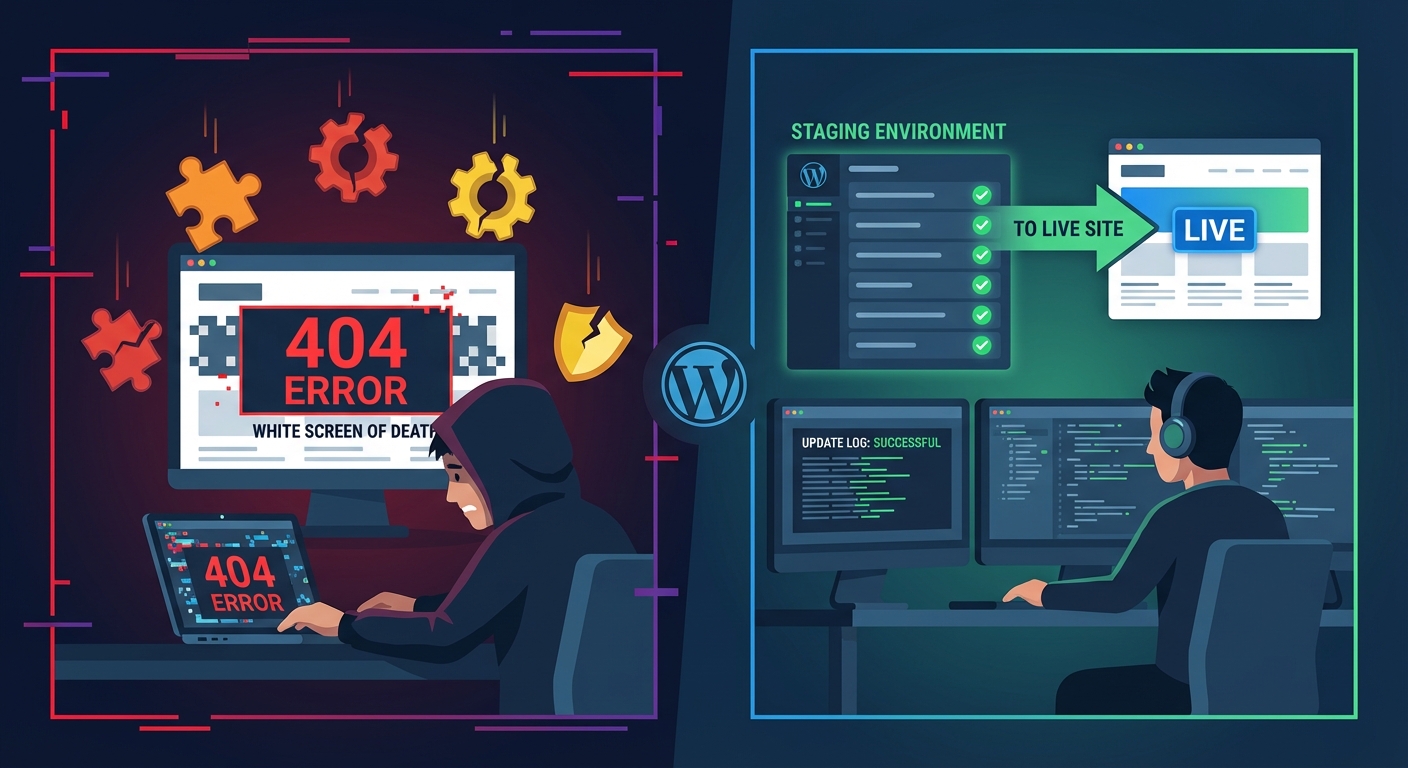
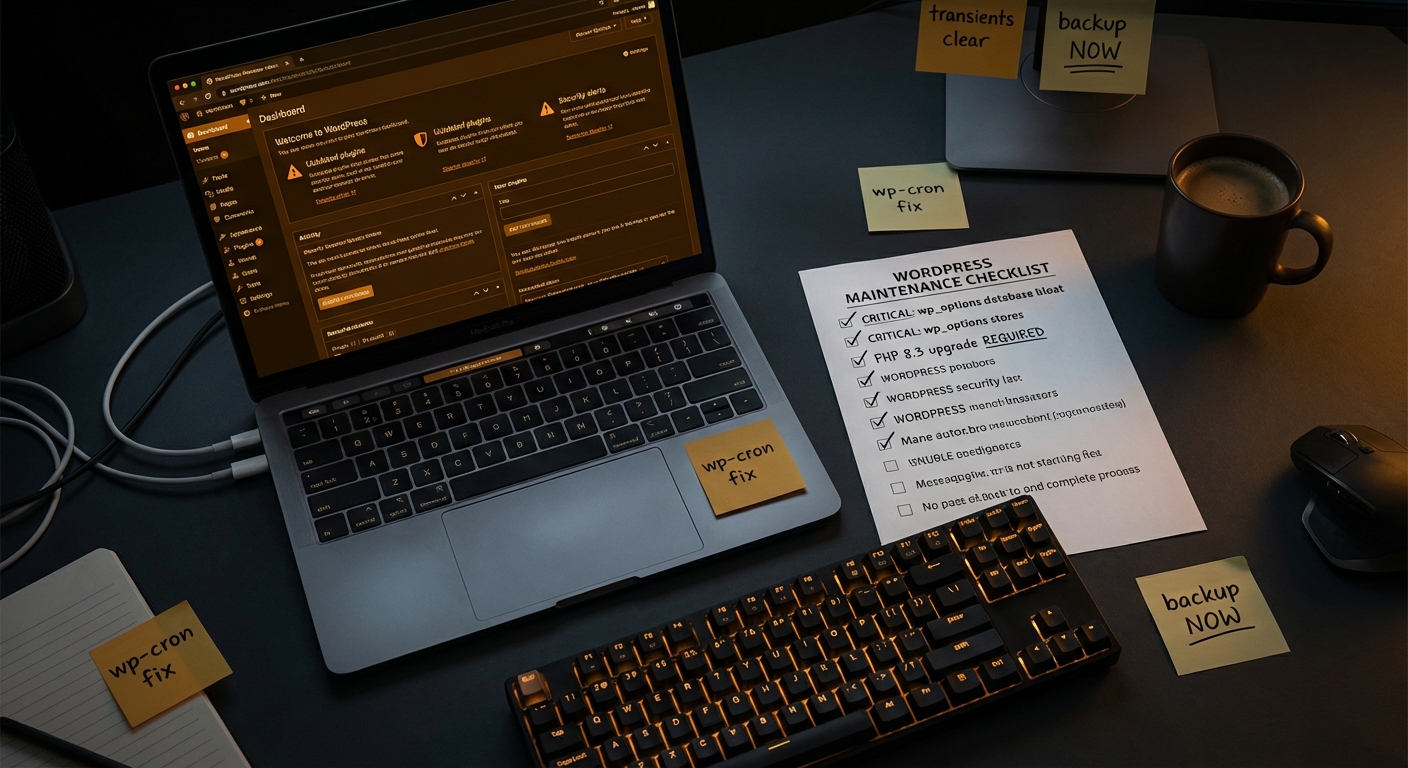
This is also the point where a proper staging workflow pays back its entire cost. When you have a clean, verified staging environment with a confirmed restore baseline, you have something concrete to compare against. Without it, you're auditing a potentially compromised system with no reference point for what "clean" looks like. Our WordPress maintenance checklist covers staging setup and monthly maintenance tasks that prevent incidents before they escalate to this level.
Requesting the Google Review: What the Process Actually Expects
Once the site is verified clean, go to Google Search Console → Security Issues → Request a Review.
Google asks you to describe what happened and what you did to resolve it. Be specific. "I cleaned my site" gets the request denied. Document the following:
- The specific malware or vulnerability found
- Which files or database entries were removed and what they contained
- Which plugin or theme vector was exploited
- What preventive measures you implemented (WAF deployment, credential rotation, plugin update schedule)
Google's review team evaluates whether you understand the root cause, not just whether the malicious content is gone. Sites that demonstrate surface-level cleanup get denied. Resubmission after denial means another review cycle — and another few days of the blacklist flag staying active.
Review cycles typically run 1–3 days. Sometimes a week. For a WooCommerce store averaging $3,000/day, a single week under an active blacklist flag represents roughly $21,000 in suppressed revenue — and organic traffic recovery continues well beyond delisting, since ranking positions that eroded during the incident don't snap back immediately.
After Google approves the review, Chrome's Safe Browsing warning clears within 24–72 hours. Other databases — Spamhaus, Norton Safe Web, McAfee — run their own independent timelines. Full clearance across all blacklist sources realistically takes up to two weeks.
The Blacklist Flag Is a Trailing Indicator
Here's the contrarian read: a blacklisting event is not the incident. It's Google's delayed reaction to an incident that already happened.
By the time the flag appears, the attacker has been inside your environment. Malware was installed. Malicious content was served to real visitors. Potentially, user data was exposed or user sessions were hijacked. The blacklist flag is a consequence, not the cause.
In the hacked site recoveries we work through, the average gap between initial compromise and discovery runs in weeks, not hours. Rogue cron jobs running on a schedule. Malware cloaking itself from admin sessions while serving redirects to mobile visitors. Encoded payloads sitting in wp_options with autoload = yes, loading silently on every page request. The object cache serving stale infected transients even after the source was removed.
Operating without active security monitoring isn't a low-risk posture. It's a delayed-discovery posture. You're not preventing incidents — you're just finding out about them later, when the cleanup is more complex and the revenue damage is larger.
What Prevention Actually Requires
Prevention isn't a security plugin and a backup. That handles some surface area. It doesn't handle the full attack surface.
Real prevention means:
- PHP version kept current — outdated PHP eliminates entire categories of security patches, regardless of what plugins you've updated
- REST API endpoints audited for unauthenticated exposure — common reconnaissance vectors that bypass most firewall rules
- Object cache configured and monitored so malicious transients don't persist after source removal
.htaccesshardened against directory browsing and PHP execution in upload directories- File integrity monitoring running continuously — not just on-demand scans
- Database backups with verified restore tests, stored off-server, not on the same environment that was compromised
- Plugin update cadence enforced on a defined schedule, not performed reactively
This is an operational posture, not a checklist you complete once. Our WordPress care plans and audit services are built around maintaining exactly this posture — proactive monitoring, hardening, and emergency response when something breaks through anyway.
If you're actively blacklisted right now, don't book a standard consultation. You need emergency WordPress support — the malware is running, and every hour it runs extends your review timeline and widens the traffic recovery gap.
Check our pricing page to understand what's included before reaching out — no surprises.
Look — I'm writing this because this is a problem I see constantly, and it's also exactly what we built Vimsy to solve. If you want professionals handling this instead of hoping nothing breaks, book a free call.
A blacklisted site isn't just a technical problem. It's a revenue problem, a trust problem, and a compounding one. The longer you wait, the wider the gap between where your traffic is now and where it was before Google flagged you. That gap doesn't close on its own.