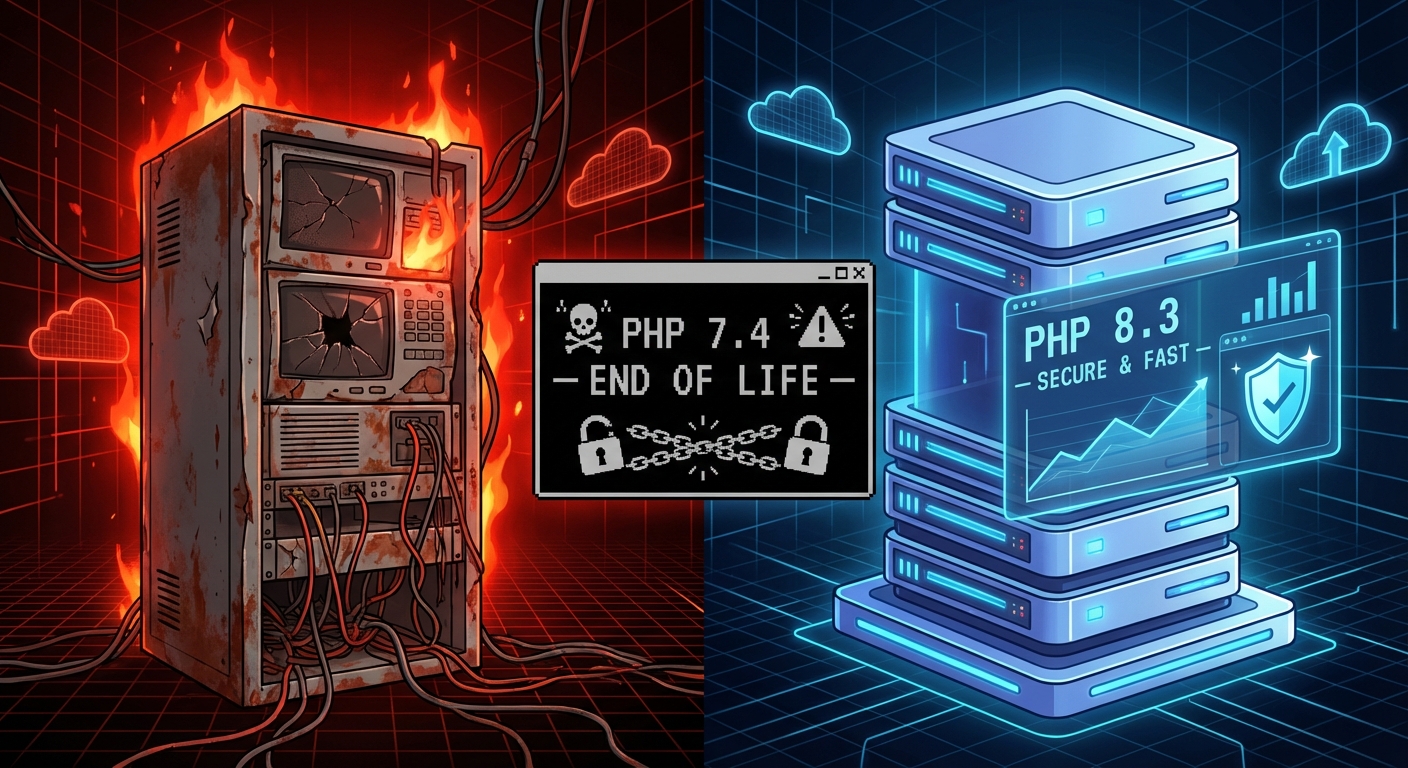
Most WordPress sites don't fail dramatically. They decay slowly.
A plugin stops receiving updates. PHP compatibility quietly breaks a background process. The wp_options table bloats with orphaned transients until every page load is dragging a database query it didn't ask for. None of this shows up on your dashboard. None of it triggers a warning. It just quietly erodes performance, security, and reliability — until it doesn't.
That's why a monthly maintenance routine isn't optional housekeeping. It's operational risk management. And most site owners either don't run one at all, or run something so incomplete it creates a false sense of security that's arguably worse than nothing.
This checklist exists for two audiences: site owners who want to handle this themselves, and site owners evaluating whether to hand it off to a professional service. Either way, you need to know what "maintaining a WordPress site" actually means — not the surface-level version that stops at clicking "Update All."
Why "Update All" Is Not a Maintenance Strategy
There's a persistent belief that WordPress maintenance means keeping plugins current. It's understandable — the update notifications are visible, the fix feels immediate, and the dashboard gives you a satisfying green checkmark.
But plugin updates are one task inside a maintenance system. Treating them as the whole system is how sites end up with a technically "updated" install that's running on PHP 7.4, has 8,000 expired transients clogging the database, no working backup from the last 30 days, and REST API endpoints exposed to automated scanners probing for vulnerabilities.
That's not maintenance. That's gambling.
A real maintenance routine covers six distinct operational layers: updates, database health, performance integrity, security posture, backup reliability, and environment compatibility. Miss any one of them consistently and you're accumulating risk that compounds silently in the background — invisible, until it isn't.
The Monthly WordPress Maintenance Checklist (2025 Edition)
Layer 1: Core, Plugin, and Theme Updates
Before you update anything, confirm you have a verified, restorable backup. Staging workflows exist for a reason — test updates on a staging environment before touching production. Not every update is clean. Plugin conflicts happen regularly, and a bulk update approach makes them difficult to diagnose.
Monthly tasks:
- Update WordPress core (minor versions monthly; major versions after a 2-week compatibility review cycle)
- Update all active plugins — individually, not in bulk, so you can isolate which update caused any regression
- Update active theme and any parent themes
- Audit inactive plugins. Every deactivated plugin with outdated code is an attack surface. Delete what you don't use. An inactive plugin you haven't touched in eight months still presents exploitable files on your server.
- Flag any plugin that hasn't received an update in 90+ days. Check the WordPress.org repository for active maintenance status. Plugin abandonment risk is real — unmaintained plugins accumulate unpatched CVEs silently, and no scanner will alert you to an abandoned plugin the way it would alert you to an infected file.
One note on WP-CLI: if you're managing updates via the admin dashboard, you're doing it the slow way and losing auditability. wp plugin update --all followed by wp core update gives you scripted control, output you can log, and a workflow you can replicate reliably every month.
Layer 2: Database Maintenance
The wp_options table is where most WordPress sites quietly rot.
Plugins write to wp_options constantly. Some clean up after themselves. Most don't. The result is a table that accumulates hundreds — sometimes thousands — of stale rows, orphaned settings from deleted plugins, and autoloaded data that WordPress pulls on every single request whether it's needed or not.
Monthly tasks:
- Query
wp_optionsto identify autoloaded rows exceeding reasonable thresholds. If your total autoloaded data exceeds 1MB, you have a measurable performance drag on every page load. - Purge expired transients. Transients that have passed their expiration date don't delete themselves unless you're running an object cache (Redis, Memcached). On sites without object caching, expired transients pile up in the database indefinitely.
- Run
wp db optimizevia WP-CLI to defragment database tables. - Delete post revisions older than 30 days if revision limits aren't configured in
wp-config.php. Unlimited revisions are a database bloat mechanism most developers never disable. - Clear spam and trash in comments.
This is the layer most self-managed sites skip entirely. It's also the layer with the most consistent, measurable performance impact. In most WordPress audits, autoloaded data bloat is one of the first findings — and it's almost always invisible to the site owner who has been running the site for years.
Layer 3: Performance Integrity Check
Performance isn't a one-time optimization. It degrades. New plugins add scripts and stylesheets to the front end. Images get uploaded without compression. Caching layers fall out of sync with content changes. Query patterns shift as the database grows. What ran clean six months ago may not run clean today.
Monthly tasks:
- Run a baseline PageSpeed or Core Web Vitals check. Document the score — you need trend data, not isolated snapshots.
- Verify your caching plugin is functioning correctly. A misconfigured caching layer can serve stale content, broken pages, or no cached content at all while appearing to work.
- Check for query performance issues using Query Monitor diagnostics. Slow queries compound. One plugin adding a 200ms database call on every page load is 200ms you're paying for on every single request across your entire user base.
- Confirm your CDN is active and serving assets from edge nodes.
- Review image delivery. Uploads since last month should be compressed and served in modern formats (WebP, AVIF) where hosting supports it.
Layer 4: Security Posture Review
Security isn't a plugin. It's a configuration state you actively maintain.
Monthly tasks:
- Verify your Web Application Firewall (WAF) is active and rule sets are current.
- Run a malware scan using a reputable scanner. Don't rely on hosting-level automated scanning alone — infrastructure security and application security are not the same layer.
- Review user accounts. Remove any users who no longer need access. Audit admin-level accounts specifically — compromised admin accounts are the most damaging entry vectors, and stale accounts you forgot about are the easiest targets.
- Review login attempt logs. Brute force patterns don't always trigger lockouts. Distributed attempts stay under threshold limits while still systematically probing credentials.
- Confirm
.htaccesshardening rules are intact:xmlrpc.phprestrictions, directory browsing disabled, PHP execution blocked in upload directories. - Verify REST API exposure. The user enumeration endpoint in particular doesn't need to be publicly accessible on most sites.
- Confirm SSL certificate expiry date. Most certificates auto-renew — most also fail to renew silently when server configurations change.
Layer 5: Backup Reliability
A backup that hasn't been tested isn't a backup. It's a file that might be a backup.
Monthly tasks:
- Confirm automated backups are running on schedule. Check actual logs — not the backup plugin's dashboard indicator.
- Verify at least one recent backup is stored off-server. Backups stored only on your hosting account are compromised the moment your hosting account is compromised.
- Test restore capability on a staging environment. Monthly is the right cadence; quarterly is the minimum.
- Confirm backup scope covers both files and database — not one or the other.
In most hacked site recoveries, the root cause of prolonged downtime isn't the hack itself — it's the absence of a clean, restorable backup from a pre-compromise state. The technical recovery is fast. Finding a backup that actually works is where hours disappear.
Layer 6: Environment Compatibility
Your site runs on a software stack that has its own lifecycle, independent of your WordPress install.
Monthly tasks:
- Verify current PHP version. PHP 8.2 and 8.3 are the supported branches as of 2025. PHP 7.4 reached end-of-life in late 2022 — running it means operating without security patches on the language layer your entire site depends on.
- Check MySQL/MariaDB version compatibility with your current WordPress core version.
- Verify PHP memory limit configuration in
wp-config.phpis appropriate for your plugin load. A memory limit set too low causes silent failures in background processes. - Review
wp-config.phpfor debugging constants left enabled on production.WP_DEBUGandWP_DEBUG_LOGenabled on a live site expose internal file paths and error details to anyone who looks. - If you're running WooCommerce, run the WooCommerce System Status report monthly. It surfaces environment incompatibilities that no other tool flags.
The Compounding Cost of Skipped Months
Here's the risk model worth internalizing: maintenance tasks missed once are recoverable. Tasks missed for three consecutive months start to compound in ways that aren't linear.
A site that skips database optimization for a quarter may have accumulated enough autoloaded data to measurably degrade every page load. A site that skips plugin abandonment checks for three months may now have multiple plugins with known CVEs being actively probed by automated scanners. A site that skips backup verification for three months may have been running broken backups since month one — with no way to know until a recovery attempt fails.
None of this is dramatic. None of it is obvious. It's slow erosion — and the cost surface area of fixing it multiplies with time.
For a WooCommerce store generating $3,000/day in revenue, an hour of unplanned downtime costs roughly $125. A full-day outage — the kind caused by an unrestorable hack on a site with broken backups — is a $3,000 problem that didn't have to happen. These aren't worst-case horror scenarios. They're the routine math of deferred maintenance applied to sites that weren't built with a buffer for it.
What Doing This Yourself Actually Costs
Working through every layer above, done properly, takes 2–4 hours per month minimum. That estimate assumes you have a staging environment configured, understand how to read Query Monitor output, can interpret wp cron event list results, and know what a suspicious autoloaded value in wp_options looks like.
If you're doing it manually through the admin dashboard without WP-CLI, add time. If you're also interpreting security scan results and making update decisions based on changelog review rather than "I'll just update everything," add more.
Some site owners are fully equipped for this. They understand the difference between running wp cron event list and assuming cron is working. They have rollback strategies, not just backups. They know when a PHP version mismatch is causing a cron failure versus a plugin conflict.
Most business owners aren't — not because they lack the intelligence, but because WordPress maintenance is a technical discipline that competes directly with whatever their actual business demands.
What a Managed Maintenance Service Covers
If you're evaluating whether to hand this off, the operational comparison is straightforward.
A service like Vimsy's WordPress care plans covers every layer in this checklist — updates, database optimization, security monitoring, backup verification, performance checks, and environment compatibility — on a fixed monthly schedule with documented reporting. You're not paying for someone to click update. You're paying for a system that runs whether you remember to or not, with professionals who catch a broken cron job before it silently fails for 45 days.
The Vimsy pricing page outlines the distinction between Press Lite (core maintenance with monthly optimization) and Press Pro (expanded coverage including performance tuning, deeper security hardening, and priority support). The cost difference between those two plans is almost always less than the cost of a single emergency recovery engagement.
If something has already gone wrong and you're in triage mode right now, emergency WordPress support is the right starting point.
The Checklist Is the Floor, Not the Ceiling
Running through these six layers monthly keeps a site stable. It doesn't make it fast, secure, or optimized beyond baseline — those require deeper engagement, better tooling, and architectural decisions this checklist doesn't cover.
But you need a functional floor before you can build anything above it. A site that can't maintain basic health reliably isn't ready for performance or conversion optimization work.
If you want a downloadable version of this checklist to work from, the WordPress maintenance checklist at Vimsy is available as a standalone resource.
The real question isn't whether you know what to do. You do now. The question is whether you'll execute it consistently — or whether you'll run it twice and let it slip when things get busy.
Most WordPress sites run on optimism between updates. Yours doesn't have to.
Look — I'm writing this because this is a problem I see constantly, and it's also exactly what we built Vimsy to solve. If you want professionals handling this instead of hoping nothing breaks, book a free call.
Your maintenance window doesn't wait for a convenient time. Neither does a breach.