The white screen doesn't warn you. One plugin install, one theme activation, one cron job firing at the wrong time — and WordPress goes silent. No error message. No explanation. Just blank. If you've spent twenty minutes refreshing, clearing cache, and deactivating plugins before realizing something is actually broken, you already know what PHP memory exhaustion feels like from the outside.
What most site owners don't know is what's happening underneath — and more importantly, whether increasing the memory limit actually fixes the problem or just delays a deeper reckoning.
This is a practical breakdown of the WordPress PHP memory limit: what it is, how to raise it correctly, and when the error is a symptom pointing to a problem that no amount of extra memory will solve.
What the Memory Limit Actually Controls
PHP allocates a chunk of RAM to every WordPress request. Loading a page, executing a plugin function, processing a WooCommerce order, firing a scheduled task — each operation competes for that allocation. The memory limit is a hard ceiling on how much RAM a single PHP process can consume.
When that ceiling gets hit, PHP throws a fatal error:
Fatal error: Allowed memory size of 67108864 bytes exhausted (tried to allocate 20480 bytes)
That 64MB figure is the default on many shared hosting environments — a number set when WordPress was still primarily a blogging platform rather than the application framework powering 43% of the web. Most modern WordPress installations running a page builder, WooCommerce, and a handful of active plugins will need 256MB or more just to function without strain under normal load.
The gap between hosting defaults and real-world plugin weight is where most of these errors live.
The Three Places That Control PHP Memory
Most tutorials give you one fix and stop there. In reality, the PHP memory limit is controlled at three different levels — and they override each other in a specific hierarchy.
1. php.ini — the server-level ceiling
This is the master configuration. Your host sets it. If php.ini defines memory_limit = 64M, nothing you do at the WordPress application level can exceed that. On shared hosting, you typically won't have direct access to this file. On a VPS or dedicated server, you do — and this is where the authoritative fix lives.
memory_limit = 256M
2. wp-config.php — the WordPress application-level override
WordPress lets you define a memory ceiling inside wp-config.php, which overrides the hosting default but still can't exceed the server-level cap. This is the most commonly recommended fix — and it works in most shared hosting scenarios where the host has already allocated headroom above their base default.
Add this line above the /* That's all, stop editing! */ comment:
define('WP_MEMORY_LIMIT', '256M');
If you're running WP-CLI on your server, verify the active limit before touching any config:
wp --info
This outputs the active PHP binary information, including the current memory limit. Clean, fast, no guessing.
3. .htaccess — the Apache-level directive
On Apache servers, you can set PHP values via .htaccess. This works on some shared hosts where php.ini access is restricted but .htaccess directives are permitted. It also serves as a useful last resort when wp-config.php changes aren't sticking.
php_value memory_limit 256M
Use this as a fallback, not a first choice. Some hosts disable this directive entirely. It won't work on Nginx environments. And unlike .htaccess hardening rules that protect directory access, this particular directive carries no security benefit — it's purely operational.
The override hierarchy: php.ini > wp-config.php > .htaccess (when permitted).
If you've set 512M in wp-config.php and the error persists, your server ceiling is lower than what you've requested. That's a hosting conversation, not a WordPress fix.
How Much Memory Should You Actually Set?
Common reference points:
- 64MB — legacy hosting default. Effectively unusable for any modern WordPress build with more than a handful of plugins.
- 128MB — WordPress's own recommended minimum. Barely sufficient for lean installations.
- 256MB — the practical baseline for a site running WooCommerce, a page builder, or any serious caching layer.
- 512MB+ — appropriate for high-traffic WooCommerce stores, LMS platforms, or multisite installations with heavy plugin stacks.
Setting the limit higher than your server's available RAM doesn't help. PHP will still crash — just differently. The goal is to set a realistic ceiling that maps to your actual plugin and theme footprint, not to chase a larger number hoping it holds.
When the Memory Error Is Not the Real Problem
Here's the section most tutorials skip entirely, and it's the most operationally important part of this article.
Hitting the memory limit once after installing a misconfigured plugin is a straightforward fix. Hitting it repeatedly — or watching your required ceiling creep upward every few months despite increasing the limit — means something else is happening underneath.
Bloated wp_options tables
Autoloaded data in wp_options loads on every single WordPress request — before any page renders. Abandoned plugins leave their configuration data behind permanently. Poorly coded plugins autoload large serialized arrays that have no business sitting in memory during every page load. Across WordPress audits we perform, we consistently find wp_options tables carrying 5–10MB of autoloaded data on sites where it should be under 400KB. That's not a memory limit problem. That's a database hygiene problem that will absorb every additional megabyte you allocate.
Transient accumulation
WordPress transients are temporary cached values stored in the database. Without a proper object cache backend — Redis or Memcached — expired transients pile up indefinitely in wp_options. WordPress queries this bloated table on every bootstrap cycle, inflating memory consumption across every request. The fix isn't a higher memory ceiling. It's transient cleanup paired with a real object cache layer so the database stops carrying data that belongs in memory.
Runaway WP-Cron processes
WordPress relies on a pseudo-cron system that fires based on incoming traffic. On low-traffic sites, scheduled tasks stack up waiting for page visits. On high-traffic sites, multiple cron processes fire simultaneously and compete for the same memory pool. Each process consumes a full PHP allocation. If your memory errors spike at predictable intervals rather than under specific user actions, WP-Cron behavior is almost certainly a contributing factor. Disabling the built-in cron and running it via system cron — scheduled in your server's crontab — is the operational fix. Cleaner, more predictable, and it eliminates the memory spike pattern entirely.
PHP version mismatch
Running an outdated PHP version isn't just a security exposure — it's a performance variable. PHP 8.1 and 8.2 handle memory allocation and garbage collection meaningfully more efficiently than PHP 7.4. A site that runs stably on PHP 8.2 may hit memory limits repeatedly on 7.4 with the same exact plugin stack. PHP version compatibility is a legitimate maintenance variable that affects memory behavior directly, not just a security checkbox you defer until something breaks.
Misconfigured or abandoned plugins
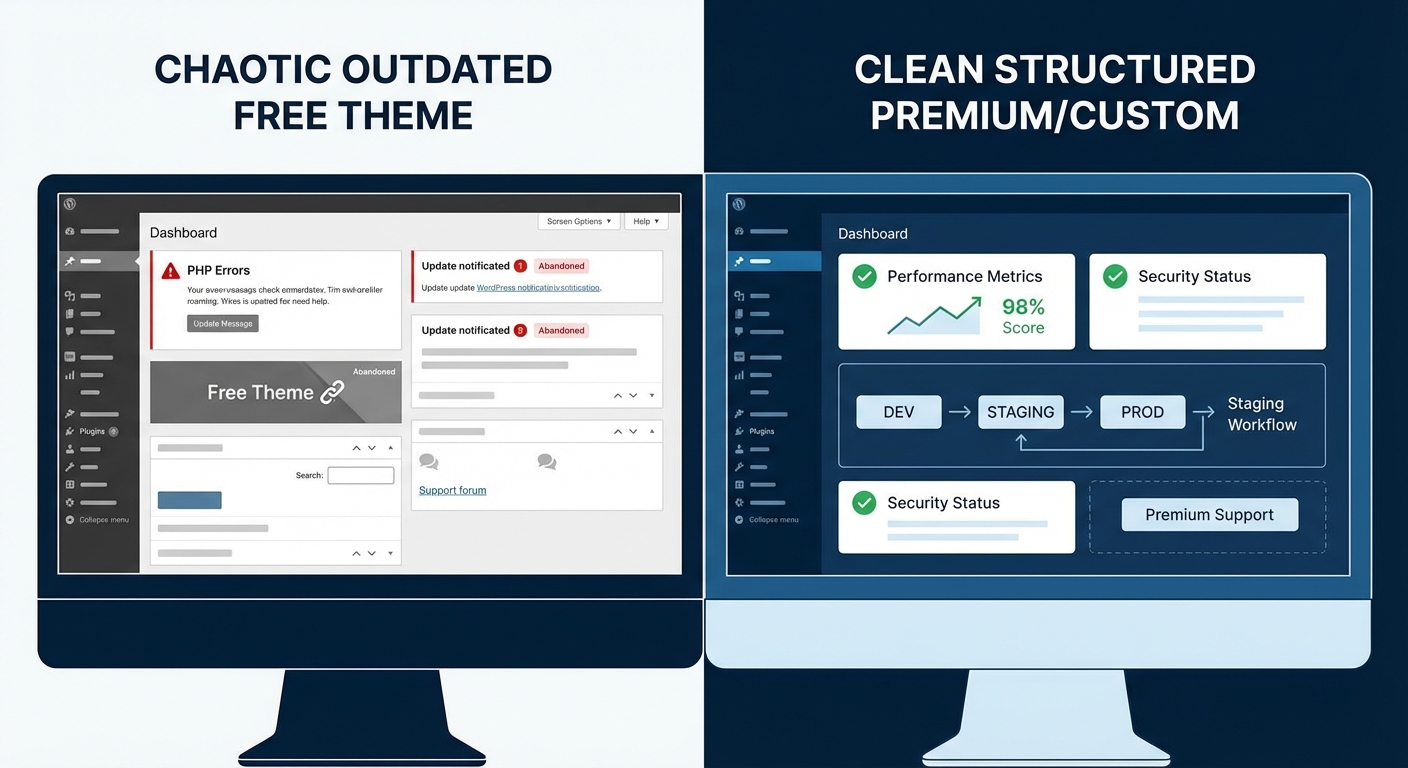
Plugin abandonment risk compounds over time. A plugin last updated in 2021 isn't just a potential security vector — it frequently carries unoptimized memory footprints, bloated query patterns, and deprecated PHP functions that modern interpreters handle less gracefully. Query Monitor will expose which specific plugins and database queries consume disproportionate memory on each request. It's one of the most useful diagnostic tools available, and it takes ten minutes to install and interpret.
If you're raising your memory limit to accommodate a plugin that hasn't been updated in three years, you're patching around a problem you should be removing. The additional memory buys you time. It doesn't buy you stability.
The Diagnostic Sequence Before You Touch wp-config.php
Run this before adjusting any memory setting:
Step 1: Check your current active limit.
Use WP-CLI: wp --info. Or temporarily add phpinfo() to a test file to see exactly what PHP is reporting. Don't assume the limit in wp-config.php is the limit PHP is actually enforcing.
Step 2: Install Query Monitor. Identify which plugins and functions are consuming disproportionate memory per request. Sort by memory. The top offenders are usually the problem, not the limit.
Step 3: Audit wp_options autoloaded data.
Run this query via phpMyAdmin or WP-CLI's wp db query:
SELECT SUM(LENGTH(option_value)) AS total_autoload_size
FROM wp_options
WHERE autoload = 'yes';
If that number exceeds 800KB–1MB, you have a database bloat problem that more memory won't fix. It needs a cleanup pass and a review of which plugins are writing what.
Step 4: Check transient row counts. Look at the total row count in wp_options. A healthy site might have a few hundred rows. Sites with transient accumulation sometimes show tens of thousands. That's not a WordPress quirk — it's a maintenance failure.
Step 5: Review server error logs. The PHP fatal error in your server log will include a stack trace pointing to the specific function that caused the breach. That's the only definitive way to know whether the error is an isolated event or a recurring pattern caused by a specific plugin execution path.
Then — and only then — if everything looks clean and the limit is simply too low for your legitimate plugin stack, raise it in wp-config.php.
What Ongoing Maintenance Actually Prevents
Memory exhaustion errors rarely appear on a well-maintained WordPress site. Not because the memory limits are set aggressively high — but because the underlying causes are managed before they become failures:
- Plugin audits catch abandoned and over-resourced plugins before they accumulate technical debt.
- Regular database optimization keeps wp_options clean and autoloaded data minimal.
- PHP version management ensures compatibility and efficient memory handling across the stack.
- Object cache configuration prevents transients from accumulating in the database.
- Staging workflows mean plugin updates get tested before they hit production and trigger a white screen that costs you revenue and user trust.
These aren't emergency responses. They're operational standards. When they're in place consistently, the memory limit error becomes rare rather than recurring.
If you want to see what a structured WordPress maintenance plan covers at a service level — and whether it applies to your site's current state — review the full breakdown and pricing.
And if the white screen is happening right now and you need it resolved today rather than scheduled for next week, WordPress emergency support is available.
The Fix Is Thirty Seconds. The Signal Takes Longer to Read.
Raising the PHP memory limit in wp-config.php takes thirty seconds. If the problem is simply that your hosting default is outdated relative to your plugin stack, that's the correct fix and it will hold.
But if you're doing that without understanding what consumed the memory in the first place, you're not fixing anything. You're resetting a timer.
The sites that consistently avoid these failures aren't running on more expensive hosting or with arbitrarily high memory ceilings. They're running with disciplined plugin hygiene, clean databases, managed PHP versions, and a maintenance process that doesn't wait for a white screen to pay attention. Those are operational habits, not one-time fixes. And they compound — each good decision making the next failure slightly less likely.
That thirty-second wp-config.php edit is legitimate when the situation calls for it. The question is whether your site is one plugin update away from hitting the new ceiling too.
Look — I'm writing this because this is a problem I see constantly, and it's also exactly what we built Vimsy to solve. If you want professionals handling this instead of hoping nothing breaks, book a free call.