The WordPress Heartbeat API runs in your browser right now — silently, repeatedly, on a timer you never set.
Most site owners don't know it exists. Most developers know it exists but never bother tuning it. That's why so many WordPress dashboards feel sluggish and so many shared hosting accounts mysteriously brush up against CPU limits.
This isn't a fringe edge case. It's a default WordPress behavior that costs real performance every single day.
What the Heartbeat API Actually Does
The Heartbeat API is a browser-to-server communication mechanism built into WordPress core. Every time you're logged into your WordPress admin — editing a post, sitting on the dashboard, or browsing plugins — your browser sends a POST request to /wp-admin/admin-ajax.php at regular intervals.
By default, that interval is 60 seconds on most admin screens. On the post editor, it drops to 15 seconds.
Every one of those requests:
- Triggers a PHP execution cycle on your server
- Hits your database
- Consumes CPU
- Returns a JSON response your browser processes
The legitimate purpose is session management, auto-saving drafts, showing post locking when multiple users edit the same content, and surfacing plugin-generated alerts. These are real features. They just come with a cost that almost no one accounts for.
Why This Becomes a Problem
Here's what happens in practice.
You're on a shared hosting plan. Your site has a few active editors — maybe it's a WooCommerce store with a content team, or a multi-author blog. Each of those users has a browser tab open in /wp-admin. Each browser is firing Heartbeat requests every 15–60 seconds.
Multiply that across editors, across tabs, and suddenly your server is fielding dozens of admin-ajax.php hits per minute — each one spawning a PHP process, touching your database, and burning CPU time.
Shared hosts notice this quickly. They throttle. Your dashboard slows to a crawl. Your front-end performance degrades as server resources get diverted. And if you're on a managed WordPress host with a CPU burst limit, you'll eventually start seeing 503 errors.
On a VPS or dedicated server, the math is more forgiving — but Heartbeat still generates unnecessary load during peak editing periods. For WooCommerce stores running complex database queries across orders and inventory, that background noise compounds fast.
Consider a WooCommerce store generating $4,000/day in revenue — roughly $167/hour. If Heartbeat-induced CPU spikes contribute even partial downtime or checkout slowdowns during a high-traffic window, the math on "I never bothered to tune this" gets uncomfortable quickly.
The Technical Reality Under the Hood
Every Heartbeat request hits admin-ajax.php. That file bootstraps WordPress completely — loading wp-config.php, initializing the database connection, loading all active plugins, and running through WordPress's action/filter stack — for every single polling call.
This is not a lightweight ping. This is a full WordPress initialization cycle, triggered silently, on a timer.
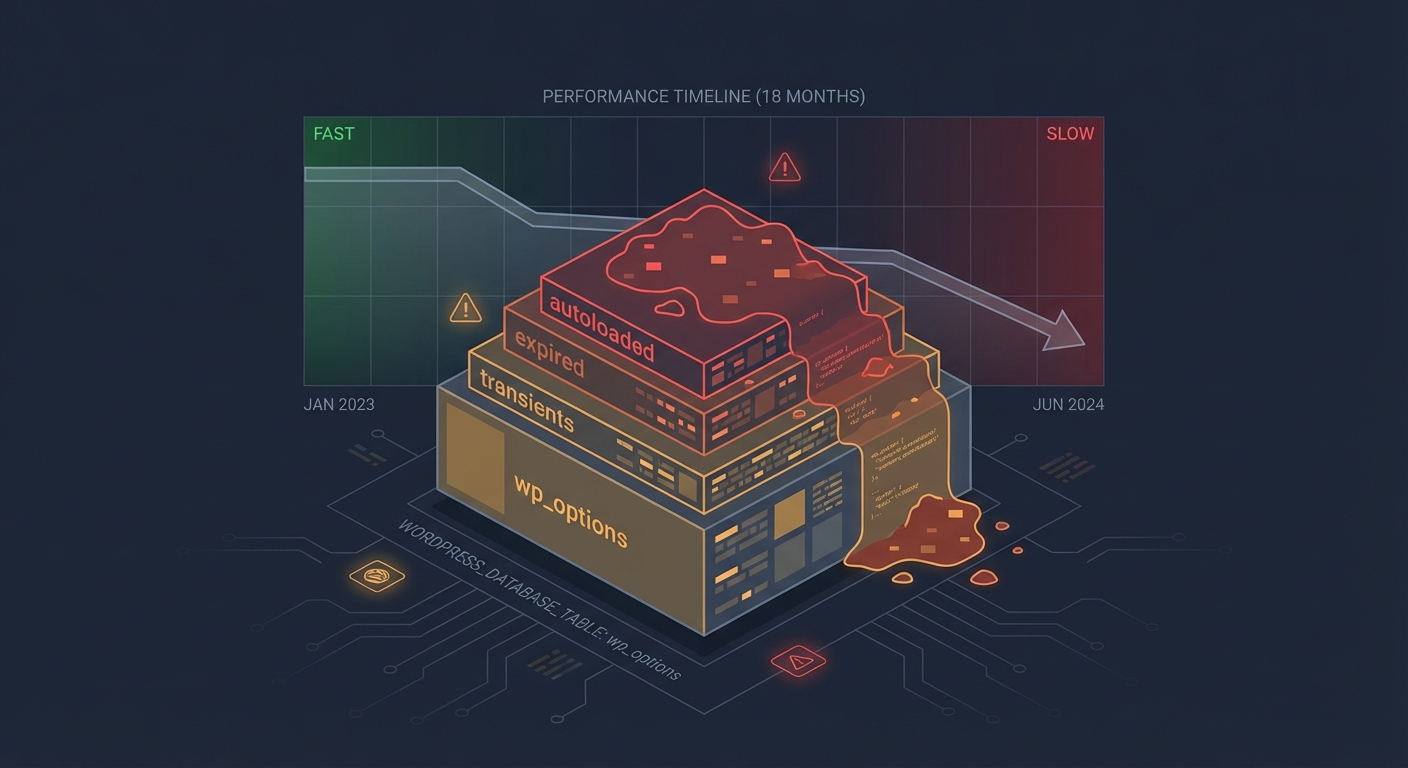
If your site has 30 active plugins, every Heartbeat request loads all 30. If any of those plugins hook into wp_ajax_heartbeat or heartbeat_received, they're executing code too. Poor object cache configuration means those plugin calls hit your database directly rather than pulling from cache. Autoloaded data bloating wp_options gets loaded into memory on every single one of these requests.
Query Monitor diagnostics on a busy editorial environment will often surface admin-ajax.php as one of the highest-frequency database callers on the server. Most site owners never look at this. They assume slow dashboards mean slow hosting.
It's not always the host.
The Myth This Breaks
Here's the default belief worth challenging: "Slow admin performance is a hosting problem."
Wrong. Not always.
A misconfigured or uncontrolled Heartbeat API creates an application-layer performance tax that hosting infrastructure can't fully absorb. You can migrate to a faster server and still have a slow dashboard if the underlying request volume stays the same. Across WordPress sites we audit consistently, server migrations get blamed for problems that were application configuration issues from the start.
The problem isn't the pipe. The problem is what you're sending through it.
This is exactly why WordPress performance isn't a hosting checkbox. It's a configuration discipline.
How to Actually Control It
You have three real levers:
1. Disable Heartbeat Entirely (Not Usually Recommended)
You can kill Heartbeat globally by deregistering the script:
add_action('init', function() {
    wp_deregister_script('heartbeat');
});
This stops all Heartbeat functionality — including auto-save and post locking. For single-user sites without collaborative editing, that trade-off may be acceptable. For anything with multiple editors or WooCommerce, you'll lose features you probably want.
2. Throttle the Interval
The cleaner approach is extending the polling interval. WordPress allows this through the heartbeat_settings filter:
add_filter('heartbeat_settings', function($settings) {
    $settings['interval'] = 120; // seconds
    return $settings;
});
Changing the post editor interval from 15 to 60 seconds cuts request frequency by 75%. On a server fielding requests from five simultaneous editors, that reduction is immediately measurable in your CPU graphs.
3. Scope It by Context
The most surgical option: disable Heartbeat in non-essential contexts, keep it active where it provides real value. Run it in the post editor — auto-save matters there — and disable it on the dashboard, plugin pages, media library, and any custom admin screens.
add_action('init', function() {
    global $pagenow;
    if ($pagenow !== 'post.php' && $pagenow !== 'post-new.php') {
        wp_deregister_script('heartbeat');
    }
});
This is the configuration we typically implement during a full WordPress performance audit — alongside object cache setup, database indexing, and cron job cleanup.
4. Use the Heartbeat Control Plugin (With Caution)
The "Heartbeat Control" plugin by WP Rocket offers a UI for this configuration. It works. But installing a plugin to control another built-in feature adds a dependency — and plugin abandonment risk is real. If that plugin stops receiving updates, you now have an unmaintained piece of code sitting in your stack, and a new attack surface to worry about.
The code-based approach above is leaner and doesn't inflate your plugin count.
What Else Lives in That admin-ajax.php Stack
While you're thinking about Heartbeat, here's the adjacent problem worth understanding: admin-ajax.php is also the endpoint that many poorly-optimized plugins use for front-end AJAX calls.
That means your publicly accessible site may be routing AJAX requests through the same file your admin uses for Heartbeat — a file that bootstraps all of WordPress every single time. The REST API was designed to replace this pattern. But plugin developers haven't fully caught up. You'll often find transients stored incorrectly, redundant database queries running on every AJAX call, and wp_options autoload bloat accumulating from plugins that register settings carelessly.
This is the kind of thing that shows up clearly in Query Monitor — but only if someone is actually running diagnostics on a regular cadence.
If your last "performance check" was running GTmetrix on your homepage, you missed about 80% of the real problem.
The WP-CLI Angle
If you manage WordPress via WP-CLI, you can profile Heartbeat impact indirectly through database query logging. Enabling SAVEQUERIES in your wp-config.php during a diagnostic window — or using WP-CLI's wp profile command — will show you query volume per request.
Compare a normal page load to an admin-ajax.php Heartbeat response. The query count ratio is usually sobering.
wp profile stage --all --orderby=query_time
This gives you a breakdown of which hooks and plugins are consuming the most query time per request. When Heartbeat is polling every 15 seconds and your cron jobs are stacking up because WP_CRON is running on page load instead of a real system-level cron, you end up with compounding overhead that nobody ever attributed to a single cause — because no single cause is the full story.
The Real Cost of Ignoring This
Heartbeat performance degradation is slow and diffuse. It doesn't break sites dramatically — which is precisely why it persists unaddressed for months or years.
It shows up as:
- General dashboard sluggishness that gets blamed on the server
- CPU alerts from your host that nobody investigates properly
- Occasional 504 timeouts on the admin side during heavy editing windows
- Front-end performance degradation that doesn't surface clearly on synthetic load tests
If you're running a WordPress maintenance plan that doesn't include application-layer performance tuning — not just update management — you're not getting real maintenance. You're getting plugin changelog management dressed up as a service.
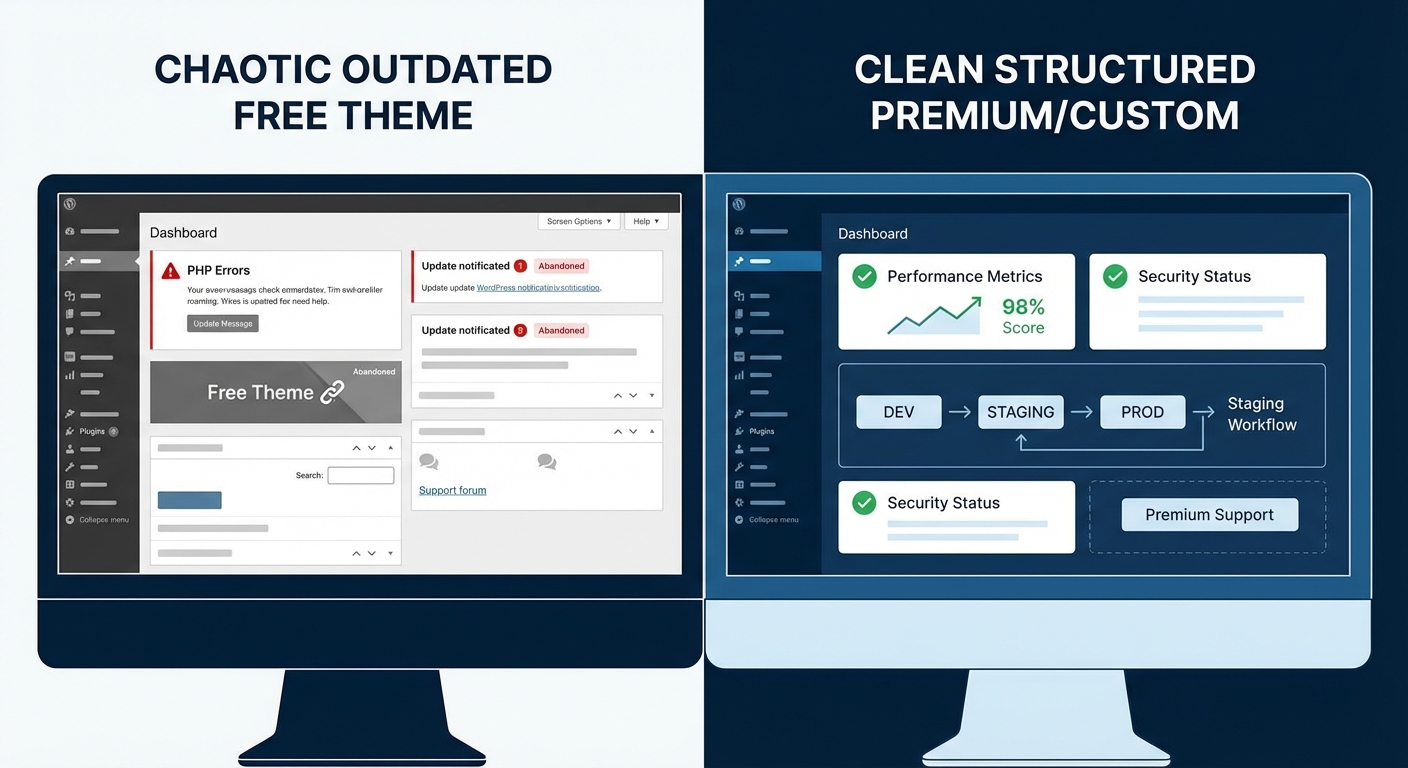
Heartbeat control is one line item in a much longer configuration checklist. It belongs alongside staging workflow setup, .htaccess hardening, PHP version validation, and proper database indexing — the work that keeps sites healthy at the infrastructure level, not just visually intact.
Check your complete WordPress maintenance checklist to see how many of these baseline optimizations your current setup is actually covering.
What Heartbeat Tells You About WordPress Performance Generally
The Heartbeat API is a useful proxy for understanding WordPress performance problems broadly.
Most issues aren't obvious. They're not crashes or error screens. They're accumulated configuration debt — default settings left untouched, plugins adding background processes nobody monitors, cron jobs piling up because WP_CRON runs on page load instead of a real scheduled job, object cache never configured because the host "handles caching" at the page level.
The sites that perform well aren't the ones running on the most expensive hosting plan. They're the ones where someone actually opened the hood, ran the diagnostics, and cleaned up what shouldn't be there.
Most WordPress performance problems are configuration problems. Hosting solves infrastructure. Configuration solves application behavior. Those are different problems — and confusing them is expensive.
That's not bad luck. That's an unmaintained system behaving exactly as expected.
If You're Ready to Stop Guessing
Look — I'm writing this because this is a problem I see constantly, and it's also exactly what we built Vimsy to solve. If you want professionals handling this instead of hoping nothing breaks, book a free call.
We don't just monitor your site. We audit it, configure it, and maintain it at the application layer — Heartbeat control, cron job management, object cache setup, database health, plugin risk assessment, and rollback strategy baked in. The full picture, not just the surface.
If your dashboard is sluggish and your host keeps blaming traffic, we'll tell you exactly what's actually happening. And if it turns out to be fixable in a 20-minute WP-CLI session, we'll tell you that too.
That's what real WordPress maintenance looks like.
Published by Arslan Aslam — 13+ years managing WordPress at the infrastructure and application layer.