GA4 is not optional anymore. Universal Analytics is dead, and if you migrated without verifying the implementation, there's a reasonable chance you're either tracking nothing or tracking everything twice.
Adding Google Analytics 4 to WordPress is a five-minute task that most people get wrong in ways that take months to notice.
This guide covers the two legitimate implementation methods, the performance trade-offs between them, the mistakes that corrupt your data quietly, and why a clean GA4 setup matters more than most site owners realize.
Why Most GA4 Implementations Are Broken Before They Start
The Universal Analytics sunset caught a lot of site owners mid-migration. They installed a plugin, added a measurement ID, and assumed they were done.
The problem: GA4 and Universal Analytics measure fundamentally differently. Sessions, bounce rates, conversions — all redefined. If you carried over your old configuration assumptions into GA4, your data looks fine on the surface and means something different underneath.
Before you touch any plugin or paste any code, verify one thing: does your site currently fire any Google Analytics tags at all? If you installed MonsterInsights, Site Kit, and a hardcoded script from three years ago, you're triple-tracking every pageview.
Use the Google Tag Assistant Chrome extension. Load your homepage. Count how many GA4 tags fire. If the answer is more than one, stop. Fix the overlap before you configure anything else.
Double-tracking doesn't average out. It compounds. Your session counts inflate, your engagement rate drops artificially, and your conversion data becomes unreliable.
Method 1: Via Plugin (Recommended for Most Sites)
Two plugins are worth using. Everything else adds bloat without meaningful benefit.
Site Kit by Google
Best for: Sites that want native Google integration without managing tag logic manually.
Site Kit connects GA4 directly to your WordPress dashboard and handles authentication through Google's OAuth flow. No measurement ID copy-paste required — it reads your account automatically.
What it does well:
- Single plugin handles GA4, Search Console, PageSpeed Insights, and AdSense in one place
- Pulls GA4 data into the WordPress admin so you're not switching tabs constantly
- Consent mode v2 ready out of the box — relevant if you're running the site in EU markets
What to watch:
- Site Kit injects its own JavaScript and uses
wp_enqueue_scriptsto load assets. On slower shared hosting, this adds measurable load time. - The plugin loads GA4 via Google Tag Manager internally. This means there's a small wrapper overhead even if you're not using GTM explicitly.
Run a Query Monitor diagnostic before and after activation. If you see additional database queries or significantly longer admin load times, evaluate whether the convenience is worth it for your specific stack.
MonsterInsights (Lite or Pro)
Best for: WooCommerce stores or sites that need ecommerce tracking without manual dataLayer configuration.
MonsterInsights handles the GA4 connection and, in its Pro version, pushes enhanced ecommerce events automatically — add to cart, checkout steps, purchase completions. Doing this manually via Google Tag Manager requires significant configuration. MonsterInsights compresses that into a settings panel.
The trade-off: MonsterInsights Pro starts at $99/year. If you need basic pageview tracking only, that's unnecessary spend. If you run a WooCommerce store, the ecommerce module alone justifies it.
Critical setting in both plugins: Disable IP anonymization overrides if you've already configured consent in your cookie banner. Double-configuring consent creates conflicts that are genuinely difficult to debug later.
Method 2: Direct Code Implementation
If you're using a caching plugin with aggressive minification, or if you're running a heavily customized theme, direct code implementation is often cleaner than plugin-based installs.
Here's the exact process:
Step 1: In your GA4 property, go to Admin → Data Streams → Web → your stream → View tag instructions.
Copy the gtag.js snippet. It looks like this:
<!-- Google tag (gtag.js) -->
<script async src="https://www.googletagmanager.com/gtag/js?id=G-XXXXXXXXXX"></script>
<script>
  window.dataLayer = window.dataLayer || [];
  function gtag(){dataLayer.push(arguments);}
  gtag('js', new Date());
  gtag('config', 'G-XXXXXXXXXX');
</script>
Step 2: Add this to your theme's head section. The correct approach depends on your setup:
- If you're using a block theme: Add it via Appearance → Editor → Template → head section using a Custom HTML block. Not ideal for maintainability.
- If you're using a classic theme: Add via functions.php using the
wp_headhook:
function vimsy_add_ga4() { ?>
  <!-- GA4 snippet here -->
<?php }
add_action('wp_head', 'vimsy_add_ga4');
- If you use a child theme: Always add to the child theme's functions.php. Never the parent. Parent theme updates will wipe it.
Step 3: Verify via Tag Assistant. Confirm one tag fires. Confirm the measurement ID matches your GA4 property. Confirm events are registering in GA4's Realtime report.
The Performance Trade-Off (And How to Minimize It)
Every GA4 implementation adds at least one external HTTP request. That's unavoidable — Google's tag loads from googletagmanager.com, which is external to your server.
What you can control:
Load the tag asynchronously. The async attribute in the default snippet does this. Never remove it. A synchronous analytics tag blocks page rendering — you're trading every visitor's page load speed for analytics data.
Avoid plugin bloat stacking. If you already load GA4 via Site Kit, don't add MonsterInsights on top. If you use Google Tag Manager as your container, load everything through GTM — don't also add a standalone gtag.js. Pick one delivery method and stick to it.
Use server-side tagging if scale requires it. At high traffic volumes, client-side analytics creates measurable performance overhead. Google Tag Manager's server-side container offloads event processing to a server, reducing the JavaScript payload on the user's browser. This is an advanced implementation — it requires a dedicated server container and is relevant mostly for stores doing meaningful ecommerce volume.
For most WordPress sites, the standard async gtag.js snippet or a single well-configured plugin adds less than 50ms to total load time. That's acceptable. What's not acceptable is three overlapping plugins all firing GA4 simultaneously.
Common Mistakes That Corrupt Your Data
1. Not filtering internal traffic
If you visit your own site regularly (you should), those sessions inflate your data. In GA4: Admin → Data Streams → More Tagging Settings → Define Internal Traffic. Add your IP. Then create a Data Filter to exclude it.
This takes four minutes and most people skip it. Your bounce rate will look significantly different once your own visits stop counting.
2. Misconfigured goals (now called "Conversions")
GA4 tracks events, not goals. The default events GA4 collects — page_view, scroll, click, session_start — don't tell you anything about actual business performance. You need to mark specific events as conversions: form submissions, purchase completions, button clicks on CTAs.
If you're using a contact form plugin, most fire a custom event on submission. Identify that event in GA4's DebugView, then mark it as a conversion. Without this, your GA4 property measures traffic but not outcomes.
3. Ignoring consent mode if you have a cookie banner
If your site shows a GDPR cookie consent banner and you have GA4 firing unconditionally, you're in compliance conflict. GA4's consent mode v2 allows you to pass consent signals that modify how Google processes data for unconsented users. Site Kit and most major consent plugins (Complianz, CookieYes) now support this integration natively.
4. Broken cron jobs interfering with plugin-based implementations
Some GA4 plugins use WordPress cron jobs to sync data or refresh authentication tokens. If your wp-cron is misconfigured — which is common on sites where no one checks the cron schedule — those background processes fail silently. The plugin dashboard shows "connected" but data sync stops.
Run wp cron event list via WP-CLI to verify your scheduled events are actually running. If you see GA4-related tasks stuck or missing, that's why your dashboard widgets stopped updating.
What a Clean GA4 Setup Actually Looks Like
Here's the configuration checklist for a production-ready GA4 implementation:
- [ ] Single tag source — one plugin OR direct code, not both
- [ ] Tag Assistant confirms exactly one GA4 tag fires on every page type (home, post, archive, WooCommerce product, cart, checkout)
- [ ] Internal traffic filter configured and Data Filter set to active (not test mode)
- [ ] At least one conversion event defined and verified in Realtime
- [ ] Consent mode configured if you operate under GDPR or CCPA
- [ ] Enhanced measurement settings reviewed — disable "outbound clicks" if you don't need them (they add noise to your events report)
- [ ] Data retention set to 14 months (default is 2 months — change this immediately in Admin → Data Settings → Data Retention)
- [ ] Google Search Console linked to the GA4 property
That last one matters: Search Console integration surfaces your organic keyword data inside GA4's Traffic Acquisition report. Without it, you're flying partially blind on SEO performance.
If You're Running WooCommerce, This Matters More
Basic GA4 pageview tracking tells you traffic volume. It doesn't tell you where the checkout funnel breaks.
For WooCommerce, you need purchase event tracking, refund event tracking, and ideally funnel exploration reports configured inside GA4. MonsterInsights Pro or a manual GTM dataLayer implementation both achieve this. A manual GTM implementation gives you more control but requires someone who understands how WooCommerce fires its hooks and how to pass order data into dataLayer.push().
Imagine a WooCommerce store generating $4,000/day. If the checkout page has a JavaScript conflict that's silently breaking the purchase event — which happens regularly after plugin updates — you'd have no idea your conversion data has gaps. You'd be making inventory and marketing decisions on incomplete numbers for weeks before someone notices.
That's not a data problem. That's a maintenance problem.
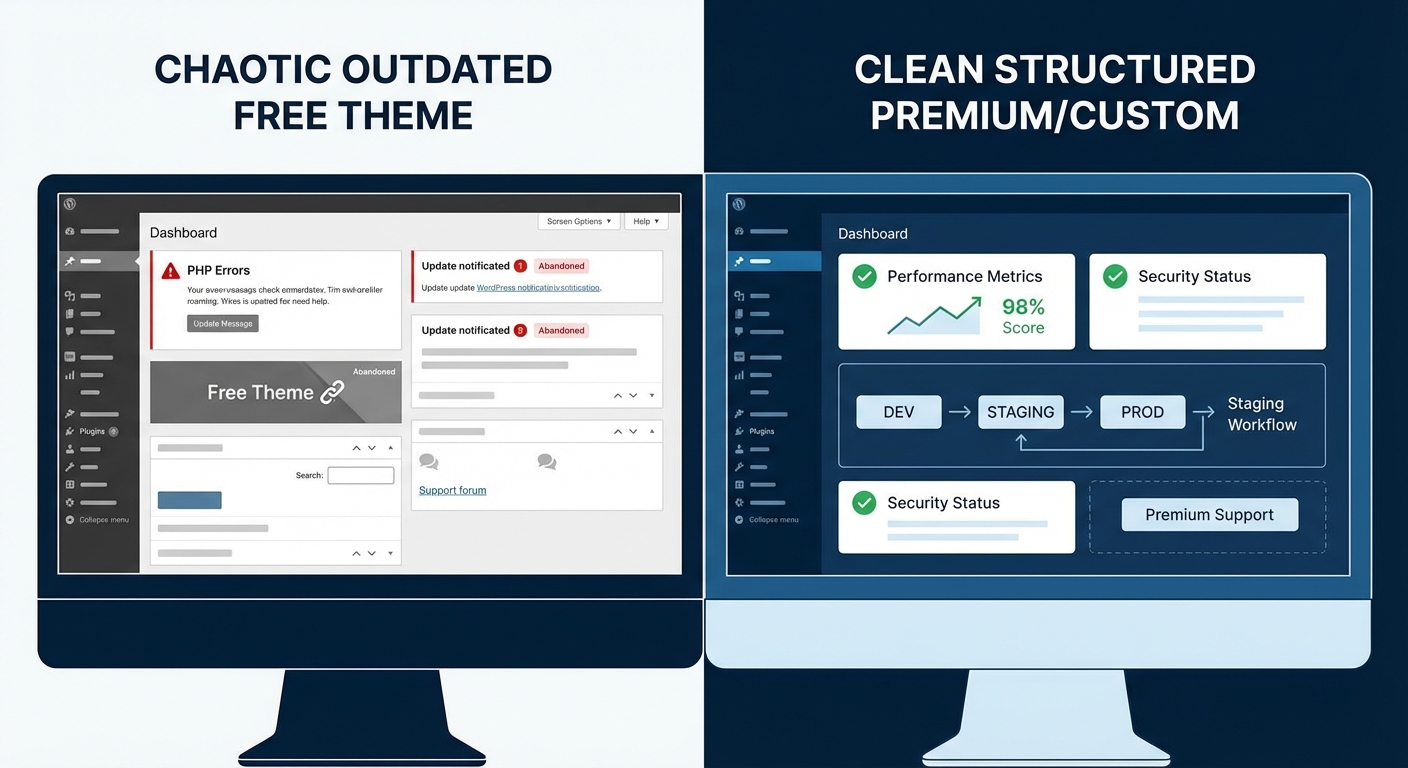
Which is why analytics setup doesn't exist in isolation. A clean GA4 implementation requires a site that's actually maintained: updated plugins that don't conflict, a staging workflow to test before deploying, and someone monitoring for silent failures. If you're interested in what that operational layer looks like, our WordPress maintenance and care services cover exactly that.
The Real Risk Isn't Setup — It's Drift
You configure GA4 correctly today. Six months from now, a plugin update changes how your contact form fires its submission event. Your conversion tracking silently breaks. You don't notice because the traffic data still looks normal.
This is the pattern we see consistently across WordPress audits: the initial setup was fine. The drift happened quietly over time.
A properly maintained WordPress site — one with a staging workflow, scheduled audits, and someone actually checking that things still work — catches these failures before they compound into months of bad data.
The Vimsy WordPress maintenance checklist covers the recurring checks that prevent this kind of silent decay, including analytics validation as part of a broader site health review.
If you want to see exactly what a managed WordPress maintenance plan costs — without the guesswork — view Vimsy's transparent pricing before you book anything.
If your implementation is already broken and you need a fast diagnosis, emergency WordPress support is available for exactly these situations.
Final Implementation Notes
GA4 is not optional, and a broken implementation is worse than no implementation — because broken data creates false confidence.
Get the tag right. Verify it. Set up your conversions. Filter your internal traffic. Link Search Console. Then leave it alone unless something changes.
And when something changes — a theme update, a new plugin, a site migration — re-verify. Tag Assistant takes 90 seconds to run. Use it.
Look — I'm writing this because this is a problem I see constantly, and it's also exactly what we built Vimsy to solve. If you want professionals handling this instead of hoping nothing breaks, book a free call.
Your analytics data is only useful if it's accurate. Right now, you probably don't know which way it is.