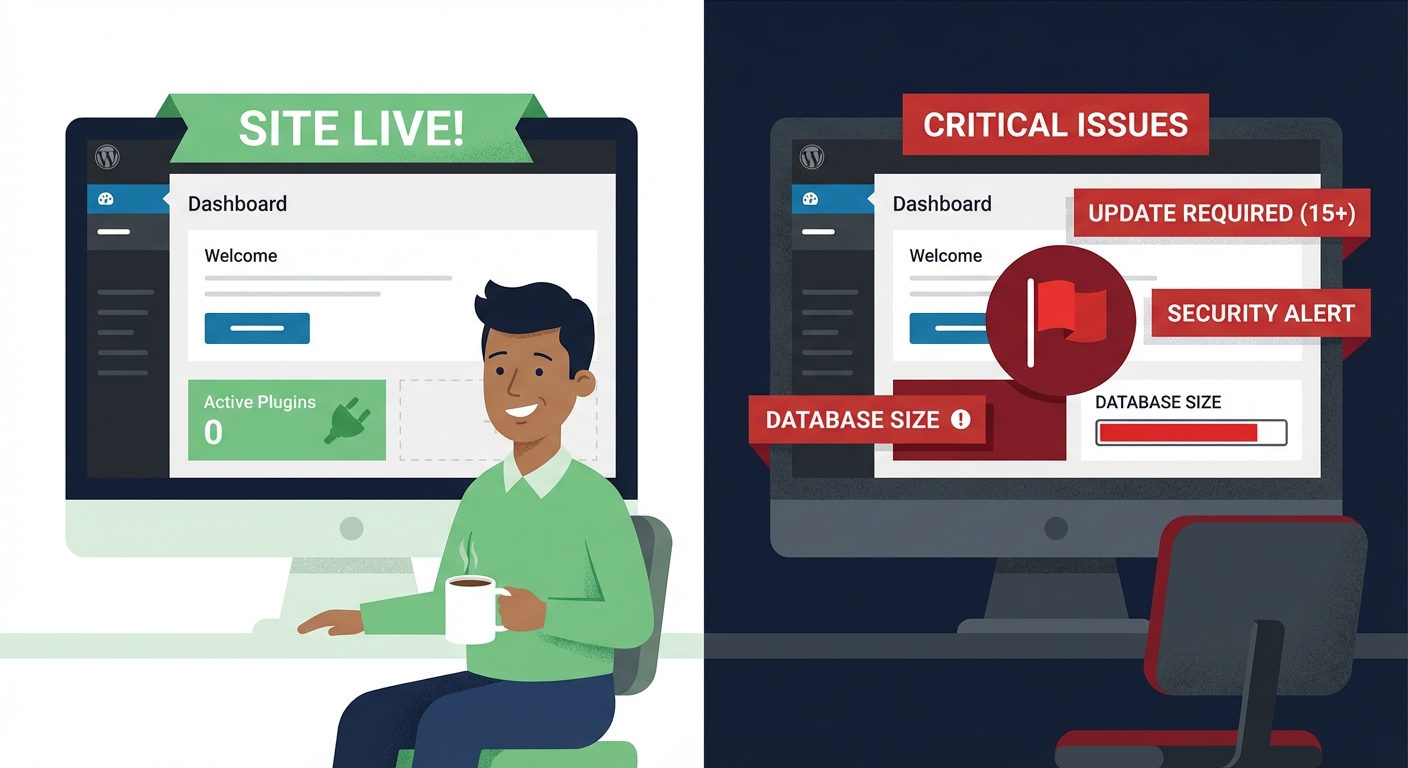
Most WordPress updates don't break sites. Bad update processes do.
That distinction matters more than most site owners realize. The fear isn't irrational — updates can cause conflicts, white screens, or broken layouts. But the solution isn't to stop updating. It's to build a process that makes catastrophic failure nearly impossible before a single update runs.
This is what that process looks like.
The Default Approach Is the Problem
Most sites run updates one of two ways: either through the WordPress dashboard in a moment of anxiety — clicking "Update All" and hoping — or by ignoring them entirely for months at a time.
Both approaches carry serious risk, just in different directions.
The "Update All and Hope" method skips every safeguard. No backup confirmation. No compatibility check. No rollback plan. You're applying changes to a live production environment with no safety net.
The "Ignore Everything" method is slower-moving but equally dangerous. Outdated plugins are the leading attack vector in WordPress compromises. According to WPScan's vulnerability database, the overwhelming majority of reported WordPress vulnerabilities exist in plugins, not WordPress core. Leaving those unpatched isn't cautious — it's exposure accumulation.
Neither is a system. Both are bets.
What Actually Breaks During Updates
Understanding why updates cause problems is more useful than fearing updates in general.
PHP version mismatches account for a significant share of post-update failures. If your host runs PHP 7.4 and a plugin update requires PHP 8.1, you'll hit fatal errors immediately. Checking PHP compatibility before updating isn't optional — it's foundational.
Plugin-to-plugin conflicts are the most common source of white screens and broken layouts. Two plugins that worked fine independently can conflict after one of them updates its internal hooks, REST API endpoints, or database schema. You won't see this in the changelog.
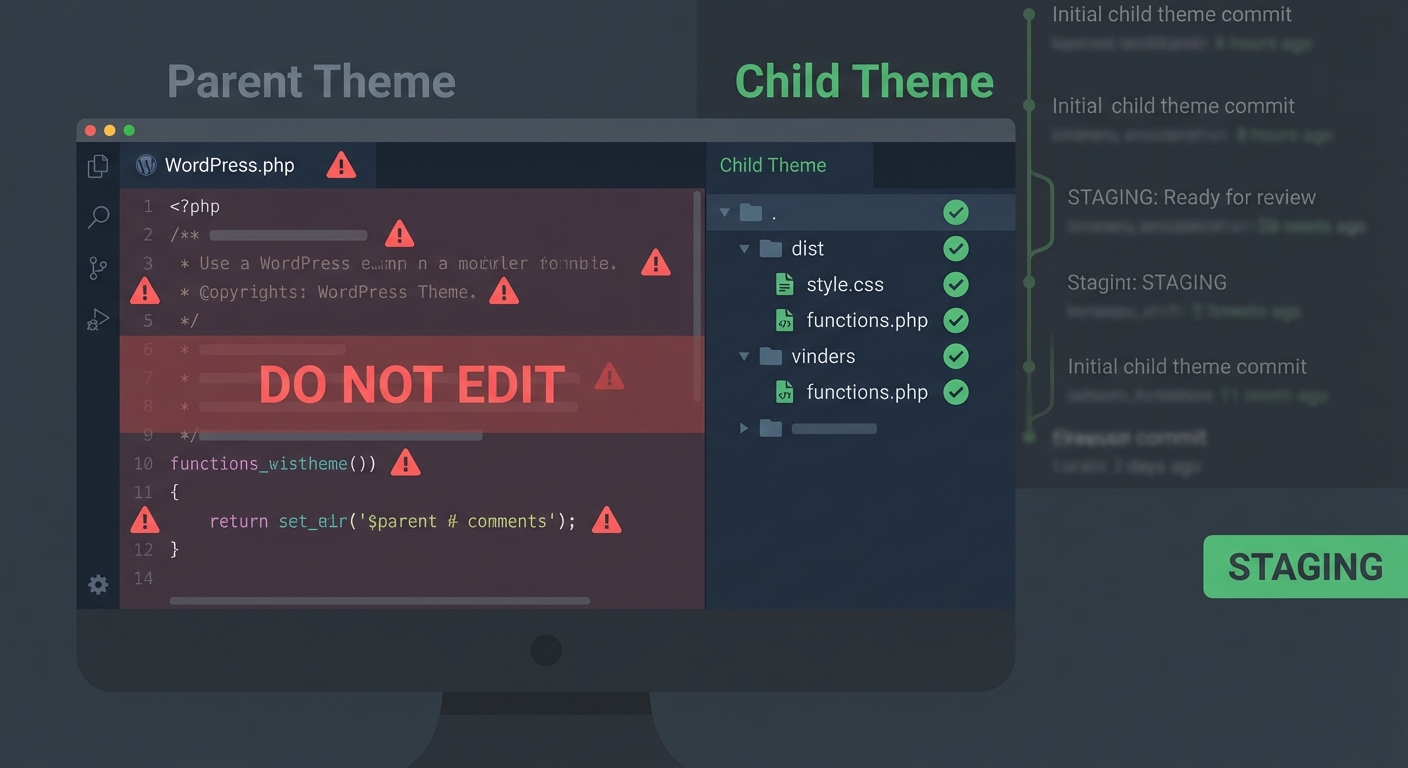
Theme dependency breakage happens when a page builder or child theme depends on a parent theme that changed its template structure. Major WooCommerce updates, in particular, regularly invalidate customizations built on older template files.
Transient corruption is less visible but real. Some plugin updates modify transient structures or flush the object cache in ways that cause temporary (or permanent) display issues. If your site uses an object cache like Redis or Memcached, an update that changes cached data structures can produce unexpected behavior until the cache clears or gets flushed manually — which you'd do via WP-CLI: wp cache flush.
Cron job failures are another silent casualty. WordPress cron jobs — scheduled tasks managed through wp-cron — can orphan or duplicate during plugin updates that modify scheduling logic. If a plugin that handles email dispatch or inventory sync gets updated and its cron hooks change, you may not notice until something downstream fails.
These aren't edge cases. They're the predictable mechanics of a complex, interdependent software environment.
The Staged Update Framework
This is the process that eliminates most update-related risk. It's not complicated. It's just disciplined.
Step 1: Verify Your Backup
Before anything else, confirm a clean, recent backup exists — not just that your host runs backups, but that a known-good restore point exists and has been tested. A backup you've never restored is a backup you don't actually have.
Most managed hosts create automated backups, but the restoration process matters as much as the backup itself. Know where your backup lives, how long it takes to restore, and whether it includes the database. A files-only backup won't save you if the update corrupts wp_options.
Step 2: Update on Staging First
This is non-negotiable for any site with meaningful traffic or revenue.
A staging environment is a clone of your live site — same plugins, same theme, same database — running in an isolated environment where updates can't affect production. You apply every update to staging first, test thoroughly, confirm nothing broke, then push to production.
The common objection is cost or complexity. But the real cost calculation looks like this: for a WooCommerce store averaging $2,500/day in revenue, a single bad update that takes four hours to diagnose and roll back costs roughly $416 in lost trading time — before you factor in developer fees. A staging setup costs a fraction of that.
Vimsy's Press Pro+ plan includes managed staging environments as a standard feature. Not as an add-on. As part of the managed update workflow we run for every site on that plan.
Step 3: Test by Category, Not All at Once
Don't update everything simultaneously, even on staging. Update in batches:
- WordPress core first — it's the most tested and least likely to cause downstream conflicts.
- Security plugins next — keeping these current is higher priority than visual plugins.
- WooCommerce and major functional plugins — test checkout flows, form submissions, API integrations after each.
- Theme updates last — these carry the highest risk of visual breakage and require the most thorough front-end testing.
Running wp core update and wp plugin update --all via WP-CLI on staging makes this process scriptable and repeatable. Manual clicking through the dashboard is fine for occasional updates; a systematic update program needs a repeatable process.
Step 4: Test Specifically, Not Casually
"I clicked around and it looked fine" is not a test.
A real test covers:
- Homepage, category pages, and key landing pages load without errors
- Forms submit and trigger expected confirmations
- WooCommerce cart, checkout, and order confirmation flow works end-to-end
- Admin area loads without PHP notices or fatal errors (Query Monitor helps surface these without being in debug mode)
- Scheduled cron jobs still appear in the cron schedule (you can inspect these with
wp cron event list) - No unexpected 404s on previously working URLs
If something breaks, you diagnose on staging. The live site never touched the update.
Step 5: Deploy with a Rollback Plan
When you're ready to push to production, do it with a documented rollback plan in place.
That means: knowing the exact steps to revert the database, restore the previous file set, and get back to a confirmed working state — before you start. If you're using WP-CLI, a rollback script can bring a site back in under ten minutes. If you're doing it manually through cPanel, it could take an hour.
Speed matters. A broken checkout isn't just a technical problem. It's a revenue problem with a cost that compounds by the hour.
The Plugin Abandonment Problem
One issue the "just update everything" crowd doesn't account for: not all updates are good updates.
Plugin abandonment is a real risk. A plugin that hasn't received an update in 18+ months carries increasing compatibility risk against current WordPress core and PHP versions. A plugin that has received a recent update from a new maintainer — after an ownership transfer — carries a different risk: the update itself could introduce malicious code.
This is documented, not theoretical. The WordPress plugin repository has had incidents where abandoned plugins were acquired and the update pushed contained backdoors. This isn't a reason to stop updating — it's a reason to validate the source of every update before it touches your site.
Checking plugin changelog notes, verifying the publisher, and watching for ownership transfers are part of a real update process. Most site owners don't do this. Most automated update tools don't either.
At Vimsy, our WordPress update management service includes changelog review and source validation as part of the update cycle — not just version bumping.
What "Safe Updates" Actually Requires
Let's be direct about what a safe update process requires in practice:
- A tested, restorable backup before every update cycle
- A staging environment where updates run first
- Batch updating by risk category
- Functional testing, not visual scanning
- A documented rollback procedure
- Plugin source validation
- PHP compatibility checks before major core updates
Most DIY update processes skip three or four of these. That's not a criticism — it's a time and tooling problem. Doing all of this properly takes time that most site owners don't have.
The alternative isn't to skip updates. The alternative is to have someone who does this systematically.
When Updates Go Wrong Anyway
Even with a proper process, edge cases happen. When an update does break a live site, the priority sequence is:
- Don't panic-click — additional changes on a broken site compound the problem
- Check error logs —
/wp-content/debug.logifWP_DEBUG_LOGis enabled, or server error logs - Identify the last update — WP-CLI's
wp plugin listand recent changelog history narrow the culprit fast - Deactivate via WP-CLI or FTP — if you're locked out of the admin,
wp plugin deactivate [plugin-slug]from the command line bypasses the broken UI - Restore from backup if deactivation doesn't resolve it
- Call for emergency support — if you're dealing with a WooCommerce store or membership site that's bleeding revenue, this is not the moment for trial and error
Vimsy offers emergency WordPress support for exactly these situations. If your update broke something and you need it fixed now, not tomorrow, that's the page.
The Maintenance Checklist Problem
Updates are one component of a larger maintenance picture. Most site owners who run updates manually are also missing regular wp_options table cleanup, orphaned transient removal, database optimization, uptime monitoring, and security scanning.
These aren't bonuses — they're the environment that makes updates safer. A site with an oversized wp_options table, thousands of stale transients, and no autoload optimization is a site already under stress before a single update runs.
If you're running updates manually and haven't done a full site audit in the last 90 days, our WordPress maintenance checklist is a reasonable starting point for understanding what else may need attention.
The Honest Bottom Line
Running WordPress updates safely isn't about being lucky. It's about having a process that removes luck from the equation.
The process exists. The tooling exists — WP-CLI, staging environments, backup validation, rollback scripting. What most sites don't have is someone running that process consistently, every update cycle, without cutting corners.
That's a solvable problem — either by building the discipline internally (which takes time and system-building) or by having it managed externally.
Look — I'm writing this because this is a problem I see constantly, and it's also exactly what we built Vimsy to solve. If you want professionals handling this instead of hoping nothing breaks, book a free call.
Updates will keep coming. The question is whether you're ready for them.
Published by Arslan Aslam — 13+ years in WordPress development and site management.