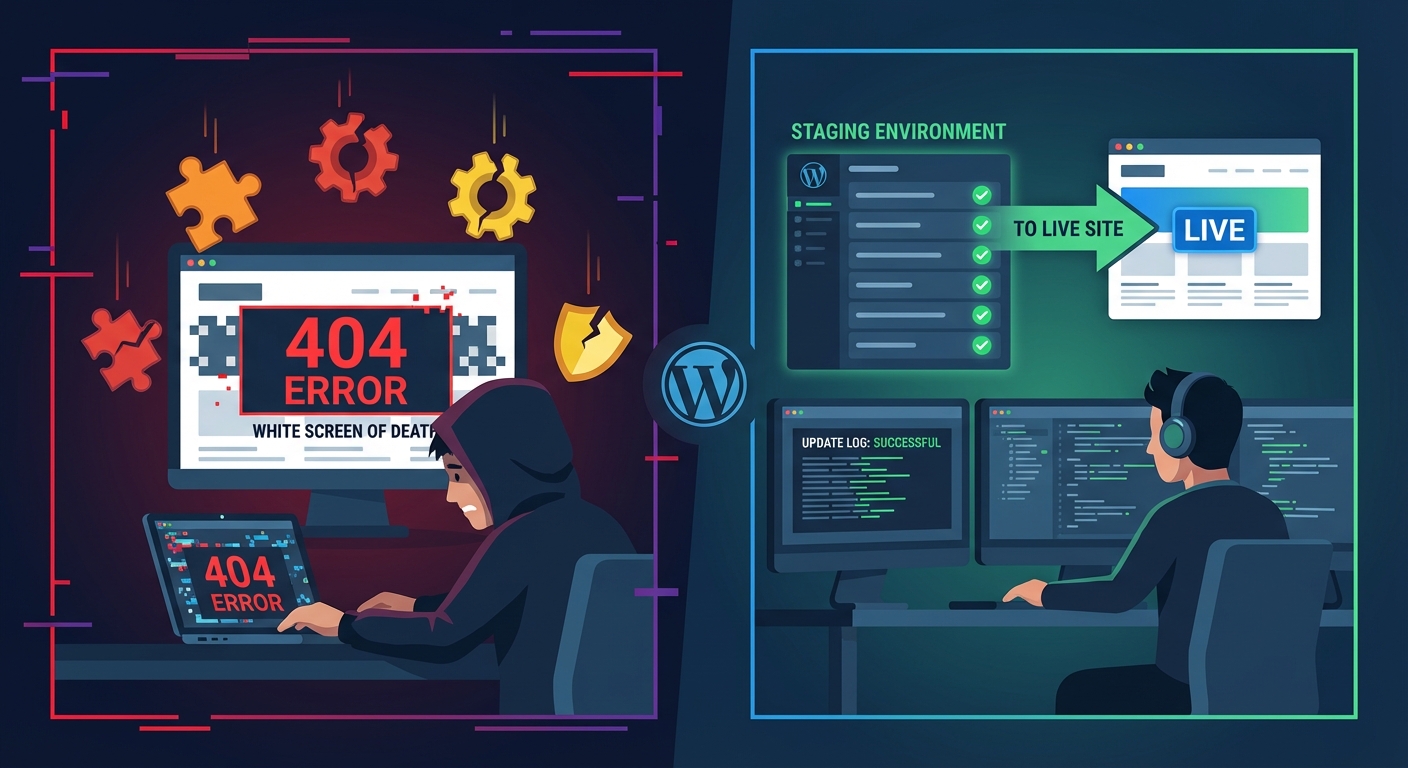
Most site owners believe that when their host installs an SSL certificate, the WordPress SSL migration is complete. It isn't.
That assumption has cost more sites their search rankings than almost any other single mistake in WordPress infrastructure. The certificate is step one. What comes after it — the actual work of migrating WordPress to HTTPS — is where rankings survive or die.
This is not a guide about what SSL is. This is a guide about what breaks when you treat WordPress HTTP to HTTPS as a configuration toggle instead of a migration operation.
The Myth: SSL Certificate Installed = HTTPS Migration Done
Here's the default belief across WordPress hosting communities, tutorials, and even hosting support documentation: once the certificate is active and the padlock shows in the browser bar, you're done.
Wrong. Dangerously wrong if your site has any SEO standing to protect.
An SSL certificate creates an encrypted channel between your server and the user's browser. That's all it does. It does not:
- Rewrite your internal links from HTTP to HTTPS
- Update the thousands of hardcoded URLs in your database
- Instruct Google to stop indexing the HTTP version of your site
- Configure 301 redirects for link equity preservation
- Fix mixed content warnings that cause browsers to block scripts
- Update WordPress Address and Site Address settings
- Touch your canonical tags or sitemap URLs
Each one of those items is a discrete action. Skip one and you have either a search ranking problem, a browser security warning, or a Google indexing conflict — sometimes all three simultaneously.
This is the contrarian truth most WordPress guides bury: managed hosting is not a WordPress migration service. Your host provisions infrastructure. WordPress application-layer concerns — including a complete WordPress SSL migration — are yours to own.
What Actually Breaks: The Technical Failure Map
When you migrate WordPress to HTTPS without addressing each layer, specific systems break in specific ways. Here's the actual failure map.
WordPress Core URL Settings
First stop: Settings → General. Both WordPress Address (URL) and Site Address (URL) must reflect https://. If they still show http://, WordPress generates HTTP links internally — menus, post permalinks, admin redirects, login pages — regardless of whether your certificate is active.
The more reliable approach is setting these directly in wp-config.php:
define('WP_HOME', 'https://yourdomain.com');
define('WP_SITEURL', 'https://yourdomain.com');
Hardcoding in wp-config.php prevents plugins or theme functions from accidentally overriding the values through a dashboard setting update.
Database-Level HTTP References
This is where most WordPress SSL migrations silently fail. Your database — particularly the wp_posts and wp_options tables — contains hardcoded HTTP URLs embedded in post content, widget configurations, theme settings stored as serialized arrays, and plugin option rows.
Changing the dashboard URL settings does nothing to these records.
The correct tool is WP-CLI:
wp search-replace 'http://yourdomain.com' 'https://yourdomain.com' --skip-columns=guid --allow-root
The --skip-columns=guid flag matters. The guid column in wp_posts stores original post identifiers used for internal deduplication. Replacing those values causes subtle but persistent tracking issues.
Always run this against a staging environment first. A botched search-replace on serialized data in wp_options corrupts plugin settings, widget configurations, and customizer values. The damage isn't always immediately visible — which makes it worse.
Mixed Content: The Two Types That Behave Differently
Mixed content is what happens when an HTTPS page loads HTTP resources. After your WP-CLI search-replace, some will remain — typically from plugin-generated asset URLs hardcoded in PHP (not the database), third-party embeds, or legacy theme templates.
There are two types with different consequences:
- Passive mixed content: HTTP images or media loaded on an HTTPS page. Browsers display them but flag the padlock as insecure.
- Active mixed content: HTTP JavaScript or stylesheets on an HTTPS page. Browsers block them entirely.
Active mixed content blocks script execution. A blocked HTTP jQuery or payment gateway script breaks your frontend functionality — checkout flows, form submissions, sliders. Not degraded. Broken.
Trace active mixed content through browser DevTools → Console. Fix by updating plugin-generated script URLs or switching to protocol-relative references where the plugin supports it.
If a plugin is still generating HTTP asset URLs after a clean database search-replace, it's hardcoding paths in PHP. The fix is either editing source (risky on production) or replacing the plugin. Plugin abandonment risk compounds this — older plugins with no active maintainer generate hardcoded HTTP references and will never receive a patch. Audit and replace them.
.htaccess Redirect Configuration
Your .htaccess file needs a permanent 301 redirect that forces every HTTP request to HTTPS:
RewriteEngine On
RewriteCond %{HTTPS} off
RewriteRule ^(.*)$ https://%{HTTP_HOST}%{REQUEST_URI} [L,R=301]
The R=301 flag is not negotiable from a WordPress HTTPS SEO standpoint. A 302 redirect is temporary — Google treats it as provisional and does not transfer link equity. Any domain authority built on your HTTP URLs stays tied to HTTP, which is now inaccessible. You lose the equity permanently unless you correct it.
While you're editing .htaccess, perform the hardening work that belongs here anyway: block direct access to wp-config.php, disable directory listing, and restrict XML-RPC if you're not using it for Jetpack or remote publishing. These rules belong in every production .htaccess. A migration is a natural point to apply them.
Note: Nginx environments don't use .htaccess. Redirect rules live in the server block. Know your stack before you start editing files.
WordPress Cron and Transient Corruption
Here's what most HTTPS migration guides don't cover: WordPress cron jobs that trigger HTTP callbacks can fail silently or enter redirect loops post-migration.
If your site runs WP-Cron-based scheduled tasks — backup jobs, WooCommerce order status updates, email queue processing, scheduled publishing — and those jobs issue internal HTTP requests using the old URL, they hit the 301 redirect chain. Depending on how the HTTP client handles the redirect, the job either completes with added overhead or fails without logging an error.
Audit your scheduled tasks:
wp cron event list
For sites with critical scheduled tasks, move to a true server-side cron — a system-level cron job calling wp-cron.php directly over HTTPS — rather than relying on visitor-triggered WP-Cron.
Transients are equally vulnerable. Transients cached before migration live in the wp_options table with expiration timestamps. They can contain stale HTTP URLs that resurface as mixed content warnings even after your search-replace completes. Clear them immediately post-migration:
wp transient delete --all
This forces fresh generation under the new HTTPS context. Skip this step and you'll spend hours diagnosing mixed content that "shouldn't be there" based on your database scan.
Object cache layers add another dimension. If you're running Redis or Memcached, cached responses referencing HTTP URLs survive the database change until the cache is flushed or entries expire. Flush the object cache as part of your migration sequence.
The SEO Consequences of Getting This Wrong
WordPress HTTPS SEO is not a matter of preference. Google has officially treated HTTPS as a ranking signal since 2014. But the SEO damage from a botched migration doesn't come from missing the signal — it comes from the errors the migration introduces.
Duplicate content at scale. Google treats HTTP and HTTPS as separate URLs. Without proper 301 redirects, Google indexes both versions simultaneously. You accumulate duplicate content penalties, split your link equity across two URL spaces, and create canonical tag conflicts that can take months to unwind — even after you fix the redirects.
Link equity destruction. Every backlink pointing to your HTTP pages carries ranking weight. A 301 redirect transfers approximately 90–99% of that equity to the HTTPS equivalent. A 302 transfers none. Sites that launch with 302 redirects — or no redirects at all — effectively discard years of link building the moment they "go HTTPS."
Search Console data fragmentation. Google Search Console treats HTTP and HTTPS as separate properties. If you've been tracking performance in an HTTP property and haven't added the HTTPS version, you're flying blind. Your impressions, clicks, and crawl coverage data for the HTTPS site exist — in a property you're not monitoring.
Post-migration GSC verification steps:
- Add the HTTPS version as a new Search Console property (or use domain-level verification to cover all variants)
- Submit a fresh XML sitemap referencing only HTTPS URLs
- Remove or redirect any previously submitted HTTP sitemaps
- Use the URL Inspection tool on representative pages to confirm Google sees the canonical HTTPS version
- Monitor the Coverage report daily for 2–4 weeks for crawl errors on the new HTTPS property
Expect minor organic fluctuation during index transition — typically 2–4 weeks. Expect significant drops only if the redirects, canonical tags, or sitemap configuration are wrong. If you see a sustained 20–30% drop past week four, the issue is structural, not transitional.
For a WooCommerce store averaging $3,000/day, a sustained 25% traffic reduction represents roughly $750/day in lost revenue — approximately $20,000 over the 4 weeks it typically takes to diagnose and correct a botched migration under pressure. That math is why getting this right the first time matters — not as a principle, but as economics.
The Correct Migration Sequence
This is the order that eliminates the failure scenarios above.
Step 1 — Back up everything. Database and files. Verified backup, not assumed. Your rollback strategy needs to work in under 30 minutes. Test it before the migration begins.
Step 2 — Install and verify the SSL certificate. Confirm it covers both the root domain and the www subdomain.
Step 3 — Update WordPress Address and Site Address in wp-config.php. Not the dashboard — wp-config.php.
Step 4 — Run the WP-CLI search-replace on staging. Verify results. Confirm no serialized data corruption. Then run on production.
Step 5 — Configure .htaccess 301 redirects — HTTP to HTTPS, and non-www to www (or www to non-www — pick one and stay consistent).
Step 6 — Flush transients and object cache.
wp transient delete --all
Step 7 — Test for mixed content. Browser DevTools, SSL Labs, or Why No Padlock. Fix every active mixed content instance before declaring the migration live.
Step 8 — Update your CDN (if applicable) to serve assets over HTTPS and invalidate cached HTTP responses.
Step 9 — Update Google Search Console — add the HTTPS property, submit the new sitemap, monitor the Coverage report.
Step 10 — Update Google Analytics — set the canonical property URL to HTTPS.
Step 11 — Audit cron jobs. Verify scheduled tasks are running correctly under the new HTTPS endpoint.
Step 12 — Monitor for 4 weeks. GSC Coverage, crawl errors, organic traffic trends, and redirect chains.
The sequence is intentional. Running the database search-replace before configuring .htaccess redirects creates a window where WordPress serves HTTPS URLs that aren't accessible yet. Running it before the staging test risks corrupting production data with no clean recovery path.
A full WordPress maintenance checklist covers the ongoing operational work that follows a migration: update management, cron verification, database health monitoring, and security hardening — all of which interact with an HTTPS migration if executed in the wrong order.
Why Tutorials Fail in Practice
The gap between a migration tutorial and a real WordPress SSL migration is execution context.
Tutorials describe generic steps. They don't account for:
- Serialized data corruption during search-replace on complex plugin configurations
- WooCommerce checkout flows with mixed content from payment gateway scripts that hardcode HTTP endpoints
- Multisite installations where each subsite needs independent URL treatment
- CDN layers that cache HTTP responses and re-serve them after the server-side redirect is in place
- Staging environments that don't accurately reflect production database content
They also don't tell you that a rollback strategy isn't optional — it's part of the plan. Before you run wp search-replace on a production database, you need a tested, verified backup and a restoration process that works under pressure. Not a backup you assume your host is taking. One you've confirmed and can restore in under 30 minutes.
When something goes wrong mid-migration and your site is serving broken pages to real traffic, urgency compounds errors. That's when emergency WordPress support becomes the difference between a 2-hour incident and a 2-day recovery operation.
Look — I'm Writing This Because This Is a Problem I See Constantly
HTTPS migrations that go wrong are almost entirely preventable. They fail because someone treated "certificate installed" as "migration complete" — and the gap wasn't discovered until Google Search Console flagged it, rankings dropped, or checkout stopped working.
Look — I'm writing this because this is a problem I see constantly, and it's also exactly what we built Vimsy to solve. If you want professionals handling this instead of hoping nothing breaks, book a free call.
Vimsy's WordPress services include technical migrations with staging workflows, WP-CLI database operations, .htaccess hardening, and post-migration SEO verification — not as optional add-ons, but as standard practice. The pricing page gives you a clear view of what structured WordPress management costs at different scopes.
A migration done correctly costs a fraction of what a migration corrected under pressure costs. That's not a sales pitch. It's arithmetic.