Most small business WordPress sites are set up once and then left alone. That's not a strategy — that's a liability waiting to surface.
The setup phase gets all the attention: picking a domain, choosing hosting, installing a theme, adding a few plugins. But setup is the easy part. What determines whether your site actually serves your business long-term is what happens after you click publish. And most small business owners have no plan for that.
This guide covers both phases honestly — what a solid setup looks like, and what ongoing maintenance actually requires. Not as a scare tactic. As a realistic picture of what you're signing up for when you build on WordPress.
Choosing Your Domain and Hosting: Get the Foundation Right
Your domain name matters less than your hosting infrastructure. Most small business owners spend hours agonizing over a .com and five minutes choosing a host. That's the wrong ratio.
WordPress needs a hosting environment that matches its operational reality. You want:
PHP 8.1 or higher. Running PHP 7.x in 2024 isn't just slow — it's unsupported. Outdated PHP versions are one of the top causes of avoidable compatibility failures, and plugins increasingly drop support for older versions without warning. If your host can't confirm your PHP version or won't let you change it easily, that's a problem you'll discover under pressure.
Managed WordPress hosting or a VPS with proper configuration. Shared hosting plans that pack thousands of sites onto a single server will bottleneck your performance at scale. For a new site, shared hosting is acceptable — but know its ceiling.
Automatic daily backups with offsite storage. Not "we have backups." Offsite, versioned, restorable backups. Ask your host where backups go and how you restore from them. If they can't answer clearly, your backups don't meaningfully exist.
SFTP and SSH access. You'll need this the moment something breaks and you need to get into wp-config.php, check server logs, or run WP-CLI commands. Hosts that lock you out of the server are a problem you'll discover at the worst possible time.
A reliable starting point for small business: SiteGround, Kinsta, or Cloudways. Each gives you meaningful control without requiring a systems administrator background.
WordPress Setup: What Actually Matters at Install Time
Installing WordPress takes four minutes. Configuring it properly takes longer.
The decisions you make at install time create compounding effects later. Get these right from the start:
Set your permalink structure. Go to Settings → Permalinks and choose "Post name." The default numeric structure (?p=123) is meaningless to search engines and users. This one setting affects every URL on your site permanently. Changing it later breaks links.
Lock down wp-config.php. This file contains your database credentials, secret keys, and configuration constants. Move it one directory above the WordPress root if your host allows it, and set file permissions to 440 or 400. Add define('DISALLOW_FILE_EDIT', true); to disable the theme/plugin editor in the WordPress admin — a common malware entry point.
Install only what you need. Plugin bloat is one of the fastest ways to accumulate technical debt. Every plugin you install is a dependency — a piece of third-party code running on your server with database write access. Most small business sites need fewer than 12 plugins total. Be selective from day one.
Configure .htaccess hardening. If you're on an Apache server, your .htaccess file is a security lever most people never touch. Block access to sensitive files like wp-config.php, disable directory browsing, and limit XML-RPC access if you don't use it. These are low-effort, high-value configurations.
Essential Plugins for Small Business WordPress Sites
You don't need 40 plugins. You need the right ones doing their jobs cleanly.
Here's the minimal functional stack for a small business site:
Security: Wordfence or Solid Security. Configure firewall rules, enable login attempt limiting, and set up email alerts for file changes. Out of the box, WordPress has no application-level firewall.
Backups: UpdraftPlus connected to an external destination (Google Drive, S3, Dropbox). Your host's backups are a safety net — not your primary backup strategy. These are two different things.
Performance/Caching: WP Rocket or W3 Total Cache. Proper caching means WordPress generates a page once and serves the cached version to subsequent visitors. Without this, every page request hits PHP and the database. For a low-traffic site this is fine. For anything with real traffic, uncached WordPress slows down fast.
SEO: Yoast or Rank Math. These handle your meta structure, XML sitemap, schema markup, and canonical URLs.
Forms: WPForms or Gravity Forms. Don't use the default WordPress comments system as a contact mechanism.
One plugin category most small business owners overlook: object caching. If your host supports Redis or Memcached, configure an object cache plugin to connect to it. WordPress makes repetitive database queries by default — object caching stores those query results in memory, dramatically reducing database load. Your hosting dashboard will tell you if Redis is available. Most managed hosts include it.
The Part Nobody Talks About: What Maintenance Actually Involves
Here's where most small business WordPress guides stop: after they give you a plugin list.
They don't tell you what happens six months after launch. And that's exactly where the problems start.
WordPress is not static software. It's an ecosystem with hundreds of moving parts — core, themes, plugins, PHP runtime, database, server configuration — all of which change independently and interact in ways that aren't always predictable.
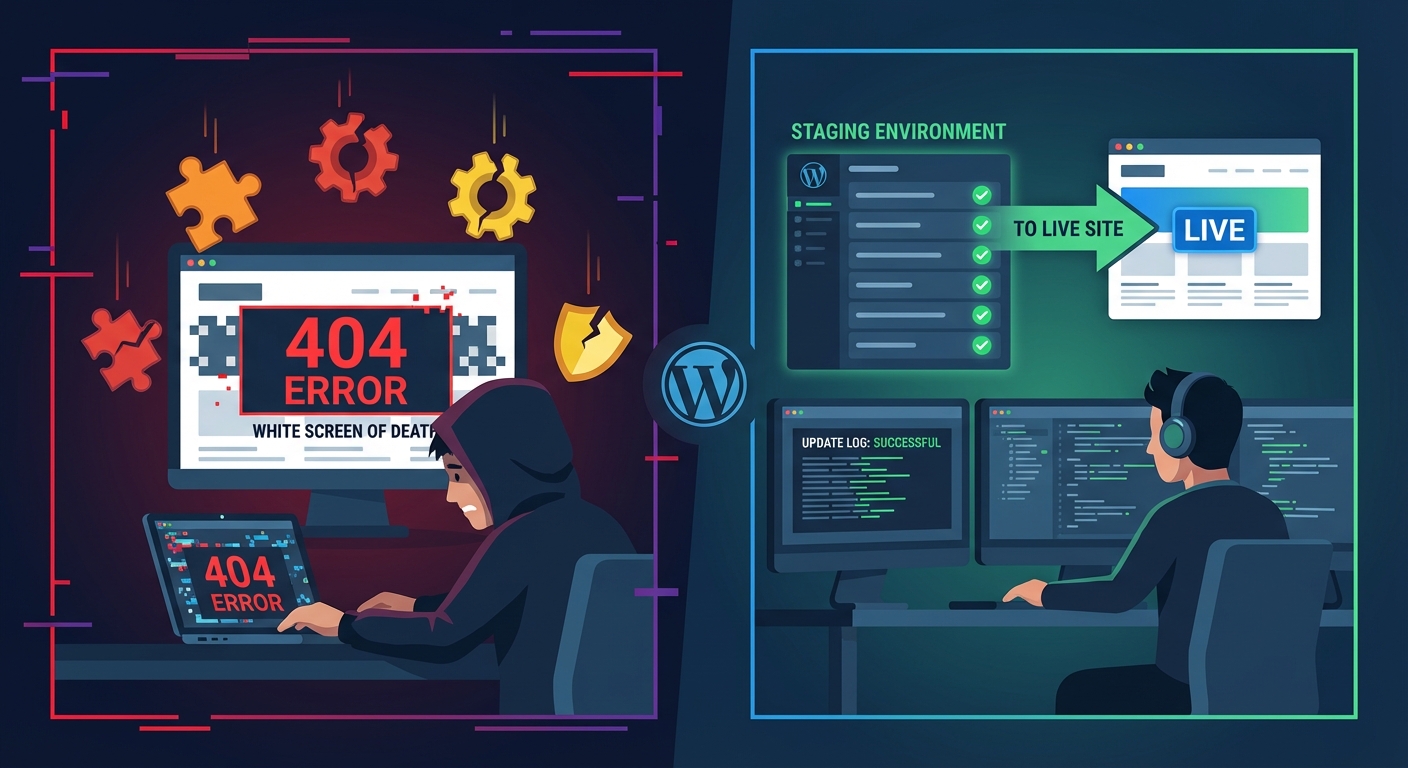
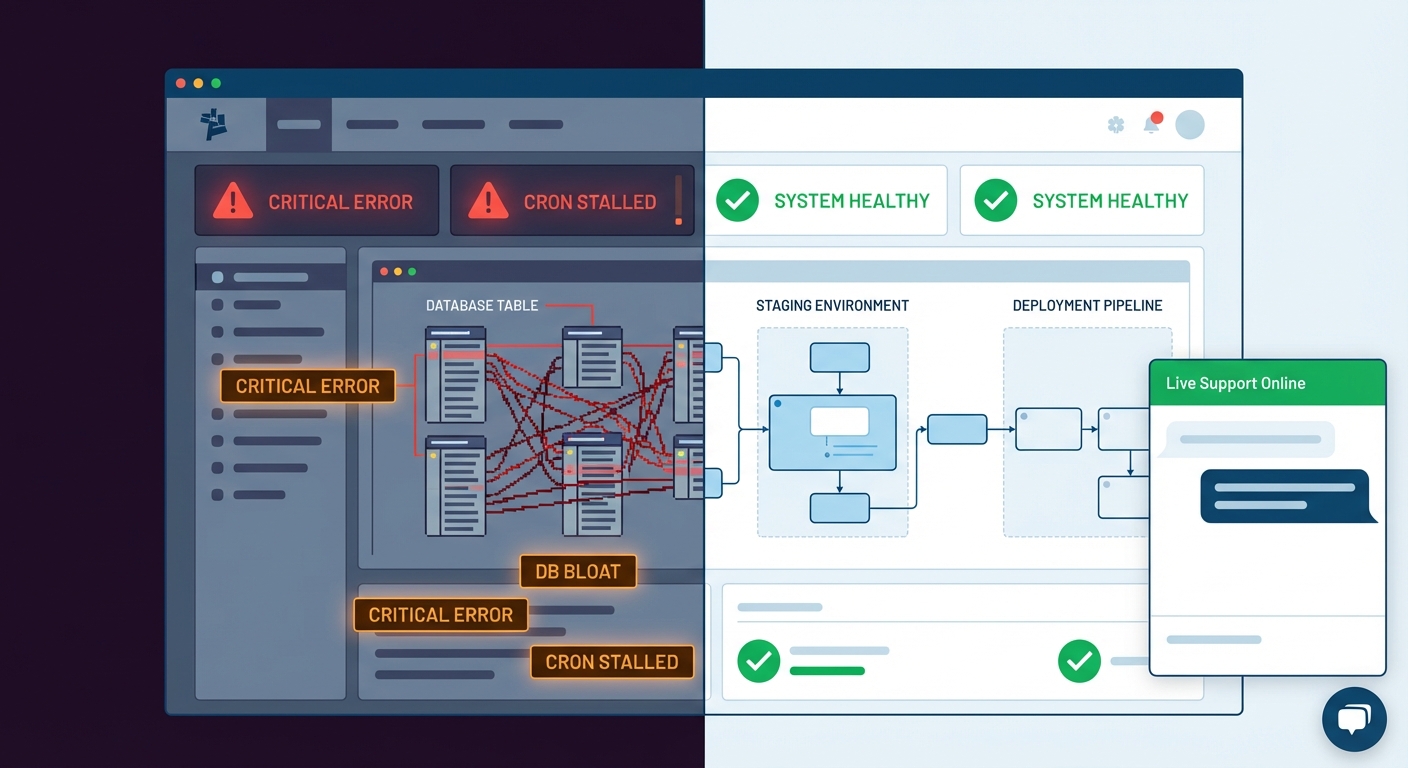
Plugin updates aren't plug-and-play. Every update introduces a compatibility variable. A WooCommerce update can break a payment gateway. A security plugin update can conflict with your caching layer. A theme update can overwrite customizations. In most audit reviews we conduct, update-related breakages rank among the top causes of functionality loss on small business sites. The answer isn't to stop updating — it's to update with a process, which means staging workflows before anything touches production.
The wp_options table grows silently. This is where WordPress stores site settings, plugin configurations, transients, and a lot of other data that accumulates over time. Poorly coded plugins store data here without cleanup routines. Transients — temporary cached data WordPress writes to the database — pile up when WordPress cron jobs fail to run their cleanup tasks. Over months, an unchecked wp_options table can grow to hundreds of thousands of rows. That's dead weight on every database query your site makes.
Cron jobs fail quietly. WordPress uses a pseudo-cron system called WP-Cron that triggers on page visits. If your site has low traffic or your hosting blocks outgoing HTTP requests, WP-Cron jobs don't run. Scheduled backups don't happen. Transient cleanup doesn't happen. Email queues stall. Nothing fails loudly — it just silently stops working, and you find out weeks later.
Plugin abandonment is a real risk. Check the "last updated" date on any plugin in the WordPress repository. If a plugin hasn't been updated in 12+ months and hasn't been tested against the current WordPress version, it's a candidate for replacement. Abandoned plugins don't get security patches. That's not a theoretical risk — it's how most malware injections start.
Security without monitoring is theater. Installing Wordfence doesn't protect you if you never check the alerts. Across WordPress sites we audit regularly, a significant portion have security plugins installed with no active monitoring — alerts going to an inbox nobody reads, scan results nobody reviews. That's not security. That's the appearance of security.
A Practical Maintenance Framework for Small Business Owners
If you're managing this yourself, here's the minimum viable maintenance system:
Weekly:
- Review your security plugin dashboard for flagged issues
- Confirm scheduled backups completed successfully
- Review uptime monitoring alerts (UptimeRobot has a free tier)
Monthly:
- Run plugin, theme, and core updates — on a staging environment first, not directly on production
- Check wp_options table size via phpMyAdmin or WP-CLI (
wp option list --autoload=yes --orderby=sizegives you a fast picture of what's bloating autoloaded data) - Review query performance using Query Monitor if you're experiencing slowdowns
- Confirm your PHP version is current and compatible with active plugins
Quarterly:
- Run a full security audit: file integrity check, user account review, API key rotation
- Test your backup restore process — actually restore a backup to a staging environment to confirm it works
- Review your plugin list for abandonment risk
- Check REST API exposure — the WordPress REST API is useful but should not expose user data or sensitive endpoints without authentication
Annually:
- Review your rollback strategy. Do you have a tested, documented process for getting back to a known-good state after a bad update or a security compromise? If not, write one.
- SSL renewal check (most auto-renew, but confirm)
- Full performance audit using Query Monitor diagnostics and a fresh look at your caching configuration
This framework is entirely manageable for a small operation. The problem is execution consistency. Most small business owners do this diligently for two months and then let it slide. That's when the decay begins — and it compounds quietly.
For a complete version of this checklist, see the WordPress maintenance checklist we maintain and update regularly.
The Decision Point: DIY Maintenance vs. Managed Support
At some point, you have to be honest about where your time goes.
If you're a small business owner, your productive hours are worth real money. An hour spent debugging a plugin conflict after a bad update is an hour not spent on your actual business. That math shifts depending on your site's role — but for any business that depends on its website for leads, bookings, or sales, the risk profile of unmanaged WordPress is not trivial.
Consider the math directly: imagine a service business generating $500/day in online leads. A site outage lasting 8 hours — caused by a botched update, a security breach, or a cron failure that corrupted a form submission queue — represents $166 in direct lost revenue at minimum. Add indirect costs: missed follow-up opportunities, client trust erosion, recovery time. That's not catastrophizing. That's what the model looks like when you run it honestly.
The alternative to DIY isn't expensive. Vimsy's WordPress care plans are built specifically for businesses like this — handled by practitioners who understand staging workflows, database hygiene, and rollback strategy, not just plugin toggles. The pricing breakdown is transparent by tier, so you can assess fit without a sales call.
If your site is already broken, compromised, or underperforming, emergency WordPress support is the faster path in — we stabilize first, then transition into ongoing care.
The Bottom Line
Setting up WordPress is the beginning, not the job.
The sites that serve small businesses well over years have consistent maintenance behind them — updated, monitored, backed up, and audited on a real schedule. The ones that fail ran on launch energy and then got ignored.
You now have the framework. The question is whether you'll execute it consistently, or whether you'll find out the hard way what deferred maintenance costs.
Look — I'm writing this because this is a problem I see constantly, and it's also exactly what we built Vimsy to solve. If you want professionals handling this instead of hoping nothing breaks, book a free call.
Your site doesn't break dramatically. It decays quietly — until it doesn't.