Most WordPress sites don't get hacked through clever zero-day exploits. They get hammered by automated bots running credential lists until something opens. That's a brute force attack — and if you've seen a security plugin alert about failed login attempts, you've already been targeted.\n\nThis isn't theoretical. It's the most common attack vector hitting WordPress installations right now. The question isn't whether bots will find your login page. They already have. The question is whether your site is configured to stop them or slowly absorb the damage until something gives.\n\n---\n\n## What a Brute Force Attack Actually Does to Your WordPress Site\n\nA brute force attack is mechanically simple. An automated script hits wp-login.php or xmlrpc.php repeatedly, cycling through username and password combinations. It doesn't need to be sophisticated. It just needs to be persistent — and bots are infinitely patient.\n\nHere's where WordPress makes it easy for attackers by default:\n\n- No login attempt limits. Out of the box, WordPress allows unlimited failed logins. A bot can try 50,000 combinations without triggering any native protection.\n- Predictable login URL. Every WordPress site defaults to /wp-login.php. Bots don't need to discover it.\n- xmlrpc.php as a second vector. This file, enabled by default on older installations, allows attackers to send thousands of password attempts in a single HTTP request — bypassing even basic rate limiting.\n\nThe payload isn't just the risk of a successful login. Even failed brute force attacks consume server resources. Enough concurrent login attempts will spike your CPU, exhaust PHP workers, and slow your site to a crawl — effectively a denial-of-service attack with authentication attempts as the weapon.\n\nFor a WooCommerce store averaging $3,000/day in revenue, that's roughly $125/hour when the site degrades to the point of unusability. And during a sustained attack, degradation happens before anyone realizes what's occurring.\n\n---\n\n## The Default WordPress Configuration Is a Liability\n\nMost site owners assume their host is handling this. That's infrastructure-level thinking applied to an application-level problem.\n\nYour host manages the server. It doesn't manage wp-login.php. It doesn't configure login attempt thresholds. It doesn't know that the admin username on your site is still "admin" — which it is on a significant portion of WordPress sites across the web, because that's the installation default many people never change.\n\nAttackers know this. Credential lists used in brute force campaigns are built around common WordPress usernames: admin, administrator, test, webmaster. Combined with passwords from public breach databases — which contain billions of real credential pairs — the odds of a hit increase substantially on unprotected sites.\n\nThe myth here is that obscurity provides protection. It doesn't. The bots aren't looking for your site specifically. They're scanning entire IP ranges, fingerprinting WordPress installations via the wp-json REST API response, the generator meta tag, or the presence of /wp-content/. Your site is one of hundreds they're hitting simultaneously.\n\nThis also means that hiding behind a low-traffic assumption offers no protection. Bots don't prioritize by revenue or domain authority. They scan systematically. A brochure site with 200 monthly visitors gets hit the same way a high-volume e-commerce site does — the attack surface is identical.\n\n---\n\n## What You're Actually Risking\n\nA successful brute force login is not the end of the story — it's the beginning of a much worse one.\n\nOnce an attacker has admin access, the immediate actions typically include:\n\n- Injecting malware into theme files or the wp_options table (autoloaded malware persists through plugin updates)\n- Creating backdoor admin accounts that survive a password reset\n- Adding malicious cron jobs via wp_cron that execute payloads on a schedule\n- Exfiltrating customer data — names, emails, addresses, and if WooCommerce stores payment tokens, payment data\n\nGoogle's Safe Browsing flags malware-infected WordPress sites. When that happens, browsers display a red warning page before your site even loads. The trust damage from that flag takes weeks to undo even after the malware is cleaned — and the cleanup itself requires a full audit of every file, every database record, and every user account.\n\nBrute force prevention isn't just a security configuration task. It's brand protection and revenue protection. Treat it as both.\n\n---\n\n## How to Actually Stop Brute Force Attacks\n\nThere's no single solution. Effective defense is layered. Each layer increases the cost of the attack for the bot until your site is no longer worth targeting.\n\n### Layer 1: Limit Login Attempts\n\nThe most fundamental fix. Install a plugin that throttles login attempts — after a defined number of failures, that IP gets blocked temporarily or permanently.\n\nPlugins like Limit Login Attempts Reloaded or WP Cerber do this reliably. Configure them to:\n\n- Lock out after 3–5 failed attempts\n- Extend lockout duration progressively (first lockout: 15 minutes; second: 24 hours)\n- Log failed attempts with IP and timestamp for pattern analysis\n\nUse WP-CLI to verify what authentication plugins are active and whether they've logged recent events:\n\n\nwp plugin list --status=active\n\n\nIf you're seeing hundreds of failed logins in your server logs and no lockout plugin is active, your site absorbs the full attack load with no defense in place.\n\n### Layer 2: Block xmlrpc.php\n\nUnless you run a mobile app or remote publishing workflow that requires XML-RPC, disable it entirely. Add this to your .htaccess:\n\napache\n<Files xmlrpc.php>\n Order Deny,Allow\n Deny from all\n</Files>\n\n\nOr use a plugin that handles it via a settings toggle. Either approach stops attackers from using multicall XML-RPC requests to fire thousands of login attempts in a single HTTP request — an attack pattern that bypasses most standard rate-limiting configurations.\n\n### Layer 3: Add CAPTCHA to the Login Form\n\nCAPTCHA doesn't stop determined human attackers, but brute force attacks are automated. A Google reCAPTCHA v3 integration on wp-login.php disrupts most bot-driven attack scripts without creating friction for legitimate users (v3 is invisible — it scores behavior, not checkbox interaction).\n\nPlugins like WP Armour, Advanced Google reCAPTCHA, or the CAPTCHA features built into Wordfence handle this well. If you run a custom login form, verify the CAPTCHA fires on that form specifically — not just the default WordPress login page.\n\n### Layer 4: Implement Two-Factor Authentication\n\nBrute force attacks aim to steal credentials. 2FA makes stolen credentials insufficient.\n\nEven if a bot successfully guesses a password, it can't authenticate without the second factor — a TOTP code from an app like Google Authenticator or Authy. For admin accounts, 2FA should be non-negotiable.\n\nWP 2FA and the Two-Factor plugin (maintained by contributors closely aligned with the WordPress security team) both implement TOTP correctly. Enforce 2FA for all users with Editor-level access and above. Don't make it optional for privileged accounts.\n\n### Layer 5: Change the Login URL\n\nRelocating /wp-login.php to a custom path — /admin-portal, /site-access, or anything non-standard — eliminates the attack surface for bots scanning for the default login URL.\n\nThis isn't a standalone defense. Fingerprinting can still reveal the new URL to determined attackers. But combined with the layers above, it significantly reduces automated scan hits and bot-driven load on the login endpoint.\n\nWPS Hide Login is the standard plugin for this. If you change the login URL, document it immediately and store it somewhere reliable — you'll lock yourself out if you forget it after a browser cache clear.\n\n### Layer 6: IP Allowlisting for Admin Access\n\nFor sites where the admin team works from consistent IPs — an office network, a business VPN — restricting /wp-login.php to specific addresses at the .htaccess level is the hardest available defense:\n\napache\n<Files wp-login.php>\n Order Deny,Allow\n Deny from all\n Allow from YOUR.OFFICE.IP.HERE\n</Files>\n\n\nThis stops all other IPs from reaching the login form regardless of credentials. It's the most effective single configuration change available — if your operational context supports it.\n\n---\n\n## The Monitoring Layer: Know When You're Under Attack\n\nDefense layers only work if someone is watching them. A brute force campaign that's being blocked still consumes server resources. Understanding attack patterns lets you escalate defenses before they degrade performance.\n\nUse Query Monitor to identify unexpected server load spikes correlated with login endpoints. Enable Wordfence's live traffic view during suspected attacks. Review your server access logs for POST requests to wp-login.php — a sudden spike in those is the clearest signal you'll get before something breaks.\n\nIn most security audits we perform on new client sites, login page exposure is the most common unaddressed vulnerability. Not because site owners don't care — because the default WordPress installation gives no signal that it's happening until the damage is already accumulating in the background.\n\n---\n\n## Hardening Is Not a One-Time Event\n\nSecurity configurations erode. Plugins get deactivated during troubleshooting and never reactivated. PHP version updates change how certain security functions behave. New admin users get created without 2FA enforced. Hosting migrations drop .htaccess rules entirely.\n\nA site that someone hardened 18 months ago may have significant gaps today. And no one on the team knows, because there's no recurring verification process.\n\nEffective security maintenance includes recurring audits — not just initial hardening. That means checking that lockout plugins are active, verifying that XML-RPC is still blocked, confirming 2FA enforcement on current admin accounts, and reviewing login logs for unusual patterns across a rolling period.\n\nIf your site doesn't have a documented security baseline with recurring verification, you don't have a security posture. You have hope.
Brute Force Attacks on WordPress: What They Are and How to Stop Them
Muhammad Arslan Aslam | February 15, 2026
Your WordPress login page is being hit by bots right now. Learn how brute force attacks work, what they actually cost you, and the layered defenses that stop them cold.
Related Posts
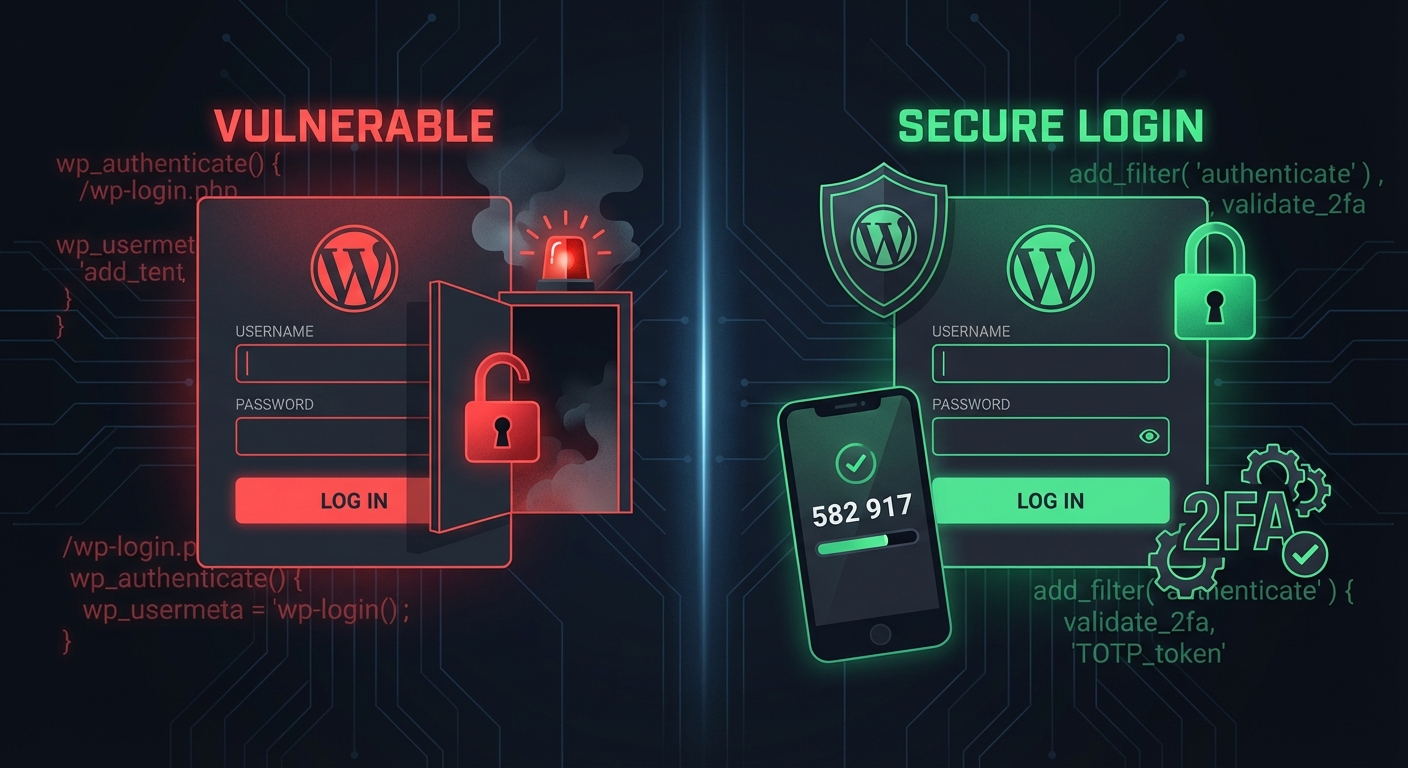
Your WordPress Login Is an Unlocked Door — Here's How to Actually Fix It
WordPress 2FA isn't optional if you've had login attempts. Learn how to set up two-factor authentication, pick the right plugin, and harden your WordPress login for real.
Muhammad Arslan Aslam | February 7

Should You Disable XML-RPC in WordPress? Here's the Risk Nobody Talks About
XML-RPC is enabled on every WordPress site by default — and attackers exploit it daily. Learn exactly how it works, when to disable it, and what a real security hardening workflow looks like.
Muhammad Arslan Aslam | February 6
WordPress Login Security: 8 Ways to Lock Down Your Admin Area Before It's Too Late
Your WordPress login page is under attack right now. Here are 8 concrete ways to harden your admin area — from .htaccess rules to WP-CLI session audits.
Muhammad Arslan Aslam | January 28
Subscribe to Our Newsletter
Get the latest WordPress tips, security updates, and maintenance insights delivered to your inbox.