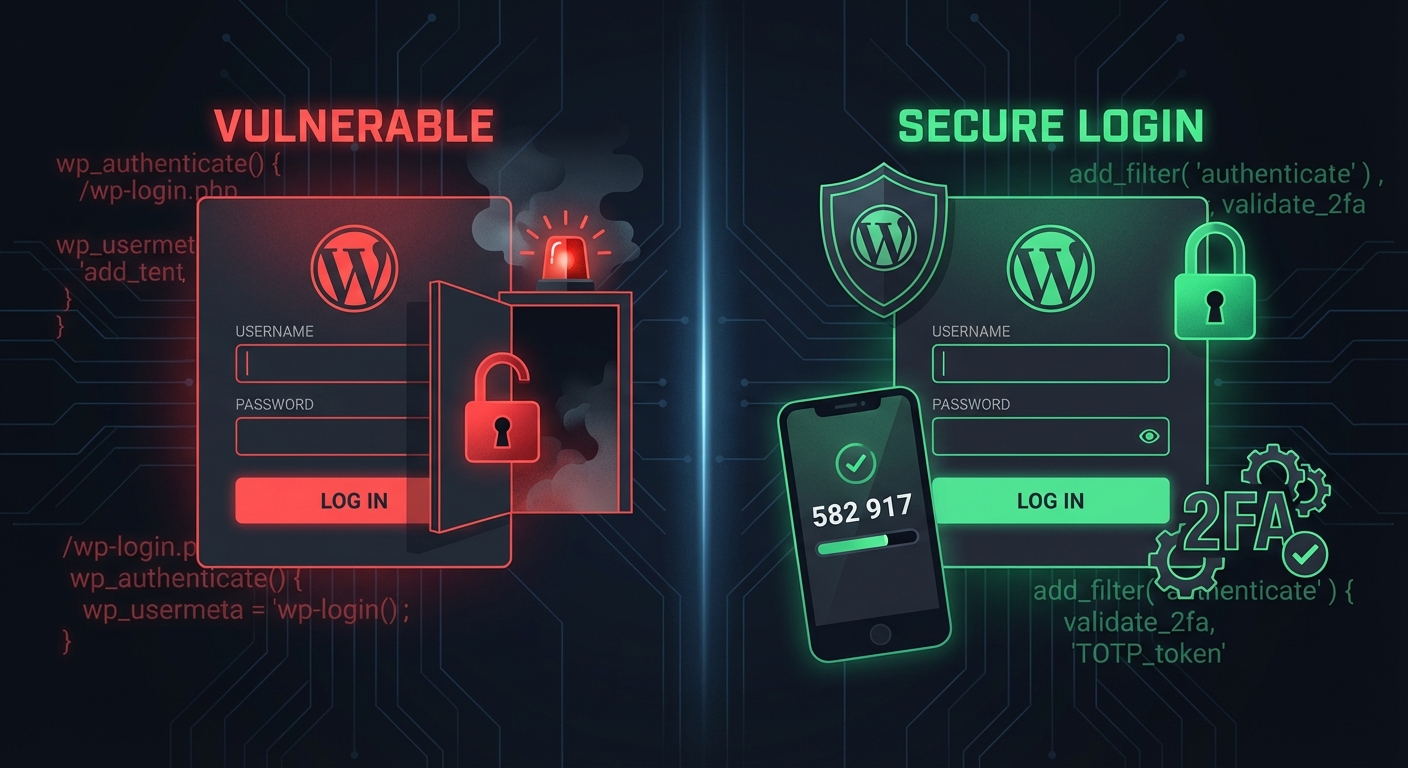
Most WordPress sites get compromised through the front door — the login page. Not through zero-day exploits. Not through server-level intrusions. Through repeated, automated credential attacks on /wp-admin and wp-login.php that run 24/7 against every exposed WordPress installation on the internet.
The default login URL is public knowledge. Bots don't need to guess it. They already know it.
That's not a hypothetical. Brute-force attacks against WordPress login pages account for a significant share of all WordPress compromises, and most of them succeed not because the attacker was sophisticated — but because the site owner did nothing to raise the cost of entry.
This article covers 8 concrete ways to harden your WordPress admin area. Not theory. Not plugin marketing. Operational security measures — some taking under five minutes, others requiring careful implementation — that materially reduce your attack surface.
1. Move the Login URL Off /wp-login.php
This is not a silver bullet, but it eliminates the majority of automated bot traffic immediately.
Bots target yourdomain.com/wp-login.php and yourdomain.com/wp-admin by default. They don't adapt. They hit the known path, fail, and move on. If nothing responds at those URLs, most automated attacks simply don't register your site as a valid target.
Plugins like WPS Hide Login let you change the login URL to something arbitrary — /manage, /backstage, /whatever-you-choose. This isn't security through obscurity in the dangerous sense. It's friction engineering. The bots hitting your site go from thousands of failed attempts per week to near-zero.
What to watch for: Changing the login URL can conflict with caching plugins if the redirect isn't handled correctly. Make sure your object cache isn't serving a cached version of the new login page to logged-out users. Confirm your .htaccess rules don't accidentally expose /wp-admin in a way that bypasses the redirect entirely. Test in a staging environment before pushing to production — discovering you've locked yourself out is an avoidable problem.
2. Limit Login Attempts at the Application Layer — Then Go Deeper
WordPress, out of the box, allows unlimited login attempts. That's not an oversight — it's a design choice from an era when WordPress wasn't powering 43% of the internet and automated attacks weren't this industrialized.
You need to throttle failed attempts. After 3–5 failed logins from a single IP, lock that IP out for a defined period. After repeat violations, extend the lockout or blacklist permanently.
Plugins like Limit Login Attempts Reloaded handle this at the application layer. But if you have WP-CLI access and want server-level rate limiting, fail2ban configured against your WordPress error logs is far more effective — it blocks at the firewall before PHP even executes. That means no server load from the attack at all, which matters when you're under a sustained, high-volume brute-force attempt.
The distinction matters operationally: application-layer limiting still allows PHP to boot up for every attempt before blocking. Server-level rate limiting cuts the attack off before it touches your application stack. For high-traffic sites, this difference is measurable in resource consumption.
3. Enforce Two-Factor Authentication on Every Admin Account
This is non-negotiable for any site with real business value attached to it.
Even if an attacker gets your password — through a phishing email, a credential dump, a compromised device — 2FA stops them at the second gate. Time-based one-time passwords (TOTP) via apps like Google Authenticator or Authy are the standard implementation. Hardware keys via WebAuthn are more secure but require more operational overhead.
Plugins like WP 2FA handle TOTP enrollment cleanly. For multi-user sites, enforce 2FA as a site-wide policy, not a per-user preference. A site administrator who opts out of 2FA is a liability, not a team member.
Critical detail: After enabling 2FA, verify your session handling is correctly configured. WordPress session tokens stored in wp_usermeta can be exploited if session management isn't properly hardened — this is especially relevant on shared hosting environments where default session storage may be inadequate. Confirm that session regeneration on login is active and that session fixation isn't possible through misconfigured plugin interactions.
4. Add CAPTCHA to the Login Form — And the Registration Form
Brute-force bots are getting smarter, but most still can't solve CAPTCHA challenges efficiently enough to make attacks economically viable at scale.
Google reCAPTCHA v3 (invisible scoring) is the most friction-free implementation for legitimate users — it runs in the background and only challenges suspicious traffic. Cloudflare Turnstile is a privacy-friendlier alternative that performs well without requiring a Google account relationship.
The critical nuance: CAPTCHA should protect not just wp-login.php but also your registration form, comment forms, and any REST API endpoints that accept authentication requests. The REST API endpoint at /wp-json/wp/v2/users exposes username enumeration by default — bots use this to collect valid usernames before attacking specific accounts. Disabling that endpoint is a separate hardening step, but CAPTCHA at the login layer remains a necessary supplement even after you've addressed enumeration.
5. Whitelist IP Addresses for /wp-admin
If you and your team log in from known, consistent IP addresses — or can use a VPN to create them — IP allowlisting is one of the strongest login protections available. It operates at a layer that predates your WordPress application entirely.
The implementation lives in .htaccess on Apache:
<Directory /wp-admin>
  Order Deny,Allow
  Deny from all
  Allow from YOUR.IP.ADDRESS.HERE
</Directory>
Anyone not on the allowlist gets a 403 response before WordPress even loads. The database never queries. PHP never executes. The attack literally doesn't reach your application.
Real-world limitation: This doesn't work cleanly for sites where admins frequently work from dynamic IPs without VPN access. Don't implement allowlisting and inadvertently lock yourself out — always test access from a separate browser or incognito session before logging out. For agencies managing multiple client sites, a dedicated VPN with a static egress IP is the operationally correct solution. The setup cost is minimal compared to the protection it provides.
6. Disable XML-RPC Unless You Actually Need It
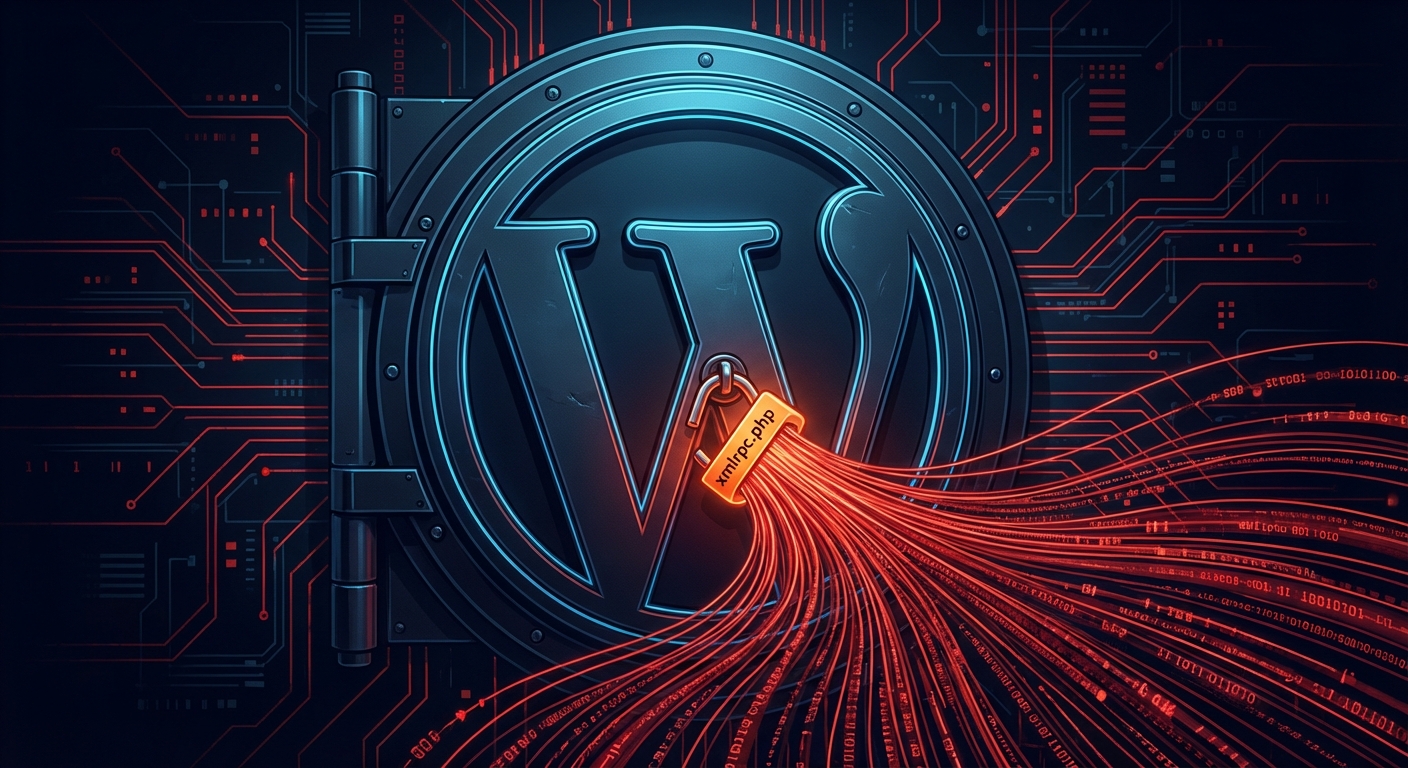
xmlrpc.php ships with every WordPress installation. It enables remote publishing and was historically required by mobile apps and third-party integrations.
It also allows attackers to bundle thousands of login attempts into a single HTTP request — bypassing per-request rate limiting entirely. This is called a multicall attack, and it's why XML-RPC brute-force is a distinct threat vector from standard login page attacks. Standard rate limiting doesn't catch it because the attack arrives as one request.
If you're not actively using Jetpack, a mobile app requiring XML-RPC, or a legacy integration that depends on it, disable it completely. Add this to your .htaccess:
<Files xmlrpc.php>
  Order Deny,Allow
  Deny from all
</Files>
In most WordPress audits we perform, sites don't need XML-RPC active. It's legacy infrastructure left enabled by default that functions as an open attack vector with no operational benefit for the vast majority of site configurations.
7. Harden REST API Authentication Exposure
The WordPress REST API is necessary for modern theme functionality, the block editor, and many plugin integrations. Disabling it entirely breaks things. But leaving it completely open creates meaningful enumeration risk.
The specific issue: GET /wp-json/wp/v2/users returns valid usernames on your site to any unauthenticated request. That list is exactly what a brute-force attacker needs to target specific accounts with high-value credentials. Disabling the endpoint for unauthenticated users is a simple filter:
add_filter('rest_endpoints', function($endpoints) {
  if (!is_user_logged_in()) {
    unset($endpoints['/wp/v2/users']);
    unset($endpoints['/wp/v2/users/(?P<id>[\d]+)']);
  }
  return $endpoints;
});
This belongs in a site-specific plugin or your theme's functions.php — not a general plugin that might create conflicts with REST API-dependent features. Beyond enumeration, ensure that any external integrations authenticate using application passwords (introduced in WordPress 5.6) rather than session-based cookies. Application passwords limit scope, log usage, and revoke cleanly without affecting primary account access.
8. Audit Admin Accounts and Active Session Tokens Regularly
The weakest credential on your site is the one you forgot existed.
Agencies leave admin accounts on client sites after engagements end. Plugins occasionally create their own users during setup and never clean up. Former team members retain access when offboarding processes aren't enforced. These dormant accounts accumulate quietly. And dormant admin accounts with weak passwords that haven't been accessed in months are exactly what attackers target after enumerating usernames via the REST API.
Run this WP-CLI command to list all administrator-role users with their registration dates:
wp user list --role=administrator --fields=ID,user_login,user_email,user_registered
Review the output. Every account that shouldn't exist, delete. Every account with a weak password, force a reset. Every account inactive for 90+ days, flag for review before assuming it's safe to keep.
On the session side: WordPress stores active session tokens in wp_usermeta under the key session_tokens. If you suspect a credential compromise — or if an admin password was exposed in a data breach — you can destroy all active sessions across all users with:
wp session destroy --all-users
This forces complete re-authentication across every account. Combined with 2FA enforcement, it creates a hard reset that eliminates any attacker who may have already established an authenticated session without triggering visible alarms.
The Hierarchy of Impact
Not all eight measures provide equal protection. If you can't implement everything at once, prioritize in this order:
Highest impact — implement first:
- 2FA on all admin accounts (stops credential attacks even after password compromise)
- Login attempt limiting at server level via fail2ban (eliminates automated brute-force economics)
- Disable XML-RPC unless actively used (closes the multicall attack vector entirely)
High impact — implement second:
- IP allowlisting if your workflow supports consistent IPs (strongest protection if operationally feasible)
- REST API user enumeration disabled (removes the username reconnaissance layer)
Good hygiene — implement third:
- Login URL change (meaningful friction reduction for bot traffic, low implementation cost)
- CAPTCHA on login and registration (supplementary bot deterrence layer)
- Admin account audit (ongoing task, not a one-time setup)
The goal isn't perfection. It's raising the cost of compromise high enough that automated attacks move on to softer targets.
What These Measures Don't Cover
Login hardening is one layer of WordPress security. It doesn't address:
- Plugin vulnerabilities, which account for the majority of WordPress exploits — not login attacks
- Database exposure through SQL injection in unpatched plugins
- File-level malware injected after an initial compromise through a different vector
- Exposed
wp-config.phpcredentials through server misconfiguration or directory traversal
If your site has real business value attached to it, login hardening pairs with a broader WordPress security and maintenance framework — it doesn't replace one. You can lock the front door and still have an unlocked window.
For a complete picture of what ongoing WordPress security maintenance actually involves, the Vimsy WordPress maintenance checklist covers the full operational scope beyond login hardening alone.
The Cost of Getting This Wrong
For a WooCommerce store generating $3,000 per day in revenue, a compromise that takes the site offline for 12 hours costs roughly $1,500 in direct lost sales — before you count emergency recovery fees, SEO impact from Google's malware warnings, and customer trust erosion that doesn't show up on a balance sheet.
More importantly: the cost of implementing all eight measures above is measured in hours, not dollars. The 2FA plugin is free. WP-CLI is already on your server. The .htaccess rules take five minutes. The admin account audit takes fifteen.
The question isn't whether you can afford to implement these measures. It's whether you can afford to manage them consistently — monthly account audits, post-update security reviews, monitoring for new enumeration vectors — while also running your actual business.
That's where a professional WordPress care plan changes the calculation entirely.
If You'd Rather Not Manage This Yourself
Look — I'm writing this because this is a problem I see constantly, and it's also exactly what we built Vimsy to solve. If you want professionals handling this instead of hoping nothing breaks, book a free call.
Every site we bring on gets a full security audit before we start. The measures covered in this article are baseline — not upsells. And when something breaks or a new attack pattern emerges, you have a team that responds, not a ticket queue that gets back to you in 48 hours.
Your login page is accepting attack attempts right now. The only question is whether you've done anything to make those attempts expensive enough to stop.