Most WordPress sites don't get hacked in a dramatic breach. They get compromised through a two-year-old plugin nobody thought to check. The attacker didn't need sophistication — they needed patience and a vulnerability scanner, both of which are free.
Skipping updates feels like caution. It's actually exposure.
The Logic That Gets Sites Killed
The most dangerous belief in WordPress maintenance is this: "If it's not broken, don't touch it."
It sounds reasonable. Updates break things sometimes. You've seen it happen. So you hold off, and the site keeps running, and nothing bad happens — until it does.
Here's what that logic misses entirely. The moment a plugin vulnerability gets published to the CVE database or disclosed in the WordPress plugin repository changelog, every automated scanner on the internet starts probing for installations running that version. The disclosure doesn't just warn defenders. It arms attackers with a map.
According to Wordfence and Patchstack's annual WordPress vulnerability reports, the majority of successful WordPress compromises involve known vulnerabilities in plugins and themes — vulnerabilities that already had patches available at the time of the breach.
Let that land. The patch existed. The site just never ran it.
This is the part most site owners don't fully grasp: the gap between "vulnerability disclosed" and "exploit deployed at scale" is now measured in hours, not weeks. Automated bots scan millions of sites continuously. They're not targeting your site specifically. They're targeting your plugin version. And if you're running the unpatched version, your site is on the list.
What "Outdated" Actually Means Under the Hood
When people say a plugin is "outdated," they usually think about feature gaps. That's the least important part.
What actually degrades when you stop updating:
Security patch coverage drops immediately. Most plugin developers don't backport security fixes to old versions. If you're running version 3.1.4 and the fix landed in 3.2.0, you're unprotected — full stop. There's no grace period. There's no partial protection. The CVE is public and your version is listed as vulnerable.
PHP version compatibility erodes. WordPress now recommends PHP 8.1+, with PHP 8.2 and 8.3 in active release. Plugins that haven't been updated in 12–18 months frequently contain deprecated function calls that generate errors on modern PHP — or worse, silent failures that corrupt data without throwing a visible warning. Outdated PHP versions are themselves one of the top causes of avoidable performance and security issues. When your plugins haven't been updated to match current PHP releases, they compound the problem from two directions simultaneously.
REST API surface expands without coverage. Plugins register REST API endpoints. When a plugin goes unpatched, those endpoints remain exposed with whatever permission logic existed at the time of installation. If that logic had a flaw — and many older implementations did — you now have an open door in your API layer that your firewall isn't necessarily watching. This is how privilege escalation attacks happen without any admin credentials being stolen.
wp_options bloat compounds. Old plugins that haven't been maintained often lose control of transient cleanup. Stale transients pile up in the wp_options table, autoloaded data grows, and every page load starts reading more from the database than it should. This isn't dramatic — it's a slow bleed on performance that query monitor diagnostics will surface if you bother to look. Sites running bloated autoloaded data frequently show 200–400ms of unnecessary database query time on every single request.
Cron jobs orphan themselves. Plugins schedule WordPress cron jobs. When you deactivate or neglect a plugin, registered cron tasks often persist in the database, firing on schedule, calling functions that no longer exist, throwing silent errors, and occasionally locking up wp-cron.php if the job stalls. Most site owners never see this. They just notice the site feels sluggish sometimes, blame the host, and move on without ever checking the cron queue.
The Security Exposure Is Not Theoretical
Let's be direct about what "compromised" actually looks like in practice.
In most hacked site recoveries, the entry point follows a predictable pattern: a known vulnerability in a plugin or theme, exploited after the CVE was already public. The attacker didn't need a zero-day. They used a scanner to identify the plugin version, matched it against a public exploit database, and ran the payload.
Once inside, the typical injection sequence looks like this:
- Malicious PHP files dropped in
wp-content/uploads— chosen because upload directories are often write-permitted and excluded from theme-file scrutiny in automated scans - A backdoor injected into
wp-config.phpor appended to a theme'sfunctions.php - The
wp_optionstable modified to add malicious redirect logic or SEO spam viasiteurlorhomevalue manipulation - Admin user accounts created silently via the WordPress REST API
- The site continues operating normally for weeks while the attacker harvests it
That last point matters more than anything. Most compromised sites don't crash. They run. The attacker is not trying to destroy the site — they're using it as infrastructure. For spam delivery. For phishing redirects. For SEO manipulation on their own properties. You find out when Google Search Console flags malware, your hosting provider suspends the account, or a visitor's browser throws a security warning.
At that point, you're not dealing with a cleanup. You're dealing with deindexing risk, customer trust damage, potential GDPR implications if user data was accessible, and an emergency recovery that costs multiples of what any structured maintenance plan would have.
The Real Cost of "I'll Update Later"
Let's model this honestly.
Imagine a WooCommerce store generating $2,500/day in revenue. That's roughly $104/hour. A security-triggered suspension from a hosting provider — which is not uncommon when malware is detected — can last anywhere from 12 to 72 hours while cleanup, review, and appeals happen. At the low end, that's $1,248 in direct lost revenue. At the high end, closer to $7,500. And that's before counting emergency recovery work, which on a moderately complex site typically runs several hundred to a few thousand dollars depending on the depth of the infection.
Now compare that to a WordPress maintenance plan that runs a fraction of that per month.
The math isn't close. The risk of deferring updates is not a philosophical one. It's financial. And the longer the deferral, the more compounding vulnerabilities accumulate — because plugin updates aren't isolated events. They layer.
"But Updates Break Things"
Yes. They can. This fear is not irrational — it's just poorly managed.
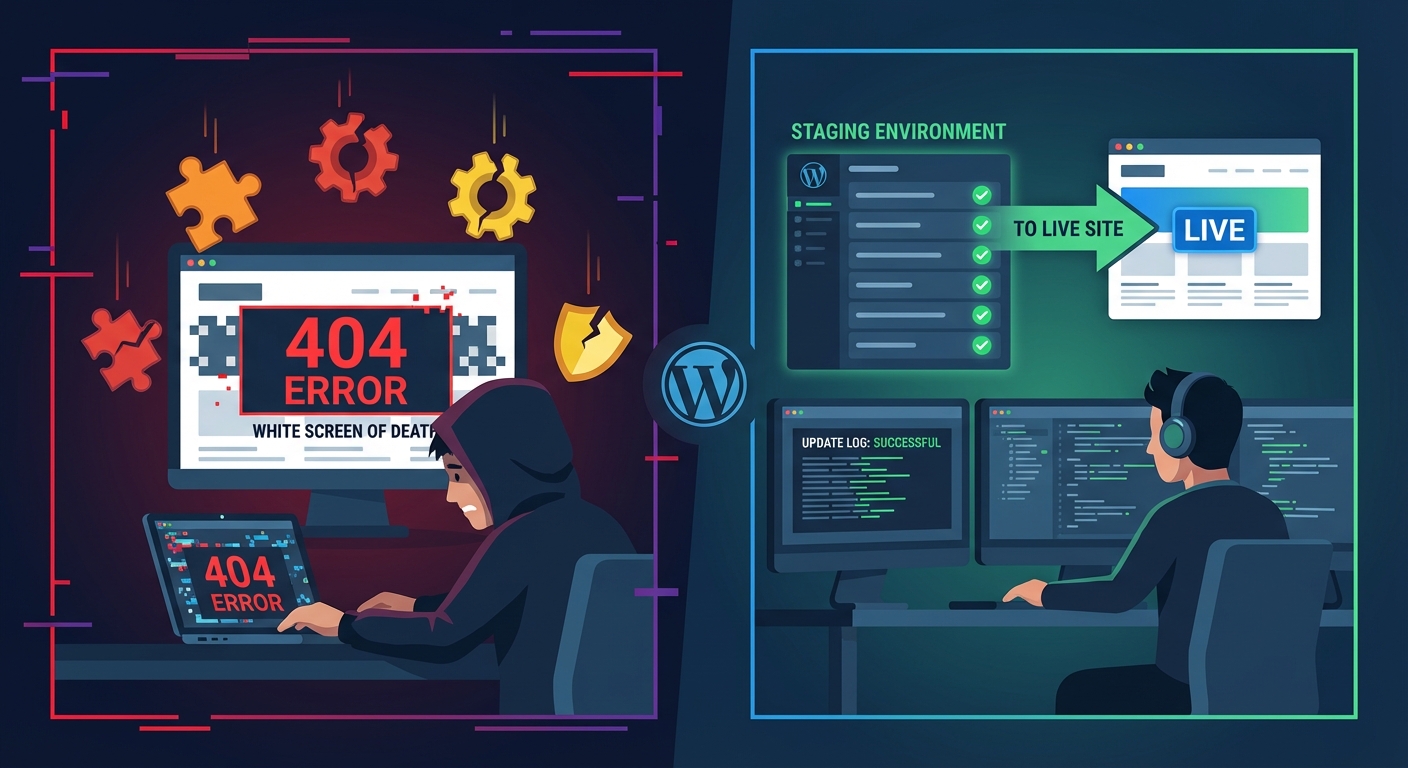
The answer to "updates break things" is not "don't update." The answer is a staging workflow with a tested rollback strategy.
Here's what that looks like when it's actually done right:
- A full-site backup runs automatically before any update cycle — verified, off-site.
- All updates get pushed to a staging environment first.
- Core functionality gets tested: checkout flows, forms, custom post type rendering, etc.
- If staging passes, production gets the update.
- Error logs get monitored for 24–48 hours post-update.
- If something breaks, you restore from a known-good backup.
This is what professional maintenance looks like. Not clicking "Update All" in the dashboard at 11 PM and hoping the site still loads in the morning.
What to Do Now
If you're reading this and you know your site is behind on updates, here's the minimum to do today:
- Audit your installed plugins — check last update dates. Flag anything untouched for 12+ months as a risk.
- Check your PHP version — if you're on 7.4 or below, that's urgent.
- Pull a full backup before you touch anything. Verified, off-site.
- Run updates on staging, not production. If you don't have a staging environment, that's your first problem to solve.
- Monitor error logs for 48 hours post-update and test your critical paths.
Outdated plugins aren't a minor housekeeping issue. They're the unlocked door. And someone is always checking.