Your site is down. You found out from a customer, a failed checkout, or a blank screen staring back at you. The instinct is to panic — resist it. Panic produces random clicking. Random clicking produces more problems.
WordPress downtime almost always has a traceable cause. The problem is that most site owners don't know where to look, and hosting support is incentivized to tell you it's not their infrastructure. So let's work through this systematically.
First: Confirm It's Actually Down (Not Just You)
Before doing anything else, verify the outage is real and not local.
Use a tool like Down For Everyone Or Just Me or UptimeRobot to confirm external inaccessibility. If your monitoring tool sent the alert, you already have confirmation — skip this step.
Also check: flush your local DNS cache. On Windows, that's ipconfig /flushdns. On Mac, sudo dscacheutil -flushcache. If your site recently migrated or changed nameservers, DNS propagation lag can make the site appear down only from certain networks while the rest of the world sees it fine.
If the site is genuinely inaccessible globally, keep reading.
The Six Most Common Causes — In Order of Likelihood
1. A Plugin or Theme Update Broke Something
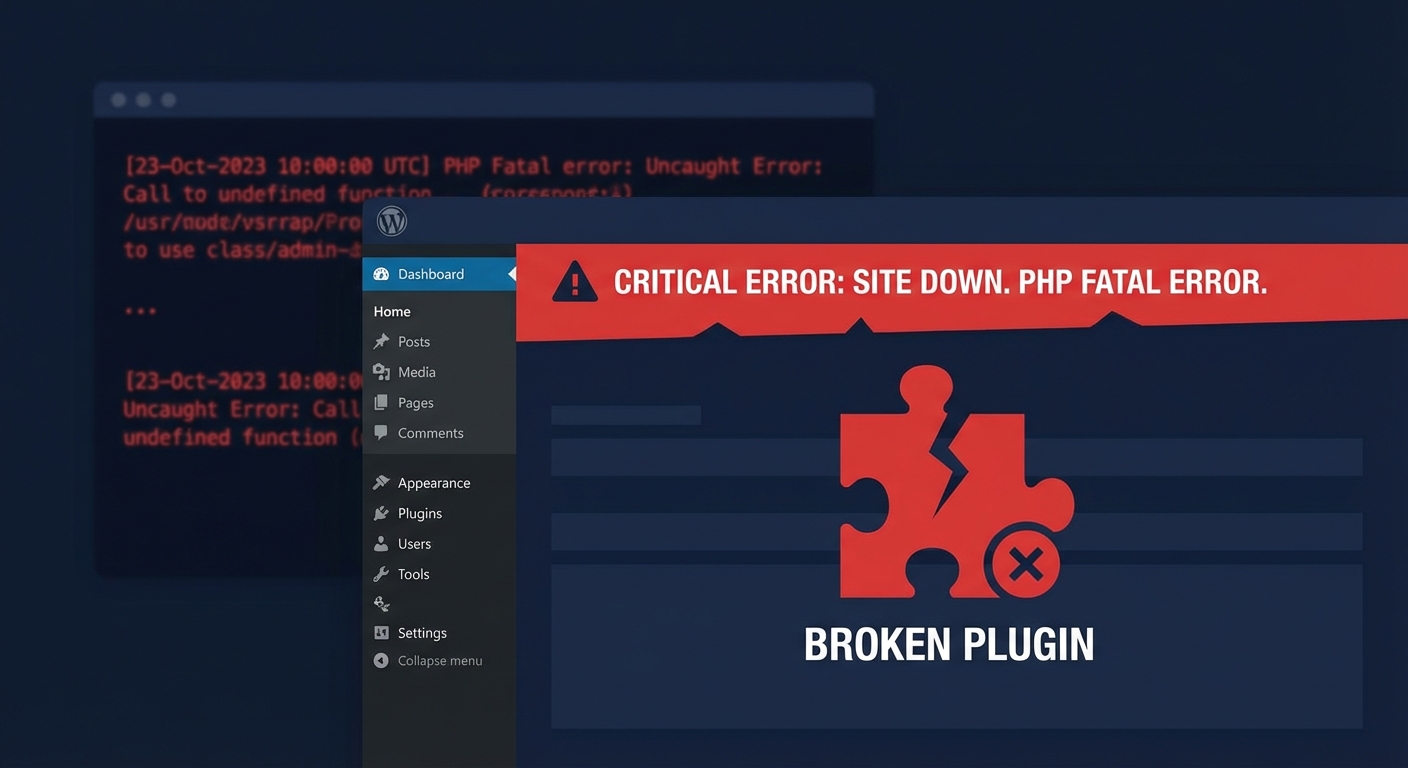
This is the leading cause of sudden WordPress downtime. A plugin update triggers a fatal PHP error, a theme update introduces a conflict, or an auto-update fires at 3am and nobody notices until checkout stops working.
The signature symptom: your site was fine, you (or WordPress) updated something, now it's dead.
If you can still access wp-admin, go to Plugins → Recently Active and deactivate the last updated plugin. If wp-admin itself is inaccessible, you need FTP or cPanel file access to rename the plugin folder:
/wp-content/plugins/[plugin-name] → [plugin-name]-disabled
WordPress will deactivate it automatically. Alternatively, run:
wp plugin deactivate [plugin-slug] --allow-root
via WP-CLI if you have server access. WP-CLI is faster and safer than FTP fumbling in a crisis.
If a plugin conflict is the culprit, you'll see the site return immediately after deactivation. That plugin then needs a compatibility audit — not a blind re-activation. A responsible staging workflow catches these conflicts before they ever touch production. That's the entire point of testing updates on a copy of your site before pushing them live.
2. PHP Memory Limit Exhausted
WordPress is a PHP application. Every request consumes memory. When a bloated query, a memory-hungry plugin, or accumulated wp_options bloat pushes consumption past your server's PHP memory limit, you get a white screen or a 500 error.
Check your wp-config.php for this line:
define('WP_MEMORY_LIMIT', '256M');
If it's missing or set to 64M or 128M, that's your first suspect. You can also define WP_MAX_MEMORY_LIMIT for admin-side processes.
Check your error log. On most hosts, it lives in /wp-content/debug.log if you have WP_DEBUG_LOG enabled, or in the raw server error logs via cPanel. Look for:
Fatal error: Allowed memory size of X bytes exhausted
That confirms it. Increasing the limit buys time — but it doesn't fix the underlying cause. If memory consumption is climbing, something is wrong with how queries or the object cache are operating, and that requires a deeper audit. Query Monitor diagnostics will surface the specific query or hook responsible far faster than manual log parsing.
3. Hosting Infrastructure Issues
Your host's server is down, overloaded, or undergoing unannounced maintenance. This happens more than hosts admit publicly.
Check your host's status page — most major providers maintain one. Also check their social media accounts; infrastructure incidents often get acknowledged there before the official status page updates.
The important distinction: managed hosting infrastructure going down is different from a misconfigured WordPress installation. Your host is responsible for server uptime. They are not responsible for what lives inside your wp-content folder.
This is where most site owners get confused — they conflate "managed hosting" with "managed WordPress." They are not the same thing. One covers server resources. The other covers your application layer: plugins, themes, database health, PHP version compatibility, and update management. Your host keeps the lights on. Nobody else is watching your application unless you've made explicit arrangements for it.
Shared hosting is particularly prone to noisy neighbor issues — other accounts on the same server consuming resources that affect yours. If your site goes down at peak traffic times, this is a likely culprit and a sign you've outgrown your current hosting tier.
4. Expired Domain or SSL Certificate
Embarrassingly common. A domain expires because the auto-renewal card on file expired. An SSL certificate lapses because it was manually provisioned years ago and nobody set a renewal reminder.
An expired domain produces a DNS resolution failure — the site simply won't resolve. An expired SSL certificate produces a browser security warning that most visitors treat as a full outage and leave immediately.
Check your domain expiry at ICANN WHOIS. Check your SSL status at SSL Labs. These are administrative failures, not technical ones. But their downtime impact is identical to a server crash. They're also entirely preventable with any competent monitoring setup.
5. Database Connection Errors
"Error establishing a database connection" is one of WordPress's most recognizable failure states. It means WordPress can't connect to MySQL — either because credentials in wp-config.php are wrong, the database server is down, or the database itself is corrupted.
Verify your wp-config.php credentials:
- DB_NAME
- DB_USER
- DB_PASSWORD
- DB_HOST
If credentials are correct, check whether your MySQL service is actually running. On a VPS or dedicated server, that's a systemctl status mysql check. On shared hosting, the host's support team has to investigate server-side MySQL availability.
Database corruption is rarer but real — usually triggered by a server crash mid-write. If you have a staging environment or a recent database backup, verify the backup is intact before attempting a repair. Running wp db repair via WP-CLI can recover minor corruption, but a badly corrupted database needs a restore from a clean backup — which is why backup integrity matters as much as backup frequency. A backup you haven't verified is not a backup. It's a guess.
6. A Failed or Stalled WordPress Cron Job
WordPress cron (wp-cron.php) handles scheduled tasks — publishing scheduled posts, clearing transients, running plugin-scheduled operations. It's not a real server cron. It fires on page load, which means low-traffic sites with resource-heavy cron tasks can experience intermittent slowdowns or errors that look like partial downtime.
More critically: some plugins schedule aggressive cron jobs that pile up in the queue. Check your cron schedule with:
wp cron event list
If you see hundreds of queued events, something is accumulating and needs to be cleared. Transients that never expire stack in the wp_options table and eventually affect query performance and page load times. This is consistently overlooked during standard maintenance — and it silently degrades performance until it causes visible, customer-facing errors.
Diagnosing the Error Code
The HTTP status code your server returns tells you exactly where to look:
| Error Code | What It Means | Where to Look | |---|---|---| | 500 | Internal Server Error | Error logs, plugin conflicts, PHP memory | | 503 | Service Unavailable | Server overload, maintenance mode | | 502 | Bad Gateway | Reverse proxy / Nginx issue, server restart | | 404 | Not Found | Permalink structure broken, .htaccess issue | | 521/522 | Cloudflare origin errors | Origin server down, Cloudflare misconfiguration |
A 404 on the homepage — when the content clearly exists — almost always means your .htaccess file is missing or corrupted. Regenerate it by going to Settings → Permalinks and hitting Save, or rebuild it manually with the standard WordPress rewrite rules. While you're in there, .htaccess hardening is worth the extra five minutes — blocking direct PHP execution in the uploads directory and restricting wp-config.php access are both low-effort, high-impact changes that belong in every WordPress security posture.
A 521 from Cloudflare means the connection to your origin server was refused — the server is down or has blocked Cloudflare's IP ranges.
What to Check If You Can't Log Into wp-admin
If the dashboard is inaccessible, your diagnostic path shifts:
- Check error logs directly — via cPanel, your hosting dashboard, or SSH
- Access the database directly via phpMyAdmin — verify the wp_options table loads and siteurl / home values are correct
- Use WP-CLI from the server —
wp core check-update,wp plugin list,wp db check - Temporarily rename wp-content/plugins entirely to isolate whether a plugin is the cause
- Check file permissions — wp-content should be 755, files 644
Incorrect file permissions after a migration or server change can make WordPress unable to read its own files — producing errors that look like something far more complex than they are.
The Monitoring Gap That Causes Most of This Pain
Here's the operational reality: most WordPress site owners find out their site is down because a customer told them.
That's not a monitoring strategy. That's luck.
Professional WordPress maintenance includes uptime monitoring with sub-5-minute check intervals, alerting routed to someone who can act on it immediately, and a recovery workflow that doesn't start with Googling. If your current maintenance setup doesn't include this, you're operating without a safety net and paying the price in customer trust every time something breaks.
Beyond monitoring, most of the downtime causes above are preventable with proper staging workflows, scheduled wp_options cleanup to prevent bloat accumulation, and PHP version management that keeps your stack compatible as plugins evolve. The sites that go down repeatedly aren't unlucky — they're under-maintained. That's a solvable problem, not a structural one.
If Your Site Is Down Right Now
If you're reading this with a live outage, don't guess. Systematic diagnosis is faster than random fixes.
Work through the error code first. Check the most recent change to your site — update, deployment, migration, DNS change. Pull the error logs before you do anything else.
If you need professional eyes on it immediately, our emergency WordPress support is built for exactly this situation — not a 48-hour ticket queue, but active triage on a live outage.
For sites that experience recurring downtime, the problem is almost never a one-time event. It's a maintenance and monitoring deficit. You can review what ongoing WordPress site management actually covers — and compare it against what you're currently doing. The gap between the two is usually where the downtime lives.
Prevention Is Cheaper Than Emergency Response
A WooCommerce store generating $4,000/day loses roughly $167/hour when it's down. An emergency support engagement — even at premium rates — costs less than two hours of that downtime. But you still lost the revenue, the customer trust, and the SEO signal from the failed requests.
The math that matters more is preventive: a proper maintenance plan, including staging, monitoring, update testing, and database hygiene, eliminates most of the six causes above entirely. Not reduces — eliminates.
Plugin conflicts caught in staging never reach production. Memory limit issues identified during scheduled audits don't become 2am emergencies. Database corruption caught during backup verification doesn't mean restoring from a month-old dump and losing weeks of orders or content.
The WordPress maintenance checklist covers what a complete maintenance cycle looks like. If your current process doesn't match it, that's the gap between reactive fire-fighting and proactive site management. Review the available plans if you want to understand what professional coverage actually costs.
Look — I'm writing this because this is a problem I see constantly, and it's also exactly what we built Vimsy to solve. If you want professionals handling this instead of hoping nothing breaks, book a free call.
Your site being down once is a technical problem. Your site going down repeatedly is a systems problem. Those require different responses.