The White Screen Lies to You
A blank white page tells you nothing. No error code. No stack trace. No timestamp. Just silence — which is exactly why the WordPress white screen of death (WSOD) is one of the most disorienting failures you can face as a site owner.
It doesn't mean nothing is wrong. It means something went wrong badly enough to kill the output buffer before WordPress could even render an error message. That distinction matters, because the fix depends entirely on where in the execution chain the failure happened.
Most guides tell you to "deactivate all plugins." That's not wrong, but it's the blunt instrument approach. Let's work smarter.
Why the WSOD Happens: The Actual Mechanisms
WordPress doesn't produce a white screen randomly. There are four primary failure modes, and each has a distinct fingerprint.
1. PHP Fatal Errors With Error Display Suppressed
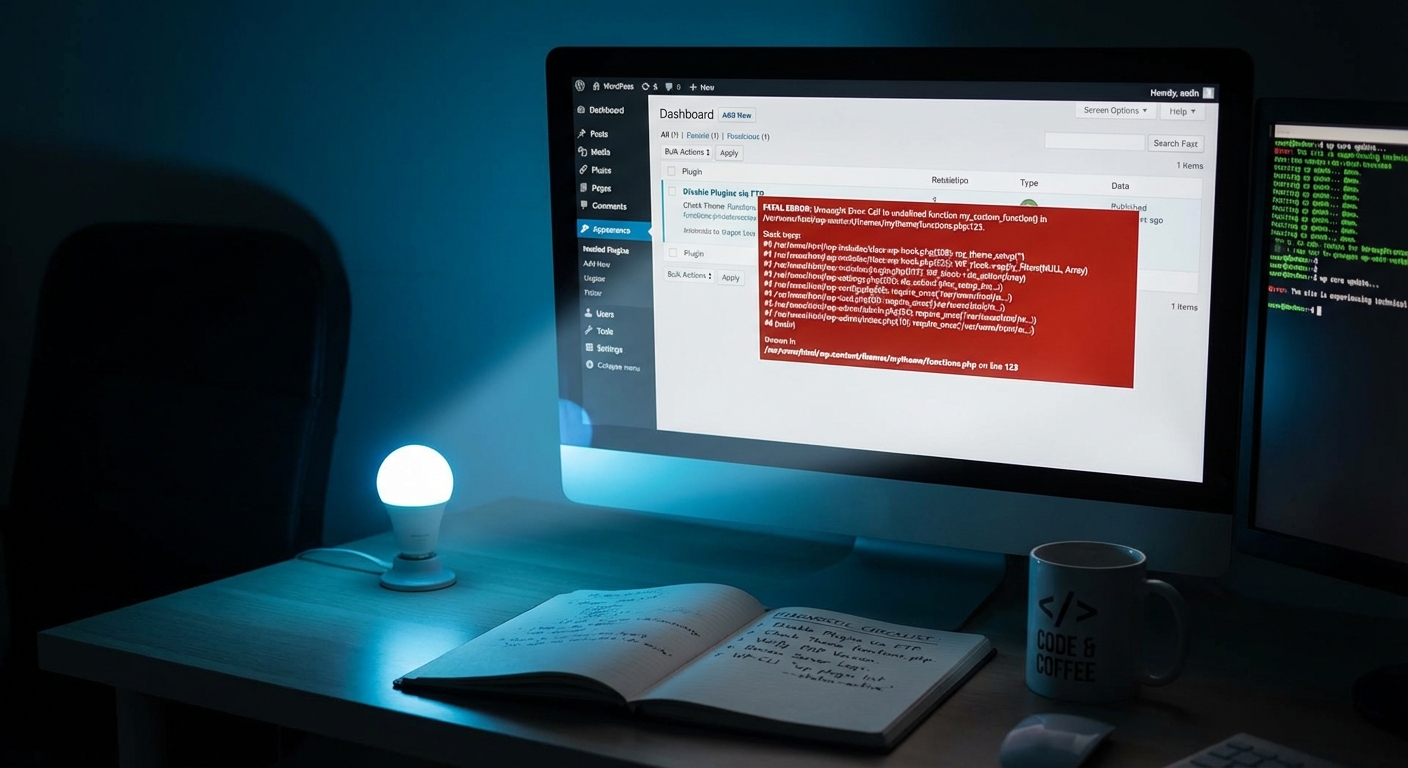
This is the most common cause. A plugin or theme update introduces a fatal PHP error — a function call to a class that no longer exists, a syntax error baked into the new version, or a conflict between two plugins using the same global variable namespace. PHP dies. WordPress dies with it.
The reason you see a blank screen instead of an error is that most production environments set display_errors to off in php.ini or via wp-config.php. The error is there — it's just not surfacing on screen.
Fix this immediately by adding these lines to wp-config.php:
define( 'WP_DEBUG', true );
define( 'WP_DEBUG_LOG', true );
define( 'WP_DEBUG_DISPLAY', false );
With WP_DEBUG_DISPLAY set to false, errors write to /wp-content/debug.log without exposing them publicly. Check that log file. Nine times out of ten, you'll see a clear error pointing to a specific file and line number. That single file path usually tells you which plugin or theme is responsible.
2. Memory Limit Exhaustion
WordPress has a default memory limit, and PHP has a hard ceiling above that. When a plugin — particularly one doing heavy image processing, complex WooCommerce queries, or loading bulky third-party libraries — exceeds available memory, PHP terminates the process mid-execution. White screen.
You can raise the WordPress memory limit in wp-config.php:
define( 'WP_MEMORY_LIMIT', '256M' );
But if you're hitting memory limits regularly, that's a symptom pointing at a deeper problem. Query Monitor diagnostics will show you exactly which hooks, queries, and callbacks are consuming the most memory on each page load. A site routinely consuming 256MB per request has an architecture issue that a memory bump only masks — not solves. The real fix involves profiling which plugins are loading what and why.
3. Plugin or Theme Conflict After Update
Across dozens of WordPress site audits, this is the most frequent trigger we encounter: a plugin update introduces a breaking change to a shared function, or a theme update removes template hooks a child theme depends on. The result is a fatal error at bootstrap time.
The classic isolation method:
- Rename
/wp-content/plugins/to/wp-content/plugins-disabled/via FTP or your host's file manager. WordPress falls back gracefully when it can't locate the plugins directory. - If the white screen clears, rename it back and reactivate plugins one by one until the screen returns.
- If you can still reach WP-Admin, navigate directly to
wp-admin/plugins.php— the admin panel sometimes survives when the front end doesn't.
If you're comfortable with WP-CLI, this is faster and more surgical:
wp plugin deactivate --all
wp theme activate twentytwentyfour
WP-CLI bypasses the WordPress HTTP layer entirely, which is why it works even when the site itself is broken. From there, reactivate plugins one at a time using wp plugin activate plugin-slug, reloading after each. You'll isolate the offending plugin in minutes.
4. Corrupted .htaccess or Rewrite Rules
A malformed .htaccess file — often written by a security plugin, a caching layer, or a rewrite-heavy plugin — will drop the site into a 500 error or blank screen state on Apache servers. All WordPress permalink resolution runs through .htaccess on Apache, so a single bad directive breaks everything.
Rename your current .htaccess to .htaccess-old and replace it with the WordPress default:
# BEGIN WordPress
<IfModule mod_rewrite.c>
RewriteEngine On
RewriteBase /
RewriteRule ^index\.php$ - [L]
RewriteCond %{REQUEST_FILENAME} !-f
RewriteCond %{REQUEST_FILENAME} !-d
RewriteRule . /index.php [L]
</IfModule>
# END WordPress
Then visit Settings → Permalinks in WP-Admin and hit Save Changes. WordPress regenerates .htaccess based on your current permalink structure. If the site recovers after resetting .htaccess, the plugin that was writing to it needs to be identified and either reconfigured or removed.
The Diagnostic Sequence That Actually Works
Don't guess. Work through this in a defined order:
Step 1: Enable debug logging and check the log.
Add WP_DEBUG and WP_DEBUG_LOG to wp-config.php, reload the page, and read /wp-content/debug.log. This eliminates 70% of guesswork immediately.
Step 2: Check your server's PHP error log. Your host's control panel — cPanel, Kinsta's dashboard, WP Engine's backend — has server-level PHP logs. Check these too. Sometimes the failure happens before WordPress bootstraps, so it won't appear in the WP debug log at all.
Step 3: Deactivate plugins via WP-CLI or file rename.
Start with whichever plugin was most recently updated or installed. WP-CLI's wp plugin list output includes last-updated timestamps, which makes this straightforward.
Step 4: Switch to a default theme.
If disabling plugins doesn't resolve it: wp theme activate twentytwentyfour. This rules out theme-level fatal errors.
Step 5: Check and reset .htaccess.
If the above steps don't resolve it, follow the .htaccess reset process described above.
Step 6: Verify PHP version compatibility. This step is underrated. If your host recently upgraded PHP — or if you migrated to a new environment running PHP 8.2 while your plugin stack was built for PHP 7.4 — you're going to see exactly this. PHP 8.x removed functions that were merely deprecated in 7.x. Mismatches between your PHP version and plugin stack are a leading cause of sudden white screens after hosting migrations. Check your host's PHP version settings and compare against each active plugin's stated PHP compatibility.
Step 7: Flush the object cache.
If you're running persistent object caching via Redis or Memcached and you've tried everything else, flush the cache: wp cache flush. Stale or corrupted cache entries occasionally produce intermittent blank responses, especially after a plugin update that changes how data is stored. This is rare, but it's the kind of thing you only find after checking everything obvious first.
What the WSOD Is Really Telling You
Here's the part most troubleshooting guides skip: a white screen of death is not just a bug. It's a signal about your operational process.
Think through what had to go wrong. Either a plugin updated on production without staging workflow validation. Or a PHP version change went through without a compatibility audit across the active plugin stack. Or someone installed a security plugin that hardened .htaccess with rules the site configuration didn't support. Or the wp_options table grew so bloated with stale transients and autoloaded data that query times pushed requests past PHP's max execution time — which also produces a blank screen.
None of these are random. They're all the result of running WordPress without a coherent maintenance system in place. The WSOD is the visible failure of invisible neglect.
The "fix it when it breaks" mindset only works if you can fix it quickly, you have a current rollback strategy, and your backup is actually restorable. In most site recoveries, the backup infrastructure is the second problem after the white screen — either backups are stale, untested, or located on the same server that just failed.
A real rollback strategy means: automated daily backups to off-site storage, backup integrity verification, a documented restore process, and a staging environment where updates are validated before they touch production. That's not exotic. It's just the operational baseline that prevents white screens from becoming data loss events.
The Prevention Layer Most Sites Don't Have
Fixing a WSOD is reactive. Preventing it is structural. These are not the same discipline.
Staging before updating. Every significant plugin or theme update should be tested on a staging copy before it goes live. Most managed WordPress hosts offer one-click staging — but most site owners don't use it consistently. This single habit eliminates the majority of update-triggered white screens.
PHP version alignment checks. Before bumping PHP, run a compatibility scan across your active plugin stack. The PHP Compatibility Checker plugin flags deprecated and removed functions before you trigger them in production. This takes 10 minutes and prevents an entire category of white screen events.
Plugin audit and abandonment review. In most WordPress site reviews we conduct, there's at least one plugin that hasn't seen an update in over 12 months and has no active maintenance. Abandoned plugins represent both a stability and security risk — they're more likely to conflict with PHP version upgrades and more likely to contain unpatched vulnerabilities. They have no business running on a production site. Run wp plugin list --format=table and look at anything with an update status of "none" and an old last-updated date.
Transient and wp_options hygiene. Expired transients accumulating in the wp_options table are a slow-burn performance problem that, in edge cases, creates page-level timeouts that look like intermittent white screens. Run wp transient delete --expired on a scheduled basis and monitor your wp_options autoload data size. When autoloaded data climbs into the megabytes, page load times suffer and the risk of timeout-induced blank pages increases.
Cron job integrity. WordPress cron failures — where wp-cron.php stops firing correctly — can cause background tasks to pile up. These queued jobs sometimes run in batches at unexpected times, spiking server load and triggering memory exhaustion events. If you're on a high-traffic site, replacing the built-in WP-Cron with a real server-side cron job is a straightforward configuration change that removes an entire class of unpredictable load spikes.
When DIY Costs More Than the Fix
The average WordPress WSOD takes between 30 minutes and 3 hours to diagnose and resolve if you know the system well. If you're working through it without deep familiarity with the stack, that timeline extends significantly — and every hour the site is down is revenue, leads, or credibility you don't recover.
For a WooCommerce store averaging $2,000/day, that's roughly $83/hour in lost revenue. A 4-hour debug session — even one that ends in a successful fix — represents $332 in downtime, plus the cost of your own time. At that math, professional emergency support is not an expense. It's a discount.
Our emergency WordPress support service handles white screens, 500 errors, and site crashes with a clear turnaround commitment — not a Monday morning queue. You can review what's included and how it's priced at vimsy.io/pricing.
If you want to avoid landing here again, the WordPress maintenance checklist we publish outlines the operational framework that keeps sites stable between updates — including staging workflows, PHP alignment checks, and plugin auditing processes.
The Pattern That Repeats
A site that experiences one WSOD without fixing the operational conditions that allowed it will experience another. The staging gap, the PHP mismatch, the abandoned plugin, the missing rollback strategy — these don't self-correct.
Professional WordPress maintenance isn't about fixing things reactively. It's about running a system where the conditions that cause white screens get addressed before they can fire.
Look — I'm writing this because this is a problem I see constantly, and it's also exactly what we built Vimsy to solve. If you want professionals handling this instead of hoping nothing breaks, book a free call.
A blank white screen is WordPress telling you something failed silently. Don't let your response be just as silent.