How to Diagnose and Fix WordPress Plugin Conflicts (Without Breaking Your Site)
Plugin conflicts are not random. They follow patterns — and if you know what to look for, you can stop guessing and start diagnosing systematically.
Most WordPress troubleshooting guides will tell you the same thing: deactivate everything, then turn plugins back on one by one. That advice treats a diagnostic process like a coin flip. It also assumes your live site is an acceptable test environment.
It isn't.
The Myth That Makes It Worse
The advice is everywhere: "Deactivate all your plugins, then reactivate them one by one until the problem comes back."
Technically, this works. On a dev environment. On a live site with active users, WooCommerce sessions, or form submissions in progress, you're toggling off production functionality without a rollback strategy in place. If the conflict cascades — or if you accidentally deactivate a plugin that was quietly maintaining a critical database state — you've transformed a WordPress plugin error into a multi-layered recovery problem.
The real diagnostic sequence starts before you touch anything on the server.
What's Actually Happening During a Plugin Conflict
WordPress doesn't arbitrate conflicts. When two plugins compete for the same hook, write to overlapping database keys, or enqueue scripts with dependency mismatches, PHP doesn't mediate. It either crashes or silently corrupts output. Understanding the failure mode is what separates surgical troubleshooting from guesswork.
Here's what plugin conflicts look like at the technical layer:
Hook collisions: Two plugins register callbacks on the same action hook at the same priority. This is especially common in WooCommerce, where payment, shipping, and checkout plugins all compete for hooks like woocommerce_checkout_order_processed. The result is erratic order behavior — not a clean error.
wp_options autoload conflicts: Plugins that autoload large option sets on every page request degrade performance. When two plugins write to overlapping option keys in the wp_options table, you get data inconsistency that surfaces as unpredictable behavior rather than a traceable error. This is one of the hardest categories of plugin conflict to diagnose without direct database access.
JavaScript dependency mismatches: One plugin enqueues an older version of a script library. Another depends on a newer version. The result is a broken UI — admin panels that won't save, AJAX calls that silently fail, or interactive elements that stop responding. These don't trigger PHP errors. They show up in the browser console.
Transient collisions: Plugins that use set_transient or wp_cache_set with identical cache keys will overwrite each other's data. The result is stale content, missing data, or page rendering that's inconsistent between requests. Without object cache inspection, this is nearly invisible.
Cron job duplication: Two plugins schedule the same background task via wp_schedule_event. WordPress cron doesn't deduplicate scheduled events. You end up with redundant processes firing at overlapping intervals — which gets misread as a server-side load problem when it's actually an application-level issue.
None of these failure modes surface clearly in the WordPress dashboard. You need to look at the right layer.
What a White Screen of Death Actually Tells You
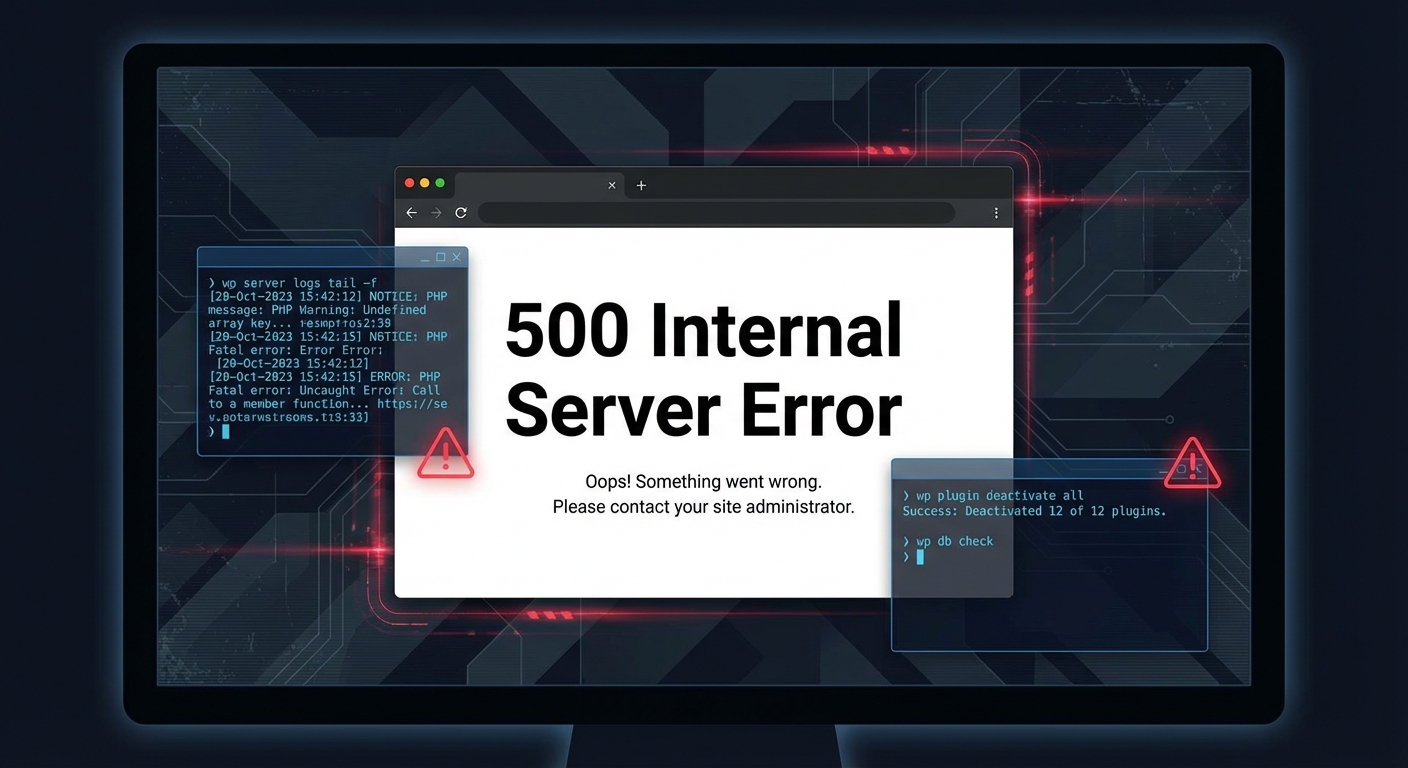
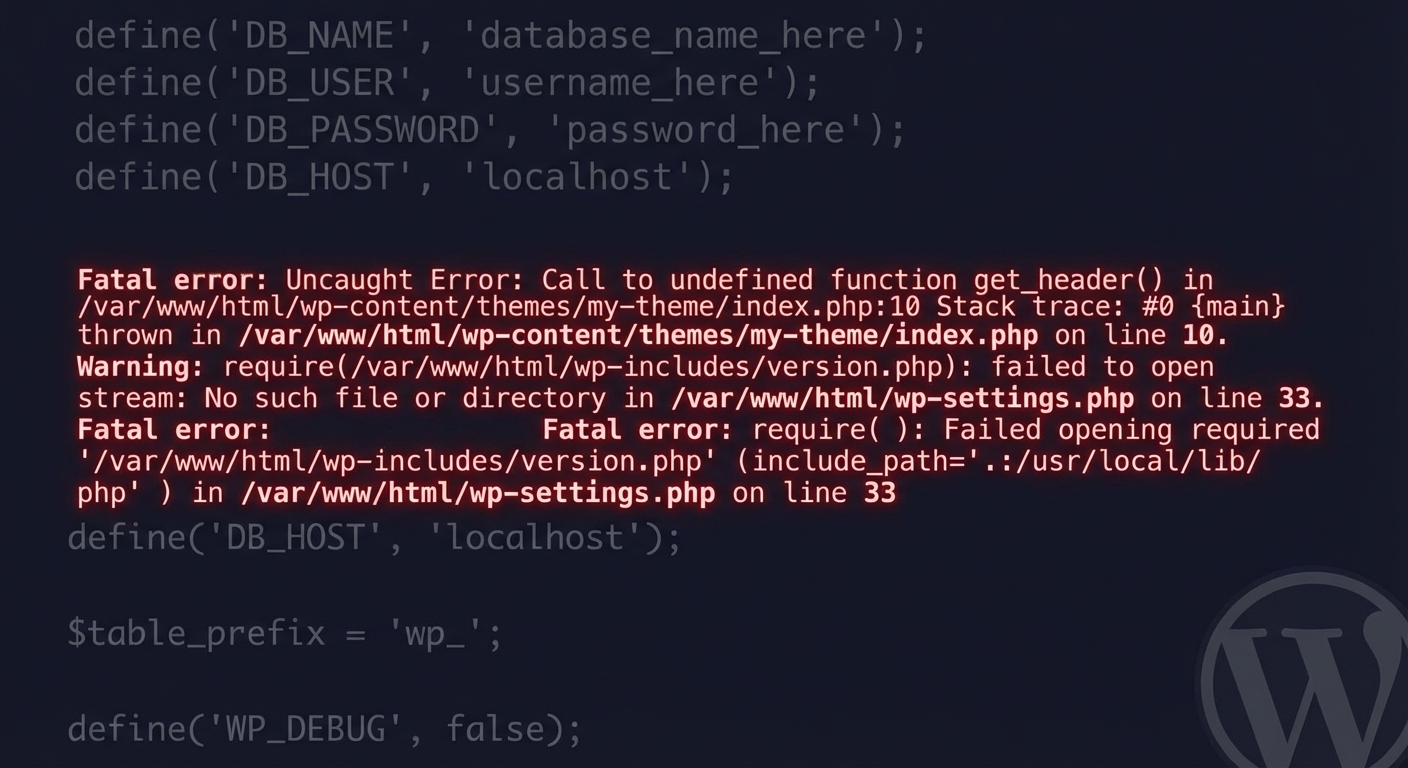
The WordPress white screen of death is a PHP fatal error with display suppressed. Execution stopped. Your data is almost certainly intact — but the error itself is being hidden from the browser by default.
A white screen during WordPress troubleshooting means one of three things:
- A plugin called a function that no longer exists (happens frequently after major WooCommerce or Gutenberg updates that deprecate or rename internal functions)
- A PHP version incompatibility — your host upgraded PHP 7.4 → 8.1 and a plugin hasn't been updated to match
- Memory exhaustion during a heavy page load or admin operation
The first diagnostic step is not to touch any plugin. The first step is to read the error.
Enable debug logging in wp-config.php:
define( 'WP_DEBUG', true );
define( 'WP_DEBUG_LOG', true );
define( 'WP_DEBUG_DISPLAY', false );
Setting WP_DEBUG_DISPLAY to false keeps errors out of the browser while writing them to /wp-content/debug.log. Read that log. The WordPress plugin error will name the file, the function, and the line number. That's the entry point for your investigation — not a blind plugin toggle.
The Safe Diagnostic Sequence for Plugin Compatibility Problems
Here's a sequence that doesn't compromise your live site:
Step 1 — Read the error log first.
The log will typically name the offending plugin file. Don't skip this. In most WordPress plugin conflict cases we investigate, the debug log resolves the initial diagnosis within minutes. Everything else is confirmation work.
Step 2 — Match the timeline to recent changes.
Plugin compatibility issues spike immediately after WordPress core updates, major plugin releases, and PHP version changes. If the error appeared right after your host silently upgraded the PHP runtime, that's your first hypothesis. Check the WordPress plugin repository changelog for the affected plugin against its listed PHP compatibility.
Step 3 — Use WP-CLI to deactivate surgically.
If you need to disable a specific plugin — especially when the admin UI itself is broken — use WP-CLI:
wp plugin deactivate suspected-plugin-slug --allow-root
You can also audit your full plugin list:
wp plugin list --status=active --format=table
WP-CLI lets you act on specific plugins without touching others, without loading the full WordPress admin, and without producing a cascade of secondary changes.
Step 4 — Test on staging before touching production.
If the fix requires more than a single plugin toggle, move the work to a staging environment. This is not optional. A staging site that mirrors production lets you reproduce the conflict, test the resolution, and verify no new breakage before anything touches the live site.
Vimsy's Press Pro plan includes a managed staging environment built specifically for this kind of safe update and conflict-testing workflow. If you're debugging plugin compatibility issues directly on a live site, the problem isn't just the conflict — it's the infrastructure gap that's forcing you to.
Step 5 — Run Query Monitor for non-fatal conflicts.
Not all WordPress plugin errors throw exceptions. Some conflicts just make the site slow, render layout incorrectly under specific conditions, or generate wrong output in certain contexts. Query Monitor exposes hook timing, database query counts by plugin, REST API response codes, and JavaScript errors — all inside the admin bar. If a plugin is firing redundant queries on every page load, or if a security plugin is blocking REST API requests from authenticated users, Query Monitor surfaces it directly. View our full WordPress maintenance checklist for the diagnostic tools and checks we use during audits.
When Recurring Conflicts Signal a Structural Problem
A single plugin conflict is a maintenance task. If you're resolving WordPress troubleshooting issues every few weeks, something structural is wrong.
Recurring conflicts almost always trace back to one of these root causes:
No staging protocol for updates. Plugins are being updated directly on production without plugin compatibility verification first. Every update is a live experiment.
Plugin sprawl. Sites with 40+ active plugins have exponentially more conflict surface area. Most WordPress sites need less than half the plugins they're running. The rest are either redundant, abandoned, or serving a use case that a single well-built plugin could handle.
Abandoned plugins still active. A plugin with no updates in 18+ months carries forward compatibility debt. It will break on the next WordPress major version or PHP runtime upgrade. Plugin abandonment risk is real and measurable — check the "Last Updated" date on every active plugin. In most WordPress audits we perform, a significant portion of active plugins are either abandoned or at least two major versions behind.
No rollback strategy. If you can't restore a pre-conflict state in under 10 minutes, you're operating without a safety net. That's not a risk tolerance decision — it's a gap in operational design.
The Backup and Rollback Reality
Every plugin update should be preceded by a verified site backup. Not a hosting-level snapshot that runs nightly on a schedule that may or may not precede your update window.
A proper rollback strategy means:
- Backup executes before the update, not on an independent schedule
- The backup includes both the database and file system captured at the same moment
- The backup has been tested — restored to staging — at least once to confirm it's actually restorable
- Recovery from backup is measured in minutes, not hours of back-and-forth with a hosting support queue
For a WooCommerce store averaging $3,000 per day, every hour of downtime costs roughly $125. The math isn't abstract — it's a function of your store's revenue rate. A $79 fix is not the expensive outcome. Discovering your only backup is corrupted or three days stale while checkout is broken is.
That's the specific scenario Vimsy's Fix-It Fast service covers — professional diagnosis and resolution without you touching production, without workarounds layered on workarounds, and with a rollback-first methodology before any changes are made.
When to Stop Troubleshooting and Call a Professional
Handle it yourself when:
- The debug log clearly names a single plugin
- You have a staging environment to test the fix
- A verified backup exists from within the last 24 hours
- The site has low traffic and no active transactions
Escalate when:
- The WordPress plugin error is on a WooCommerce or membership site with active users
- The white screen of death is appearing on the frontend only, with no PHP errors in the log
- Multiple plugins are suspect and no staging environment exists
- You've already run the deactivation sequence and the conflict persists
- No recent backup exists
The second list isn't a failure category — it's a reasonable threshold. The mistake is staying in it too long. Book a free consultation and get a structured diagnosis before the downtime compounds the cost.
What Proper Plugin Management Actually Looks Like
A well-managed WordPress site doesn't encounter plugin conflicts as emergencies. It encounters them as flagged issues during a staged pre-deployment review.
That means:
- Plugin updates are batched and tested against staging before deploying to production
- Plugin compatibility against the current WordPress version and PHP runtime is verified before each update cycle
- Abandoned plugins are identified and replaced during scheduled quarterly audits
- The wp_options table is monitored for autoloaded data growth — a leading indicator of plugin-side performance and stability problems
- Transients are cleared on a defined schedule to prevent stale cached data from masking real application errors
- .htaccess hardening rules are reviewed after any plugin that modifies server-level access rules is added or updated
This isn't elite maintenance. It's the baseline that prevents the category of WordPress troubleshooting problems that consume hours and risk live site integrity.
The difference between a site that breaks in production and one that doesn't isn't luck. It's whether someone is running a system or just hoping.
Look — I'm writing this because this is a problem I see constantly, and it's also exactly what we built Vimsy to solve. If you want professionals handling this instead of hoping nothing breaks, book a free call.
Plugin conflicts aren't the real problem. Running a live site with no system to catch them before they hit production is.