WordPress 500 Internal Server Error: What Causes It and How to Fix It Fast
The HTTP 500 error is the server's way of saying "something went wrong — and I'm not telling you what." That deliberate vagueness is exactly what makes it dangerous. You get a blank white screen or a five-word message, and your site is down.
This is not a cosmetic glitch. It is a full site failure.
Most site owners immediately start guessing — deactivating random plugins, refreshing obsessively, submitting panicked support tickets. That's the wrong approach. A 500 error has a short list of actual causes, and diagnosing it correctly takes about ten minutes if you know where to look. This guide walks through each one in order of probability — so you stop guessing and start diagnosing.
The Myth Worth Killing First
Here's the belief that gets site owners into trouble: "If it's a server error, it must be my host's problem."
Wrong. The 500 Internal Server Error is labeled a "server" error because it lives in the 5xx HTTP response class — errors generated server-side. But that label doesn't mean your host caused it. In the overwhelming majority of WordPress 500 errors, the fault lives entirely in your application layer: a plugin, a theme, a corrupted .htaccess file, a PHP memory ceiling, or a misconfigured wp-config.php.
Your host's infrastructure is usually fine. Your WordPress installation is the problem.
This matters because waiting for hosting support to "investigate" while your site is down costs you time you don't have. Understand the actual mechanism, and you can fix most 500 errors yourself — in minutes, not hours. Hosts can tell you what happened at the server level. They cannot tell you which plugin triggered the fatal PHP error.
What Actually Triggers a WordPress 500 Error
The server logged what happened. You just can't see it yet. Here are the real culprits, in order of frequency:
1. A Corrupted or Malformed .htaccess File
The .htaccess file controls rewrite rules, redirect logic, and access control for your WordPress installation. One malformed line — from a plugin write, a failed update, or a manual edit — throws a 500 immediately. This happens more than you'd expect. Page builders, security plugins, and caching tools all write to .htaccess, and sometimes their writes conflict with each other.
This is the first place to check. Rename your current .htaccess to .htaccess_old via SFTP or File Manager, then let WordPress regenerate a clean one by visiting Settings → Permalinks and clicking Save. If your site loads, .htaccess was the issue.
If you were using .htaccess hardening rules — IP blocking, file-type restrictions, admin lockdowns — you'll need to restore those selectively. Do not blindly paste back the old file. Review each rule, identify the malformed line, and rebuild from clean.
2. PHP Memory Limit Exhaustion
WordPress has a default PHP memory limit, and plugins — especially page builders, WooCommerce extensions, and backup tools — can consume through it during execution. When the process runs out of memory mid-execution, the server returns a 500 rather than delivering a partial response.
Check and increase your current memory limit in wp-config.php:
define('WP_MEMORY_LIMIT', '256M');
If that line doesn't exist, add it. If it exists and is set to 64M or 128M, increase it. Most modern WordPress setups need at least 256MB. Complex WooCommerce environments with multiple active extensions — subscriptions, memberships, custom pricing rules — may need 512MB to process peak requests without failing.
This is a low-risk fix. Make it, clear your object cache if you run one, and test.
3. Plugin or Theme Conflict
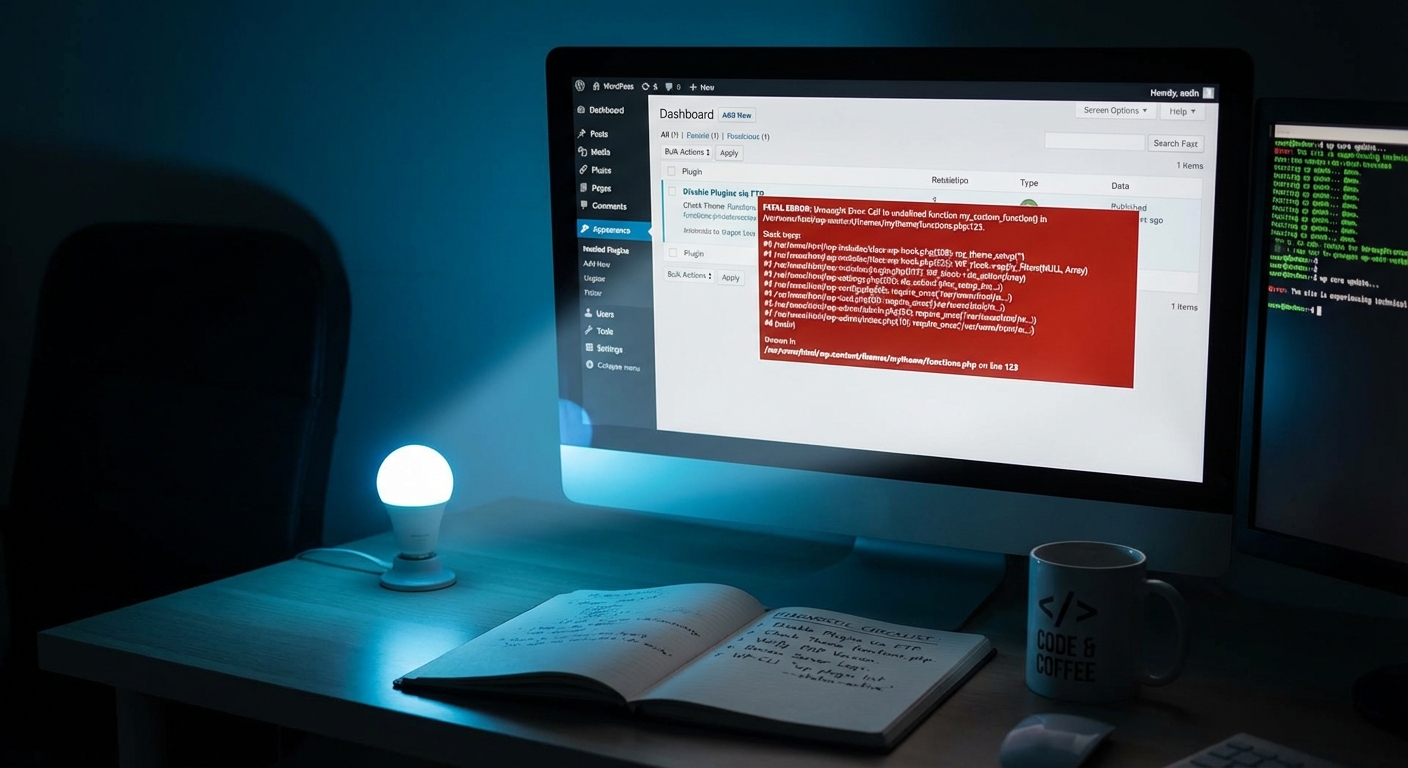
A plugin update that introduces a fatal PHP error will throw a 500. A theme with a syntax error in functions.php will do the same. This is the most common cause of sudden 500 errors — a plugin auto-updated overnight, broke something in the application layer, and now the entire site is inaccessible.
The correct diagnostic approach: use WP-CLI to deactivate all plugins from the command line — not the dashboard, which you can't access.
wp plugin deactivate --all
If the site loads, reactivate plugins one at a time until the error returns. That's your culprit. If you don't have WP-CLI access, rename the /wp-content/plugins/ directory to /wp-content/plugins_disabled/ via SFTP. WordPress will fail gracefully and load without any plugins active.
For themes: rename your active theme's folder. WordPress will fall back to a default theme. If the site loads, the theme's code is at fault — usually a syntax error, a missing function call, or a PHP 8.x incompatibility in the theme's functions.php.
This is also where plugin abandonment risk becomes a real cost. A plugin that hasn't been updated in 18+ months has not been tested against current PHP versions, current WordPress core, or the current security landscape. It is a liability. If that plugin is causing your 500, the fix is not just deactivating it — it's replacing it.
4. Corrupted WordPress Core Files
A failed auto-update, a partial file transfer, or — more seriously — a malware injection can corrupt WordPress core files. When core files are damaged, PHP can't execute them cleanly, and you get a 500.
Run a core file integrity check via WP-CLI:
wp core verify-checksums
This compares your installed core files against the official WordPress.org checksums. Any file that doesn't match gets flagged. You can then reinstall just the core files without touching your content:
wp core download --skip-content --force
This does not delete your database, themes, or plugins. It replaces core files only.
Important: if you find core files that have been modified outside of what a normal update would produce — especially in wp-includes/ or wp-admin/ — treat that as a malware indicator, not just file corruption. Injected PHP payloads hide in those directories. A simple reinstall won't remove injected files that aren't part of core. That requires a full malware scan and manual review of non-core files.
5. PHP Version Incompatibility
This one quietly destroys sites that haven't been touched in years. When hosts upgrade server-level PHP versions, or when a plugin requires a newer PHP version than the server is running, conflicts produce 500 errors — sometimes silently, sometimes immediately on every page load.
Check what PHP version your server is running and compare it against what your active plugins support. PHP 8.0, 8.1, and 8.2 all introduced deprecations and breaking changes that affect plugins built for PHP 7.x. Functions removed in 8.0 include some that lazy plugin developers relied on without replacement.
Check your active PHP version via WP-CLI:
wp --info
If you're running a plugin that hasn't been updated since 2021, its PHP 8.x compatibility is unknown at best, broken at worst.
6. Database Connection or Query Failure
A failing database connection — or a corrupt database table — can return a 500 depending on how WordPress handles the error. Usually this shows the "Error Establishing a Database Connection" screen, but not always. In some configurations, especially with custom wp-config.php error handling, the fallback is a generic 500.
Check your wp-config.php database credentials. Then use WP-CLI to run a table integrity check:
wp db check
If tables are flagged as corrupt, repair them:
wp db repair
Corrupt tables typically happen after a server crash during a write operation, or — occasionally — after a plugin that writes heavily to wp_options runs without completing cleanly. Uncleaned transients and expired option rows can accumulate there and occasionally contribute to query timeouts under load.
The Log You Should Be Reading
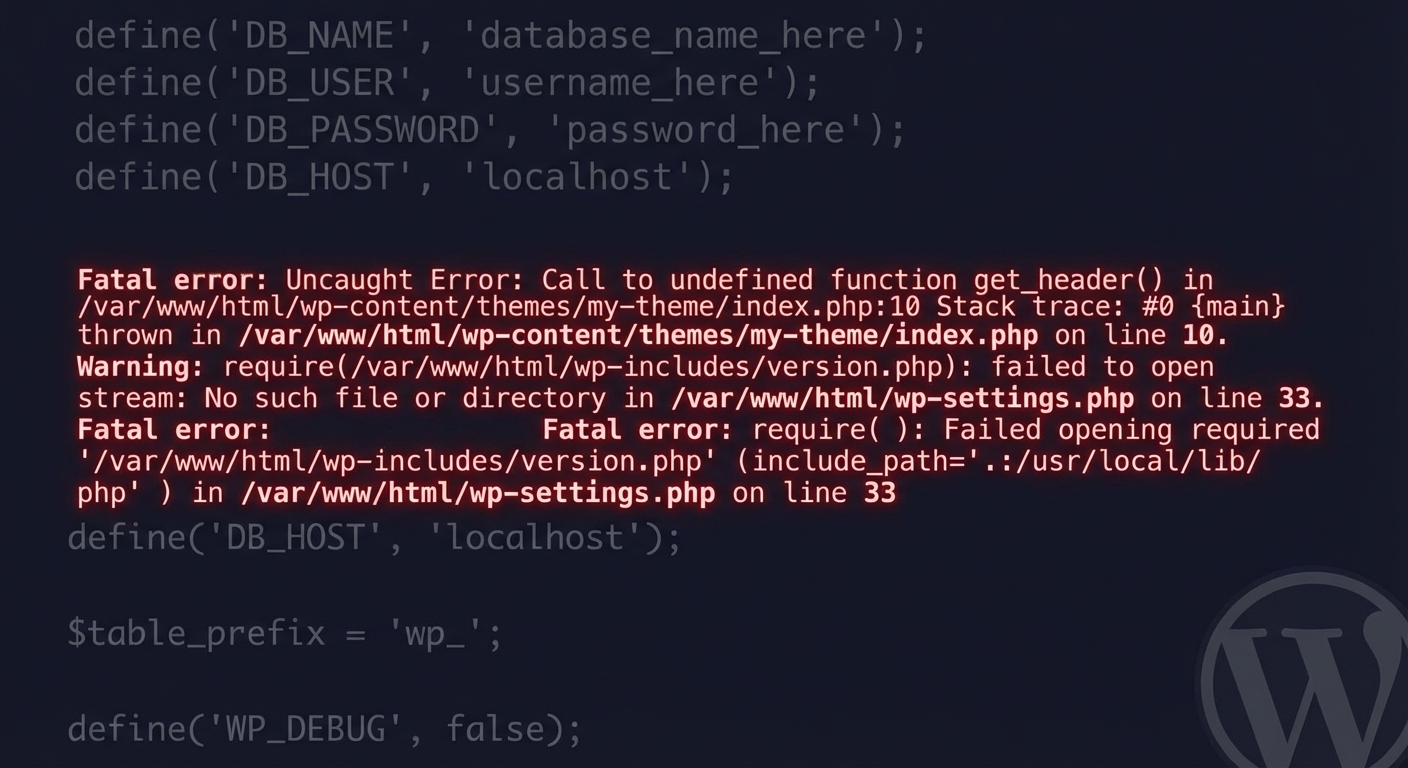
Everything above diagnoses faster if you check your PHP error log first. Most site owners don't know this file exists.
Ask your host where the PHP error log lives, or look in your site's root directory or a /logs/ folder. Enable WordPress debug logging if it's off:
define('WP_DEBUG', true);
define('WP_DEBUG_LOG', true);
define('WP_DEBUG_DISPLAY', false);
The log writes to /wp-content/debug.log. Open it. The error message will name the exact file and line number causing the 500. This cuts your diagnosis time from twenty minutes to two.
Disable debug mode after you've resolved the issue. Leaving WP_DEBUG_DISPLAY set to true on a live site exposes error paths and PHP version data publicly — that's a real attack surface, not a hypothetical one.
Why "Just Restore a Backup" Is Not a Diagnosis
Some people reading this will go straight for the rollback. If your site is generating revenue and you need to restore availability immediately, rolling back is a reasonable tactical move. A working rollback strategy is non-negotiable for any serious WordPress environment.
But a rollback is not a fix. If you restore yesterday's backup without understanding what caused the 500, you will hit the same error again — the next time that plugin updates, the next time a cron job fires, or the next time a site visitor hits that specific code path.
Rollbacks buy time. Diagnosis buys stability.
There's also the question of what you're rolling back to. If the 500 was caused by a newly discovered vulnerability that your backup predates, you're restoring a known-vulnerable environment. That is not a recovery. That is a different kind of risk.
The Part Most Troubleshooting Guides Skip
Here's what the average "fix your 500 error" post doesn't mention: a recurring 500 error is almost always a symptom of an unmaintained WordPress environment.
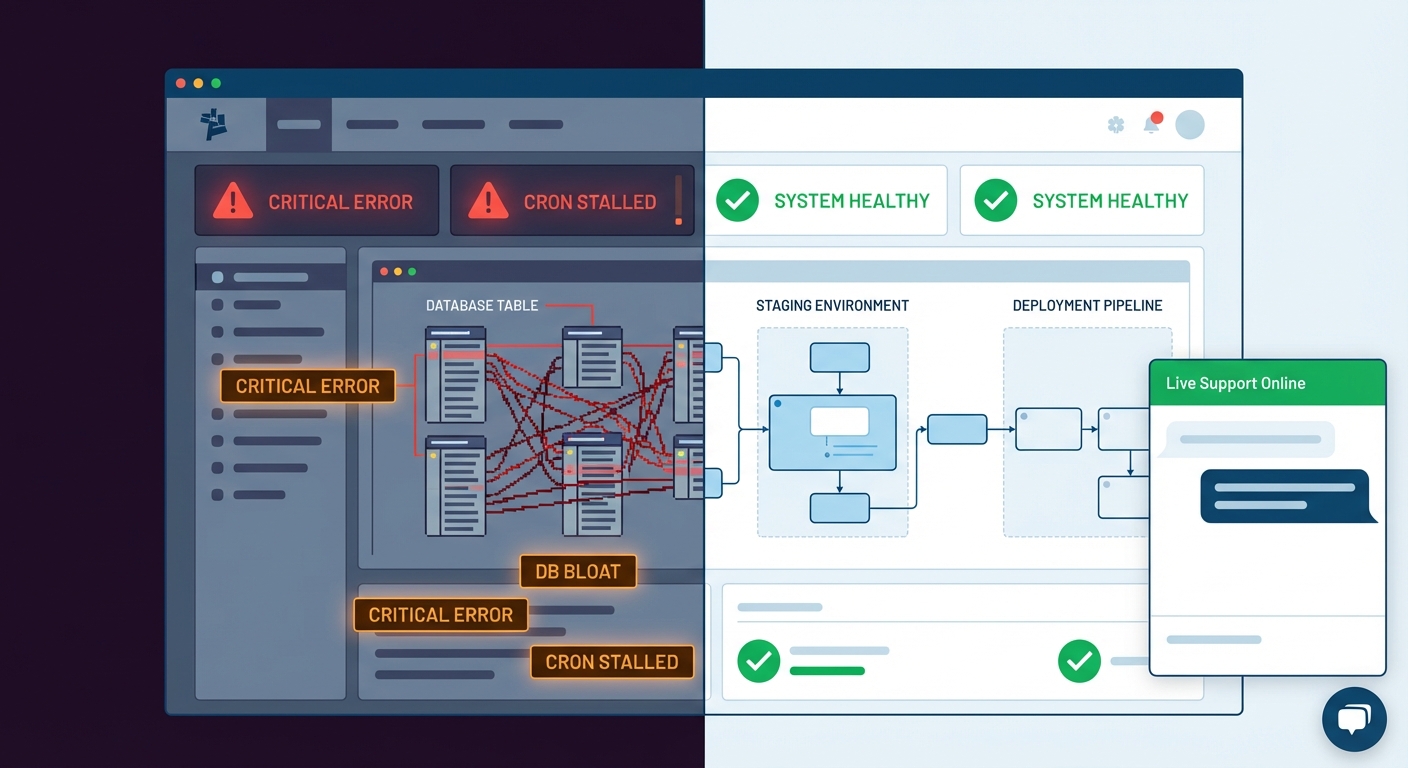
Across dozens of WordPress site audits, the pattern repeats: sites that suffer repeated 500 errors share common characteristics — outdated PHP versions, abandoned plugins with no active maintainer, no staging environment for testing updates before they hit production, and no monitoring that would have caught the error before a customer noticed the site was down.
A single 500 error can be a random plugin conflict. A recurring 500 error is a maintenance failure.
Consider what that means in cost terms. For a WooCommerce store averaging $3,000/day in orders, that's roughly $125/hour. A 4-hour outage — realistic if the error occurs overnight and nobody catches it until morning — represents $500 in lost transactions, not counting abandoned carts, lost search ranking signals, or damaged customer trust. Against the cost of a professional WordPress care plan that includes monitoring, staged updates, and a tested rollback path, that's a poor trade every time.
The math isn't complicated. The risk is just being absorbed silently by people who think it won't happen again.
Before You Close This Tab
If the fix worked — good. But before you move on, run through this:
- Is your PHP version current and compatible with all active plugins?
- Do you have uptime monitoring that alerts you when the site goes down?
- Are plugin and theme updates being staged and tested before deploying to production?
- Is your backup current and have you actually verified it restores cleanly?
- Does your
wp-config.phpinclude memory limits and hardening configurations? - Is your
.htaccessversion-controlled so you can roll back a bad write?
If any of those answers are "no" or "I'm not sure," you've fixed the symptom, not the risk.
You can review the full WordPress maintenance checklist we use for site audits — it covers the areas most likely to cause errors exactly like this one.
When to Stop Debugging Yourself
If you've worked through every step above and still can't identify the cause, there are two possibilities: the error is deeper than a standard conflict — core file corruption from malware, server misconfiguration at the infrastructure level, or a PHP payload injected into a non-core file — or your hosting environment is actively contributing to the problem.
Both require a different level of access and tooling than most site owners have available.
Emergency WordPress support exists for exactly this situation — when the site is down, you've exhausted the obvious fixes, and every hour of downtime has a real cost attached to it.
We handle 500 errors regularly. The diagnostic process is systematic, not reactive. And if you want to understand what a fully maintained WordPress environment looks like — one that catches these issues before they cause downtime — see what's included in our maintenance plans.
The Direct Answer
A WordPress 500 Internal Server Error is almost never a mystery. It's a corrupted .htaccess, a memory ceiling, a plugin throwing a fatal PHP error, a core file out of integrity, a PHP version mismatch, or a database table failure. The PHP error log will usually tell you exactly which one within seconds of enabling it.
Fix the immediate error. Then fix the environment that allowed the error to happen unchecked.
Look — I'm writing this because this is a problem I see constantly, and it's also exactly what we built Vimsy to solve. If you want professionals handling this instead of hoping nothing breaks, book a free call.
A 500 error at 2am on a Tuesday is not an IT problem. It's a business risk. And it's a preventable one.