PHP errors don't lie. When WordPress throws failed to open stream: No such file or directory, it's telling you exactly what went wrong — a file it expected to find isn't there. The problem isn't vague. The diagnosis, however, is where most people waste hours.\n\nThis error has a reputation for appearing at the worst times: right after a migration, immediately following a theme switch, or the moment a plugin update fires. That timing isn't random. It reveals something about how WordPress resolves file paths — and why your environment matters more than most site owners realize.\n\nLet's cut through the noise and get your site back online.\n\n---\n\n## What the Error Is Actually Saying\n\nThe full error looks something like this:\n\n\nWarning: require(/home/username/public_html/wp-content/plugins/some-plugin/file.php): failed to open stream: No such file or directory in /home/username/public_html/wp-settings.php on line 456\n\n\nPHP is trying to load a file via require(), include(), require_once(), or include_once() — and the file path it's been given doesn't exist on the server. That's it. That's the whole problem.\n\nBut the why branches in several directions.\n\n---\n\n## The Four Most Common Causes\n\n### 1. Botched Migration\n\nMigration is where this error lives most comfortably. When you move a WordPress site from one server to another — or from a subdirectory to a root domain — absolute file paths break.\n\nWordPress stores some paths in the database (your site URL, upload directory settings) and some are defined dynamically at runtime via wp-config.php and constants like ABSPATH. But plugins and themes that hardcode their own paths — writing something like /home/oldserver/public_html/wp-content/... — will fail immediately on the new server.\n\nThe fix here isn't always obvious because the path is buried inside plugin code or a serialized option in the database. Running a proper search-replace using WP-CLI after migration is non-negotiable:\n\nbash\nwp search-replace 'https://oldsite.com' 'https://newsite.com' --all-tables\n\n\nBut that handles URLs. Hardcoded server paths in plugin files require manual inspection or a proper migration tool that serializes correctly.\n\n### 2. Incomplete Plugin or Theme Update\n\nPlugin updates that partially fail leave WordPress in a broken state. The update process deletes the old plugin files and replaces them. If that process gets interrupted — network timeout, server-side resource limit, PHP memory exhaustion — you can end up with a plugin folder that's missing files WordPress is still trying to load.\n\nWP-CLI gives you a direct way to verify plugin integrity:\n\nbash\nwp plugin verify-checksums --all\n\n\nThis compares your installed plugin files against the WordPress.org repository checksums. If files are missing or modified, it tells you exactly which ones. That's your starting point.\n\n### 3. File Permission Errors Masquerading as Missing Files\n\nHere's one most people miss: sometimes the file exists but PHP can't read it. The stream error can occur when file permissions are set incorrectly — typically too restrictive. PHP runs as a specific system user, and if that user doesn't have read access to a file, the fopen() call fails and throws the same failed to open stream error.\n\nCheck permissions on your wp-content directory:\n\nbash\nfind /path/to/wp-content -type f -name \"*.php\" -not -perm 644\n\n\nStandard WordPress file permissions are 644 for files and 755 for directories. Anything more restrictive than 644 on a PHP file is a problem. Anything more permissive than 755 on a directory is a security problem.\n\n### 4. Theme or Child Theme Path Mismatch\n\nSwitching themes — especially switching from a parent theme to a child theme or vice versa — can leave function calls pointing to files that no longer exist in the active theme directory. Child themes that call get_template_directory() when they should call get_stylesheet_directory() (or the reverse) will throw this error the moment the template hierarchy hits a file that doesn't exist in the expected location.\n\nIf the error message points to a path inside wp-content/themes/, this is your culprit.\n\n---\n\n## How to Systematically Diagnose It\n\nStop guessing. The error message itself contains the answer — but you need to read it correctly.\n\nStep 1: Get the full error output.\n\nIf your site is showing a white screen, enable WP_DEBUG and WP_DEBUG_LOG in wp-config.php:\n\nphp\ndefine('WP_DEBUG', true);\ndefine('WP_DEBUG_LOG', true);\ndefine('WP_DEBUG_DISPLAY', false);\n\n\nWith WP_DEBUG_DISPLAY set to false, errors write to /wp-content/debug.log instead of displaying publicly. Read that log. The exact file path that failed is in there.\n\nStep 2: Check whether the file exists.\n\nSSH into your server and verify:\n\nbash\nls -la /the/exact/path/from/the/error\n\n\nIf the file isn't there, you need to restore it. If it is there, the problem is permissions (see above).\n\nStep 3: Trace where the path comes from.\n\nIf the missing file is inside a plugin, that plugin either has a broken installation or it's referencing a path that's environment-specific. Check whether the plugin has an update available. If it was recently updated, roll it back via a staging environment and test before re-applying.\n\nStep 4: Check your wp-config.php path constants.\n\nIf the error references core WordPress files, check whether ABSPATH or WP_CONTENT_DIR have been manually defined and whether those paths still match your server structure. A migration that moved the WordPress install to a different directory without updating these constants will produce exactly this error.\n\n---\n\n## The Myth This Error Exposes\n\nHere's the belief this error consistently challenges: "If my site was working yesterday, something must have gone wrong with WordPress itself."\n\nWrong. WordPress didn't change. Your environment did.\n\nPlugin updates, server migrations, PHP version upgrades (yes — PHP 8.x handles some file path edge cases differently than 7.4), host-side changes to directory structures — all of these can surface a file path error that was technically always a latent problem, just never triggered.\n\nThe failed to open stream error doesn't appear out of nowhere. It appears when a code path that was previously dormant gets executed. A plugin feature nobody used before, a template file that only loads under specific conditions, a cron job running for the first time after a migration — these trigger code paths that expose the underlying breakage.\n\nThat's why this error is so common post-migration. The migration didn't cause the problem. It revealed it.\n\n---\n\n## When This Becomes a Recurring Problem\n\nIf you've seen this error more than once, the issue isn't bad luck. It's a missing process.\n\nSpecifically:\n\n- No staging environment means every plugin update, theme change, or configuration edit runs live, with no safety net.\n- No rollback strategy means when something breaks, you're diagnosing from scratch instead of reverting to a known good state.\n- No post-migration validation means path errors sit dormant until something triggers them at the worst possible moment.\n\nThese aren't technical problems. They're operational gaps. And they're exactly what a proper WordPress maintenance and care plan is designed to prevent.\n\nA staging workflow catches the failed to open stream error before it hits production. A tested rollback process means you're back online in minutes, not hours. Post-migration checklists — running wp search-replace, verifying plugin checksums, confirming file permissions, validating wp-config.php constants — catch the latent problems before they surface.\n\n---\n\n## The Specific Scenario Where This Gets Expensive\n\nImagine a WooCommerce store processing $4,000/day in orders. That's roughly $167/hour. A failed to open stream error that takes the site down — or worse, breaks the checkout silently — during peak hours is a real revenue problem.\n\nThe error itself takes 15 minutes to diagnose if you know what you're doing. The problem is most store owners don't have someone available at 11pm on a Saturday who knows what ABSPATH means or how to read a PHP error log.\n\nThat's not a criticism. It's a workflow observation. If you don't have emergency WordPress support on retainer, you're betting that breakage only happens during business hours when you can reach your developer.\n\nThat bet doesn't pay off.\n\n---\n\n## Quick Fix Checklist\n\nIf you're in the middle of diagnosing this right now, here's the sequence:\n\n1. Enable WP_DEBUG and pull the full error from debug.log\n2. Check whether the file physically exists at the path mentioned in the error\n3. Check file permissions — 644 for files, 755 for directories\n4. Run wp plugin verify-checksums --all to catch incomplete plugin installations\n5. If post-migration: run wp search-replace and manually verify path constants in wp-config.php\n6. If post-theme-switch: check whether get_template_directory() vs get_stylesheet_directory() is causing the mismatch\n7. Check your PHP error logs via cPanel or directly at /var/log/php_errors.log for additional context\n\nIf the error is inside a core WordPress file path, something modified or deleted a core file. Use WP-CLI to reinstall core:\n\nbash\nwp core download --force\n\n\nThis re-downloads WordPress core files without touching your wp-content directory, themes, plugins, or database.\n\n---\n\n## What Proper Maintenance Looks Like Instead\n\nThe sites that hit this error and stay down for hours have something in common: there was no system. Updates happened manually, migrations were done without checklists, and PHP version upgrades were applied without testing.\n\nAcross the dozens of WordPress audits and site recoveries we've handled, this error — or a variation of it — is one of the most common post-migration findings. Not because migrations are inherently dangerous, but because most migrations are done without a validated post-migration protocol.\n\nThe solution isn't being more careful. It's building a repeatable system. Staging environments that mirror production. Automated backups before every update. WP-CLI-driven validation after migrations. PHP compatibility checks before version upgrades.\n\nThat's what professional WordPress management looks like. Not more vigilance — a better process.\n\nIf you want to see exactly what we check and maintain on a monthly basis, the WordPress maintenance checklist we use is public. Start there if you want to build your own system.\n\nFor everything else, our care plans start at pricing that makes the math obvious when you factor in even one hour of downtime.\n\n---\n\n## Fix It Once. Build the System to Prevent It.\n\nThe failed to open stream: No such file or directory error is fixable in minutes if you know where to look. The real cost isn't the fix — it's the recurring exposure when you don't have a process that catches these before they hit production.\n\nOne migration done right. One staging environment maintained. One care plan that ensures someone is watching — that's the difference between a 15-minute fix and a 4-hour crisis.\n\nLook — I'm writing this because this is a problem I see constantly, and it's also exactly what we built Vimsy to solve. If you want professionals handling this instead of hoping nothing breaks, book a free call.\n\nYour site isn't going to maintain itself. And the next time this error fires, it's going to be at the worst possible moment.
WordPress 'Failed to Open Stream' Error: What It Means and How to Fix It
Muhammad Arslan Aslam | January 22, 2026
The 'failed to open stream: No such file or directory' error is fixable in minutes — if you know where to look. Here's the exact diagnostic process.
Related Posts
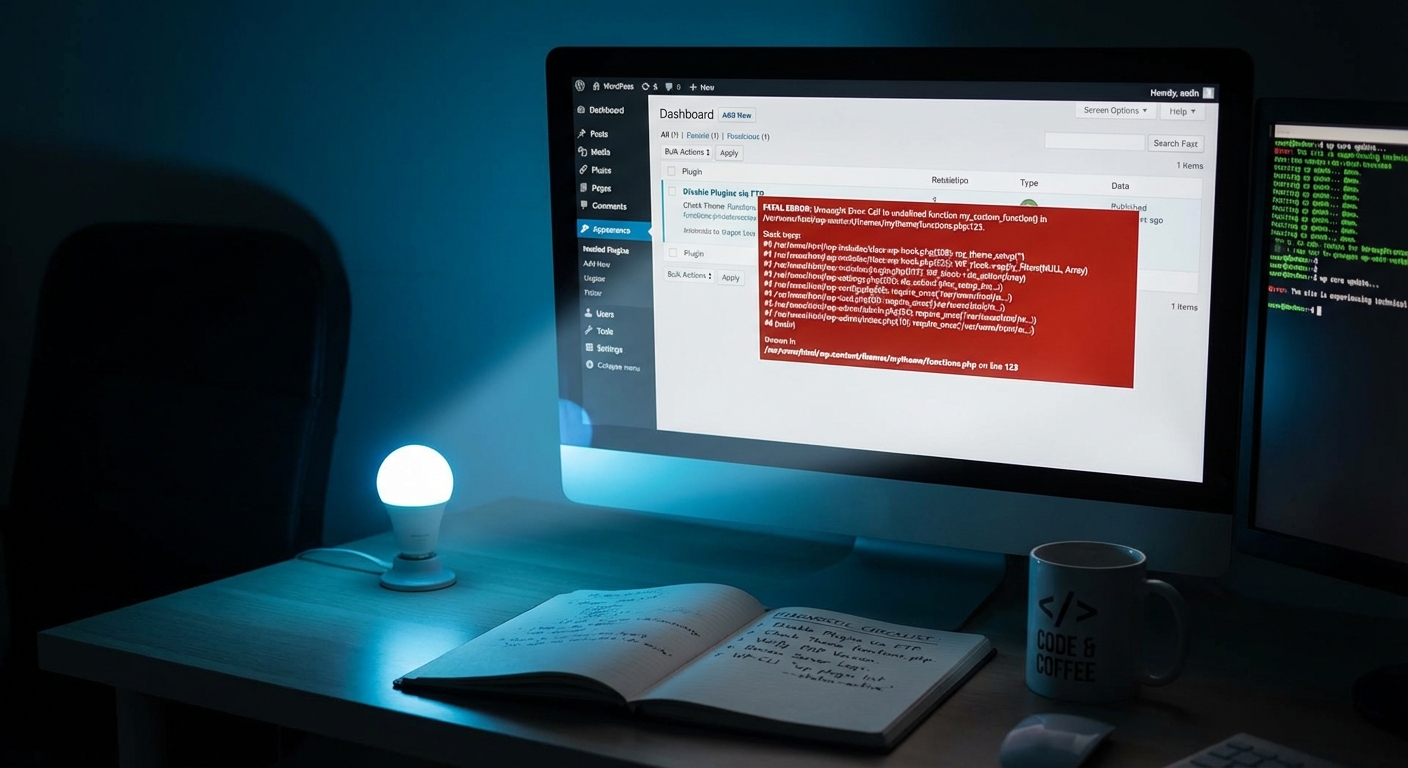
How to Diagnose and Fix WordPress Plugin Conflicts (Without Breaking Your Site)
Plugin conflicts follow predictable patterns. Learn the safe, system-driven diagnostic sequence that protects your live site — and when to call a professional.
Muhammad Arslan Aslam | February 13
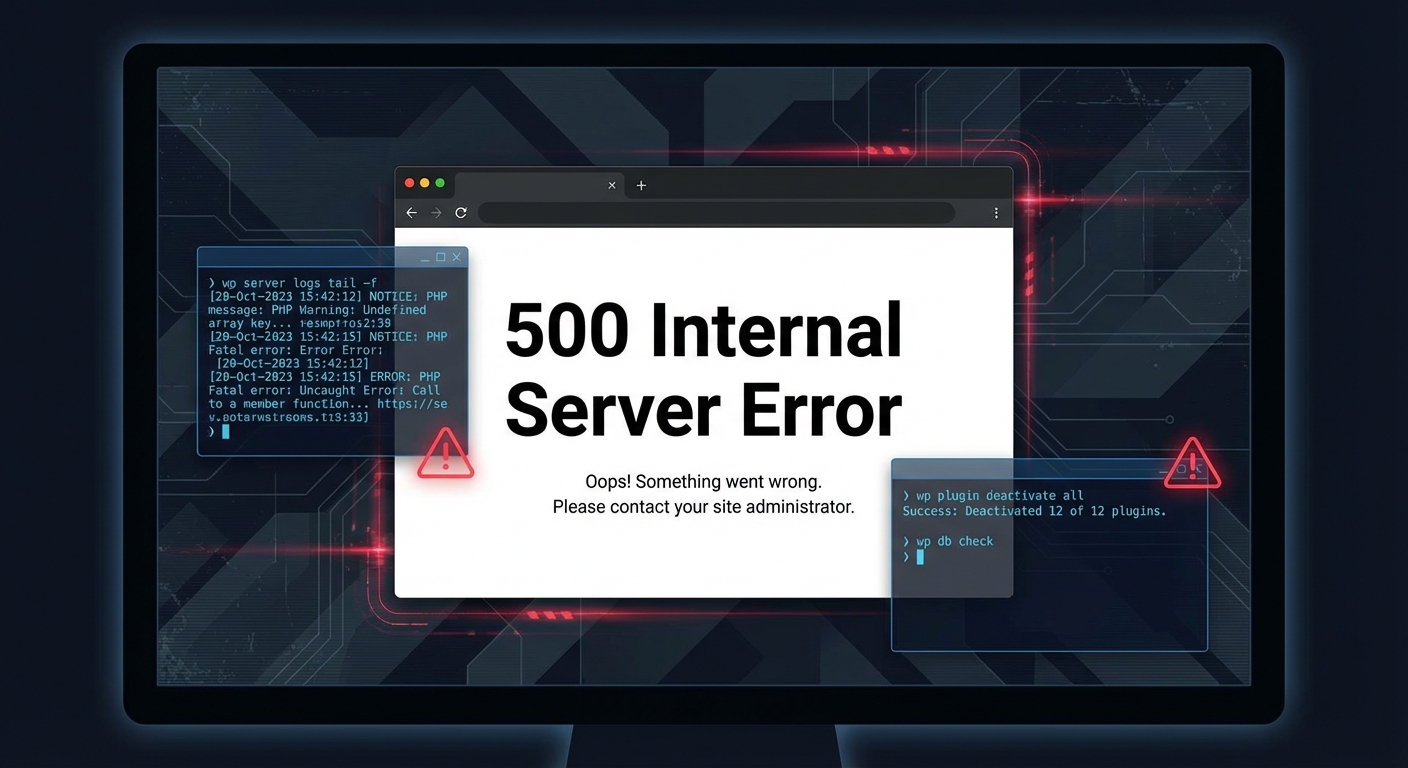
WordPress 500 Internal Server Error: What Causes It and How to Fix It Fast
A WordPress 500 error means your site is fully down. Learn what actually causes it—.htaccess corruption, PHP limits, plugin conflicts—and how to fix it fast.
Muhammad Arslan Aslam | January 30
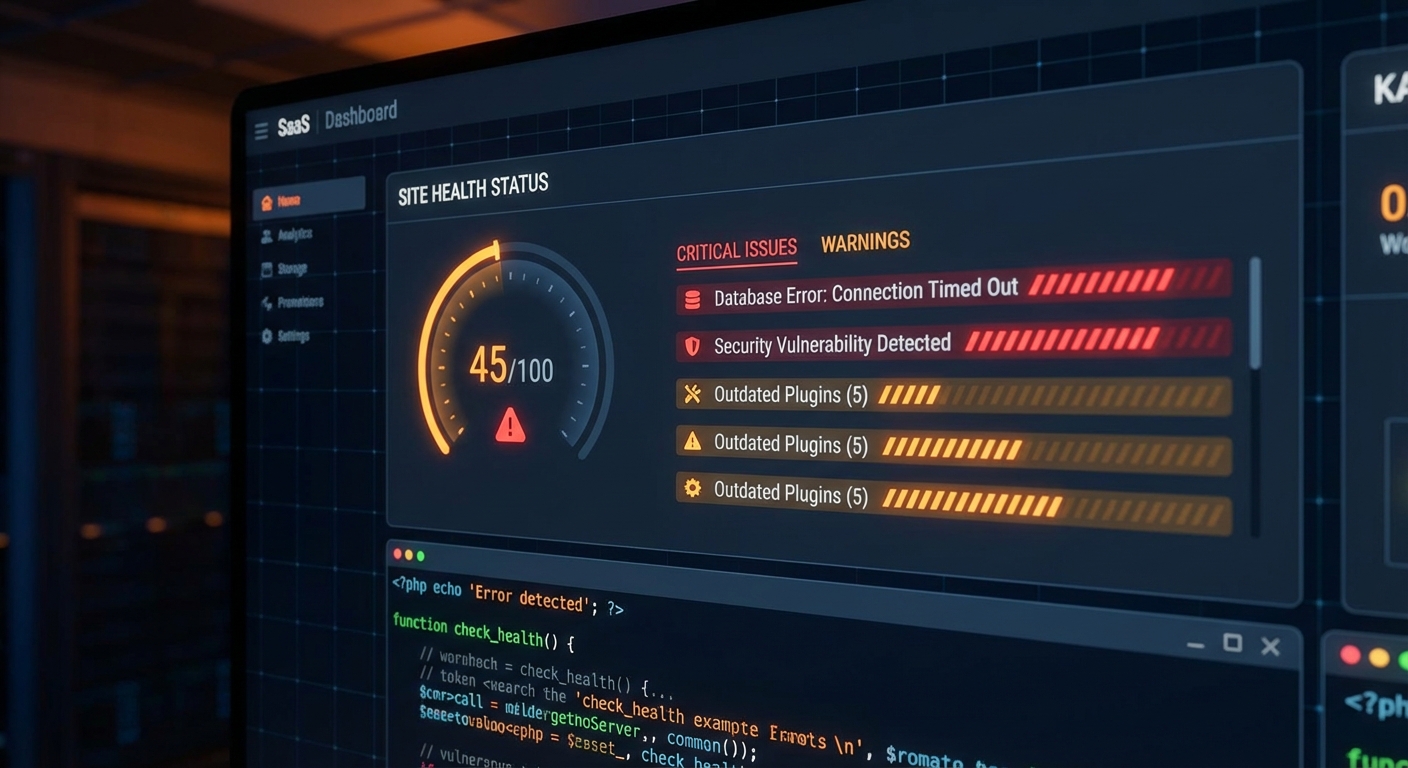
WordPress Site Health: The Dashboard You're Probably Ignoring
Your WordPress Site Health score isn't the point — the warnings are. Learn how to read critical issues, fix common problems, and understand what the tool misses entirely.
Muhammad Arslan Aslam | January 25
Subscribe to Our Newsletter
Get the latest WordPress tips, security updates, and maintenance insights delivered to your inbox.