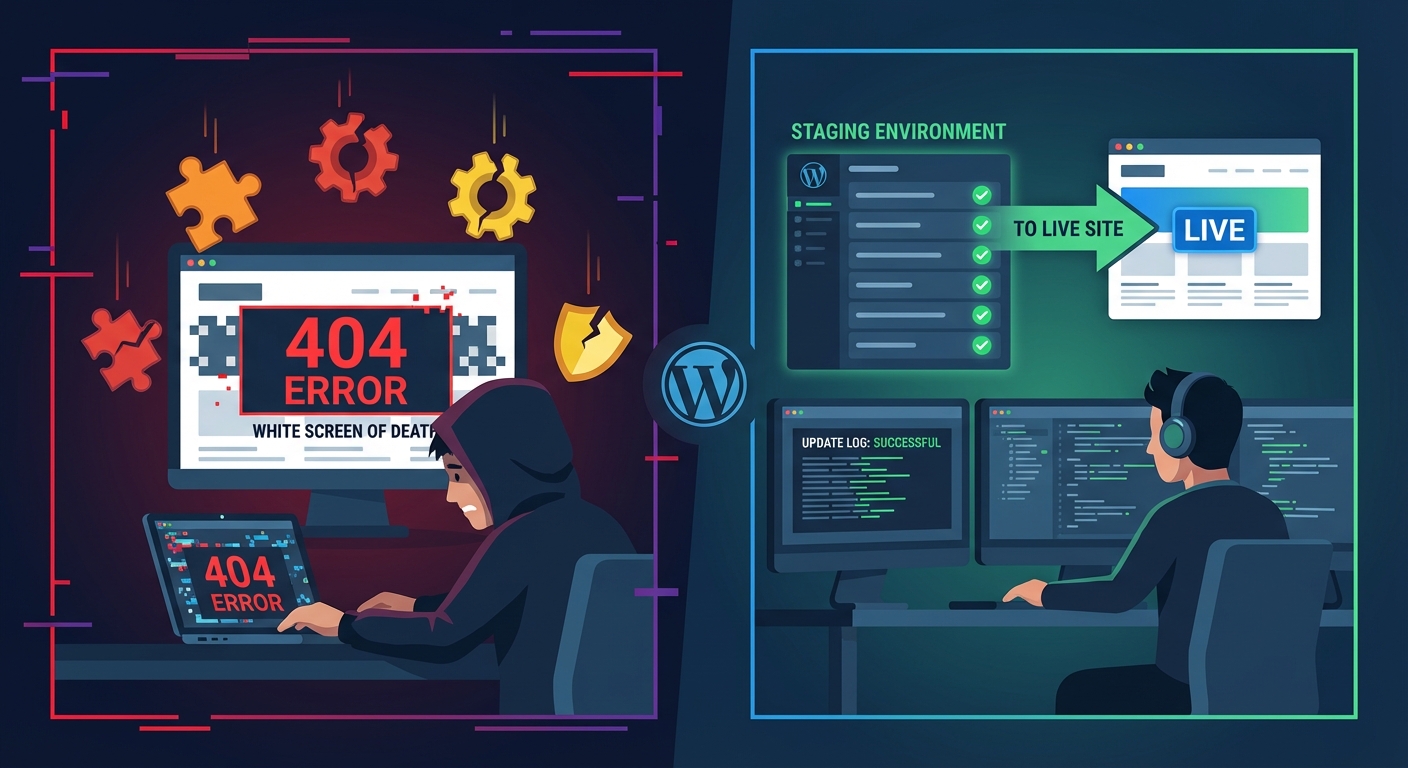
Most WordPress owners open Site Health once, glance at the score, and close the tab. That's the wrong response — especially when the same tool is flagging issues that can get your site hacked, slow it down, or cause plugin conflicts you'll blame on something else entirely. The score isn't the point. The warnings are.
What Site Health Actually Does
WordPress introduced the Site Health tool in version 5.1, and it's been quietly improving ever since. It sits under Tools → Site Health, and it runs two types of checks: a Status tab that lists critical issues and recommended improvements, and an Info tab that gives you a complete diagnostic snapshot of your server environment.
Most people ignore the Info tab entirely. That's a mistake. The Info tab is where you find:
- Your active PHP version
- Whether object caching is enabled
- Which scheduled cron jobs are registered
- REST API response status
- Database table prefix (yes,
wp_is a security risk)
Think of the Status tab as the triage list and the Info tab as the full chart. You need both.
The Difference Between Critical Issues and Improvements
WordPress Site Health separates its findings into two buckets.
Critical Issues are things that pose real risk right now — not theoretically, not eventually. Critical issues include things like an outdated PHP version, a failed background update, inactive security headers, or a broken REST API endpoint. These are not suggestions. They're warnings that your site's stability, security, or functionality is compromised.
Improvements are lower-severity recommendations. They're not emergencies, but they compound over time. Leaving ten "improvement" items unaddressed for six months isn't "good enough" — it's technical debt accumulating on a live system.
Here's the contrarian position worth stating plainly: a passing Site Health score doesn't mean your site is healthy. The tool has real blind spots. It doesn't inspect wp_options bloat. It won't flag abandoned plugins with no security patches in 18 months. It can't tell you your transients table has 40,000 stale records dragging query load. A green score means you've cleared the floor. It doesn't mean the ceiling isn't falling.
Breaking Down the Most Common Critical Issues
PHP Version Out of Date
This is the most frequent critical issue across WordPress sites. PHP 7.4 reached end-of-life in November 2022. Running it today means no security patches — full stop. PHP 8.0 and 8.1 also hit EOL. The current supported versions are PHP 8.2 and 8.3.
Beyond security, outdated PHP versions create direct compatibility failures. Plugins written for PHP 8.2 will throw fatal errors on 7.4. Theme functions that use named arguments, match expressions, or union types will break silently or loudly depending on what error reporting your site has configured.
The fix isn't complicated — update PHP through your hosting control panel or ask your host to do it. But before you flip that switch, test on a staging environment first. A PHP version bump on a live site without staging is exactly how you cause a 2am emergency.
Background Updates Failing
WordPress's automatic update system relies on cron jobs — specifically wp_cron — to execute in the background. If your site's cron is broken, updates don't run. Minor security patches don't apply. The health check will flag this if the last scheduled update check never fired.
You can verify this with WP-CLI:
wp cron event list
If your cron event list shows events that are hours or days past their scheduled time, your WordPress cron is broken. This is often caused by high-traffic sites disabling wp_cron in wp-config.php and failing to replace it with a real server-side cron job.
The correct fix: disable DISABLE_WP_CRON only after you've configured a proper cron job at the server level. Leaving cron broken because someone turned it off without a replacement is more common than it should be.
REST API Not Accessible
The Site Health tool checks whether your WordPress REST API is responding correctly. If it returns an error, you'll see a critical issue. This matters because the block editor (Gutenberg), plugins like WooCommerce, and various third-party integrations depend on the REST API being functional.
REST API failures are often caused by overly aggressive .htaccess rules or security plugins that block REST API access wholesale. Some security configurations block unauthenticated REST requests — which breaks the editor for logged-in users and causes confusing admin errors that look like database issues.
If your REST API is blocked, don't just whitelist everything blindly. Audit what's blocking it and why.
HTTPS Not Configured
If your site is still on HTTP, every form submission, login, and WooCommerce checkout is transmitting data unencrypted. Browsers flag it. Google penalizes it. It's 2025 — there's no excuse.
If you have an SSL cert installed but Site Health still flags HTTPS issues, check your wp-config.php for the FORCE_SSL_ADMIN constant, and verify your .htaccess redirects aren't creating a redirect loop.
Common Improvements That Aren't Optional
Object Caching Disabled
Site Health flags "persistent object cache should be used" when your site doesn't have a caching layer like Redis or Memcached configured. On low-traffic sites this isn't critical. On anything doing consistent traffic — WooCommerce, membership platforms, high-content blogs — it's a real performance issue.
Without object caching, every page load triggers redundant database queries. WordPress fetches the same options, user metadata, and widget data from the database on every request. With a persistent object cache, that data gets stored in memory and served without hitting the database.
The wp_options table is usually where you feel this most. Autoloaded options in wp_options get pulled on every single page load. If your autoloaded data is bloated — hundreds of rows from abandoned plugins that stored settings and never cleaned up — every page load carries that weight.
Scheduled Events Overdue
This shows up when WordPress's internal scheduler has events that haven't fired on schedule. It might not be a complete cron failure — just an overloaded server causing tasks to pile up.
Overdue scheduled events mean things like database optimization tasks, spam deletion, expired transient cleanup, and post-scheduling aren't running reliably. None of these cause immediate failures, but they compound into performance issues over months.
Plugin and Theme Updates Available
Site Health flags outdated plugins and themes. Most site owners know this. What they miss is the risk model behind abandonment — not just updates.
An outdated plugin that still receives updates is manageable. A plugin that hasn't been updated in 18+ months, hasn't been tested against the current WordPress version, and has open vulnerability reports in the CVE database is a different category of risk entirely. Site Health doesn't distinguish between them. You need to.
A useful practice: check the WordPress plugin repository for the "Last Updated" and "Tested up to" fields on every active plugin. If a plugin you're running hasn't been tested against the last two major WordPress versions, treat it as abandoned and find a replacement. You can also review plugin details using WP-CLI:
wp plugin list --fields=name,version,update,update_version
This gives you a fast view of everything needing updates — useful before any major WordPress version upgrade.
What the Info Tab Tells You That Nobody Reads
The Info tab inside Site Health is a goldmine that almost nobody uses properly. It's a full server and WordPress diagnostic export. Here's what to look for:
Database — Check the size of your wp_options table. If autoloaded data is above 1MB, you have a real problem worth addressing. The Info tab shows total database size but won't show you the breakdown — for that, you need a plugin like Query Monitor or a direct database query.
Directories and Sizes — If your uploads folder has grown to several gigabytes without explanation, that can indicate media bloat, old backups stored in the wrong place, or in some cases, uploaded malware files.
Active Plugins — The Info tab lists every active plugin with its version. Cross-reference this against the WordPress vulnerability database at wpscan.com or patchstack.com. Security audits start here.
Server — PHP version, MySQL version, max upload size, memory limit. If your PHP memory limit is below 256MB and you're running WooCommerce, you're operating at the margins of stability.
WordPress Constants — This section tells you whether WP_DEBUG is enabled on a live site (it shouldn't be — it exposes error output), whether DISABLE_WP_CRON is set, and other critical configuration flags in wp-config.php.
What Site Health Doesn't Catch
This is the part most guides skip.
Site Health is a good first pass. It's not a security audit, a performance audit, or a risk assessment. It will not catch:
- Stale transients flooding your database — thousands of rows in wp_options that no longer serve any purpose but slow down every query that touches the options table
- Abandoned plugin risk — it flags "update available" but not "this plugin hasn't been maintained in two years"
- Database indexing issues — slow queries caused by missing indexes on large post_meta or options tables
- Malware or injected code — Site Health doesn't scan files
- wp-config.php hardening gaps — things like exposed debug logs, missing security keys, or the database table prefix still set to
wp_
Treat the tool for what it is: a baseline check, not a clean bill of health. If your Site Health status is "Good," you've cleared the minimum. Running a site on the minimum is not a maintenance strategy.
How to Actually Act on This
Here's a prioritization framework:
1. Fix every critical issue first. No exceptions. If PHP is outdated, update it on staging first, then production. If your REST API is broken, audit the cause before applying a blanket fix.
2. Schedule improvements as technical debt items. Add them to a sprint or a monthly maintenance cycle. Don't let them accumulate for quarters at a time.
3. Export the Info tab data. Use it as a baseline. Run a fresh comparison after every major update cycle or server change.
4. Run WP-CLI checks monthly. wp core check-update, wp plugin list, wp cron event list — three commands that take thirty seconds and tell you your risk posture at a glance.
5. Pair Site Health with Query Monitor for performance diagnostics. Site Health tells you what's configured wrong. Query Monitor tells you what's running slow.
If you want to run a deeper audit of what Site Health misses, our WordPress maintenance checklist covers the full scope — including database health, plugin risk assessment, and security hardening checks that go beyond what the native tool surfaces.
The Real Problem Is Consistency
Site Health is a point-in-time snapshot. You can clear every warning today and have five new ones appear next month after a round of plugin updates introduces a conflict, your host silently changes a PHP configuration, or a plugin you've run for three years quietly goes abandoned.
The sites that stay healthy aren't the ones that run Site Health once. They're the ones with a structured process running behind them — scheduled audits, update workflows with staging and rollback strategy in place, and someone who actually reads the warnings instead of closing the tab.
Without that process, the Site Health score becomes a vanity metric. Green today, compromised next quarter.
If you want to understand what a full WordPress care plan looks like — including what gets checked, how often, and at what cost — see how Vimsy structures WordPress maintenance before deciding whether to handle it yourself or hand it off.
And if something is already broken — whether it's a Site Health critical issue you've been avoiding or something more urgent — emergency WordPress support is available when you need it fast.
Look — I'm writing this because this is a problem I see constantly, and it's also exactly what we built Vimsy to solve. If you want professionals handling this instead of hoping nothing breaks, book a free call.
The Site Health tool is honest about what it finds. The question is whether you're doing anything about it.