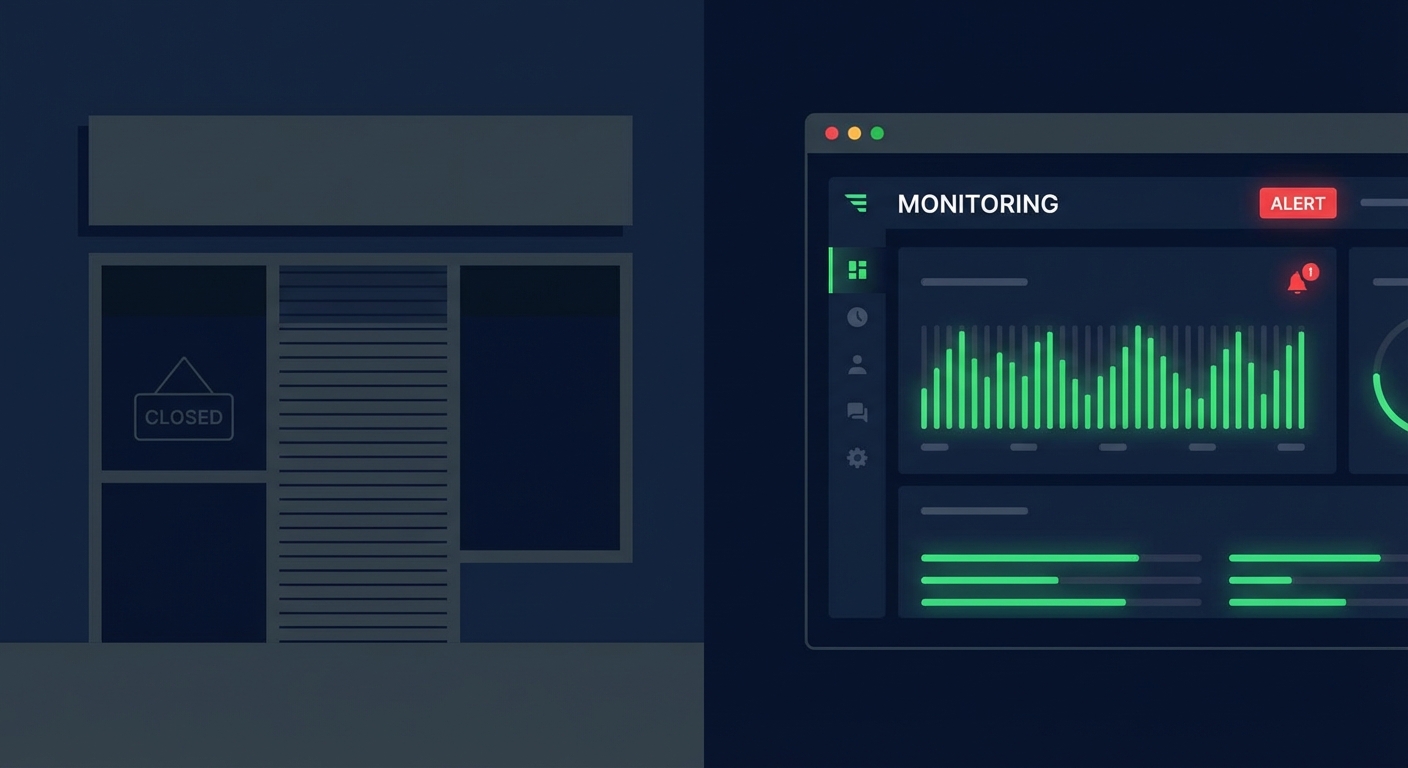
Every Minute Your Site Is Down Has a Price Tag
Not a metaphor. An actual number.
A WooCommerce store averaging $6,000/day loses roughly $250 every hour it stays offline. A B2B lead generation site losing a single enterprise inquiry during an outage might not recover that opportunity at all. Downtime is not an inconvenience — it's a revenue event, and most WordPress site owners have no protocol for it.
That's the problem this guide addresses. Not how to prevent downtime (though we cover that too), but what to do in the minutes and hours after your site goes dark — so that panic doesn't compound the damage.
The Belief That Gets Sites Killed: "It'll Come Back On Its Own"
Most site owners, when they first notice a problem, wait. They refresh the browser a few times. They assume it's a hosting blip. They give it 10 minutes.
That instinct is wrong for WordPress, and here's why: WordPress outages rarely self-resolve. Unlike a momentary CDN hiccup or a brief DNS propagation delay, a site taken down by a fatal PHP error, a corrupted database table, or a failed plugin update will stay down until someone actively fixes it. The site won't "come back." You'll wait yourself into a much larger revenue loss.
In most site recoveries we handle, the gap between when the outage started and when the site owner took action is measured in hours — not minutes. That delay is almost always the most expensive part of the incident.
The right instinct is to treat the first sign of an outage like a fire alarm — not a weather inconvenience you wait out.
Step 1: Confirm the Outage Is Real and Scoped Correctly
Before touching anything, confirm what you're actually dealing with.
Your first instinct might be to start disabling plugins or restoring backups. Don't. Premature action on the wrong diagnosis destroys evidence and can introduce secondary failures.
Run these checks first:
- Is it down for everyone or just you? Use isitdownrightnow.com or downforeveryoneorjustme.com. A local DNS cache or ISP routing issue can produce a "down" experience for only one location.
- What's the HTTP response code? A
500 Internal Server Erroris a different problem than a503 Service Unavailable, which is different from a DNS failure that returns nothing at all. Usecurl -I yourdomain.comto see the actual response header. - Is it the whole site or one section? If your homepage loads but WooCommerce checkout throws a fatal error, that's a PHP compatibility issue or a plugin conflict — not a full server failure.
- Is wp-admin accessible? Try loading
yourdomain.com/wp-admin. If the dashboard loads, your database and core WordPress files are intact, and the problem is likely a theme or plugin rendering failure on the front end. - Check wp-cron status. A broken cron job won't take your site down outright, but a cron flood — looping scheduled events — can saturate server resources and trigger a 503. This is more common than it should be, especially on sites running multiple WooCommerce extensions that each register their own scheduled tasks.
This scoping phase should take under five minutes. The goal is to identify whether you're dealing with a server problem, an application problem, a database problem, or a network problem — because each requires a completely different response chain.
Step 2: Check the Error Logs — Not the Dashboard
The WordPress dashboard will tell you nothing useful during an active outage. The logs will.
If you have server access, look at:
- PHP error logs — usually at
/var/log/php_errors.logor inside your hosting control panel - Apache/Nginx error logs —
/var/log/apache2/error.logor equivalent - WordPress debug log — if
WP_DEBUG_LOGis enabled inwp-config.php, you'll find adebug.logfile inside/wp-content/
If WP_DEBUG isn't already active, enable it via SSH or your host's file manager by adding these lines to wp-config.php:
define('WP_DEBUG', true);
define('WP_DEBUG_LOG', true);
define('WP_DEBUG_DISPLAY', false);
The third line matters. WP_DEBUG_DISPLAY false keeps error messages out of public view while still logging them. Skipping that line exposes raw PHP stack traces to every visitor — which is both a user experience problem and a security risk.
If you use WP-CLI, pull a quick diagnostic:
wp core verify-checksums
wp plugin list --status=active
verify-checksums compares your WordPress core files against the official repository checksums. If a core file has been modified — by malware injection or a botched update — this will flag it immediately. That's not something most hosted dashboard UIs can surface. plugin list shows what's active so you can cross-reference against any recent changes.
Step 3: Isolate the Cause Without Making It Worse
The most common causes of an unexpected WordPress outage, in rough order of frequency:
1. A Failed Plugin or Theme Update
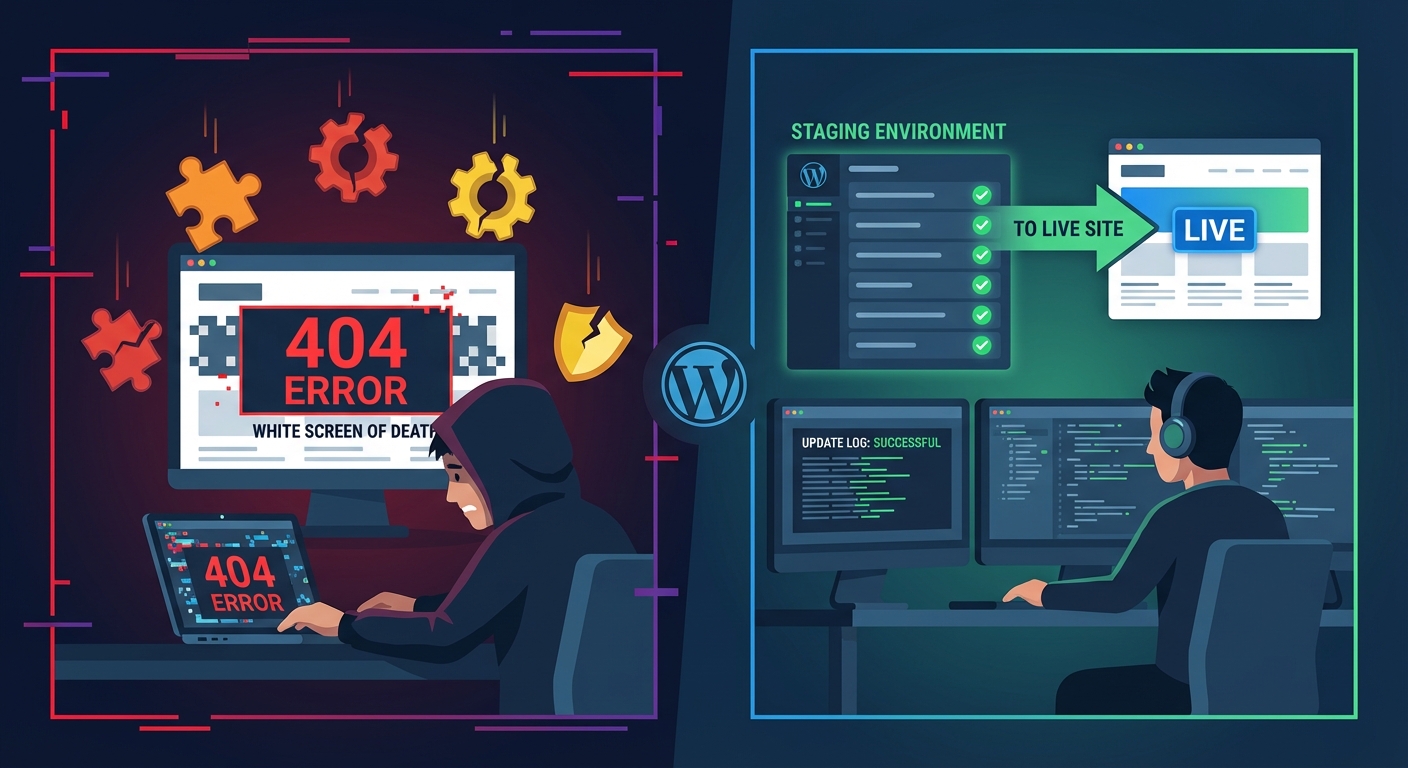
A plugin update that introduces a PHP fatal error takes the whole site down if that plugin hooks into page load. The fix is straightforward: deactivate the offending plugin. If you can't access wp-admin, do it via WP-CLI:
wp plugin deactivate plugin-folder-name
Or rename the plugin folder via SFTP — WordPress will auto-deactivate anything it can't load. If you suspect a theme conflict, switch to a default WordPress theme by renaming your active theme folder.
2. A Database Connection Failure
"Error establishing a database connection" is WordPress's least informative error message. It could mean the database server is down, the credentials in wp-config.php are wrong, or the database itself is corrupted. Start by verifying DB_NAME, DB_USER, DB_PASSWORD, and DB_HOST in wp-config.php. Then try connecting manually via phpMyAdmin or the command line to confirm the credentials are valid independent of WordPress.
If credentials check out and the problem persists, you may have a corrupted table. Run a repair:
wp db repair
This resolves table corruption caused by unclean shutdowns — a common cause of outages on virtual servers that restart under resource load.
3. Resource Exhaustion
Shared and even managed hosting environments have memory limits. A memory limit error in your PHP error log (Fatal error: Allowed memory size of X bytes exhausted) tells you a process consumed more than WordPress's allocated RAM. Check WP_MEMORY_LIMIT in wp-config.php. Check whether a rogue cron job or a bloated wp_options table query is causing runaway memory consumption. Transients that never expire, combined with a table carrying thousands of orphaned rows from deactivated plugins, can push a routine database query into resource exhaustion territory.
This is also worth knowing: if your site uses an object cache backend — Redis or Memcached — a failed cache connection causes page requests to fall back to direct database queries, multiplying the server load dramatically. If you recently changed hosting or server configuration, verify that your object cache is still connected and responding.
4. DNS or Domain Issues
Less common but worth ruling out: if your domain registrar account has a billing failure, your DNS stops resolving. The site itself is fine. The database is intact. But no one can reach it. Check your registrar's account status and confirm your nameserver records still point to the correct host. Debugging this in wp-config.php won't help — it's a layer above WordPress entirely.
Step 4: Communicate With Your Audience Before They Assume the Worst
Most site owners skip this step entirely during an outage. That's a mistake with measurable consequences.
If your site is down for more than 15 minutes and you have active customers, users, or a running ad campaign driving traffic to a broken URL — communicate.
Your options, in order of urgency:
- Pause active ad campaigns. If you're running Google Ads or Meta campaigns pointing to a downed URL, pause them immediately. Paying for traffic that lands on a 500 error page is pure waste.
- Post a social media status update. Something factual: "We're aware of a technical issue. Our team is working on it. Orders placed before [time] are unaffected."
- Email your active customer list. If you have a live sale, an active promo, or checkout sessions that were mid-flow when the outage hit — send a brief message acknowledging the disruption and confirming data integrity.
- Activate a maintenance page. If you can still reach your server, redirect to a static HTML maintenance page rather than leaving visitors to hit a raw 500 or 503 error. This costs 10 minutes to set up and protects brand perception significantly.
Customers understand technical issues. What they don't forgive is silence during one.
Step 5: Know When to Stop DIY-ing and Escalate
Here's where most outage situations go from bad to catastrophic.
Site owners spend 3–4 hours attempting fixes outside their technical depth, generate a second wave of failures, and then call for emergency help with a site that's now significantly harder to recover than it was at the start of the incident.
There's a clear threshold: if you haven't identified and resolved the root cause within 45 minutes, escalate.
Not because you aren't capable — but because someone with direct server access, database-level diagnostic tools, and experience reading PHP stack traces will resolve it in a fraction of the time. The cost of an emergency support engagement is almost always lower than the revenue lost during extended self-diagnosis. That math isn't close.
Vimsy's emergency WordPress support service — Site SOS — handles exactly this. Active site recovery with a fast response window. No ticket queue. No waiting for a tier-1 support agent to escalate to someone who actually understands what a transient flush or a corrupted wp_options index means.
If your site runs on a managed WordPress care plan, emergency response is already part of the structure — you're not starting a cold relationship with a provider who doesn't know your stack, your plugins, or your deployment history.
Step 6: After Recovery — What Actually Needs to Happen
Getting the site back up is the halfway point of an outage response. Not the end.
After recovery, run a structured post-mortem:
- Document the root cause exactly. Not "plugin issue" — which plugin, which version, which PHP version triggered the conflict. Vague post-mortems produce vague prevention.
- Audit your backup state. Did your backup system capture a clean restore point before the failure? If not, that's a gap in your recovery infrastructure. A rollback strategy that's never been tested is not a strategy — it's an assumption.
- Review your staging workflow. Was the update that triggered the failure tested on a staging environment first? If not, that's the protocol failure to fix. Every update that touches a live site without staging validation is a calculated gamble.
- Check your monitoring setup. How long was the site down before you knew? If the answer is "until a customer emailed me" — you don't have monitoring. You have customers acting as your uptime monitors.
- Flush transients and clean
wp_options. After any recovery involving database repairs or plugin deactivations, run:
wp transient delete --all
Then audit wp_options for orphaned rows from deactivated plugins. Leftover data from removed plugins accumulates invisibly and degrades query performance over time. It won't cause an immediate crash — but it makes the next incident worse.
You can use our WordPress maintenance checklist to run through the full post-recovery audit systematically.
The Underlying Problem No One Wants to Say Out Loud
Here's the honest version of why most WordPress outages produce extended downtime:
There was no plan. No runbook. No monitoring. No staging environment. No tested restore point. Just a site that ran fine for months and then didn't — and an owner with no infrastructure around it.
A functioning WordPress site creates a sense of stability that feels like safety. It isn't. In most audits we perform on sites that have recently experienced downtime, we find the same cluster of problems: PHP versions behind compatibility windows, plugins approaching abandonment with known CVEs, a wp_options table that hasn't been cleaned since launch, and object cache configuration that's never been validated against actual traffic load.
The cost model is straightforward. Reactive emergency recovery costs more than proactive maintenance — in money, in time, and in customer trust. Vimsy's WordPress maintenance and monitoring services eliminate the conditions that produce outages before they happen: monthly audits, plugin management with staging validation, uptime monitoring, and a direct escalation path when something does go wrong.
Because something always eventually goes wrong. The only variable is whether you have a system around it when it does.
Use This When You Need It
Bookmark this page. Share it with your developer or VA.
When your site goes down, you don't want to be Googling your way through a diagnosis while your WooCommerce store loses revenue by the hour. You want a protocol already in front of you.
And if the protocol runs out — or you need someone to take the wheel from minute one — book an emergency consultation with Vimsy. Site SOS is a fast-lane recovery service built for exactly this situation.
Look — I'm writing this because this is a problem I see constantly, and it's also exactly what we built Vimsy to solve. If you want professionals handling this instead of hoping nothing breaks, book a free call.
The cost of not having a plan shows up exactly once. Make sure it's not during your next product launch.