Most small business websites don't get hacked because someone targeted them. They get hacked because they were easy.
Automated bots crawl millions of WordPress sites every day, testing for weak passwords, outdated plugins, and open doors left by default settings. Your site doesn't need to be important — it just needs to be vulnerable. And if you haven't actively worked out how to secure WordPress properly, it probably is.
This guide won't overwhelm you with jargon. It will walk you through every meaningful layer of WordPress security — what each one does, why it matters, and what happens when it's missing. By the end, you'll know exactly what a properly secured WordPress site looks like, and why maintaining it is an ongoing job, not a one-time setup.
The Myth Holding Most Small Business Sites Hostage
"My hosting provider takes care of security."
This is the most expensive misconception in WordPress ownership — and managed hosting companies have inadvertently reinforced it through marketing language about "secure infrastructure" and "daily backups."
Here's what your host actually protects: the physical servers, network-level firewall rules, and DDoS mitigation. That's infrastructure security. It's valuable and necessary.
Here's what your host does not protect: your WordPress software, your plugins, your user accounts, your stored passwords, your customer data, or the configuration files that control how your site behaves.
Your WordPress installation is a software application running on top of hosting infrastructure. The application layer — everything that makes your site work — is your responsibility. Your host has no visibility into whether a plugin you installed two years ago has since been abandoned by its developer and now carries an unpatched security flaw. They won't alert you when your site's underlying PHP version — the programming language WordPress runs on — goes out of date and stops receiving security updates.
Infrastructure security and application security are two separate disciplines. Conflating them is how sites get compromised on "secure" hosts every single day.
What Attackers Are Actually Targeting
Before you can secure your site, you need a clear picture of what you're actually protecting against. These are the documented infection vectors that appear repeatedly across security incident reports.
Outdated plugins and themes. According to Sucuri's annual hacked website reports, vulnerabilities in plugins and themes consistently rank as the leading cause of WordPress compromises. When a developer releases a security patch, they typically publish notes describing what was fixed — which means attackers know exactly what to exploit on every site that hasn't updated yet. The window between "patch released" and "site updated" is where most infections happen.
Plugin abandonment risk. Not every plugin gets patched. Some developers stop maintaining their plugins entirely, leaving known security flaws permanently unaddressed. A plugin that hasn't received an update in 12 months is a risk that needs to be assessed, not ignored.
Weak login credentials. The WordPress admin login page is public by default. Bots run through enormous lists of stolen usernames and passwords continuously. If you're using a password you've used anywhere else, or something simple like a name and a number, it will be tried.
Unnecessary admin accounts. Every site accumulates them — former web developers, a freelancer who needed temporary access, a staff member who left the business. Each one of those accounts is an open door if the password is weak or if the email address associated with it gets compromised elsewhere.
Outdated PHP versions. WordPress runs on PHP. When a PHP version reaches its official end-of-life — meaning it no longer receives security patches — every site running that version becomes progressively more exposed. PHP 7.4 reached end-of-life in late 2022. Running it in 2025 means running software with known, unpatched vulnerabilities.
Exposed REST API endpoints. WordPress has built-in data interfaces that, when left in default configurations, can reveal information — including usernames — to anyone probing your site. Locking these down requires deliberate configuration, not assumptions.
Login Security: The First Door You Need to Lock
The WordPress login page is the most-attacked entry point on the internet, by volume. If you do nothing else, do this.
Use strong, unique passwords — and enforce them. This doesn't mean adding a number and an exclamation mark to your dog's name. It means a randomly generated 20+ character password that you don't use anywhere else. A password manager handles this without any mental overhead.
Enable two-factor authentication (2FA). 2FA means that even if someone gets your password, they still can't get in — because they'd also need a time-sensitive code generated on your phone. This single change eliminates the vast majority of successful brute-force attacks.
Limit login attempts. By default, WordPress will let someone — or a bot — try your password an unlimited number of times. That needs to change. Properly configured security tools will lock out repeat failed attempts automatically.
Move or restrict the default login page. The default WordPress login address is known by every bot on the internet. Moving it to a non-standard address — or restricting who can access it by location — cuts out entire categories of automated attacks.
Audit who has administrator access. Administrator is the highest privilege level in WordPress. Most small business sites have three or four people with full administrator access when one or two would suffice. Assign people the lowest access level they need to do their job, and remove accounts for anyone who no longer works with you. If you want a full checklist for this kind of audit, our WordPress maintenance checklist covers the process step by step.
Updates: The Security Maintenance Most Sites Get Wrong
Plugin updates exist for two reasons: new features and security patches. The second one is what matters for site safety.
The operational reality: when a security vulnerability gets patched, it becomes public knowledge at the same time. Attackers know immediately which sites are running the old, vulnerable version. If you update once a month, you're running an exposed site for weeks after a patch is available.
This doesn't mean you should turn on automatic updates blindly. Automatic updates without a safety net create their own risk — a poorly coded plugin update can conflict with your theme or other plugins and take your site offline just as effectively as an attacker.
The right system combines speed with safety:
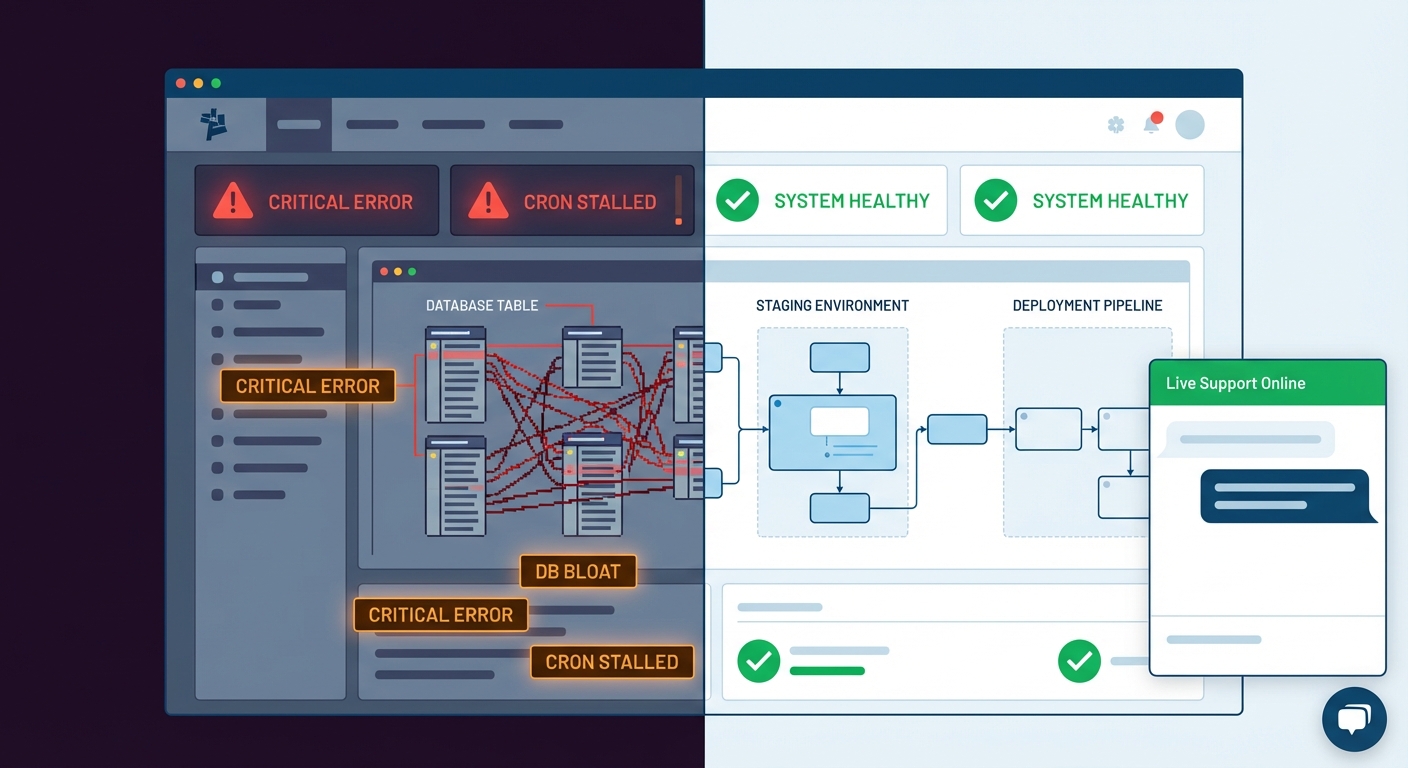
- Test updates on a staging environment — a private duplicate of your live site — before applying them to production.
- Keep a rollback strategy in place so you can reverse a bad update quickly without losing data.
- Prioritize security-tagged updates over feature releases — they're more urgent.
- Review your plugin list periodically for plugins that are no longer receiving updates at all.
Across dozens of WordPress audits we've performed, we consistently find sites running plugins that haven't been updated in over a year — some with publicly known vulnerabilities. The site owner had no idea. That's what unsystematic maintenance looks like in practice.
Backups: Your Recovery Plan When Everything Else Fails
A backup isn't a security control — it's what saves you when a security incident happens despite every precaution.
Most WordPress sites have some form of backup. Very few have tested it.
An untested backup is theoretical. Before you assume yours works, answer these questions: When did you last restore from one? Does it back up both your database and your files — or just one? Is it stored in a separate location from your hosting account, so a hosting incident doesn't wipe both the site and the backup simultaneously? How far back does it go?
The correct backup architecture for a small business site:
- Daily automated backups at minimum
- Off-site storage — cloud storage separate from your host
- Full backups — both the database and the file system
- Tested restore procedures — run a test restore at least every quarter
Think about it this way: if your site were fully compromised tomorrow and needed to be rebuilt from scratch, how long would recovery take? For a site generating $1,000/day in revenue or leads, a 48-hour outage isn't a minor inconvenience. It has a real dollar cost. Your backup system should be proportional to that risk.
Firewalls and Malware Scanning: Blocking Attacks Before They Land
A Web Application Firewall (WAF) acts like a filter between incoming visitors and your site. It analyzes traffic in real time and blocks requests that match patterns associated with known attacks — SQL injection, cross-site scripting, and brute-force login floods.
Without a firewall, every malicious request reaches your site and your site has to deal with it. With one, most of those requests never make contact.
For most small business WordPress sites, a well-configured security plugin with a built-in firewall is a reasonable starting point. For higher-traffic sites, a DNS-level firewall — one that intercepts traffic before it even reaches your server — is more effective.
Complement your firewall with regular automated malware scanning. Malware injected into a WordPress installation often hides in unexpected places — inside plugin directories, within theme files, or encoded in the database. Automated scanning tools compare your site's files against known-clean versions and flag anything suspicious. Professionals typically verify this using WP-CLI's integrity check commands, which confirm whether your core WordPress files have been tampered with.
SSL: The Padlock Matters More Than You Think
SSL (HTTPS) encrypts the connection between your visitors' browsers and your server. If your site doesn't have it, any data submitted through your site — contact forms, account logins, payment details — transmits in plain text.
In 2025, every WordPress site should be running HTTPS. Google also uses it as a ranking signal, so running without it carries an SEO cost on top of the security risk.
Common SSL pitfalls that even established sites run into:
- Certificates that expire and don't auto-renew, displaying security warnings to every visitor
- "Mixed content" errors, where some page elements still load over insecure HTTP even though HTTPS is active
- SSL applied to the front-facing site but not enforced on the login and admin panel
Make sure your SSL certificate covers your full domain, auto-renews reliably, and that your server forces all traffic to the secure version of your site.
Configuration and File Hardening: The Background Work That Matters
Two configuration files control foundational WordPress behavior: wp-config.php and .htaccess. You don't need to know how to edit these — but you do need to know that they need to be properly hardened.
wp-config.php stores your database credentials, security keys, and core site settings. Default file permissions and default placement make it accessible to attackers if the server isn't configured correctly. Hardening means setting correct permissions, preventing direct browser access to the file, and disabling the ability to edit plugin and theme files from within the WordPress dashboard — which would otherwise give any attacker who gains admin access the ability to inject code directly into your site.
.htaccess hardening controls how your server handles incoming requests. Done correctly, it blocks direct access to sensitive files, disables directory browsing (which would otherwise expose your file structure to anyone who looks), and restricts access to specific WordPress features that are common attack vectors.
Neither of these requires you to touch a command line. They require a professional who knows what correct configuration looks like — and who checks them during regular site audits rather than assuming everything is fine because nothing has gone wrong yet.
The Full Security Picture — And Why It's an Ongoing Job
Here's what a properly secured WordPress site looks like when all the layers are in place:
- Login hardened with 2FA, rate limiting, and restricted access
- Plugins and themes updated on a tested, systematic schedule
- Plugin inventory reviewed for abandonment risk
- Daily backups stored off-site with tested restore procedures
- Web Application Firewall active and monitored
- Malware scanning running on a regular schedule with alerts
- SSL properly configured with auto-renewal and full enforcement
- wp-config.php and .htaccess hardened against direct access
- User roles audited — minimum access levels enforced
- PHP version current and compatible with your plugins
- WordPress cron jobs running reliably — because WordPress uses scheduled background tasks for things like running security scans and triggering backup jobs, and a broken cron job silently stops all of them
- Object cache configured — reducing how often your site queries the database and limiting exposure during database-level attacks
- REST API endpoints locked down to prevent user data leakage
That's not a setup checklist. Every one of those items requires ongoing attention. The threat landscape changes. Plugins get abandoned. PHP versions get deprecated. New vulnerabilities get discovered.
Most small business owners read a security guide, install a plugin or two, and consider the job done. That's not security. That's a false sense of security.
What This Costs When It Goes Wrong
Professional WordPress malware cleanup costs between $200–$500 for a straightforward infection. If the attacker installed a backdoor — a hidden access point that reinstalls malware after cleanup — or if the infection spread across multiple plugin files and the database, you're looking at $1,000–$3,000 or more. And that's just the cleanup cost.
If Google detects malware on your site and blacklists it, your organic traffic drops to near-zero while the issue gets resolved. If customer data was exposed, you may face notification obligations depending on your jurisdiction.
The math is straightforward: proactive security maintenance at $50–$150/month is substantially less expensive than a reactive recovery. Review our WordPress maintenance and security pricing to see exactly what that looks like.
If something has already gone wrong, we also offer emergency WordPress support for immediate response.
Look — Here's the Point
Look — I'm writing this because this is a problem I see constantly, and it's also exactly what we built Vimsy to solve. If you want professionals handling this instead of hoping nothing breaks, book a free call.
Security isn't a plugin you install once. It's a set of systems that run continuously, get reviewed regularly, and get updated as the threat landscape shifts. Vimsy's WordPress care and security services handle every layer described in this guide — login hardening, updates, backups, firewall configuration, malware scanning, SSL verification, and regular audits.
You can read every WordPress security guide on the internet and still be one unpatched plugin away from a compromise. Or you can have someone whose job it is to make sure that never happens.
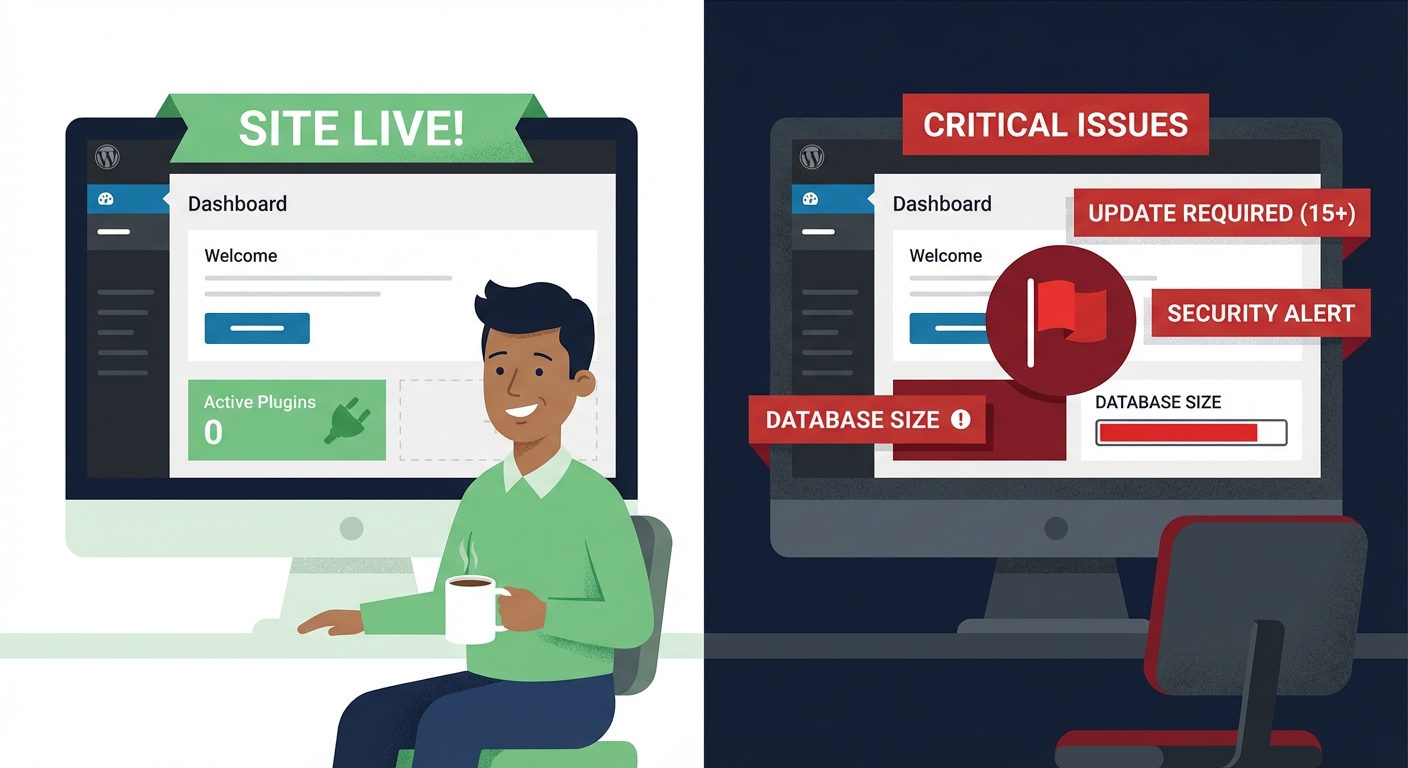
Your site is either being actively maintained or it's drifting toward its next incident. There's no stable middle ground.