WP-CLI: What It Is and Why WordPress Pros Use It for Maintenance
The Gap Between Clicking Buttons and Actually Knowing WordPress
There's a quiet line that separates WordPress practitioners from WordPress users. It's not about years of experience. It's not about certifications. It's about whether you've ever run a command against a live WordPress database without touching wp-admin.
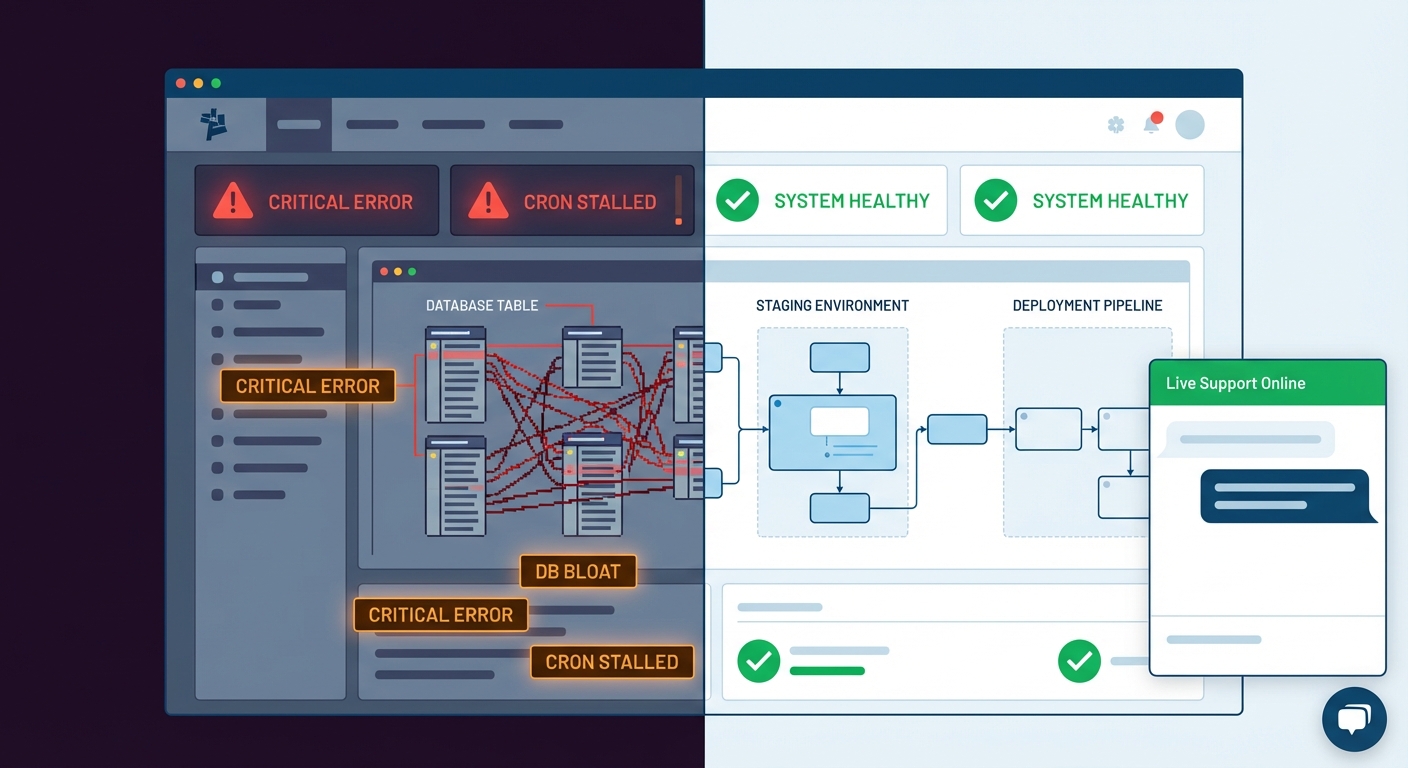
Most people managing WordPress sites operate entirely through the dashboard. They click "Update All," scroll through plugin lists, and export backups through the UI. That works — until it doesn't. Until an update breaks a hook, a plugin conflict kills the admin panel, or a runaway cron job floods the database and nobody notices for two weeks. That's not maintenance. That's hoping the site holds.
WP-CLI is where serious WordPress maintenance happens. If your maintenance provider has never mentioned it, that's worth understanding.
What WP-CLI Actually Is
WP-CLI is the official command-line interface for WordPress. It lets you interact with every layer of a WordPress installation — core files, the database, plugins, themes, users, transients, cron jobs, object cache — directly from the server terminal, without loading a browser.
It's not a third-party tool bolted onto WordPress. It's maintained by the WordPress project itself, actively developed, and used by hosts, agencies, and enterprise engineering teams worldwide.
Think of it this way: wp-admin is the front door. WP-CLI is the server room.
From the command line, a trained operator can:
- Update WordPress core, all plugins, and all themes in a single command
- Search and replace strings inside the database without a GUI plugin
- Flush caches, delete expired transients, and repair database tables
- Manage cron jobs — view schedules, delete broken ones, trigger manual runs
- Export and import the full database with one line
- Regenerate thumbnails, reset user passwords, manipulate wp_options directly
- Run scripted maintenance sequences across multiple sites simultaneously
None of this requires wp-admin to be functional. That matters enormously when something goes wrong.
Why UI-Based Maintenance Has a Real Ceiling
The WordPress dashboard is designed for content managers, not operations teams. It abstracts everything — and that abstraction costs you when precision is required.
Update failures are a common example. When you click "Update All" in wp-admin and something breaks mid-sequence, you're often left with a partially updated environment: some plugins on new versions, some on old, WordPress core halfway through a commit. The UI gives you no granular rollback path. You're stuck hunting through the file manager or calling your host.
WP-CLI handles this differently. Updates can be run sequentially with validation checks between each step. If a plugin update causes a fatal error, the sequence stops. Logs capture exactly what ran. You know precisely what state the site is in.
Database operations are another ceiling. Exporting through a browser-based tool like phpMyAdmin introduces memory limits, PHP timeouts, and incomplete dumps on larger databases. WP-CLI's wp db export runs server-side, isn't constrained by PHP execution limits, and produces a clean, reliable dump every time.
For a WooCommerce store with a large wp_options table, inflated transients, and thousands of order records — this distinction is not academic. It directly affects backup reliability.
The Commands That Actually Matter in Production
This isn't a full WP-CLI tutorial — it's an explanation of what these commands mean for your site's operational health.
wp core update --minor
Updates WordPress core to the latest minor security release. Run this weekly. Minor updates carry security patches that don't break compatibility. Skipping them is one of the most common reasons sites get compromised. Over 50% of hacked WordPress sites were running outdated core or plugin versions at the time of breach — and most of those updates had been available for weeks.
wp plugin update --all
Updates every installed plugin. Serious operators run this with --dry-run first to preview what's changing, then with logging enabled so there's a paper trail. No guessing what changed when something breaks.
wp transient delete --expired
The wp_options table accumulates expired transients — cached data fragments that WordPress was supposed to clean up but often doesn't. On high-traffic or WooCommerce sites, this table can grow to hundreds of thousands of rows. Bloated wp_options slows every page load. Some sites carry over a million rows in wp_options without anyone realizing it. Clearing expired transients is routine hygiene. Most dashboard-only operators don't even know it's happening.
wp cron event list / wp cron event delete
WordPress's pseudo-cron system is frequently misunderstood. Events get scheduled, plugins get deleted, and the cron entries stay orphaned — running repeatedly, hitting missing callbacks, generating PHP errors quietly. WP-CLI lets you inspect the full cron schedule, identify ghost events, and remove them surgically. If you've never audited your cron table, you don't know what's running in the background of your site right now.
wp cache flush
Object caching layers — Redis, Memcached, or even the default file-based cache — need clearing after database changes, plugin updates, and code deployments. Running this via CLI ensures the flush happens server-side, not through a browser session that might time out.
wp search-replace
The most powerful and most dangerous command on this list. It performs a serialization-aware find-and-replace across the entire database. Used correctly, it's essential for domain migrations, staging-to-production pushes, and HTTPS transitions. Used incorrectly, it corrupts serialized data and breaks the site silently. This is not something to run from a GUI plugin if you can avoid it. Corrupted serialized data can take hours to diagnose and fix manually — and it happens more often than people admit.
What This Means for Maintenance Reliability
Every task above can be scripted. That's the operational leverage point most people miss.
A properly configured maintenance workflow using WP-CLI doesn't just run commands manually — it runs sequenced scripts that check states, log outputs, flag errors, and report results. We run these across managed sites on defined schedules. The database is checked. Transients are cleared. Updates are applied in order. Cron is audited. Cache is flushed post-update.
When something flags an error, we see it before the site owner does.
This is what separates a professional WordPress maintenance service from a shared hosting "auto-update" toggle. Auto-updates don't check for conflicts. They don't log sequencing. They don't audit cron. They don't clear transients. They press a button and hope. That's not a maintenance system. That's delegation to chance.
Plugin Abandonment, PHP Compatibility, and CLI-Level Auditing
Two risks that UI-based maintenance consistently misses:
Plugin abandonment is a slow-burn security problem. A plugin that hasn't been updated in 18 months may still work — but it may also carry known vulnerabilities with no patch coming. The WordPress ecosystem has thousands of plugins with no active maintainer. WP-CLI's wp plugin list pulls the update status and installed version for every plugin in seconds. Cross-reference that against the WordPress plugin repository's last-updated timestamps and you get a clear abandonment risk map. Most dashboard operators don't run this audit. It takes about 90 seconds via CLI.
PHP version compatibility is the other landmine. Running PHP 7.4 in 2025 on a site with plugins that now require PHP 8.1 creates a compatibility gap that surfaces as cryptic fatal errors. Outdated PHP is one of the most consistently cited causes of avoidable WordPress failures — and most site owners don't find out until their host forces an upgrade and something breaks overnight. WP-CLI can be used alongside PHP version checks to surface plugins that throw deprecation warnings against the server's current PHP version — before a host-level PHP upgrade breaks the site quietly.
These aren't edge cases. Across the WordPress audits we perform, outdated plugins and PHP mismatches are among the most consistently recurring risks — and they're invisible from the dashboard.
The Staging + CLI Workflow
The right update workflow for any production WordPress site isn't "update on live and see what happens." That's a gambling strategy, not an operational one. The professional approach runs through a staging environment first.
The sequence looks like this:
- Clone production to staging via WP-CLI (
wp db export+ rsync or a managed clone tool) - Run
wp search-replaceto point the staging database to the staging domain - Apply all updates on staging via WP-CLI with logging
- Test critical paths — checkout flow, forms, admin access
- If clean, apply the same update sequence to production
- Run cache flush and database check post-update
This is a repeatable, documented workflow. It has a rollback path at every step. If the staging environment breaks, production never sees it.
Most site owners operating through the dashboard skip staging entirely — not because they're careless, but because the dashboard doesn't make staging easy or visible. WP-CLI makes it procedural. The staging environment becomes a standard part of every update cycle, not an optional extra you get to when there's time.
See our WordPress maintenance checklist for a breakdown of what a full monthly maintenance cycle should include.
What to Ask Your Maintenance Provider
If you're evaluating a WordPress maintenance provider — or wondering whether your current one actually knows what they're doing — ask them directly:
"Do you use WP-CLI?"
If they don't know what it is, that tells you something. If they say "yes" but can't explain how they use it in their workflow, that tells you something too. Knowing a tool exists and actually building operational processes around it are two very different things.
Specifically, ask:
- How do you handle plugin updates that conflict with each other?
- How do you audit the wp_options table for bloat?
- How do you manage orphaned cron events?
- Do you run updates on staging before production?
These aren't trick questions. They're baseline operations questions. The answers reveal whether you're paying for a maintenance plan or paying for someone to click "Update All" once a month and invoice you. One of those is a service. The other is theater.
Our WordPress care plans are built around CLI-first workflows, not dashboard dependency. There's a direct operational reason that distinction matters — and it shows up most clearly when something breaks at 11pm on a Friday.
What Vimsy Does With This
We use WP-CLI as the operational backbone of every managed site we run. Not as a bonus feature. As the default.
Updates run through scripted sequences with logging. The wp_options table gets audited on a schedule. Transients are cleared. Cron jobs are inspected. Database exports happen server-side. Staging environments are used before production changes. Every action leaves a log.
This is what maintenance looks like when it's treated as systems work rather than admin panel babysitting. It's faster, more reliable, and it catches problems before they become incidents.
If you want to understand what this costs and what it covers, see our maintenance pricing.
Look — I'm writing this because this is a problem I see constantly, and it's also exactly what we built Vimsy to solve. If you want professionals handling this instead of hoping nothing breaks, book a free call.
Dashboard maintenance is not a strategy. It's a starting point. The moment your site handles real revenue, customer data, or production-level complexity — the bar for how it gets maintained has to rise to match.