Most security failures don't look like attacks. They look like silence.
No alerts. No warning emails. No sudden downtime. Just a quietly compromised site — serving spam, exfiltrating data, or acting as a relay node — while you check your analytics and wonder why conversions dropped.
A WordPress security audit isn't just a list of boxes to tick. It's a structured examination of every layer where something can go wrong: your file system, your database, your plugin stack, your server headers, your authentication logic. Done properly, it takes hours. Done poorly, it gives you false confidence — which is arguably worse than doing nothing.
This guide walks through an honest, technically grounded DIY audit. Use it. But also understand what it's measuring.
Why "Set It and Forget It" Is a Liability, Not a Strategy
The default belief most site owners carry is: if it's not broken, don't touch it.
That logic works for a fence. It doesn't work for a PHP application connected to a database, exposed to public HTTP traffic, running third-party code from dozens of vendors, and regularly indexed by bots.
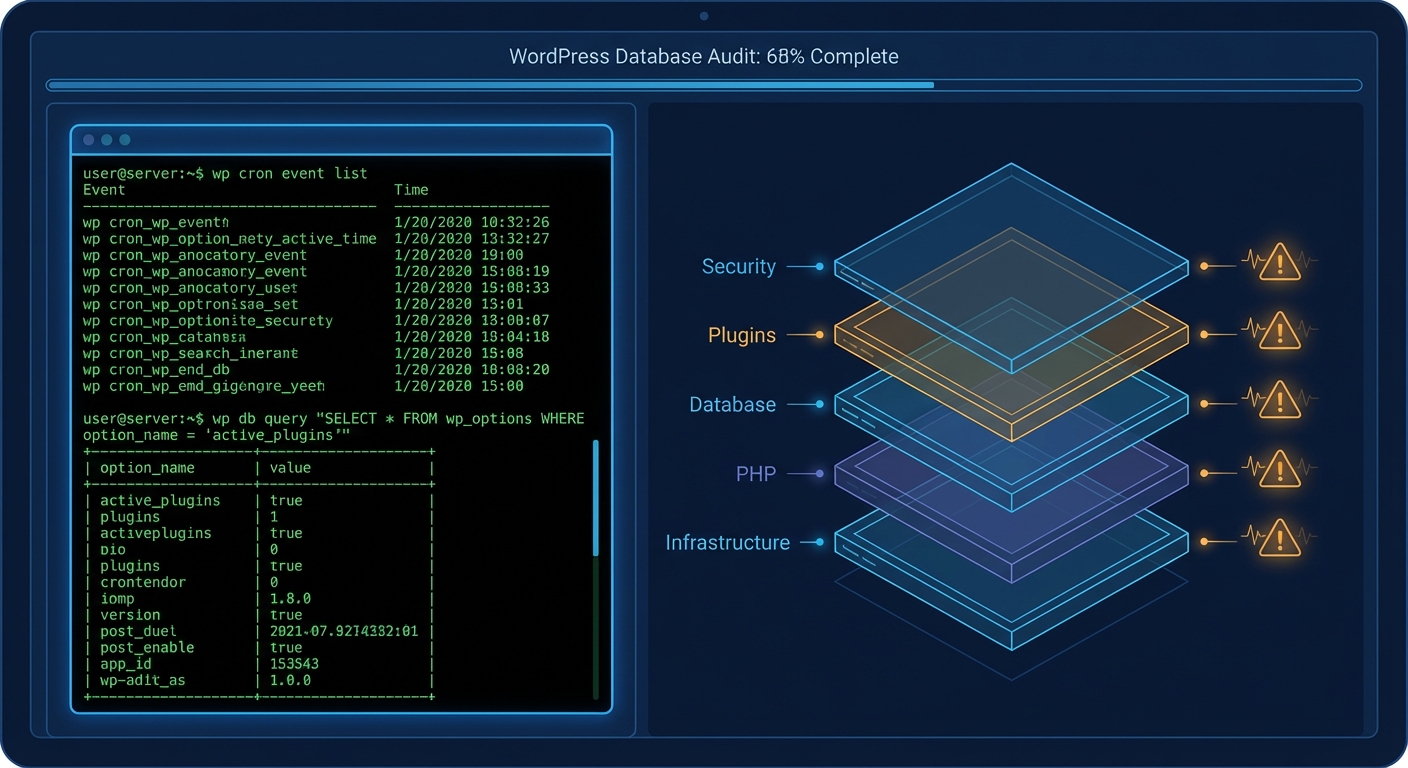
WordPress doesn't break suddenly. It decays. The wp_options table quietly bloats with stale transients. Abandoned plugins accumulate unpatched CVEs. PHP version drift creates compatibility cracks. Cron jobs silently fail. None of this produces a red error screen. It just makes your site progressively more vulnerable and slower — until one day, it doesn't.
By the time you notice something is wrong, the attacker has likely been present for weeks.
Phase 1: Credential and Authentication Audit
Start with access. This is the highest-value attack surface on most WordPress sites, and it's almost always undermanaged.
Admin user audit
Log into your WordPress dashboard and navigate to Users → All Users. Filter by Administrator role. You're looking for:
- Accounts with generic usernames (
admin,administrator,test,webmaster) - Accounts that haven't logged in for 90+ days
- Accounts whose email addresses don't match your organisation's domain
- Any user you don't recognise
Rename or delete anything that shouldn't be there. The username admin is attacked billions of times per day via credential stuffing. If it exists in your database, it's a liability.
Password hygiene
WordPress doesn't enforce strong passwords by default. Use WP-CLI to audit user metadata:
wp user list --fields=ID,user_login,user_email,roles
Cross-reference against your team. Anyone who shouldn't have access gets removed — immediately, not "when I get a chance."
Two-factor authentication
If you're running a site with a revenue model attached — WooCommerce, memberships, consulting bookings — and you don't have 2FA enabled on administrator accounts, you're operating without a seatbelt. Enable it with a plugin like WP 2FA or Wordfence Login Security. This is non-negotiable.
Application passwords and REST API exposure
WordPress enables Application Passwords by default since 5.6. If you're not using them, consider disabling them. More importantly, check your REST API exposure — unauthenticated access to /wp-json/wp/v2/users reveals all author usernames, which feeds brute force attacks directly.
Add this to your functions.php or a site-specific plugin to restrict it:
add_filter('rest_endpoints', function($endpoints) {
    if (isset($endpoints['/wp/v2/users'])) {
        unset($endpoints['/wp/v2/users']);
    }
    return $endpoints;
});
Phase 2: Plugin and Theme Vulnerability Scan
Abandoned plugin risk
This is where most hacked site recoveries trace back to. According to Sucuri's annual hacked website reports, outdated or abandoned plugins and themes account for the majority of WordPress compromises. Not zero-day exploits. Not sophisticated attacks. Old, unpatched code.
Run a full audit of every installed plugin — including deactivated ones. Deactivated plugins still exist on disk. Their files can still be executed if an attacker knows where to look.
Use WP-CLI:
wp plugin list --status=inactive
Delete anything you're not actively using. Not deactivate — delete.
For active plugins, check:
- Last update date in the WordPress plugin repository
- Whether the plugin has been tested with the last 3 major WordPress versions
- Whether the developer is still actively maintaining it (check support forums for response patterns)
Any plugin with no update in 12+ months and no active developer response is an abandoned plugin risk. Evaluate whether its functionality can be replaced with something actively maintained.
CVE exposure
Cross-reference your installed plugins against the WPScan Vulnerability Database (wpscan.com) or use the WPScan CLI tool if you're comfortable on the command line:
wpscan --url https://yoursite.com --enumerate vp
This runs a WordPress vulnerability scan against known plugin CVEs. Run it. Look at the output seriously.
Phase 3: File System and Core Integrity Check
WordPress core file integrity
WordPress core files should match the official release checksum. If someone injected a backdoor into wp-login.php or modified a core file, this check finds it.
Via WP-CLI:
wp core verify-checksums
Any file that returns a mismatch is flagged. Investigate before dismissing — it could be legitimate customization, or it could be injected malware.
wp-config.php hardening
Your wp-config.php is the single most sensitive file on your server. Check:
- Is it above the web root? (It should be, if your host allows it)
- Are your secret keys and salts up to date? (Regenerate at api.wordpress.org/secret-key/1.1/salt/)
- Is
DISALLOW_FILE_EDITset to true? (This disables the built-in theme/plugin editor, which is a common attack vector) - Is
WP_DEBUGset to false on production? (Debug output can expose file paths and configuration details)
File permissions
The standard hardened permissions:
wp-config.php: 440 or 600wp-content/: 755.htaccess: 444
If your web host runs shared hosting with overly permissive defaults, your 644 on wp-config.php is a risk. Check it.
.htaccess hardening
Your .htaccess should actively block common attack vectors. At minimum, verify it blocks:
- Direct access to
wp-config.php - Direct access to
xmlrpc.php(if you're not using it) - Directory browsing
- Script injection via query strings
If you're on Nginx, these rules live in your server block config — but the principle is identical.
Phase 4: Database Security and Object Cache Audit
wp_options table audit
The wp_options table accumulates autoloaded data over time — transients that expired but were never cleared, plugin settings from plugins you deleted years ago, session tokens that have long since lapsed. In sites with no maintenance discipline, autoloaded data can reach several megabytes, running on every single page load.
Query your autoloaded data size:
SELECT SUM(LENGTH(option_value)) as autoload_size FROM wp_options WHERE autoload='yes';
If that returns more than 800KB, you have a bloat problem that's affecting performance and potentially masking injected data.
Clear expired transients via WP-CLI:
wp transient delete --expired
Database user permissions
Your WordPress database user should not have SUPER or FILE privileges. Check your MySQL/MariaDB user permissions and restrict them to the minimum required: SELECT, INSERT, UPDATE, DELETE, CREATE, DROP, INDEX, ALTER on the WordPress database only.
Overly privileged database users are a significant escalation vector if an attacker achieves SQL injection.
Object cache integrity
If you're running a persistent object cache — Redis, Memcached, or similar — verify that your cache keys are properly salted and that the cache is scoped to a single site. On multisite installations or shared infrastructure, object cache poisoning is a real and underappreciated risk. Check your wp-config.php for the WP_CACHE_KEY_SALT constant and confirm it's unique to your environment.
Table prefix
The default wp_ table prefix is known to every attacker automating SQL injection attempts. If your tables still use wp_, changing the prefix is a worthwhile hardening step — though it's not a substitute for proper input sanitization and prepared queries at the code level.
Phase 5: Server-Level and Infrastructure Check
PHP version compatibility
PHP 7.4 reached end-of-life in November 2022. PHP 8.0 in November 2023. If you're running either of these, you're on an unsupported version — no security patches, no CVE fixes. Outdated PHP versions are one of the top causes of avoidable vulnerabilities across the WordPress ecosystem.
Run:
php -v
Or check your hosting control panel. You should be on PHP 8.2 or 8.3.
SSL/TLS configuration
HTTPS isn't enough on its own. Check your SSL configuration at SSL Labs (ssllabs.com/ssltest). Look for:
- TLS 1.2 minimum (TLS 1.0 and 1.1 are deprecated)
- Proper HSTS header implementation
- No mixed content warnings
Security headers
Run your site through securityheaders.com. You're looking for:
X-Content-Type-Options: nosniffX-Frame-Options: SAMEORIGINorDENYContent-Security-Policy(complex to implement correctly, but worth having)Referrer-Policy
Missing headers are not catastrophic individually, but each one is a layer of defense you've removed.
XMLRPC status
XML-RPC is a legacy protocol. Unless you're using a mobile app or Jetpack's legacy features, disable it entirely. Attackers use it for brute force amplification — one request can attempt hundreds of password combinations — and as a DDoS relay. Block it at .htaccess level or use a plugin specifically for this purpose.
Phase 6: Backup and Recovery Integrity
An audit isn't just about what can be attacked. It's about what happens after.
Backup verification checklist:
- Are backups running automatically? (Not "I think so" — verify in your backup plugin logs)
- Are backups stored off-site? (Same-server backups are useless if the server is compromised)
- Have you tested a restore in the last 60 days? (Untested backups are theory, not safety)
- Do your backups include both the database and the full file system?
Use WP-CLI to trigger a manual database export as a spot-check:
wp db export backup-$(date +%Y%m%d).sql
This confirms your database is exportable and intact. It's not your production backup system — it's a sanity check.
A staging environment connected to a rollback strategy isn't a luxury. If you're running anything commercially meaningful on WordPress and you don't have a tested recovery path, you're one incident away from a very bad week.
What This Audit Tells You (And What It Doesn't)
If you've worked through each phase above, you've done more than most site owners ever do. That matters. You'll have closed real gaps.
But here's what this audit doesn't cover:
- Malware that's already present and obfuscated inside plugin files
- Injected backdoors in database-stored content (posts, options, widgets)
- Server-side misconfigurations your host won't expose to you
- Zero-day vulnerabilities in plugins you can't detect without access to private vulnerability feeds
- Cron job hijacking running silent outbound requests
- Object cache poisoning on shared or misconfigured infrastructure
In most audits we perform across WordPress sites, the surface-level issues are fixable in an afternoon. The deeper issues — the ones that require log access, malware signature scanning, and database forensics — require tools and context that a checklist can't provide.
That's not a knock on the DIY approach. It's an honest description of the ceiling.
Where to Go From Here
If you worked through this checklist and found nothing alarming: good. Put a recurring reminder in your calendar to re-run it every 90 days. Security isn't a state you achieve — it's a condition you maintain. You can also cross-reference this against our complete WordPress maintenance checklist for a broader operational view beyond security.
If you found issues — abandoned plugins, suspicious user accounts, a wp_options table drowning in autoloaded garbage, a PHP version from 2021 — those need addressing before your next traffic spike or product launch.
And if you got through this and thought "I don't have time to own this properly" — that's also a valid, honest conclusion.
You can review our WordPress maintenance and security services to see how we structure ongoing coverage. If you want a professional audit rather than a self-assessment, take a look at our WordPress care plans and pricing — we don't do vague retainers. If something has already gone wrong and you need immediate help, our emergency WordPress support is where to start.
Look — I'm writing this because this is a problem I see constantly, and it's also exactly what we built Vimsy to solve. If you want professionals handling this instead of hoping nothing breaks, book a free call.
A checklist gets you started. A system keeps you safe.