By Arslan Aslam — 13+ years in WordPress operations, founder of Vimsy
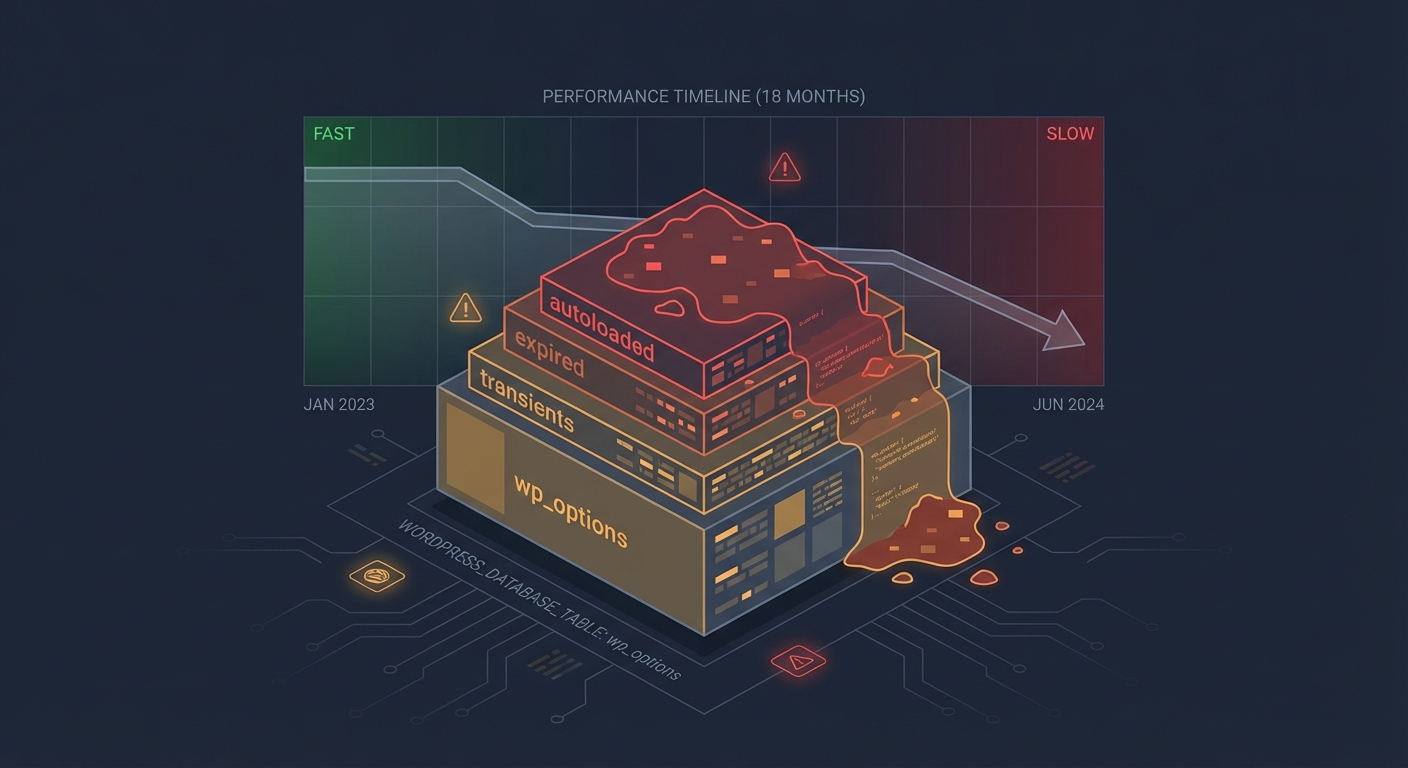
The wp_options table is where most WordPress sites quietly rot.
Not your theme. Not your server. Not even your plugins — at least not directly. The slowness you're experiencing, the one your host keeps blaming on "traffic spikes," starts in your database. It accumulates in autoloaded data, swells with orphaned transients, and compounds every time a plugin writes something it never cleans up.
Speed problems in WordPress are rarely what they look like on the surface. Most site owners chase symptoms — compressing images, switching themes, installing a caching plugin — without ever touching the actual bottlenecks. This guide exists to change that.
Why WordPress Gets Slow (The Real Mechanics)
WordPress doesn't degrade randomly. It degrades systematically, and usually in predictable ways.
Every plugin you install has the potential to write to your database. Some write efficiently. Many don't. Over 12 months of normal operation, a moderately active WordPress site accumulates post revisions, expired transients, orphaned metadata, and autoloaded options that WordPress loads on every single page request — regardless of whether they're needed.
Run this in WP-CLI and see what your autoload data actually weighs:
wp db query "SELECT SUM(LENGTH(option_value)) FROM wp_options WHERE autoload='yes';" --allow-root
If that number exceeds 1MB, you have a measurable problem. Over 3MB, and you're likely bleeding 200–400ms on every page load from database overhead alone — before you've touched image sizes, render-blocking scripts, or your hosting environment.
15 Proven Ways to Speed Up Your WordPress Site
1. Audit and Clean Your wp_options Table
Stop treating your database like a self-cleaning oven. It isn't.
Autoloaded data in wp_options ranks as one of the most common — and most ignored — performance drains in WordPress. Deactivated plugins leave rows behind. Page builders write bloated serialized arrays. WordPress loads all of it on boot, every single time.
Use WP-CLI or a tool like WP-Optimize to identify and remove orphaned autoloaded rows. Be surgical. Deleting the wrong row breaks functionality.
What to look for: Rows from plugins you've already uninstalled. Expired transients with _transient_ prefixes that never got cleaned. Options with serialized data exceeding 100KB per row.
2. Configure a Persistent Object Cache
WordPress's default caching is request-scoped. It doesn't persist between page loads. Every new visitor triggers a fresh round of database queries — even when the data hasn't changed in weeks.
A persistent object cache powered by Redis or Memcached stores query results in memory and serves them without touching the database. The performance difference on content-heavy sites isn't marginal. It's measurable in hundreds of milliseconds per request.
Most shared hosts don't offer Redis. That alone justifies evaluating your hosting stack — something we'll return to.
3. Clear Expired Transients on a Schedule
Transients are WordPress's built-in temporary data storage. They're supposed to expire and self-delete. In practice, they accumulate.
When the WordPress cron system misfires — which happens regularly on sites without consistent traffic — expired transients pile up in your database. They don't hurt immediately. At scale, they add query overhead that compounds over time.
Run a cleanup:
wp transient delete --expired --allow-root
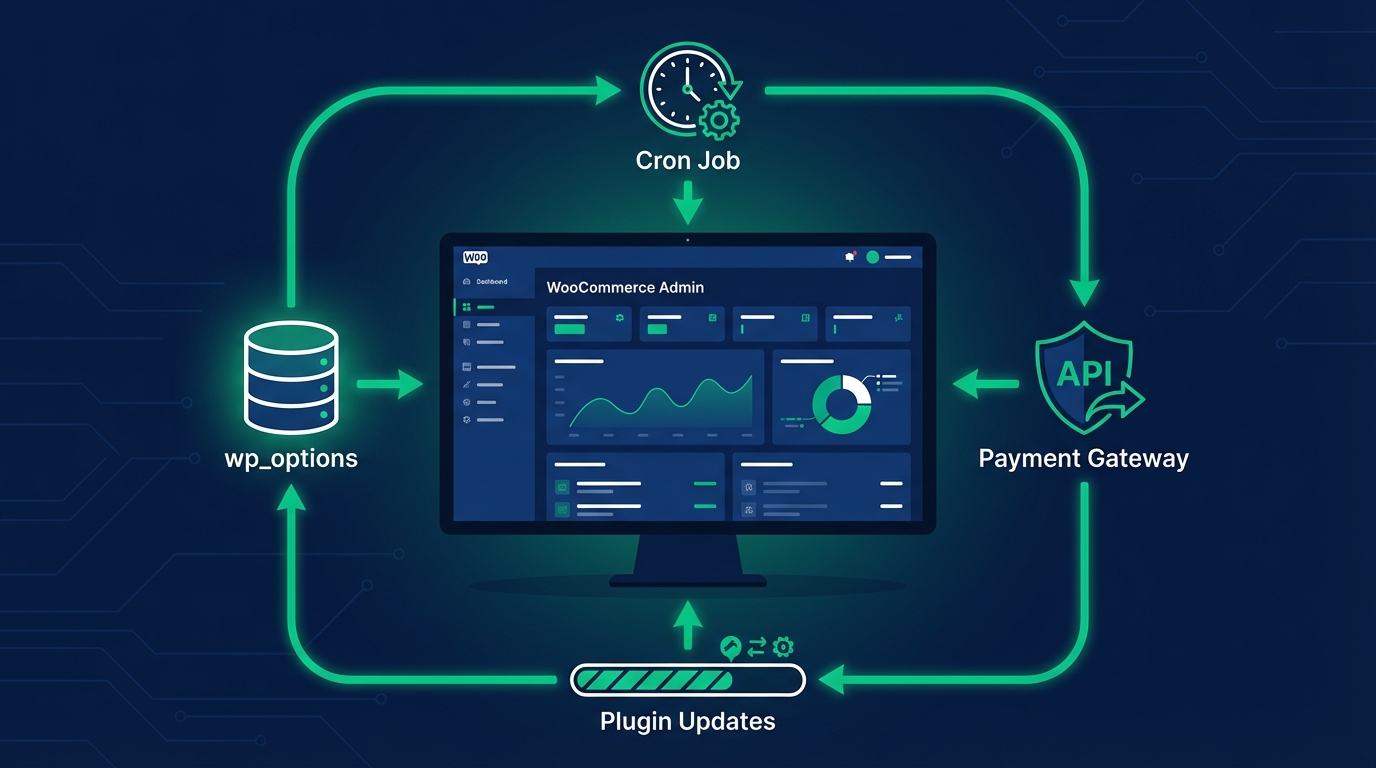
Then schedule this. A proper WordPress cron setup, or a server-level cron job, ensures this runs on a reliable schedule instead of depending on page visits to trigger it.
4. Fix Your WordPress Cron Configuration
wp-cron.php fires on page visits. That's not a feature — it's a workaround that made sense in 2005.
On low-traffic sites, cron jobs don't fire on schedule. Scheduled backups miss. Transient cleanups stall. Cache purges don't happen. On high-traffic sites, cron fires on every page load, creating unnecessary server overhead.
Disable WP-Cron in wp-config.php:
define('DISABLE_WP_CRON', true);
Then set up a real server-level cron job to hit wp-cron.php on a fixed schedule. This one change alone can meaningfully reduce server load on busy sites.
5. Choose a Caching Plugin That Matches Your Architecture
"Just install WP Rocket" isn't a strategy. It's a default.
Full-page caching, browser caching, minification, and cache preloading all interact with your server stack. A caching plugin that works well on Apache with .htaccess rules behaves entirely differently on Nginx, where those rules don't apply and the server config requires separate configuration.
Before configuring any caching plugin, know your stack. Know whether your host supports server-side caching at the infrastructure level — LiteSpeed has its own caching mechanism that conflicts with application-level plugins when you stack them carelessly. Know whether a CDN already caches at the edge.
Stacking caching layers without understanding them creates conflicts that are genuinely difficult to diagnose.
6. Implement a CDN With Proper Edge Rules
A CDN isn't just about serving static files faster. Modern CDNs — Cloudflare, Bunny.net, Fastly — let you define cache rules, handle redirects at the edge, and serve cached HTML to visitors without your WordPress server touching the request at all.
For WooCommerce stores, CDN configuration demands care. Cart pages, checkout flows, and account pages must exclude from caching entirely. If they don't, visitors see each other's session data. That's not a performance issue — that's a catastrophic failure.
Edge caching done properly ranks among the highest-leverage performance changes available. Done carelessly, it breaks your store.
7. Serve Correctly Sized Images — Not Just Compressed Ones
Image optimization advice usually stops at "compress your images." That's incomplete.
Compression reduces file size. Correct sizing eliminates unnecessary data entirely. Serving a 2400px-wide image to a 375px mobile screen — even a compressed one — still forces the browser to download three to four times more data than the device needs.
WordPress's built-in srcset generation helps, but only when your theme registers the right image sizes and when original uploads start at appropriate dimensions. A significant portion of active WordPress sites still upload source files at 5000px or wider.
Beyond sizing: convert to WebP. Modern browsers support it universally. AVIF support grows steadily. Serving next-generation formats is now a Lighthouse baseline requirement, not a bonus.
8. Upgrade PHP and Test Compatibility on Staging
PHP 7.4 reached end-of-life in November 2022. PHP 8.0 followed in November 2023. Running either version means running unsupported software with unpatched vulnerabilities.
PHP 8.2 and 8.3 deliver measurable performance improvements over PHP 7.x — benchmarks consistently show 15–25% faster execution for typical WordPress workloads. That's not theoretical. It's real and reproducible.
The catch: PHP version upgrades require compatibility testing. Plugins written for PHP 7.x sometimes break on PHP 8.x. Use a staging environment. Run compatibility checks before touching production. Running outdated PHP to avoid that work is not a defensible trade-off.
9. Eliminate Render-Blocking Resources
Google's Core Web Vitals penalize Largest Contentful Paint (LCP) delays. One of the most common causes: render-blocking JavaScript and CSS loading in the <head> of your document.
Defer non-critical JavaScript. Inline critical CSS. Lazy-load below-the-fold resources. Badly configured deferral causes layout shifts, broken interactive elements, or missing styles on first load — so test everything on staging before pushing live.
Install Query Monitor and examine what scripts your site enqueues. You'll find scripts from plugins you barely use, loading globally on every page regardless of whether that plugin's functionality appears on that page.
10. Eliminate Unnecessary External HTTP Requests
Every external resource your site loads triggers a DNS lookup, a TCP handshake, and a download outside your control. Google Fonts from Google's servers. Analytics scripts from third-party domains. Social share buttons pulling assets from platform CDNs.
Each one adds latency. Each one is a point of failure.
Self-host Google Fonts. Load analytics scripts asynchronously. Audit every external request in a waterfall tool like GTmetrix or WebPageTest and ask whether each one justifies its latency cost.
11. Diagnose Slow Queries and Fix Database Indexing
WordPress ships with default database indexes. They don't cover every query pattern your specific site generates.
WooCommerce stores with tens of thousands of orders, products, and meta rows regularly develop query performance problems that general speed tests don't catch. These surface as slow admin screens, sluggish checkout processes, and degraded REST API response times.
Query Monitor exposes slow queries, duplicate queries, and missing indexes. Fixing them often requires adding custom indexes or restructuring how a plugin reads data — developer territory, but the diagnostic tool puts the visibility in your hands first.
12. Use a Staging Workflow for Every Significant Change
Speed optimization without a staging workflow is a production gamble.
Caching configuration changes, PHP upgrades, plugin updates, database modifications — any of these can break a live site. The safest optimization process replicates your production environment, tests changes, confirms performance improvement, then deploys with a rollback strategy in place.
Most managed WordPress hosts offer staging environments. If yours doesn't, that's a legitimate reason to reconsider your hosting stack.
13. Evaluate Your Hosting Stack Honestly
Shared hosting is not a performance environment. It's a cost environment.
Running Apache with no persistent object cache, no server-side caching layer, and a PHP version your host refuses to upgrade — your hosting defines your ceiling. No amount of plugin configuration overcomes infrastructure limitations.
Upgrading to a managed WordPress host with Redis, full-page server caching, and current PHP support doesn't just provide more headroom. It changes what performance levels are achievable at all.
For WooCommerce stores generating meaningful revenue, hosting cost deserves evaluation as a percentage of revenue at risk — not as a line item to minimize. A store averaging $3,000/day loses roughly $125/hour during any performance degradation event. A $100/month hosting upgrade that prevents even one such incident per year pays for itself in hours.
14. Audit and Reduce Your Plugin Stack
Every active plugin executes code on every page load unless it loads conditionally. Most don't.
Thirty plugins don't make a site thirty times slower. But poorly written plugins — ones that fire database queries on every request, enqueue scripts globally, or run background processes without discipline — carry disproportionate performance cost.
Run a plugin audit. Disable plugins one at a time on staging and measure load time at each step. You'll almost always find two or three plugins responsible for the majority of overhead. Then ask: does this plugin justify its performance cost?
Abandoned plugins — those without updates in 12+ months — add security risk on top of performance risk. They often lack PHP 8.x compatibility and receive no patches when vulnerabilities surface.
15. Build an Ongoing Maintenance System, Not a One-Time Fix
Speed optimization isn't a project with an end date. It's an ongoing operational discipline.
A site that's fast today will drift without maintenance. Plugin updates change performance characteristics. Database bloat accumulates. Cron jobs fail. New features add overhead. PHP compatibility requirements shift.
The sites that stay fast have someone watching: monitoring performance metrics, running scheduled database cleanups, auditing the plugin stack quarterly, and catching slow queries before they compound.
That's not something you do once. That's a system.
What This Actually Costs When You Ignore It
For a WooCommerce store averaging $3,000/day, every hour of degraded performance costs measurably in abandoned carts and lost conversions. Google's own research consistently shows that a one-second delay in page load time reduces conversions by 7%. On $3,000/day, that translates to $210/day in lost revenue — from a one-second problem.
Not a crash. Not a hack. One second of unnecessary latency.
The math doesn't favor neglect.
Our WordPress care plans include ongoing performance monitoring and database maintenance, starting at a fraction of what a single day of degraded performance costs.
If You Want This Done Properly
Performance optimization done well requires systematic diagnostics, not a checklist run once and forgotten. It demands knowing which bottlenecks matter most for your specific site architecture — a WooCommerce store with 50,000 products has entirely different constraints than a portfolio site with a blog.
If your site is slow and the standard fixes haven't moved the needle, our WordPress performance and speed optimization services include full audits, staging-backed implementation, and ongoing monitoring built for sites where performance directly affects revenue.
Look — I'm writing this because this is a problem I see constantly, and it's also exactly what we built Vimsy to solve. If you want professionals handling this instead of hoping nothing breaks, book a free call.
A slow site isn't a technical inconvenience. It's a revenue leak with a known fix. The only question is whether you patch it before or after it costs you enough to notice.