Why Is My WooCommerce Store Slow? (And How to Fix It Fast)
By Arslan Aslam — 13+ years working with WordPress, WooCommerce, and the infrastructure that keeps stores running under load.
Every millisecond your WooCommerce store takes to load costs you money — not theoretically, but measurably. Google's research shows a one-second delay in page load time can reduce conversions by up to 7%. For a store averaging $3,000/day, that's roughly $210 in daily losses from a single second of drag — before accounting for the search ranking penalty that compounds the damage.
But here's the part most performance guides miss: a WooCommerce slow load time almost never comes from the problem you think it does. It doesn't come from your hosting tier. It comes from WooCommerce's own architecture — and from the way most stores configure it incorrectly by default.
Your Caching Plugin Is Probably Configured Wrong for WooCommerce
Standard page caching — the kind your host advertises and your caching plugin sets up automatically — does not work cleanly on WooCommerce. This is one of the most common sources of WooCommerce performance problems, and it rarely appears on generic optimization checklists.
You must never cache cart pages, checkout, or account pages. Cache those and customers see stale cart data, outdated totals, or in the worst case, session data belonging to someone else. Most caching plugins exclude /cart/, /checkout/, and /my-account/ by default — but that exclusion logic breaks down in practice:
- Cart fragments fire on every page load via AJAX, adding a synchronous HTTP request before the browser renders anything.
- WooCommerce's
wc-ajaxendpoint generates significant uncached backend load that most caching configurations ignore entirely. - Most teams never configure persistent object caching correctly for WooCommerce, because product stock levels and prices need aggressive invalidation — not the standard TTL rules a generic WordPress setup uses.
Running WooCommerce without a persistent object cache forces your database to handle object retrieval on every request. Every product page, every catalog loop, every "related products" query hits MySQL directly. At moderate traffic, this creates a request queue. At higher traffic, it creates timeouts.
Fixing this means configuring Redis or Memcached at the server level, defining the right exclusion logic in your wp-config.php, and tuning cache invalidation so stock updates never serve stale data. This is infrastructure work. A settings change in your caching plugin will not get you there.
To speed up WooCommerce at the cache layer, you need WooCommerce-aware configuration — not generic WordPress optimization settings applied blindly to a store environment.
The wp_options Table Is Where WooCommerce Slowness Hides
Across dozens of WooCommerce audits, we consistently find the same issue: a bloated wp_options table packed with thousands of autoloaded rows that serve no active purpose.
Every plugin you install — including ones you deleted months ago — writes data to wp_options. WooCommerce writes heavily to this table as well: session data, transient caches, scheduled action logs, cart sessions for logged-out users. Add expired transients that cron jobs should have cleared — cron job failures happen more than most store owners realize — plus orphan data from abandoned plugins, and the autoloaded dataset can grow to several megabytes.
WordPress loads every autoloaded row on every single page request. Not just the data the current page needs. Everything with autoload='yes'. A 5MB autoload payload means every page request starts with 300–400ms of dead weight before the server renders a single byte to the browser.
You can surface this with WP-CLI in under a minute:
wp db query "SELECT option_name, LENGTH(option_value) AS option_size FROM wp_options WHERE autoload='yes' ORDER BY option_size DESC LIMIT 20;"
Run that. Look at the output. If you see expired transients, WooCommerce session rows, or plugin options from tools you stopped using — that performance drain sits right there in plain text.
Cleaning wp_options correctly means identifying which autoloaded entries the site actively requires, which rows belong to abandoned plugins, and which expired transients cron never cleared. Bulk deletion breaks things. A diagnostic process does not.
Product Pages and Catalog Queries: Where the Query Count Explodes
A standard WooCommerce product page runs 30–80 database queries, depending on:
- The number of product variations
- Whether the theme triggers duplicate meta queries
- Whether a page builder adds its own data layer on top
- Whether related products load dynamically on every request
Install Query Monitor and load a product page. Look at the query count. More than 40 queries on a basic product page means something does redundant work. Variable products with 50+ attributes compound this — each variation lookup runs without proper database indexing on the wp_postmeta table, so every variation check becomes a full table scan at scale.
Catalog pages carry even more weight. WooCommerce catalog archives do not cache by default. Every filter change, every sort, every pagination click triggers a fresh query sequence. Add layered navigation or an AJAX filter plugin and you stack uncached dynamic queries on top of an already expensive base.
The fix rarely requires more server power. It usually requires:
- Replacing dynamic catalog generation with pre-generated or fragment-cached pages
- Offloading product search to a dedicated index like Elasticsearch or Algolia
- Enabling persistent object caching specifically for catalog query results
- Eliminating dynamic related product queries or replacing them with static, curated alternatives
For stores running the Press Commerce add-on alongside WooCommerce, catalog rendering behavior and plugin interaction both require specific configuration — how Press Commerce layers on top of core WooCommerce queries affects the query count directly, and that interaction needs an audit, not an assumption.
Checkout Performance Is a Revenue Problem, Not a UX Problem
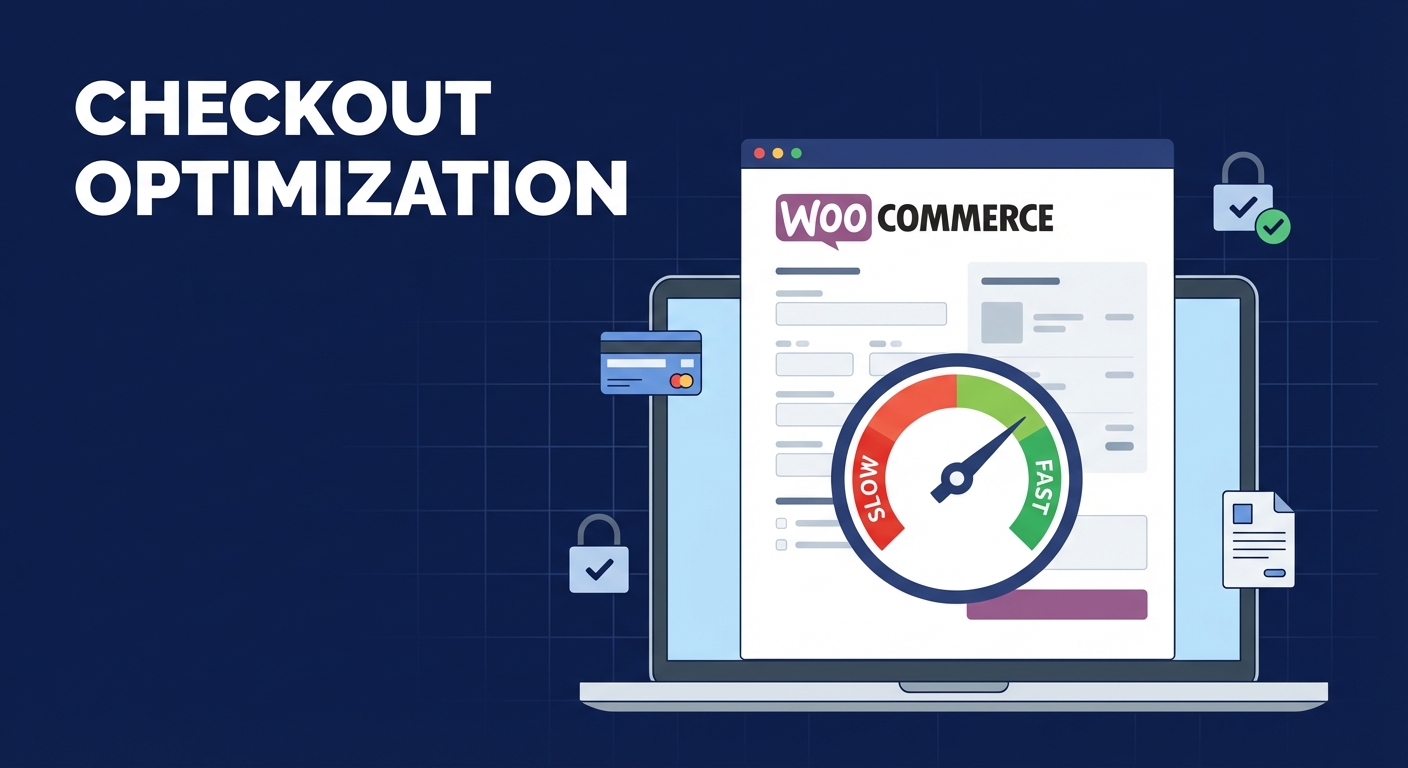
Slow product pages cost you engagement. A slow WooCommerce checkout costs you completed orders — with a specific dollar amount attached to every second of delay.
WooCommerce checkout performance degrades for identifiable, fixable reasons.
Payment gateway scripts load everywhere: Most payment plugins inject JavaScript on every page — not just checkout. Stripe, PayPal, and similar tools add external HTTP requests across your entire store on every page load. Conditional script loading eliminates this, but it requires code changes, not a plugin toggle.
Order creation writes to multiple tables simultaneously: WooCommerce writes to wp_posts, wp_postmeta, wp_woocommerce_order_items, and wp_woocommerce_order_itemmeta during every order submission. At volume, this write pattern creates contention. Migrating to WooCommerce's High-Performance Order Storage (HPOS) — which uses dedicated, properly indexed order tables — resolves this at scale. Run that migration through a staging workflow. Verify the entire order lifecycle in staging. Then deploy.
Coupon and inventory validation stacks up: Every checkout submission validates stock levels, coupon rules, and shipping conditions in sequence. Complex discount structures or inventory-synced products add meaningful latency to this validation stack. Query Monitor makes this visible — you see exactly which hook adds time, and you fix that hook.
Baymard Institute puts global cart abandonment at around 70%. Speed contributes to that number. It's also the one factor you control entirely on your own infrastructure.
PHP Version and Plugin Weight: The Drag You Don't See
Running PHP 7.4 on a WooCommerce store in 2024 means every request runs through an engine that generates measurably less throughput than its current alternatives. PHP 8.1 and 8.2 deliver real gains — Opcache improvements show 10–20% throughput increases in benchmarks, and JIT compilation benefits WooCommerce's computation-heavy loops directly.
But a PHP version bump requires validation first. PHP version compatibility must hold across every active plugin and theme. One incompatible plugin throws fatal errors or silent failures that corrupt the shopping experience. This is exactly where a staging workflow earns its value — validate the PHP upgrade in staging, run WP-CLI compatibility checks, verify the checkout flow end-to-end, then deploy to production.
Plugin overhead follows the same logic. Every active plugin adds execution weight to the request cycle. Plugins hooking into woocommerce_before_cart, woocommerce_checkout_order_processed, or the global init hook add latency to every request those hooks touch. Across WooCommerce performance audits, we consistently find 3–5 plugins that developers have abandoned (no updates in 12+ months — a plugin abandonment risk that creates performance drag and security exposure simultaneously), plus others firing on hooks they have no business touching.
Reducing plugin count is not minimalism. It cuts the execution surface of your store.
What Real WooCommerce Optimization Looks Like
It is never one thing.
A properly optimized WooCommerce store requires:
- Server-level object caching (Redis or Memcached) with WooCommerce-aware invalidation rules
- Clean wp_options — expired transients purged, autoload weight reduced to what the site actually needs
- HPOS enabled on high-volume stores to eliminate order write contention
- Conditional asset loading so payment gateway scripts only fire on checkout
- Database indexing review on
wp_postmetafor stores with large variable product catalogs - PHP 8.1+ validated through staging before production deployment
- WooCommerce-specific caching exclusion rules that correctly exclude dynamic endpoints without over-excluding catalog pages
- Query profiling via Query Monitor to identify actual slow queries — not guessed ones
This is what our WooCommerce Speed Surge optimization service delivers. Diagnostic and remediation work by people who understand how WooCommerce performs under load — not a plugin recommendation list or a generic server upgrade.
The Belief That Keeps Slow Stores Running Slow
Most WooCommerce store owners accept a quiet assumption: sub-3-second load times mean the store runs fine.
That assumption is wrong, and it costs real money.
Three seconds marks where conversions collapse — not where they recover. Google's Core Web Vitals target Largest Contentful Paint at 2.5 seconds. Sub-2-second load times correlate with materially better purchase completion rates. The gap between 2.9 seconds and 1.4 seconds can represent a 15–20% difference in completed orders.
Stores that treat WooCommerce optimization as a one-time project — "we handled it last year" — accumulate plugin overhead, wp_options bloat, expired transients, and degrading cache configuration without noticing. Traffic dips. Rankings drop. The slowdown looks unrelated to anything specific because 18 months of compounding neglect rarely points to a single cause.
Performance is an operational discipline — not a project with a completion date.
If you want to know exactly where your store's performance stands, start with a structured diagnostic. Our WordPress performance and maintenance checklist covers what to check, what each finding means, and what it requires to fix.
Fix It Now or Pay for It Later
Consider a slow WooCommerce store averaging $5,000/day. A 10% conversion improvement from performance work — conservative, given the published research — means $500/day in recovered revenue. Over a year, that's $182,500 from a problem that always had a known solution.
The cost of fixing WooCommerce performance issues runs a fraction of that figure. You can review exactly what a full optimization engagement covers and costs — scope-based, transparent, no hourly billing that expands without warning. The cost of ignoring these issues compounds quietly until the numbers become impossible to dismiss.
If your checkout drags, your product pages run 60+ queries, or your wp_options table looks like a graveyard of abandoned plugin data — none of this is mysterious. These are solvable technical problems with defined solutions.
Look — I'm writing this because this is a problem I see constantly, and it's also exactly what we built Vimsy to solve. If you want professionals handling this instead of hoping nothing breaks, book a free call.
The longer your store runs slow, the more it costs. That math does not improve on its own.