Your WordPress Backup Has Probably Never Been Tested — And That's the Real Risk
Most WordPress sites have a backup. What they don't have is a backup that actually works when it matters.
That's the real problem. Not the absence of backups — the false confidence of having something in place without ever verifying whether that something would survive a real recovery scenario. A backup you've never restored is a hypothesis, not a safety net.
This guide covers how WordPress backups actually work under the hood, what a proper backup strategy looks like, and why the gap between "I have a backup plugin installed" and "my site is recoverable in under an hour" is wider than most site owners expect.
What a WordPress Backup Actually Contains
Before you can build a backup strategy, you need to understand what you're backing up.
A WordPress site has two distinct components:
Files — your theme, plugins, uploads directory, wp-config.php, .htaccess, and any custom code living in the file system.
Database — everything stored in MySQL: posts, pages, user data, WooCommerce orders, plugin settings, and critically, the wp_options table. That table alone holds your site URL, active theme, widget configuration, transients, and hundreds of plugin configuration rows that accumulate silently over time.
Most people back up one or the other. Some back up both but don't realise the database backup is 12 hours stale during a peak traffic event. The correct answer is a coordinated, timestamped backup of both — files and database — in a single restorable snapshot.
WooCommerce stores have an additional layer of complexity. Orders, customer records, and inventory data all live in the database. Losing 6 hours of orders because your backup ran at 2am and a restore happened at 8am isn't a technical failure — it's a planning failure.
Where Your Backup Lives Matters More Than How It Was Made
Here's the mistake that costs sites their data: storing backups on the same server as the site.
If your server is compromised — hardware failure, hack, ransomware, host-level incident — your backup goes down with your site. This isn't a theoretical risk. Shared hosting environments see cascading failures. VPS providers have outages. A malware injection that corrupts your WordPress installation can corrupt on-server backup files in the same sweep.
Offsite backup storage is non-negotiable. That means a separate cloud destination — Amazon S3, Google Cloud Storage, Backblaze B2, or a dedicated backup service — that the attacker or the failing server cannot reach.
Your hosting control panel's "daily snapshot" feature is not an offsite backup. It lives in the same infrastructure. Read your host's terms of service. In most cases, those snapshots are best-effort, not guaranteed, and may not include your database at all.
The standard backup architecture that actually works:
- Daily full backups (files + database) stored offsite
- Real-time or hourly database backups for WooCommerce or high-traffic sites
- At minimum 30-day retention — preferably 90 days
- At least one manual backup before every plugin update, theme change, or core update
That last point matters. Automated backups run on schedules. WordPress cron jobs can fail silently — wp-cron.php depends on site traffic to trigger, and on low-traffic sites it often doesn't fire reliably. If your backup plugin relies on WordPress cron and your site has intermittent traffic, you may have significant gaps in your backup history without knowing it.
Backup Plugins: What They're Actually Doing
The WordPress plugin ecosystem offers dozens of backup plugins. Most site owners pick one, install it, connect it to Dropbox, and forget about it. That's a reasonable starting point. It's not a strategy.
UpdraftPlus is the most widely used. It handles files and database separately, supports multiple cloud destinations, and has a reasonably reliable restore workflow. The free version covers the basics; the premium version adds real-time backups, multisite support, and better scheduling granularity.
BlogVault and ManageWP operate differently — they pull your backup data to their own infrastructure rather than pushing from your server to a third-party cloud. This matters because it reduces the server load impact of running a backup on a live production environment. On resource-constrained shared hosting, a large file backup running during peak hours can spike CPU and memory enough to affect site performance.
WP Time Capsule uses incremental backups — only backing up what changed since the last run. For large sites with substantial media libraries, this is a meaningful efficiency gain.
What none of these plugins do by default: verify the backup after it runs. A corrupted zip file in your Dropbox folder isn't a backup. A database dump with encoding issues isn't a backup. The only test that matters is a successful restore.
Plugin abandonment also factors in here. A backup plugin that hasn't been updated in 18 months and hasn't been tested against PHP 8.x is a liability — not just for future compatibility, but because its restore functionality may silently break after a host-side PHP upgrade. Check your backup plugin's last update date. If it's been more than 12 months without a release, treat it as a risk.
How to Actually Restore a WordPress Site
Restoration is not just clicking "restore" in your plugin dashboard. Or rather — sometimes it is, and sometimes it isn't, and you won't know which until you're standing in the wreckage of a broken site.
Partial failure: A plugin update breaks your site's front end but the admin is still accessible. You can trigger a restore directly through your backup plugin. But if your last backup was 36 hours ago, you're rolling back 36 hours of content changes, orders, or form submissions along with it. That's data loss — just a different kind.
Full site failure: Admin is unreachable. WordPress won't load. You need to restore from the file system. This means:
- Accessing your server via SSH or SFTP
- Deleting or quarantining the corrupted files
- Extracting the backup archive manually
- Importing the database via WP-CLI —
wp db import backup.sql - Updating
wp-config.phpif database credentials have changed - Flushing the object cache — stale cache entries can make a freshly restored site behave as if it's still broken
Most site owners have never done this. Most backup plugin documentation assumes you have admin access. Most hosting support teams will help you restore files but won't touch your database configuration.
Malware recovery: You restore a backup only to discover the malware injection predates your oldest backup. Now you're not just restoring — you're doing forensic analysis on your file system, hunting injected code in theme files, checking .htaccess for redirect rules you didn't write, and reviewing your wp_options table for unauthorized entries. A backup strategy without 30 to 90 days of retention doesn't help you here.
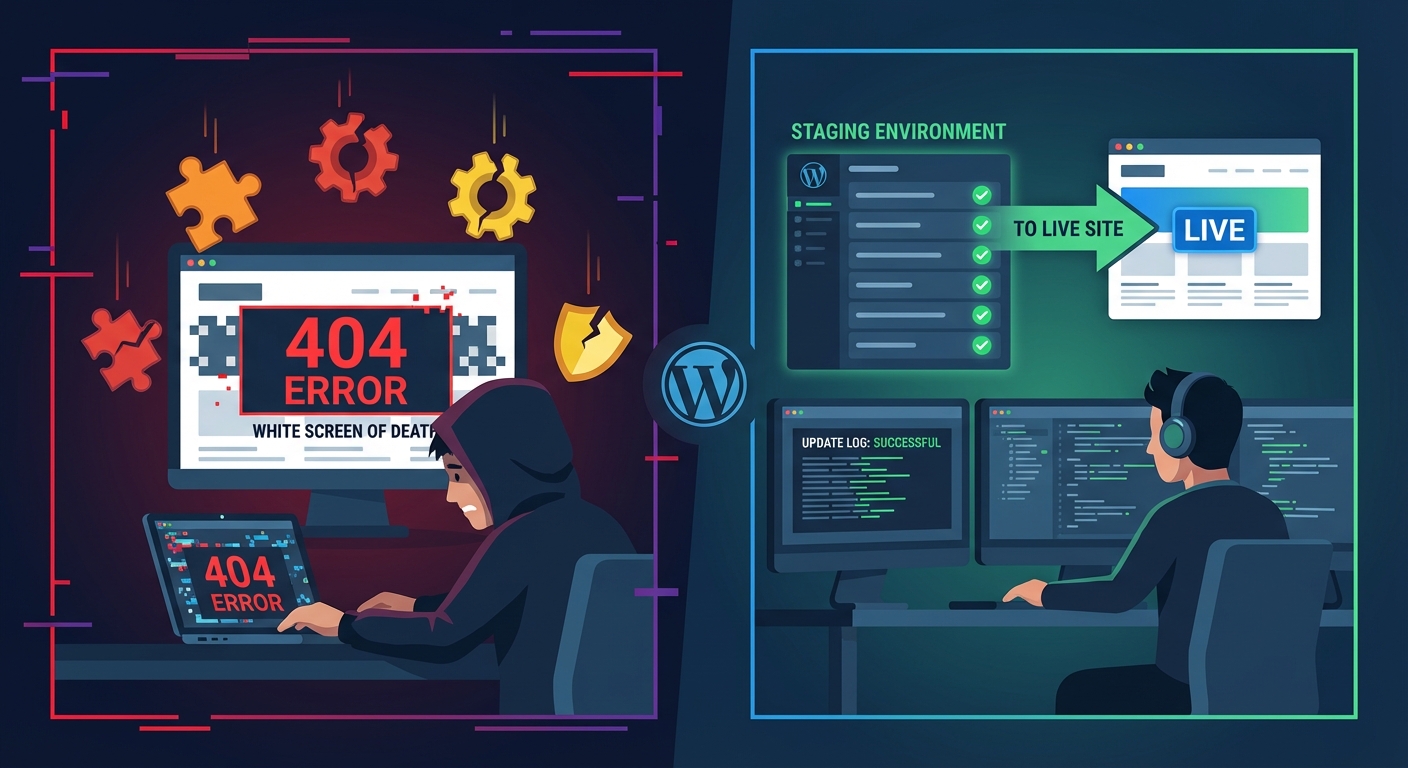
This is why restoration testing isn't optional. Run a restore on a staging environment at least quarterly. Use a staging workflow that mirrors your production database — not a clean install. If the restore fails in staging, you need to know that before production burns down.
Backup Frequency: Matching Your Cadence to Your Risk Profile
Not every WordPress site needs the same backup frequency. But most sites are under-backed relative to their actual risk.
Brochure site with infrequent updates: Daily backup, 30-day retention. Minimal risk. Still offsite.
Active blog publishing several times per week: Daily backup isn't enough if you publish every morning. A crash at 11pm means your morning post disappears. Real-time or 6-hour database backups are more appropriate.
WooCommerce store with daily orders: Consider a store averaging $2,000/day in revenue. That's roughly $83/hour in transaction value. A 4-hour gap between backups means up to $333 in unrecoverable order data after a restore. Hourly database backups are the floor, not the ceiling.
Membership site or LMS: User progress, course completions, subscription records — all stored in the database. A 24-hour-stale backup isn't just a data loss problem; it's a support problem. Users will contact you demanding their progress back. Build your backup frequency around that operational reality.
The PHP Version and Plugin Abandonment Problem
Your backup is only as restorable as your environment allows.
Restore a backup from 2022 onto a server running PHP 8.2 and three plugins may refuse to activate — built for PHP 7.4, incompatible with the current runtime. Your theme may throw fatal errors. Your site might load visually broken even with a clean database import.
Backup strategy and environment stability are connected. Across WordPress audits, we consistently find plugins that haven't been updated in 18+ months — some abandoned by their developers, with zero PHP 8.x compatibility. These are ticking compatibility bombs. They'll detonate quietly on a clean restore if your host has upgraded PHP since the backup was made.
The fix: document your PHP version, active plugin list, and last-updated status as part of your backup protocol. WP-CLI makes this simple — wp plugin list --format=csv exports a full plugin inventory in seconds. Store that snapshot alongside your backup archives.
This is part of what a real WordPress maintenance checklist looks like in practice. Not just "run updates" — but documenting the environment state before and after every change window.
What Vimsy Includes — and Why It's Designed This Way
Every WordPress care plan at Vimsy includes daily offsite backups with 30-day retention as a baseline. Not an add-on. Not a premium tier feature.
We built it this way because in most site recoveries we've handled, the site had a backup — just not one that was current, offsite, or verified. A 48-hour-old backup with a corrupted database file creates false confidence during triage. That false confidence costs time, and in a WooCommerce context, time is direct revenue loss.
Our backup infrastructure stores files and database separately to an offsite cloud destination, runs verification checks post-backup, and retains enough history that malware injections present for weeks are still recoverable. Before every maintenance window, we create a manual snapshot — not something you have to remember or request.
Review the full scope of our WordPress maintenance plans and pricing to see exactly what's covered at each level.
And if something has already gone wrong — site down, hacked, broken after an update — our emergency WordPress support handles immediate triage without the wait.
Before You Touch Anything Else: Check These Five Things
If you have a backup plugin installed, do this today:
- Confirm the last backup actually ran — check your cloud storage destination, not just the plugin dashboard.
- Verify the backup includes both files and database.
- Confirm the storage destination is offsite — not a local folder or a path on the same server.
- Download a recent backup file and verify it isn't corrupted or zero-byte.
- Run
wp --infovia WP-CLI and document your PHP version against your active plugin compatibility.
If you can't answer all five with confidence, your backup strategy has gaps. Not maybe. Definitely.
The Real Standard
Backups are the last line of defence, not the first. They're what you fall back on when your security posture, update hygiene, and staging workflow have all failed. But they only work if they're current, offsite, verified, and restorable in the environment you're restoring into.
Having a backup plugin installed is table stakes. Having a backup strategy — with tested restore procedures, matched to your site's risk profile, stored somewhere your server failure can't reach — is actual risk management.
Look — I'm writing this because this is a problem I see constantly, and it's also exactly what we built Vimsy to solve. If you want professionals handling this instead of hoping nothing breaks, book a free call.
Because the version of you who discovers your backup doesn't work at 2am on a Sunday won't have time to build a strategy from scratch.