The Silent Rot Inside Your WordPress Database
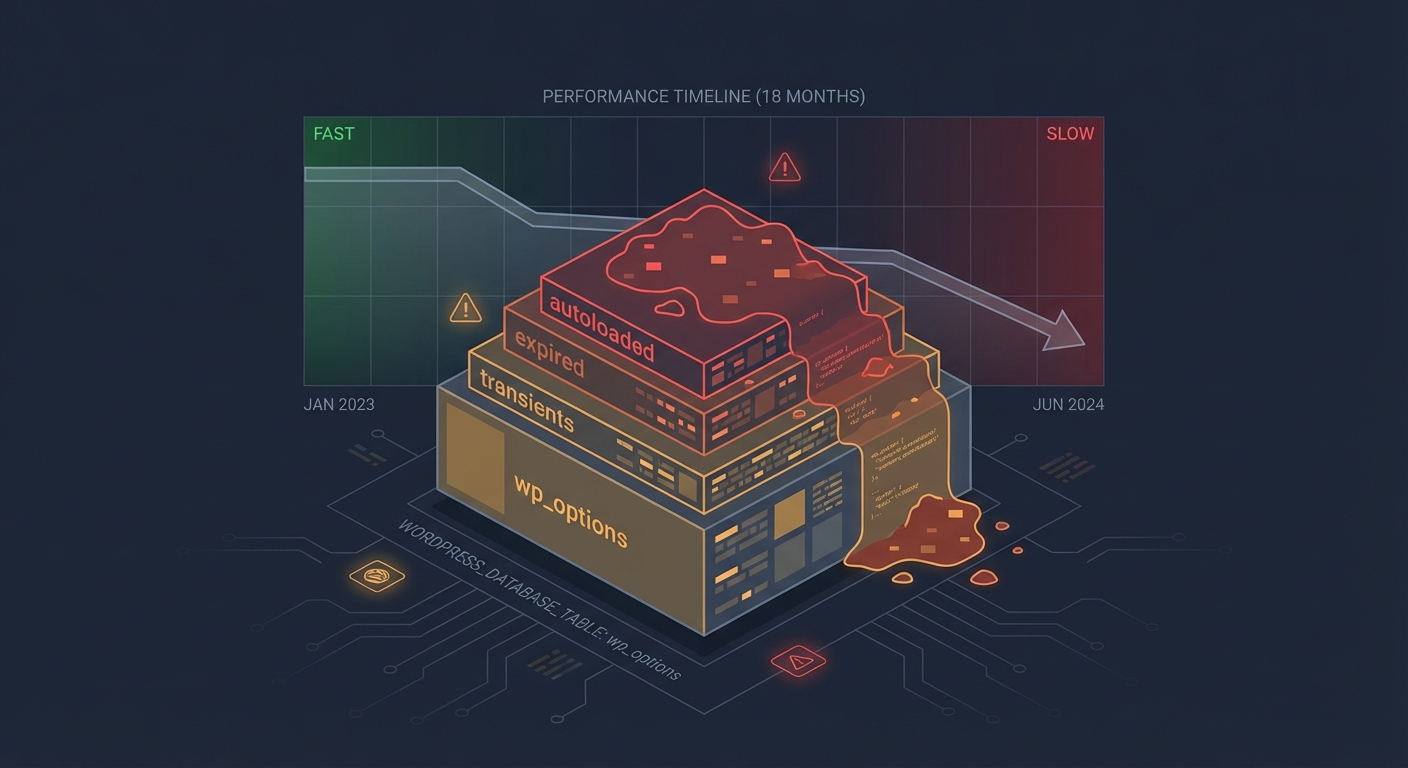
The wp_options table is where most WordPress sites quietly rot. Not from a hack. Not from a bad plugin update. Just from years of accumulated data that nobody told you was piling up — row by row, query by query — until your admin panel started loading in four seconds and your Time to First Byte climbed into the danger zone.
Most site owners don't notice until something is visibly broken. By then, the database has been dragging down every page load for months.
This is a structural problem, not a hosting problem.
What Database Bloat Actually Looks Like
WordPress doesn't clean up after itself. It's not designed to. Every time you edit a post, WordPress saves a revision. Every time a plugin stores temporary data, it creates a transient. Every time an automated task misfires, orphaned records accumulate. Over time — especially on sites older than two or three years — you end up with a database doing far more work than it should on every single request.
Here's what builds up in a typical aging WordPress installation:
Post Revisions
WordPress stores every saved draft by default. An article edited 40 times generates 40 revision rows in wp_posts. Multiply that across hundreds of posts over several years. The table bloats silently, and every query against it becomes incrementally slower. WordPress has no built-in mechanism to prune these automatically — you have to configure it manually or handle it at the maintenance level.
Expired Transients
Transients are supposed to be temporary. They're stored in wp_options with an expiry timestamp — but WordPress only deletes them when they're accessed again after expiry. If the code that created them stops running (plugin deactivated, feature removed), those transients sit in wp_options indefinitely. In heavily-used sites, it's common to find thousands of expired transient rows clogging the table, each one adding marginal weight to a table WordPress queries on every single page load.
Spam and Trashed Comments
Your comment moderation queue isn't just an inbox problem. Every spam comment, every trashed comment still exists as a full database row in wp_comments. They don't affect your published pages, but they add weight to every query WordPress runs against the comments table. On older sites that received real comment volume, this accumulation is significant.
Orphaned Post Meta
When you delete a post, WordPress deletes the post row — but it doesn't always clean up the associated rows in wp_postmeta. Depending on which plugins created that metadata, you can end up with thousands of orphaned meta rows pointing to posts that no longer exist. This is especially pronounced on WooCommerce stores with deleted products and old order data.
Auto-Draft Accumulation
WordPress auto-saves drafts continuously while you work. Most are never cleaned up. An active editorial site can accumulate hundreds of auto-draft rows in wp_posts over a year — rows that serve no purpose but still participate in database queries.
Orphaned User and Plugin Data
Plugins that store per-user data in wp_usermeta rarely clean up after themselves when users are deleted. Plugins that store site-wide options in wp_options don't always remove those rows when deactivated. After years of plugin churn — installing, testing, removing — the residual data compounds quietly.
None of this looks dramatic in isolation. Collectively, it slows everything down.
The wp_options Problem Is Worse Than You Think
The wp_options table deserves its own examination because it's the most consistently abused table in a standard WordPress installation.
Every plugin that stores settings uses wp_options. Every plugin that caches data uses wp_options. Every theme customization gets written to wp_options. WordPress itself writes to wp_options for transients, cron schedules, and core settings. And because WordPress loads the entire "autoload" portion of wp_options on every single page request — before rendering a single pixel — a bloated autoload dataset is one of the fastest ways to degrade site-wide performance.
The autoload column in wp_options carries a yes/no flag. Every row marked autoload = yes gets pulled into memory on every request, regardless of whether it's needed by that particular page. Poorly-coded plugins set their data to autoload by default. Deactivated plugins leave their settings behind with autoload still active. Theme frameworks store large serialized arrays in autoloaded rows that never get trimmed.
In most WordPress audits we perform, we find autoloaded data well exceeding what any production site actually needs per request. This isn't a catastrophic bug. It's a chronic drag — the kind that makes your server work harder than it should on every request, including API calls, WordPress cron job execution, and admin panel loads.
Running a quick diagnostic query reveals the scope of the problem immediately:
SELECT SUM(LENGTH(option_value)) as autoload_size FROM wp_options WHERE autoload='yes';
If that figure is pushing into multiple megabytes, you have a performance problem that no amount of image compression or CDN layering will fully fix. You're loading unnecessary data into memory on every request. The fix has to happen at the database level.
How This Shows Up in Real Performance Metrics
The symptoms of database bloat don't always surface as obvious slowness. They show up in subtler, harder-to-diagnose ways:
- Admin dashboard loads sluggishly even on fast hosting with good specs
- WP-CLI commands like
wp cron event runtake longer than they should - Query Monitor diagnostics show unexpectedly high query counts on simple pages
- Object cache hit rates drop because WordPress fetches redundant data it shouldn't need
- WooCommerce stores show delayed cart updates or checkout friction under normal traffic loads
- REST API response times creep upward as the options table grows
Each of these is a downstream symptom of the same upstream problem: a database doing more work than necessary because no one has maintained it.
The connection to revenue is real. As a rough model: for a WooCommerce store averaging $3,000/day in revenue, that's approximately $125 per hour of exposure when performance friction pushes visitors to abandon checkout. Database bloat rarely causes outright downtime — it causes the slow, grinding friction that erodes conversions invisibly, over weeks and months, while the site owner assumes everything is fine because nothing is technically broken.
Myth: Your Hosting Provider Handles This
This is the belief worth challenging directly: that managed WordPress hosting takes care of your database health.
It doesn't.
Managed WordPress hosts do a great deal at the infrastructure level. They manage server security, PHP version compatibility, hardware provisioning, and caching layers. What they don't do is audit your application layer. They don't clean up your wp_options table. They don't remove your expired transients. They don't consolidate post revisions or delete orphaned postmeta rows.
That's application-layer maintenance. It lives entirely on your side of the responsibility fence.
When performance degrades on managed hosting, the instinct is to upgrade to a higher-tier plan — more memory, more CPU, more storage. Sometimes that's the right call. More often, it's treating a symptom by throwing money at infrastructure when the actual problem lives in a database that hasn't been properly maintained in years.
Before you consider a hosting upgrade, run a database audit. The answer might be cleaner — and cheaper — than you expect.
How to Actually Clean It Up Without Breaking Anything
Database cleanup without a plan is how production sites break. The right approach is methodical and staged.
Step 1: Full Backup and Staging First
Never modify a production database without a complete backup in hand. This is absolute. Use a staging workflow that mirrors your live environment before running any cleanup operations. A proper rollback strategy means you can reverse any change in under five minutes. If you don't have that infrastructure in place, stop here and build it before touching the database.
Step 2: Audit Before Deleting
Run diagnostic queries and use Query Monitor to understand what's actually in your database before you start removing rows. Know what you're dealing with before you start removing it.
Step 3: Remove Post Revisions Safely
WP-CLI makes this scriptable and controllable:
wp post delete $(wp post list --post_type='revision' --format=ids) --force
Run this against your staging environment first. Understand how many revisions you're removing before touching production. On sites with thousands of revisions, run the deletion in batches rather than in a single operation.
Step 4: Clear Expired Transients
WP-CLI handles this cleanly:
wp transient delete --expired
This removes only transients that have passed their expiry timestamp — it's safe. Run it. Then investigate which active plugins are creating persistent transients that never expire, and address those at the plugin configuration level.
Step 5: Audit and Trim wp_options Autoload
This step requires judgment, not just execution. Identify rows with large autoload values that belong to deactivated or removed plugins. Remove them carefully. If you're not certain what a row belongs to, flag it for investigation — don't delete it on instinct.
Step 6: Purge Orphaned Meta, Drafts, and Spam
Clean orphaned postmeta rows, orphaned usermeta from deleted users, auto-drafts, trashed content, and spam comments. These are relatively low-risk deletions that produce measurable size reductions.
Step 7: Run OPTIMIZE TABLE
After bulk deletions, MySQL tables carry fragmented free space — the physical storage claimed by deleted rows isn't automatically reclaimed. Running OPTIMIZE TABLE rebuilds the table structure and re-indexes it. This can produce meaningful query speed improvements on heavily fragmented tables, particularly wp_posts and wp_options.
wp db optimize
Step 8: Lock In Prevention
One-time cleanup without prevention is a temporary fix. Configure WordPress to cap post revision storage in wp-config.php:
define('WP_POST_REVISIONS', 5);
Set up scheduled transient cleanup. Audit new plugins before installation for wp_options hygiene. And make database maintenance a recurring line item in your WordPress maintenance checklist — not a one-off task you run when things get slow.
What Ongoing Database Health Actually Requires
A one-time cleanup produces real gains. Sustained database health requires a system — not a plugin you run once a year and forget.
That means:
- Regularly scheduled automated cleanup of expired transients and post revisions
- Periodic
wp_optionsaudits, especially after plugin additions or removals - Database indexing reviews when query patterns change after major site updates
- Monitoring autoloaded data size over time as a leading performance indicator
- Confirming database health after WooCommerce updates that modify table structures
- Integrating all of this into a broader site health workflow that someone actually executes
This isn't technically complex work. But it requires someone with enough understanding to know what's safe to remove, what signals a deeper problem, and what should be flagged rather than deleted. In most audits we perform on sites that have been running for two or more years without structured maintenance, the database is one of the first places performance issues trace back to.
The Cost of Waiting
Database bloat compounds. A site that's 15% slower today becomes progressively worse if nothing changes — because the accumulation doesn't stop. Transients keep building. Revisions keep multiplying. Autoloaded data keeps growing. Every plugin update that stores new options adds to the total.
Performance doesn't recover on its own.
There's also a search visibility angle worth understanding. Core Web Vitals — which Google uses as a ranking signal — include server response time (TTFB). A bloated database directly impacts TTFB on every page load. Every month you defer database maintenance is a month your site competes on suboptimal performance metrics against sites that are properly maintained.
If you want to understand the full scope of what professional maintenance covers, review our WordPress care plans. WordPress database optimization — including wp_options auditing, transient cleanup, and scheduled maintenance — is a core component of the Vimsy Press Pro plan.
For sites already experiencing slowdowns, our WordPress performance and support services include a full database audit as part of the initial site assessment.
The Bottom Line
Your database doesn't announce when it's struggling. It just slows down quietly, query by query, until performance has visibly deteriorated — and it's taken months to get there.
The fix isn't complicated — but it requires technical precision, the right tooling, and a process that goes beyond running a plugin and hoping for the best. Running OPTIMIZE TABLE without understanding what you're optimizing won't solve the problem. Deleting transients without understanding what created them treats a symptom. Real database optimization is diagnostic work followed by methodical, staged execution.
Look — I'm writing this because this is a problem I see constantly, and it's also exactly what we built Vimsy to solve. If you want professionals handling this instead of hoping nothing breaks, book a free call.
Your database has been patient with you. Don't assume it always will be.