Putting your site in maintenance mode sounds simple. It isn't.
Done wrong, it can crater your search rankings, break your cron jobs, lock out logged-in users, and leave your REST API fully exposed — all while you think you're safely offline doing a clean redesign. The mistake most site owners make isn't skipping maintenance mode. It's treating it as a cosmetic toggle instead of a technical operation with real consequences.
This guide covers how to do it correctly, what to watch for technically, and why "just install a coming soon plugin" is advice that ignores half the problem.
The Default WordPress Maintenance Mode Is Not What You Think
When WordPress runs a core update, it automatically creates a .maintenance file in the root directory and serves a barebones maintenance page. That's it. A plain white screen with "Briefly unavailable for scheduled maintenance. Check back in a minute."
That mechanism exists for seconds-long update windows — not for 3-day redesigns or week-long migrations.
If you're doing anything significant — restructuring your URL architecture, migrating to a new host, rebuilding your WooCommerce product catalog, overhauling your theme — you need a controlled, deliberate maintenance mode setup. Not a file WordPress drops and removes automatically.
The difference matters because search engines don't know you're "just doing a redesign." They see a response code. And if they see the wrong one, they act accordingly.
HTTP Response Codes: Where Most Sites Get This Wrong
This is the single most misunderstood part of maintenance mode.
When you put your site behind a maintenance or coming soon page, the server still returns a response code for every request. The question is which one.
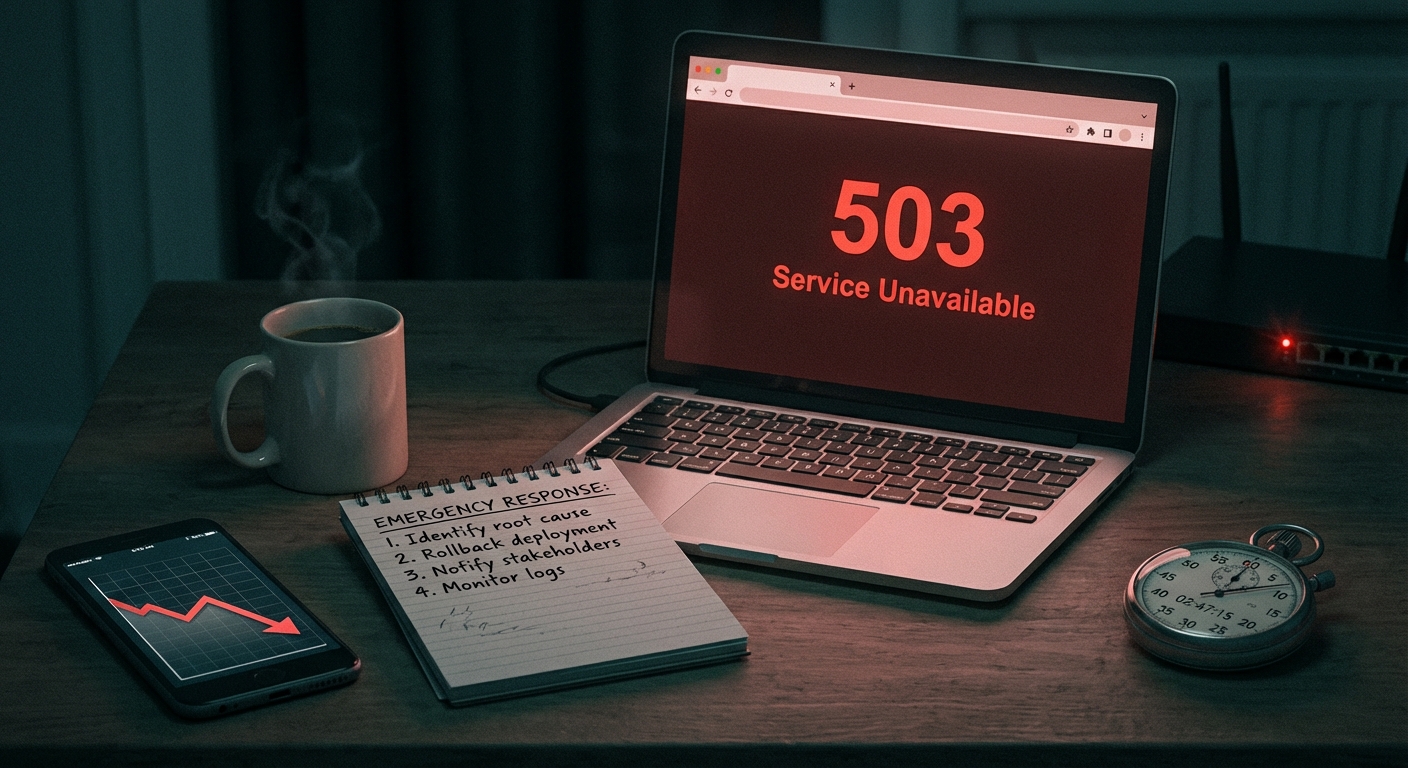
503 (Service Unavailable) — This is the correct code for temporary downtime. It tells search engines: "We're down right now, but come back later." Google respects this. Your rankings hold. Your indexed pages stay indexed.
200 (OK) — This is what many poorly built maintenance plugins return. The server says "everything is fine" while showing a coming soon page. Google crawls that page, sees it as real content, and may start treating your homepage as a page that just says "Coming Soon." That's an indexing problem that can take weeks to recover from.
404 (Not Found) — Some misconfigured setups return this. Google interprets it as permanent removal. Ranking recovery from a widespread 404 incident takes months, not weeks.
Before you activate any maintenance mode plugin, verify what HTTP status code it returns. Most don't advertise this clearly. Use a header-checking tool or run a quick curl -I yourdomain.com from the command line. If it's not returning 503, don't use it.
What Actually Breaks During a Poorly Managed Maintenance Window
Let's be specific about what's at risk beyond SEO.
Cron jobs don't stop running. WordPress uses a pseudo-cron system (wp-cron) that fires on page visits. If your maintenance plugin blocks all front-end traffic, some cron implementations will stop triggering entirely. Scheduled posts won't publish. WooCommerce subscription renewals may fail to process. Automated email sequences tied to action scheduler won't fire. Depending on your setup, this creates a cascade of broken automations you won't notice until days later — when the damage is already done.
The REST API may stay exposed. Most coming soon and maintenance mode plugins restrict the visual front end — they don't always block the REST API endpoints at /wp-json/. That means a site "in maintenance mode" may still return data via API calls. For sites using headless setups or external integrations, that's inconsistent behavior. For everyone else, it's an unnecessary exposure of user data and content structure during a period when your site is in an intentionally incomplete state.
Transients get written to wp_options during a migration. If you're mid-migration and your object cache isn't configured correctly, every uncached database query writes a transient to wp_options. During a heavy migration — especially one involving WooCommerce or large post imports — this bloats the options table rapidly. Across migrations we've managed, wp_options tables can balloon to tens of thousands of rows from transient overflow alone. After the migration, the site runs sluggishly for reasons that aren't immediately obvious until you run a proper database audit.
Your staging workflow can collide with live. If you're working on a staging site and your DNS or search-and-replace wasn't handled correctly via WP-CLI, your staging environment may accidentally index under your live domain. This creates duplicate content issues that survive well past the maintenance window and compound any SEO damage from the downtime itself.
Plugin compatibility breaks silently. A maintenance window is often the moment a site owner shuffles plugins — deactivating old ones, activating new ones, running bulk updates. If you do this without a rollback strategy in place, a compatibility failure can take down the admin panel entirely. And if your maintenance mode plugin is tied to the front end while your admin is broken, you're stuck: visitors see the maintenance page, but you can't access the backend to fix anything.
The Right Way to Configure Maintenance Mode
Here's how to approach it as a technical operation, not a cosmetic one.
Step 1: Use a Plugin That Returns 503 — Then Verify It
The plugins most consistently reliable for correct 503 handling include WP Maintenance Mode & Coming Soon (by WebFactory) and Maintenance (by fruitfulcode). Both are actively maintained and return proper 503 codes by default.
Do not assume. After activating, run:
curl -I https://yourdomain.com
You should see HTTP/2 503 in the response. If you see 200, switch plugins or configure your .htaccess manually to force the correct response header.
Step 2: Whitelist the Right Users and IPs
Any competent maintenance plugin lets you whitelist admin users so they see the live site. Also whitelist your developer's IP if you're working collaboratively. Doing a full staging workflow where your developer is blocked from the live environment mid-migration creates avoidable friction and slows the entire operation.
In WP-CLI, you can check currently active administrator accounts and confirm admin access isn't inadvertently broken:
wp user list --role=administrator
Step 3: Harden Your .htaccess During the Window
While your site is in maintenance mode, review your .htaccess hardening. Block access to wp-config.php, disable directory browsing, restrict xmlrpc.php if you're not using it. You're already in a controlled state — use the window productively.
A basic block on wp-config.php:
<Files wp-config.php>
order allow,deny
deny from all
</Files>
These rules don't expire when maintenance mode ends. They stay. That's the point.
Step 4: Block the REST API at the Plugin Level
If your maintenance window involves any migration or restructuring, explicitly restrict REST API access during the window. Most maintenance plugins have a toggle for this. Enable it. This prevents external services or crawlers from pulling data through /wp-json/ endpoints while your content is in an inconsistent or incomplete state.
Step 5: Confirm Your Sitemap Is Not Serving the Maintenance Page URL
After activating maintenance mode, check your XML sitemap. Some configurations will submit the maintenance page itself as a URL. That's a problem if Googlebot crawls your sitemap during the downtime window. Use your SEO plugin's settings to confirm the sitemap only lists canonical content URLs — not a /coming-soon or /maintenance endpoint.
What Happens After: The Recovery Phase Most People Skip
Maintenance mode comes down. Site goes live. Most owners stop there.
That's the wrong stopping point.
Check your PHP version compatibility. If your redesign involved new plugins or a theme update, run a compatibility check against your current PHP version. Mismatched PHP versions are among the top causes of silent post-launch failures — white screens, broken admin panels, and query errors that don't surface immediately. PHP neglect is one of the most common sources of avoidable post-launch instability in WordPress sites.
Audit your wp_options table. After any significant migration or plugin shuffle, wp_options accumulates orphaned rows — settings from deactivated plugins, stale transients, and leftover autoloaded data. Every autoloaded option adds overhead to every page request. A bloated wp_options autoload set can add 300–500ms to your TTFB without a single obvious cause.
Run this query to check your autoload payload size:
SELECT SUM(LENGTH(option_value)) as autoload_size FROM wp_options WHERE autoload='yes';
Anything above 800KB–1MB in autoloaded data warrants a cleanup pass. This rarely appears in standard launch checklists — but it's one of the first things you catch when running Query Monitor diagnostics against a live environment post-launch.
Resubmit your sitemap. Don't wait for Google to recrawl passively. Submit your sitemap manually through Google Search Console immediately after going back online. This signals the end of the downtime window and accelerates re-indexing of your canonical content.
Verify your rollback strategy worked — or is now in place. If you didn't take a full database and file backup before the maintenance window, you were already operating without a safety net. If you did take a backup, confirm it's actually restorable — not just that the file exists. A backup you can't restore isn't a backup. It's a false sense of security.
The Bigger Picture: Maintenance Mode Is a Symptom
Here's the contrarian point worth sitting with.
Most site owners only think about maintenance mode because they're about to do something significant — a migration, a redesign, a long-overdue plugin audit. But that urgency almost always results from months of deferred work: accumulated plugin debt, PHP version neglect, database bloat that finally forced a major intervention.
If you're planning a redesign because your current site is sluggish, breaking under load, or running incompatible plugins — the redesign isn't the solution. The underlying maintenance debt is the real problem. The redesign is the bill coming due.
A properly maintained WordPress site rarely needs extended maintenance windows. Most of what forces a full offline period — bulk plugin updates, database restructuring, theme overhauls — can happen on a staging environment and deploy without any user-facing downtime at all.
That's not aspirational. That's what a real WordPress maintenance workflow looks like in practice. It's also what prevents the accumulation of technical debt that eventually forces a major offline intervention.
What a Professional Maintenance Window Looks Like
For context, here's the full scope of what a controlled maintenance window includes when managed properly:
- Full off-site backup with a verified, tested restore point
- Staging workflow with search-and-replace handled via WP-CLI
- 503 response code confirmed before any traffic is cut
- REST API restricted during the window
.htaccesshardening applied and tested- Post-launch
wp_optionsaudit with autoload analysis - Sitemap resubmission to Google Search Console
- PHP version compatibility check against all active plugins
- Cron job verification after maintenance mode lifts
- Query Monitor diagnostics run against the live environment
This isn't a heroic undertaking. It's a process that takes a few hours when you know what you're doing. Most site owners skip half of it — not because they're careless, but because no one told them the full list existed.
If you want a clear picture of what your site needs before any major work begins, our full WordPress maintenance checklist covers the complete scope. And if you'd rather have professionals handle the entire operation — staging setup, the maintenance window itself, and the post-launch audit — our WordPress care plans are built exactly for that.
Look — I'm writing this because this is a problem I see constantly, and it's also exactly what we built Vimsy to solve. If you want professionals handling this instead of hoping nothing breaks, book a free call.
Putting your site in maintenance mode is a technical operation. Treating it like a light switch is how you spend three weeks cleaning up an SEO mess that didn't need to happen.