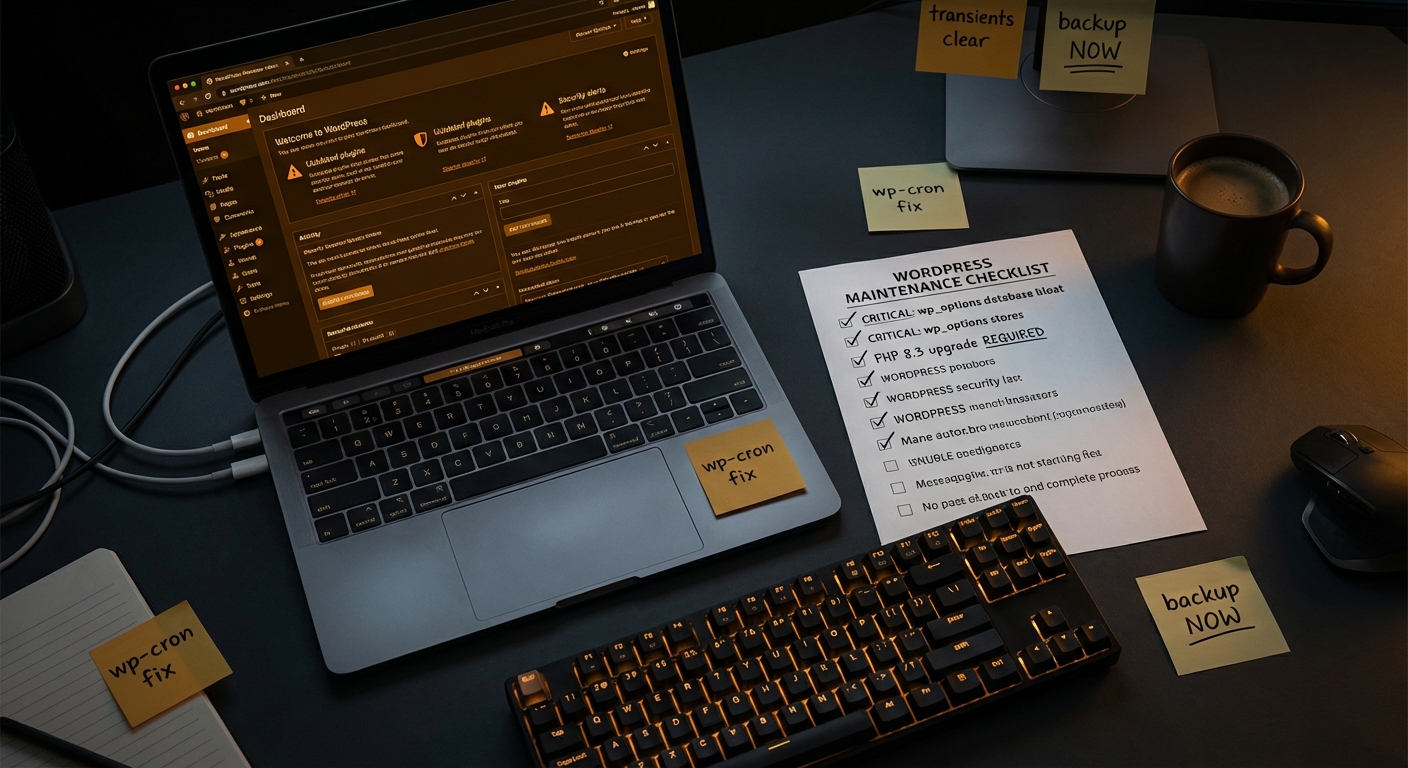
Plugin bloat doesn't announce itself. It accumulates quietly — one "useful" install at a time — until your WordPress site runs like a browser with 40 tabs open and no memory left.
Most site owners don't notice until something breaks or Google flags them for Core Web Vitals. By that point, the damage is already compounded: slow queries, unpatched vulnerabilities, abandoned code running on every page load, and a wp_options table stuffed with orphaned records from plugins you deactivated two years ago.
This isn't about plugin count per se. Forty plugins on a well-maintained site can outperform ten plugins installed carelessly. The issue is unmanaged plugin ecosystems — and most WordPress sites are running one.
Why Plugin Bloat Is a Performance Problem First, Security Problem Second
Most conversations about plugin bloat lead with security. That's valid, but it obscures the more immediate pain: every active plugin you run adds execution weight.
PHP processes fire on each page load. Plugins that enqueue scripts and stylesheets globally — even on pages where they're not needed — inflate your Time to First Byte. Plugins with poorly written database queries create lock contention. Plugins that register their own cron jobs through wp_cron stack scheduled events that may never clean up after themselves.
Run wp cron event list via WP-CLI on a bloated site and you'll often find dozens of registered events — half of them from deactivated plugins whose cleanup hooks never fired correctly.
The performance degradation from this kind of bloat is subtle but cumulative. One plugin adds 80ms of query time. Another fires three database calls to wp_options on every admin load. A third loads a 42KB JavaScript library on your homepage for a feature that only appears on the checkout page.
None of these individually destroys your site. Together, they do.
Query Monitor diagnostics will surface this immediately. If you haven't run Query Monitor on your WordPress install recently, you're probably flying blind on what's actually executing on each request.
The wp_options Problem Nobody Talks About
There's a specific kind of technical debt that outlives plugin deletion: orphaned wp_options records.
When you delete a plugin without proper uninstall routines, it leaves rows behind. Options table bloat is one of the most common performance issues we find in WordPress audits — and one of the most overlooked. An uncached options table with thousands of transient records and orphaned autoloaded rows creates real query overhead.
Autoloaded data deserves particular attention. WordPress loads all autoloaded options on every page request. Plugins that store excessive data with autoload = yes are quietly taxing every single page load — not just the admin panel.
Run this in your database or via WP-CLI:
SELECT SUM(LENGTH(option_value)) AS autoload_size
FROM wp_options
WHERE autoload = 'yes';
If that number exceeds 800KB–1MB, you have a problem. Many bloated sites return values north of 3MB. That data gets pulled on every request, regardless of whether it's needed.
The fix isn't just deleting plugins — it's auditing and cleaning the residue they leave behind. That includes expired transients, orphaned settings rows, and stale cron entries.
Object caching helps here, but it's not a substitute for cleanup. If you're running a persistent object cache like Redis or Memcached and you still see a bloated autoload, you're caching a garbage payload on every warm request.
Abandoned Plugins: The Silent Security Liability
Performance is the visible cost. Security is the existential one.
A plugin that hasn't received an update in 12+ months is a liability. The WordPress plugin repository will eventually flag or remove truly abandoned plugins, but many linger in active installations long after development stops. No patches. No CVE responses. No compatibility updates as WordPress core evolves.
PHP version compatibility is a related pressure point. Running an outdated PHP version is often the result of plugin dependencies — plugins that haven't been updated to support PHP 8.x, forcing hosts to maintain legacy PHP environments. That's not a minor inconvenience. Outdated PHP versions are one of the leading contributors to avoidable performance degradation and unpatched attack surface.
The majority of successful WordPress compromises involve outdated plugins as the initial attack vector. This isn't a scare statistic — it reflects a structural reality: plugins extend WordPress's attack surface in direct proportion to how many are running and how poorly they're maintained.
A plugin with a known SQL injection vulnerability and 50,000 active installs is a public target. Automated scanners run continuously against WordPress sites. They don't need to find your site specifically — they find the vulnerability class and probe every site that matches.
REST API exposure compounds this risk. Certain plugins register public REST API endpoints without authentication requirements. On a well-managed site, that's a deliberate architectural decision. On a bloated site, it's often accidental — and you may not even know the endpoint exists.
How to Run a Real Plugin Audit (Not Just Counting)
A plugin audit isn't "I'll look at my plugins list and delete some." That's triage, not a system.
Here's how to approach this properly:
Step 1 — Inventory everything, including deactivated plugins
Deactivated plugins still exist in your file system. They can still be exploited if they contain vulnerabilities. Via WP-CLI:
wp plugin list --status=inactive --format=table
Deactivated doesn't mean safe. Delete what you're not using.
Step 2 — Map each active plugin to a specific site function
For every active plugin, answer: What does this do, and what breaks if I remove it? If you can't answer that question, you don't fully understand your own site's architecture. That's a maintenance gap, not a plugin problem.
Build a simple inventory: Plugin → Function → Last Updated → Active Install Count → Alternatives Exist?
Step 3 — Audit last update dates and support status
In the WordPress plugin repository, plugins that haven't been tested with the current major WordPress version are flagged. Check each plugin. Anything with "not tested with your version of WordPress" and no update in 12+ months should be on a removal shortlist.
Step 4 — Run Query Monitor to find performance offenders
Query Monitor will show you which plugins are generating excessive database queries per page load. Look for plugins generating 5+ queries on pages where they have no apparent function. That's overhead with no return.
Step 5 — Check for functional overlap
Plugin bloat often results from layered solutions: three different caching plugins, two SEO tools, overlapping security scanners. Each adds weight. Choose one, configure it correctly, remove the rest. Misconfigured object caching from competing plugins is a subtle performance killer that rarely surfaces until you look specifically for it.
Step 6 — Test removals on staging, not production
Every removal should be validated on a staging environment first. Pull a working staging clone, remove the plugin, run through your core user flows. Only after confirmation do you apply changes to production. This is the staging workflow discipline that separates managed maintenance from ad-hoc administration.
What Stays, What Goes: The Decision Framework
Not every plugin with a high query count is worth removing. The question is return on execution cost.
A WooCommerce payment gateway that fires 8 database queries is justified. A decorative slider plugin that fires the same number for an animation nobody asked for isn't.
Apply these filters:
- Remove: Anything deactivated, abandoned, redundant, or with no identifiable current function
- Replace: Bloated plugins where native WordPress functionality or a lighter alternative achieves the same outcome
- Audit quarterly: Everything else — because plugins that are fine today can become liabilities when they stop being maintained
One specific pattern worth calling out: social sharing plugins. Many load external scripts, fire API calls, and add significant page weight for minimal conversion value. Native sharing links or lightweight alternatives achieve the same goal at a fraction of the cost.
Similarly, many site owners run dedicated plugins for functionality now native to WordPress or their theme. Contact form plugins that duplicate Gutenberg block functionality. Custom post type plugins that replicate what the theme already registers. Removing these consolidates architecture without losing capability.
Reducing Plugin Count Without Breaking Things
The operational risk of a plugin audit isn't the removal — it's the hidden dependency you didn't map.
Some plugins function as invisible glue. A plugin that adds custom shortcodes used in 40 posts. A plugin that registers a custom REST API endpoint consumed by an external integration. Remove these without understanding their downstream effects and you create content breakage or integration failures that surface days later.
This is why a disciplined rollback strategy matters. Before any audit:
- Take a full database + files backup
- Document every plugin's function and known dependencies
- Use a staging clone for all removal tests
- Keep a changelog of what was removed and when
If something breaks after a production change, you need to identify the cause in minutes, not hours. A rollback strategy that depends on your host's automated backups from 24 hours ago is not a strategy — it's hope.
.htaccess hardening is another dimension worth validating after significant plugin removal. Certain security plugins write rules to .htaccess. When you remove those plugins without reviewing the file, you can either lose intended protection or carry forward rules that now conflict with your new configuration. Either outcome is avoidable — if you check.
The Maintenance Reality Behind Plugin Bloat
Plugin bloat isn't a one-time problem you solve. It's a maintenance failure that accumulates over time.
Sites get bloated because decisions about plugins are made in the moment, without a system. A developer adds a quick fix. A client installs something from the admin panel. A plugin gets replaced but not removed. Nobody runs wp plugin list quarterly. Nobody checks the autoloaded data size. Nobody validates staging before production updates.
In most WordPress audits we perform, this pattern is nearly universal in unmanaged sites. The longer a site goes without structured maintenance, the more technical debt compounds — and plugin bloat is one of the most tangible expressions of that debt.
This is exactly the kind of ongoing operational discipline that a professional WordPress care plan handles systematically — not as a one-off cleanup, but as ongoing hygiene. If you want to understand what that looks like in full scope, our WordPress maintenance checklist breaks down the critical maintenance dimensions, plugin management included.
What Professional Plugin Management Actually Looks Like
"I'll handle plugin updates manually" is a plan, but it's not a system. Manual processes fail under workload pressure. They skip staging. They miss abandoned plugins because there's no alert system. They don't clean up orphaned options records because that requires database access and the knowledge to use it safely.
Professional plugin management includes:
- Scheduled audit cycles, not reactive updates
- Update testing on staging before production deployment
- Proactive monitoring for plugin abandonment and CVE alerts
- Post-update .htaccess and configuration validation
- Options table hygiene after plugin removal
- Cron job validation after plugin lifecycle changes
- Transient cleanup as part of regular database maintenance
That's the difference between maintenance as a task and maintenance as a system.
For a WooCommerce store averaging $3,000/day, a single botched plugin update causing four hours of downtime is roughly $500 in lost revenue — before factoring in customer trust, abandoned carts, and SEO signal damage. Our WordPress maintenance and support plans are structured around preventing exactly this, not just responding to it.
For sites already in a deteriorated state, the right starting point is often emergency WordPress support to stabilize before transitioning to ongoing management.
Look — I'm writing this because this is a problem I see constantly, and it's also exactly what we built Vimsy to solve. If you want professionals handling this instead of hoping nothing breaks, book a free call.
Thirty plugins on an audited, well-maintained site will always outperform sixty on one that nobody has looked at in two years. The question isn't how many plugins you're running. It's whether anyone with the technical context to act on what they find has actually looked.