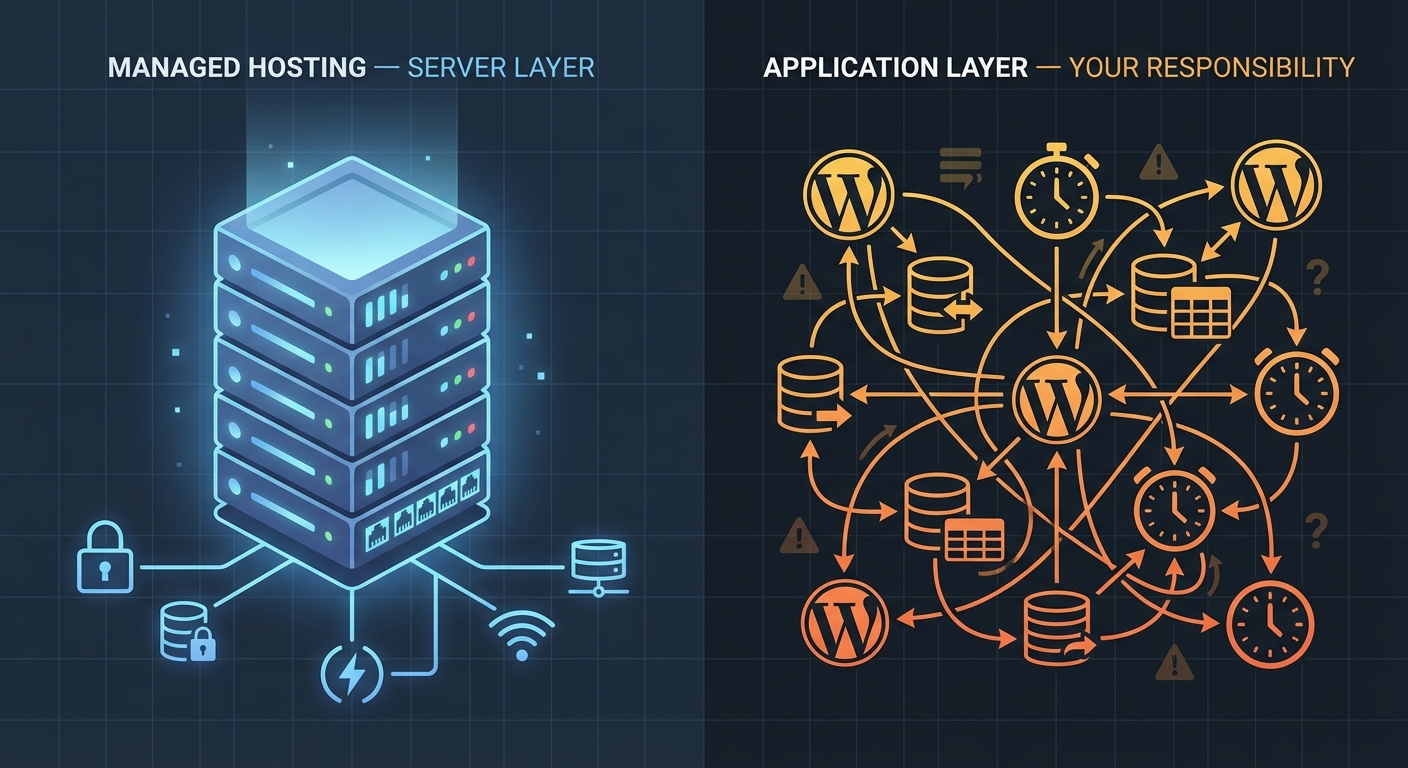
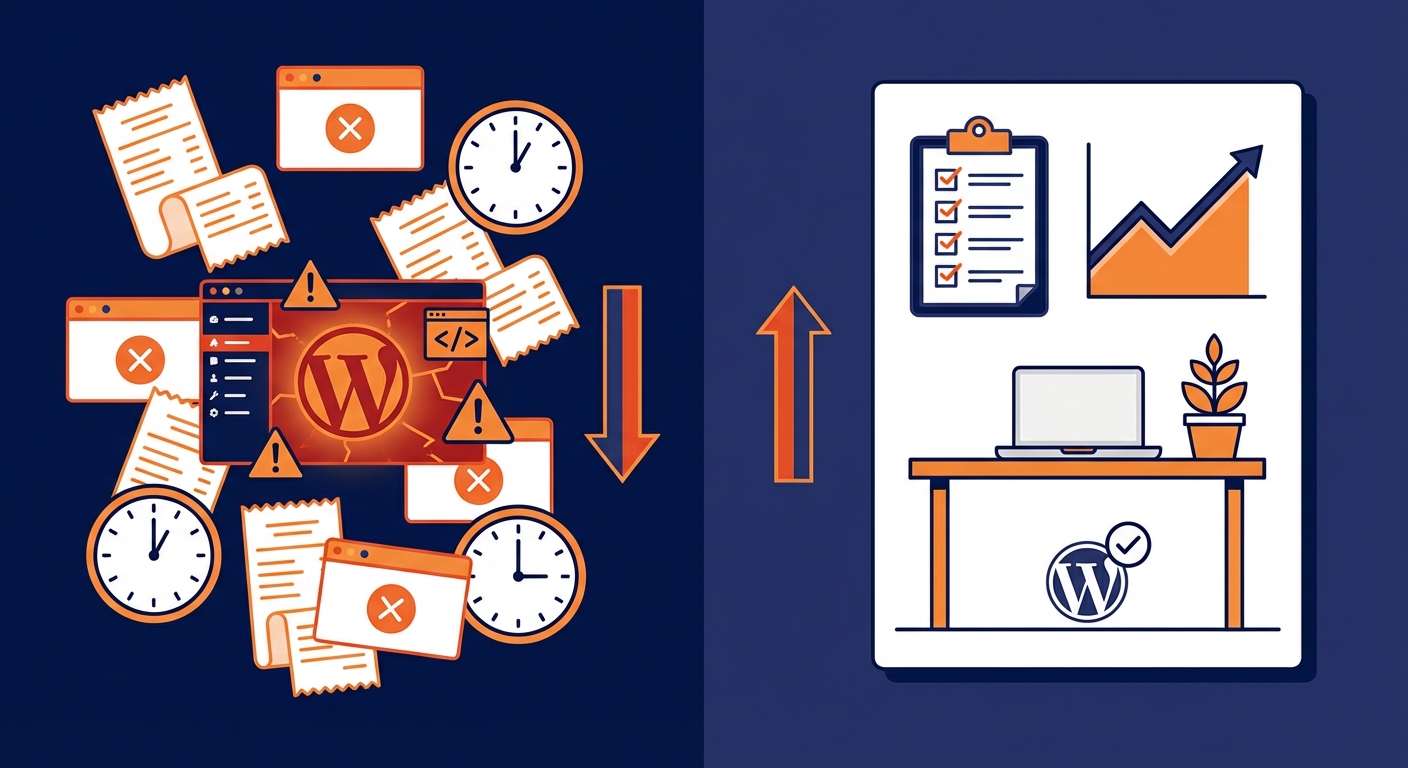
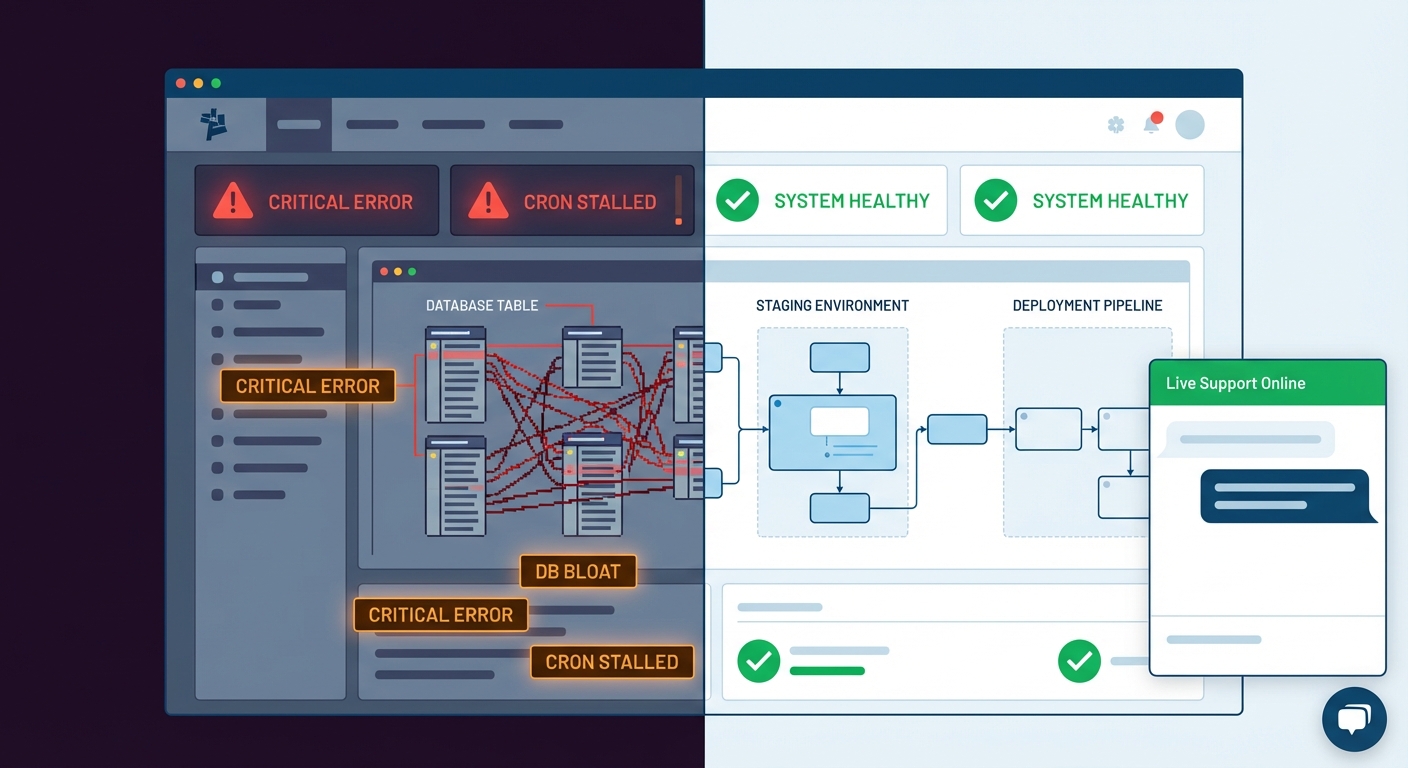
Most WordPress sites break during updates because the update didn't fail — the process did.
There was no staging environment. No test run. No rollback plan. Someone clicked "Update All" on a live site, and a conflict between a theme, a plugin, and the current PHP version turned a routine maintenance task into a recovery operation.
That's not bad luck. That's an absent workflow.
What a Staging Site Actually Is (And Isn't)
A staging site is an exact, isolated copy of your live site — same database, same plugins, same theme, same wp-config.php settings — running on a separate URL that search engines and visitors can't access.
It is not:
- A dev install with a stripped-down theme
- A clone you spun up six months ago and never updated
- A folder called
/teston your main domain running a different plugin set - A hosting panel "environment" you've never actually tested a deploy against
A real staging environment mirrors production precisely. That includes your active theme, every installed plugin — active or inactive — your current PHP version, your database with actual content, and any custom rewrite rules baked into .htaccess. If staging doesn't match production, you're not testing. You're guessing with extra steps.
The purpose is simple: run every update against a replica before it ever touches your live site. If something breaks in staging, you fix it there. Your live site never sees the failure. Your users never know a conflict existed.
Why "Update and Hope" Is Not a Strategy
Here's the uncomfortable reality: most WordPress breakage doesn't announce itself in advance. There's no warning in the dashboard. No preflight error. A plugin update ships, it conflicts with your page builder or your caching layer, and the next visitor to your site gets a white screen, a broken checkout, or a 500 error with no explanation.
The most common failure patterns across WordPress sites fall into a handful of repeating categories:
PHP version incompatibility: A plugin update writes code that requires PHP 8.1 while the server is still running 7.4. It works fine in a staging environment with a matched PHP version — but on production, it throws a fatal error that takes the page down immediately.
Transient and object cache conflicts: After an update, stale transients stored in wp_options can serve broken or outdated data until they expire or get manually cleared. This one hides in plain sight. The site looks functional until a specific condition triggers the stale data — and then it doesn't.
WP-CLI-triggered update failures without snapshots: Running wp plugin update --all on a production server without a pre-update snapshot means you have no fast rollback path. If three plugins update and one introduces a conflict, you're diffing changelogs and deactivating plugins one by one while your site is down and you're fielding support emails.
Cron job disruption: Plugin updates occasionally modify or silently remove scheduled wp-cron events without cleanup. If your WooCommerce order confirmation emails or membership renewal jobs run on cron, a disrupted job doesn't fail loudly — it just stops working. You find out two weeks later when a user complains.
REST API breakage: Updates to plugins that register custom REST API endpoints can break third-party integrations, mobile apps, or headless front-ends without any visible sign on the homepage. A visual test after the update looks fine. The integration is dead.
Staging catches all of this before it reaches anyone who matters.
The Real Cost of Skipping Staging
Let's model the math on a site with modest revenue — a WooCommerce store averaging $2,500/day in orders.
That's roughly $104/hour in active revenue.
An update-triggered outage that takes 3 hours to diagnose and resolve — identifying the conflicting plugin, rolling back, re-testing, re-deploying — costs approximately $312 in lost revenue during the outage window alone. That figure doesn't account for the developer time billed at an emergency rate, the customer trust that doesn't come back, or the SEO signal Google receives when your site goes unreachable mid-crawl.
For higher-volume stores, the math is uglier. A store processing $10,000/day loses ~$417/hour. A three-hour recovery operation from a botched plugin update costs more than most annual WordPress care plans — for a problem that a proper staging workflow would have caught in twenty minutes.
This isn't a theoretical argument. It's a cost comparison. And the cost of staging almost always wins.
What a Proper Staging Workflow Actually Looks Like
A real staging process isn't just "test stuff before pushing." It's a defined sequence that runs every single update cycle — not just the cycles that feel risky.
Step 1: Sync staging from production before every test session
Before running any updates, pull a fresh database snapshot from live and push it to staging. Stale staging environments create false confidence. If your live wp_options table has 80,000 rows of autoloaded data that your staging database doesn't reflect, you're testing against a different reality.
Step 2: Run all updates in staging first
Core, themes, plugins — everything. Run wp core update, wp theme update --all, and wp plugin update --all against the staging environment. Then run a structured functional test: forms, checkout flows, member-gated content, custom post type archives, REST endpoints, and any third-party integrations your business depends on.
Step 3: Run a database audit post-update
Some plugin updates modify database table schemas, insert new rows into wp_options, or — worse — leave orphaned data behind from deprecated options they no longer use. Post-update, run a database health check. Look specifically at autoloaded data size. A Query Monitor diagnostics pass will surface any unexpected query regressions or newly introduced slow queries.
Step 4: Verify cron integrity
Check that every scheduled job still exists and is correctly queued after the update run. Use wp cron event list to confirm nothing got dropped. If a plugin update silently modified its cron schedule or removed an event it forgot to clean up, you catch it in staging — not two weeks later when you realize automated renewals stopped processing.
Step 5: Push to production with a rollback-ready snapshot
Only after staging passes a complete functional test does production get updated. And before the production update runs, a current backup snapshot gets captured. If something still fails on production — a server-level difference, an edge case staging couldn't reproduce under real load — you have an immediate rollback path without data loss.
That's a workflow. What most site owners do is not a workflow. It's a hope.
Press Lite vs. Press Pro: Where Staging Fits In
This is where an honest conversation about our plans matters.
Vimsy's Press Lite plan covers the essentials: updates, backups, uptime monitoring, and security scanning. It's designed for lower-risk sites — informational sites, portfolios, early-stage projects — where an update failure is disruptive but not financially catastrophic. Recovery from an issue takes time, but the stakes are manageable.
Press Pro includes a managed staging environment as a core, non-optional component of every update cycle. Updates don't run against production until they've passed staging. This isn't a feature you enable — it's embedded in the workflow. For any site handling transactions, memberships, subscriptions, custom integrations, or meaningful daily traffic, the difference between Lite and Pro is the difference between hoping updates work and knowing they do before a single visitor encounters them.
Across the WordPress sites we audit regularly, the pattern is consistent: sites operating without a staging environment experience a materially higher rate of update-related incidents. It's not coincidence. Staging is the single most effective safeguard against update-induced downtime — and it's the clearest reason to move from a reactive maintenance posture to a proactive one.
If your site generates revenue, captures leads, or runs any automated process users depend on, staging isn't a premium add-on. It's the standard.
"But My Host Already Has a Staging Button"
Yes — and it's meaningfully better than nothing. Hosting-level staging tools on platforms like WP Engine, Kinsta, or SiteGround create environment copies and enable push-to-live workflows. Use them if you have them.
But a staging button is not a staging process.
It doesn't tell you to sync fresh production data before testing. It doesn't run automated functional checks. It doesn't verify that wp-cron events survived the update. It doesn't audit wp_options autoload bloat introduced by a plugin update. It doesn't surface a REST API regression unless you explicitly test for it.
The tool is neutral. The process is what protects you.
Host-provided staging environments also don't replicate production load conditions. A functional conflict that only manifests under concurrent database writes — the kind that only happens when multiple users interact with your site simultaneously — won't appear in a manual test against a staging clone. It appears live, in front of real users, when you weren't expecting it. A structured workflow using realistic data and a defined test protocol catches far more than a one-click copy ever will.
What Breaks When You Skip This
To make this concrete, here's what a proper staging workflow catches — and what skipping it costs:
-
WooCommerce checkout breakage from a payment gateway plugin update. Caught in staging: a 20-minute conflict resolution. Caught live: a multi-hour outage, abandoned carts, and a merchant support call you'll never fully recover from.
-
A PHP 8.x incompatibility in a plugin that hasn't shipped an update in 14 months. Caught in staging: the error log lights up immediately and you know not to push. Caught live: your first post-update visitor hits a fatal error screen and bounces permanently.
-
A caching plugin update that wipes the object cache configuration and falls back to full database queries on every page load. Caught in staging via Query Monitor diagnostics: query count jumps from 40 to 180 per page load — obvious regression, obvious fix. Caught live: a high-traffic page slows to eight seconds, bounce rates spike, and you spend two hours figuring out why everything felt fine before the update.
-
An
.htaccessrewrite rule conflict introduced by a security plugin update. Caught in staging: half your URLs return 404 and you trace it to the plugin immediately. Caught live: you're fielding support tickets and manually diffing rewrite rules under pressure while the site is publicly broken.
In every case, the staging catch is a contained technical fix. The live catch is a crisis with a time cost, a revenue cost, and a reputation cost attached.
Building the Habit or Delegating It
Running a proper staging workflow on every update cycle takes disciplined time — roughly 45 minutes to an hour for a site with a moderate plugin stack. That's not enormous. But it has to happen every cycle, on a schedule, whether you feel like the update looks risky or not.
In practice, most site owners don't do it consistently. Not because they're careless — because it requires structured, recurring attention, and most people running businesses have competing priorities that consistently outrank plugin update protocols.
The answer is either to build it as a documented, repeatable internal process with a named owner and a defined schedule, or to hand it off to people who run it automatically as part of every update cycle.
If you want to see what a complete update protocol looks like in practice, our WordPress maintenance checklist covers every pre-update and post-update step we run in a standard cycle.
And if you're past the point of wanting to manage this in-house, take a look at what our maintenance plans include — managed staging, rollback capability, structured update monitoring, and the rest of the workflow that makes updates boring instead of stressful.
Look — I'm writing this because this is a problem I see constantly, and it's also exactly what we built Vimsy to solve. If you want professionals handling this instead of hoping nothing breaks, book a free call.
Skipping staging doesn't mean your updates will fail. It means your users become your QA team — and they don't send you a bug report.