Most SEO advice skips the part that actually matters. You can publish great content, earn solid backlinks, and still watch a competitor with mediocre writing outrank you — because their technical foundation is clean and yours isn't. Technical SEO isn't glamorous. It's infrastructure. And like most infrastructure, it only gets attention when something visibly breaks.
The problem is that technical SEO issues rarely announce themselves. A misconfigured robots.txt silently blocks Googlebot. A missing canonical tag quietly splits your link equity across duplicate URLs. A bloated wp_options table drags down your Time to First Byte while you're busy obsessing over keyword density. These aren't hypothetical edge cases. In most WordPress audits, we find at least six of the fifteen issues below. Usually more.
This isn't a beginner's guide. You know what a plugin is and roughly what it does. What you may not know is what's happening under the hood — and whether Google can actually crawl, index, and rank what you've built.
The Default Belief Worth Challenging First
Here's the assumption most WordPress site owners carry: "If my site is live and loading, SEO is basically fine."
It isn't. A live site and an indexable, crawlable, properly-signaled site are entirely different things. You can have a fully functional website that Google is partially (or entirely) ignoring — and you wouldn't necessarily know from looking at it in a browser. That's the gap this checklist closes.
1. Your XML Sitemap Is Either Missing, Broken, or Outdated
WordPress generates a sitemap automatically via most SEO plugins — but "generated" doesn't mean "correct." A sitemap that includes noindexed pages, draft posts, or paginated archive URLs is actively misleading search engines. It's not neutral — it wastes your crawl budget.
Check: Is your sitemap submitted to Google Search Console? Does it return a 200 status? Does it include only the pages you want indexed? Run wp eval 'echo home_url("/wp-sitemap.xml");' in WP-CLI to confirm the default sitemap endpoint if you're not using a plugin.
2. robots.txt Is Blocking More Than You Realize
The default WordPress robots.txt is minimal. That's fine. What isn't fine is when a developer adds Disallow: / during staging and forgets to revert it on launch — or when a security plugin adds overly aggressive rules that block legitimate crawlers.
Check: Visit yourdomain.com/robots.txt directly. Verify nothing critical is blocked. Ensure your sitemap URL is declared at the bottom. If you're managing a staging environment, confirm it's blocked from indexing at the server level — not by hoping your .htaccess rule holds.
3. Canonical Tags Are Missing or Self-Conflicting
Canonical tags exist to resolve the duplicate content problem that WordPress creates by design. Category pages, tag archives, author archives, paginated URLs — they all generate near-duplicate content with different URLs. Without canonical tags pointing to the preferred version, you're splitting whatever authority you've earned across multiple URLs.
Worse: some SEO plugins misconfigure canonicals when post formats or custom post types are involved. Run a canonical audit using Screaming Frog or Search Console's URL Inspection tool. Confirm that every important page has a self-referencing canonical and that no canonical points to a redirected or noindexed URL.
4. Page Speed Issues Buried in the Database
Core Web Vitals are a confirmed ranking factor. But most speed optimization guides stop at image compression and caching plugins. The real performance killers are often at the database level.
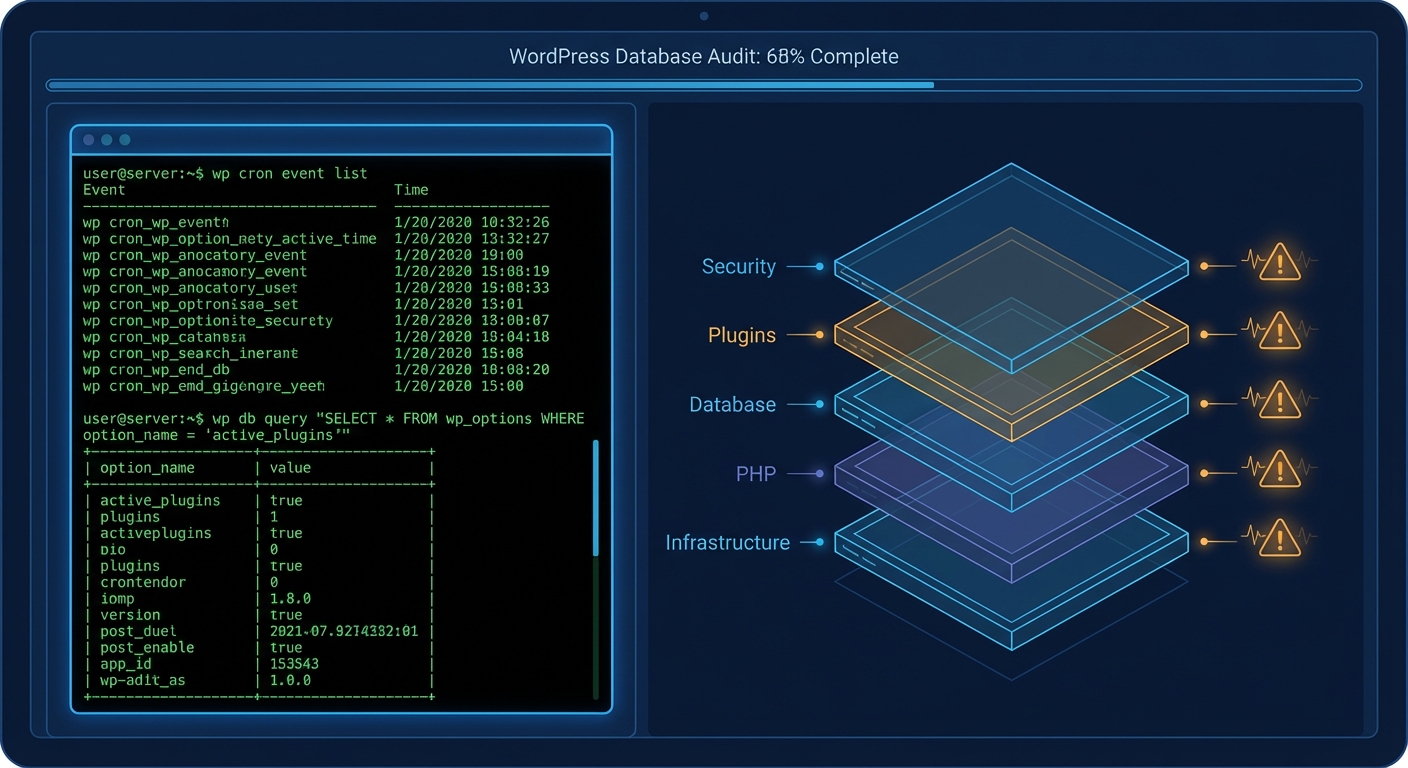
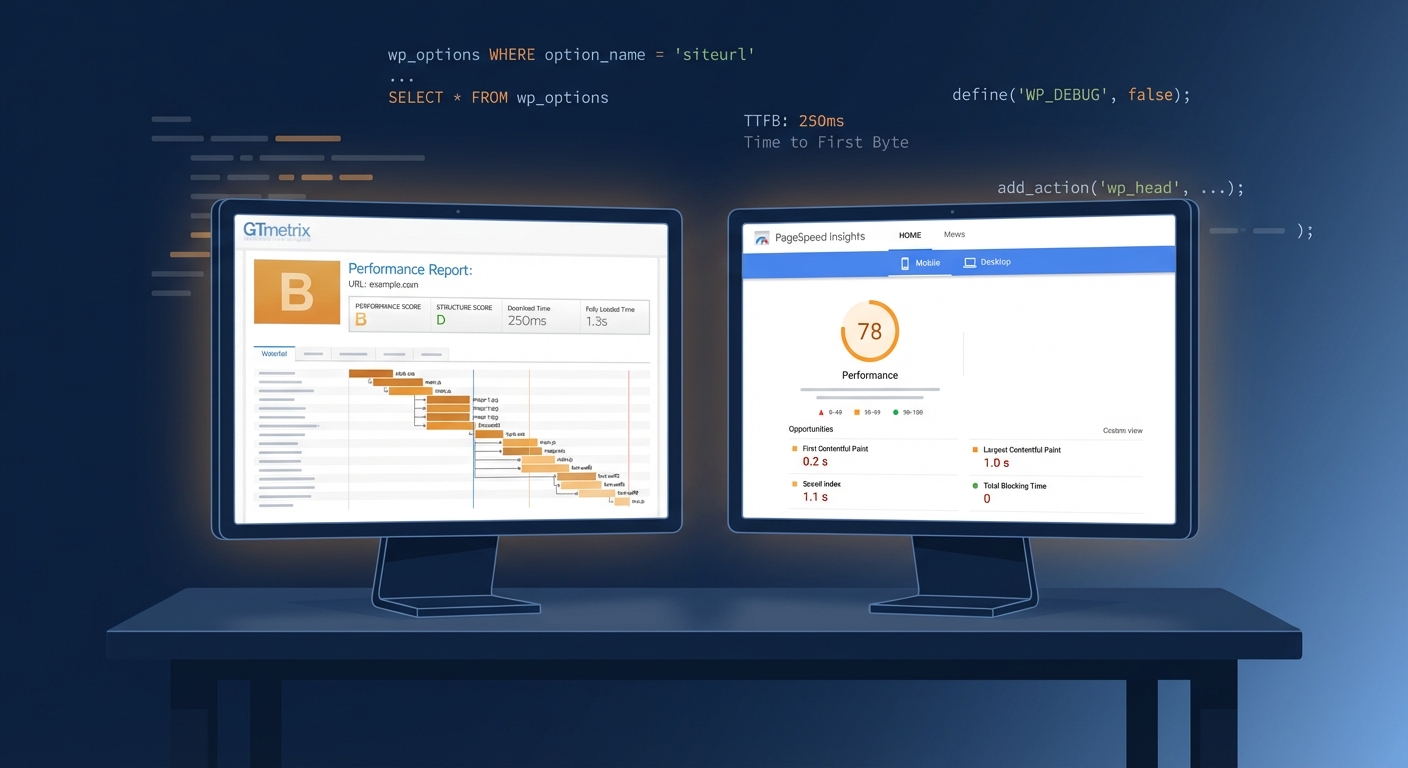
The wp_options table accumulates autoloaded data over time — plugin settings, transients that never expire, widget configurations from plugins you deleted six months ago. A bloated autoload set in wp_options gets loaded on every single page request, before anything is served to the user. This directly inflates your Time to First Byte (TTFB).
Run this in WP-CLI:
wp db query "SELECT COUNT(*), SUM(LENGTH(option_value)) FROM wp_options WHERE autoload='yes';"
If that query returns hundreds of rows and several megabytes of data, you've found a significant performance leak. Cleaning expired transients alone can recover meaningful load time. Proper object caching (Redis or Memcached) prevents the problem from recurring.
5. Structured Data Is Absent or Invalid
Schema markup helps search engines understand context — not just content. Articles, products, FAQs, local businesses, events: all of these have schema types that, when implemented correctly, earn rich results in SERPs.
Most WordPress sites either have no schema, or have schema that's technically malformed. Plugins like Yoast or RankMath output schema, but they don't always handle edge cases correctly — especially on WooCommerce product pages with variable pricing, or custom post types that fall outside the plugin's default logic.
Check: Run your key pages through Google's Rich Results Test. Look specifically for validation errors, not just warnings. An invalid schema is functionally the same as no schema.
6. Your PHP Version Is Quietly Undermining Performance
PHP 8.2+ isn't just a security requirement. It's a measurable performance improvement. PHP 8.x outperforms PHP 7.4 in benchmarks by 20–30% in real-world WordPress workloads. That performance gap shows up in your server response times, which directly affects Core Web Vitals.
Most hosting dashboards let you switch PHP versions without a full migration. But before you upgrade, test on staging. PHP version jumps can surface deprecated function calls in older plugins — and plugin abandonment risk is real here. If your essential plugin hasn't had a commit in 18+ months, it may not be safe to run on PHP 8.2.
7. The REST API Is More Exposed Than You Think
WordPress's REST API exposes user data by default at /wp-json/wp/v2/users. This endpoint returns usernames — which are valid login usernames — to anyone who requests it. That's not just a security issue. It's an SEO concern: user enumeration enables targeted brute-force attacks, which can lead to site compromises, and a hacked site will have its rankings gutted when Google detects malware.
Consider restricting the users endpoint for sites where public author data isn't intentional. This can be handled in your theme's functions.php or via a lightweight security plugin — but don't rely on .htaccess-level rules alone for API restriction.
8. Redirect Chains Are Bleeding Link Equity
A 301 redirect passes link equity — but each hop in a chain loses some of it. A chain of three redirects (A → B → C → D) is not the same as a direct 301 from A to D. Over time, site migrations, permalink changes, and plugin URL rewriting accumulate redirect chains that nobody cleaned up.
Screaming Frog's crawl report surfaces these clearly. Audit your redirects annually. Collapse any chains longer than one hop. Pay particular attention to internal links that still point to the original pre-redirect URL — they're forcing unnecessary redirect hops on every crawl.
9. WP Cron Is Failing Silently
WordPress's pseudo-cron system (wp-cron.php) handles scheduled tasks — including sitemap regeneration, clearing transients, running backup jobs, and processing WooCommerce email queues. When it fails, none of those tasks run on schedule.
On high-traffic sites, WP cron can trigger on every page request, causing duplicate job execution. On low-traffic sites, it may not trigger at all. Neither is acceptable for a site where SEO tasks and content publishing schedules depend on it.
Disable WP cron in wp-config.php and replace it with a real server cron job:
define('DISABLE_WP_CRON', true);
Then schedule the real cron via cPanel or crontab to hit the endpoint at a fixed interval.
10. Open Graph and Twitter Card Tags Are Missing or Misconfigured
Social sharing affects CTR. When your URL gets shared and the preview shows no image, no title, no description — click-through rates drop. Open Graph tags control that preview. Missing or misconfigured OG tags also sometimes confuse Googlebot when it renders JavaScript-heavy pages using social metadata as a fallback signal.
Check: Audit every key page type — homepage, post template, product page, landing page — for correct OG title, OG description, and OG image. Many SEO plugins handle this per post type, but they frequently miss custom page templates built with page builders.
11. Index Bloat From Thin Pages
WordPress creates a lot of URLs by default: date archives, author archives, tag pages with one post, search result pages. Most of these offer no unique value and dilute your crawl budget and topical authority signals.
The standard recommendation is to noindex these template types — but verify first. On some content-heavy sites, tag pages and date archives actually serve user intent. The question isn't "can I noindex this?" but "does Google ranking this help or hurt me?" Use Query Monitor to spot pages that generate SQL queries but return thin content, then make the indexing call with real data.
12. Core Web Vitals: LCP, CLS, and INP — Not Just a Speed Score
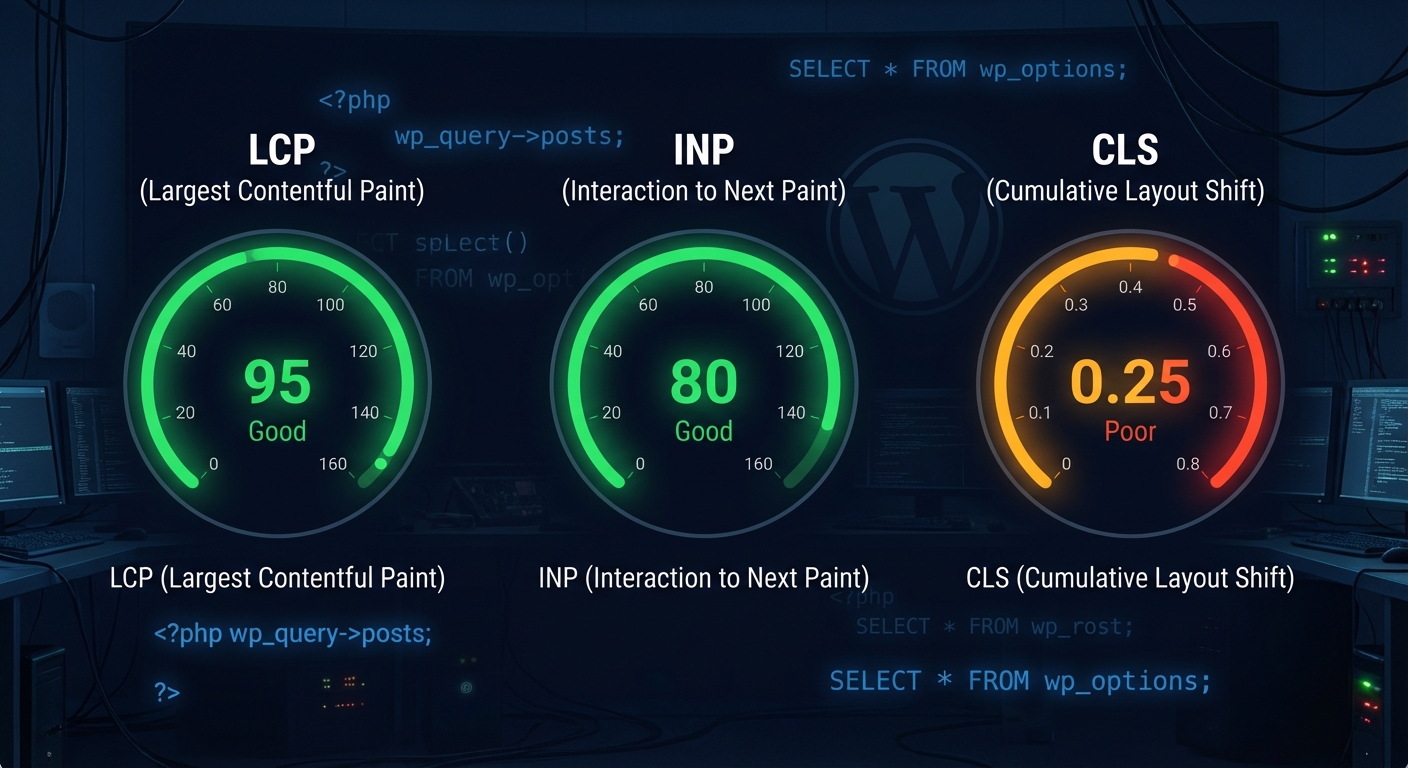
A fast GTmetrix score doesn't guarantee good Core Web Vitals. Largest Contentful Paint (LCP), Cumulative Layout Shift (CLS), and Interaction to Next Paint (INP) are measured from real user sessions via the Chrome User Experience Report (CrUX). A site can score 90+ on a speed test and still fail CWV thresholds in the field.
LCP failures are typically caused by unoptimized hero images, render-blocking scripts, or insufficient server response time. CLS failures come from ads, embeds, or web fonts loading after layout. INP failures often come from bloated JavaScript in page builders or analytics stacks.
Check: Review your real-world CWV data in Google Search Console under Core Web Vitals. If the lab score and field score diverge significantly, investigate your JavaScript execution chain — not just your images.
13. HTTPS Is Live — But Mixed Content Errors Exist
SSL is table stakes. Mixed content isn't. If your site migrated from HTTP to HTTPS but internal assets still reference http:// URLs — images, scripts, stylesheets — browsers will block them or flag the page as insecure. Googlebot picks up on this.
Run a mixed content scan using Why No Padlock or a browser console check. For sites where the database still contains http:// URLs in post content or widget data, WP-CLI offers the cleanest fix:
wp search-replace 'http://yourdomain.com' 'https://yourdomain.com' --skip-columns=guid
Do this on staging first. Always.
14. Internal Linking Structure Has No Logic
Internal links distribute authority throughout your site and signal topical relationships to search engines. Most WordPress sites have no deliberate internal linking strategy — just whatever got linked in the content editor at publish time.
The result: important pages are orphaned (no internal links pointing to them), low-priority pages are heavily linked from navigation and sidebars, and Google's understanding of your site hierarchy is effectively random.
Audit your internal link graph with Screaming Frog or Ahrefs Site Audit. Identify your highest-value pages and verify they receive meaningful internal links from topically related content. Fix orphaned pages first — they're getting almost no crawl priority.
15. You Haven't Done a Technical SEO Audit — Ever
The single most common finding in any WordPress SEO engagement: the site has never had a proper technical audit. Not a Lighthouse run. Not a GTmetrix report. A real crawl-based audit that maps indexation, redirects, canonical logic, schema validity, page speed bottlenecks, and internal link distribution together.
A checklist like this one covers the categories. But the actual audit requires crawl data, Search Console integration, and someone who can distinguish a symptom from a root cause. A missing canonical is a symptom. The root cause might be how your permalink structure was configured three years ago.
If you want to know exactly where your WordPress site stands, our WordPress SEO Snapshot audit covers every category above — with prioritized recommendations, not a raw data dump.
The Hidden Cost of Ignoring Technical SEO
Let's model this concretely. A site generating 10,000 organic visits per month with a 2% conversion rate and a $50 average order value produces $10,000/month in organic revenue. If unresolved technical SEO issues are suppressing rankings and keeping you at position 4–6 instead of position 1–3, the traffic gap could represent 30–50% of potential organic volume. That's $3,000–$5,000/month in missed revenue — not from bad content, not from weak backlinks, but from fixable infrastructure problems.
Technical SEO debt compounds. Every month you let index bloat, redirect chains, and Core Web Vitals failures sit unresolved, you leave compounding organic traffic on the table. That's not a content strategy problem. That's a maintenance problem.
Where to Start Without Getting Overwhelmed
You don't need to fix all fifteen items this week. Prioritize by impact:
First tier — fix immediately:
- robots.txt and sitemap validation
- Mixed content errors
- Canonical tag audit
Second tier — fix within 30 days:
- PHP version compatibility check
wp_optionsautoload bloat- WP cron configuration
- Core Web Vitals field data review
Third tier — ongoing:
- Schema validation
- Internal link structure
- Redirect chain cleanup
If you're running a WordPress care plan that covers technical SEO, most of these are part of routine maintenance cycles. If you're not, this list is your starting point.
For a structured version of this process, the WordPress maintenance checklist we use at Vimsy maps technical SEO tasks alongside security and performance work — because in practice, they overlap constantly.
The Bottom Line
Technical SEO isn't a one-time setup task. It's an ongoing audit function. The sites that consistently rank well aren't doing something magical — they're maintaining clean infrastructure, monitoring for regressions, and fixing issues before Google penalizes them for it.
If you treat your WordPress technical SEO as something to think about after the site is "done," you'll spend years wondering why your content isn't performing the way it should.
Look — I'm writing this because this is a problem I see constantly, and it's also exactly what we built Vimsy to solve. If you want professionals handling this instead of hoping nothing breaks, book a free call.
Your rankings aren't going to fix themselves. But now you know exactly where to look.